What Is an SSD vs HDD? Storage Compared Simply

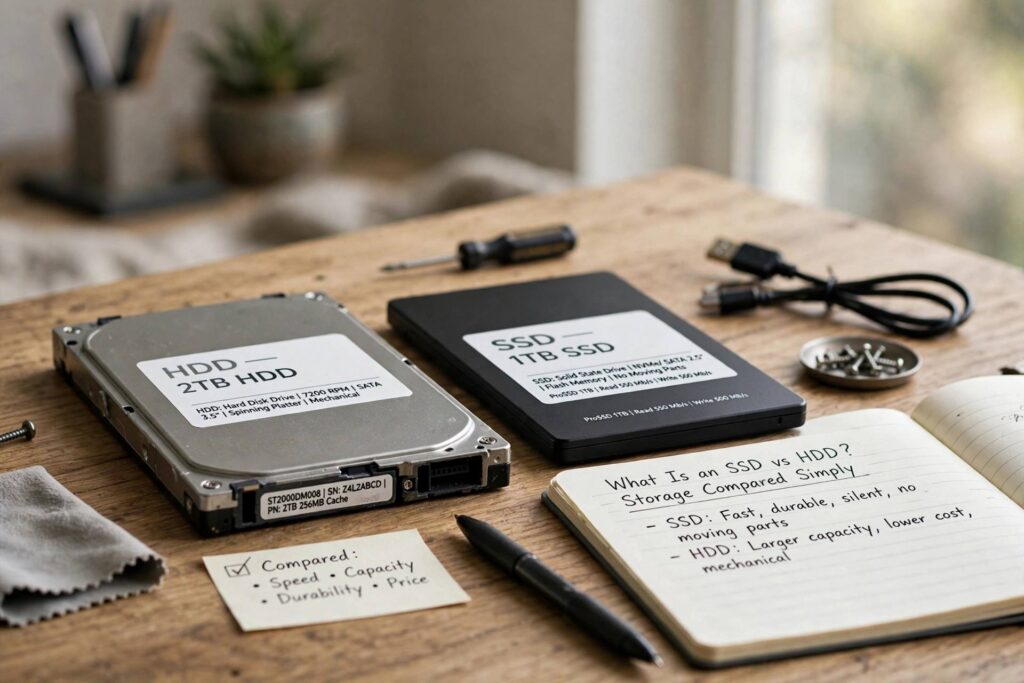
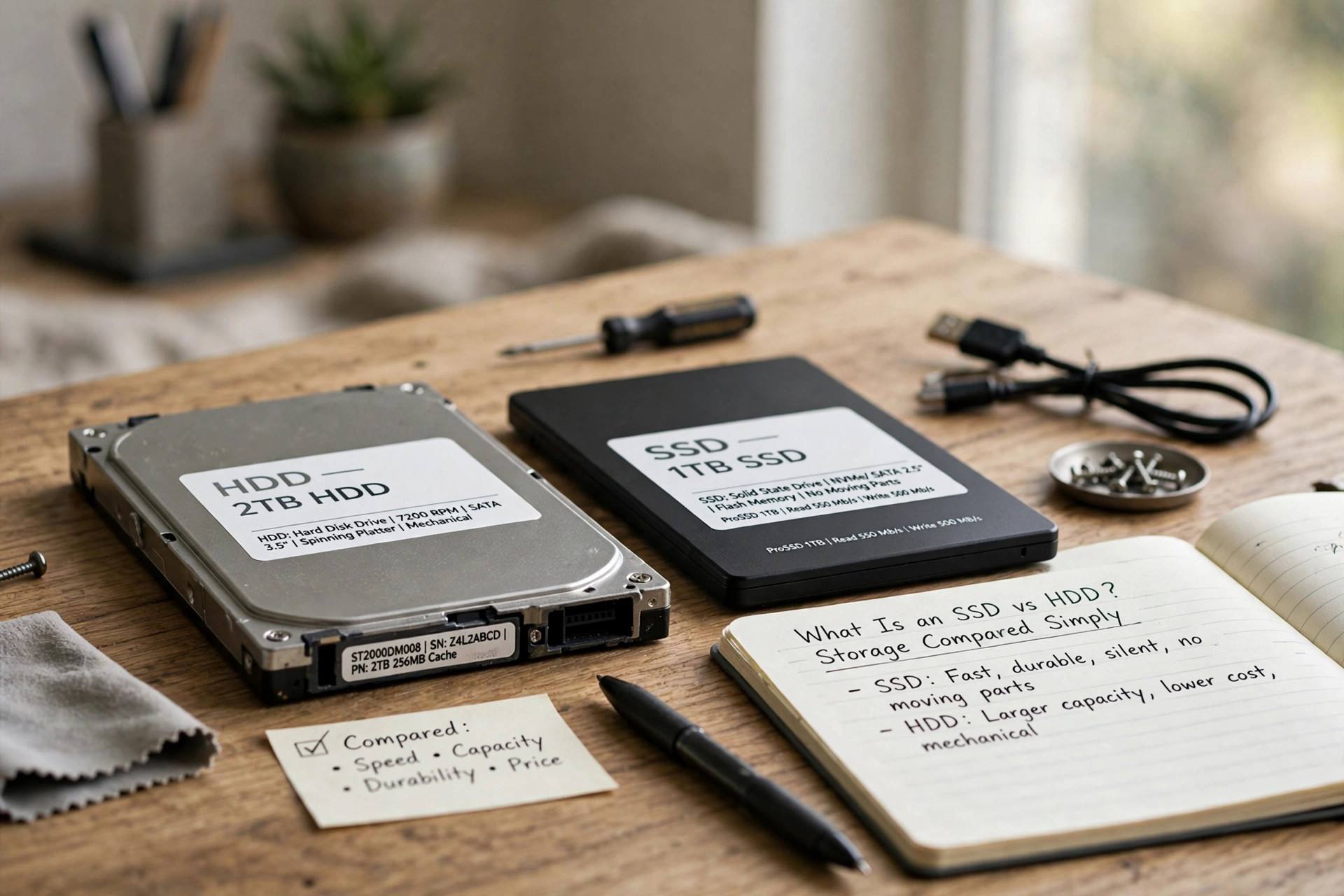
Every computer needs somewhere to keep its files, and for years there was only one real option. Now there are two, and the choice between them is one of the most impactful upgrades you can make. So what is an SSD vs HDD? An HDD, or hard disk drive, stores data on spinning magnetic disks. An SSD, or solid state drive, stores data on flash memory chips with no moving parts. That single design difference changes everything about how they perform.
If your computer takes forever to start, programs load slowly, and everything feels sluggish, the storage drive is the likely culprit, and switching from HDD to SSD is often the fix. This guide explains how each technology works, how they compare on speed, durability, capacity, and price, and which one makes sense for your situation.
How an HDD Works: Spinning Disks and Moving Parts
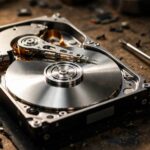
A hard disk drive is a miniature marvel of mechanical engineering. Inside the sealed case, one or more metal platters coated with magnetic material spin at thousands of revolutions per minute. A read/write head on a tiny arm floats nanometers above the surface, magnetizing microscopic spots to write data and sensing them to read it back. It is essentially a microscopic record player for your files.
This mechanical design is both the HDD’s strength and its weakness. The technology is mature and cheap to manufacture, which is why HDDs offer enormous capacity for the price. But moving parts are slow compared to electronics, vulnerable to shocks and drops, and they generate noise and heat. Every file access involves physical movement, and physics sets a hard speed limit.
To understand the mechanics in more depth, it helps to see how a hard drive works step by step. The precision involved is remarkable: the head flies closer to the platter than a fingerprint’s ridge height, at speeds that would shred anything less carefully engineered.
How an SSD Works: Chips With No Moving Parts
A solid state drive has no disks, no heads, no arms, nothing that moves. Data lives on NAND flash memory chips, the same basic technology as a USB stick but far faster and more sophisticated. A controller chip manages where data goes, spreads wear evenly across the memory cells, and handles error correction. Reading or writing is a purely electronic operation.
The absence of moving parts changes the performance profile completely. Data access is nearly instant because there is no head to position and no platter to spin up. SSDs are silent, generate less heat, and shrug off drops and bumps that would kill a spinning drive. They also use less power, which is why they extended laptop battery life when they took over the market.
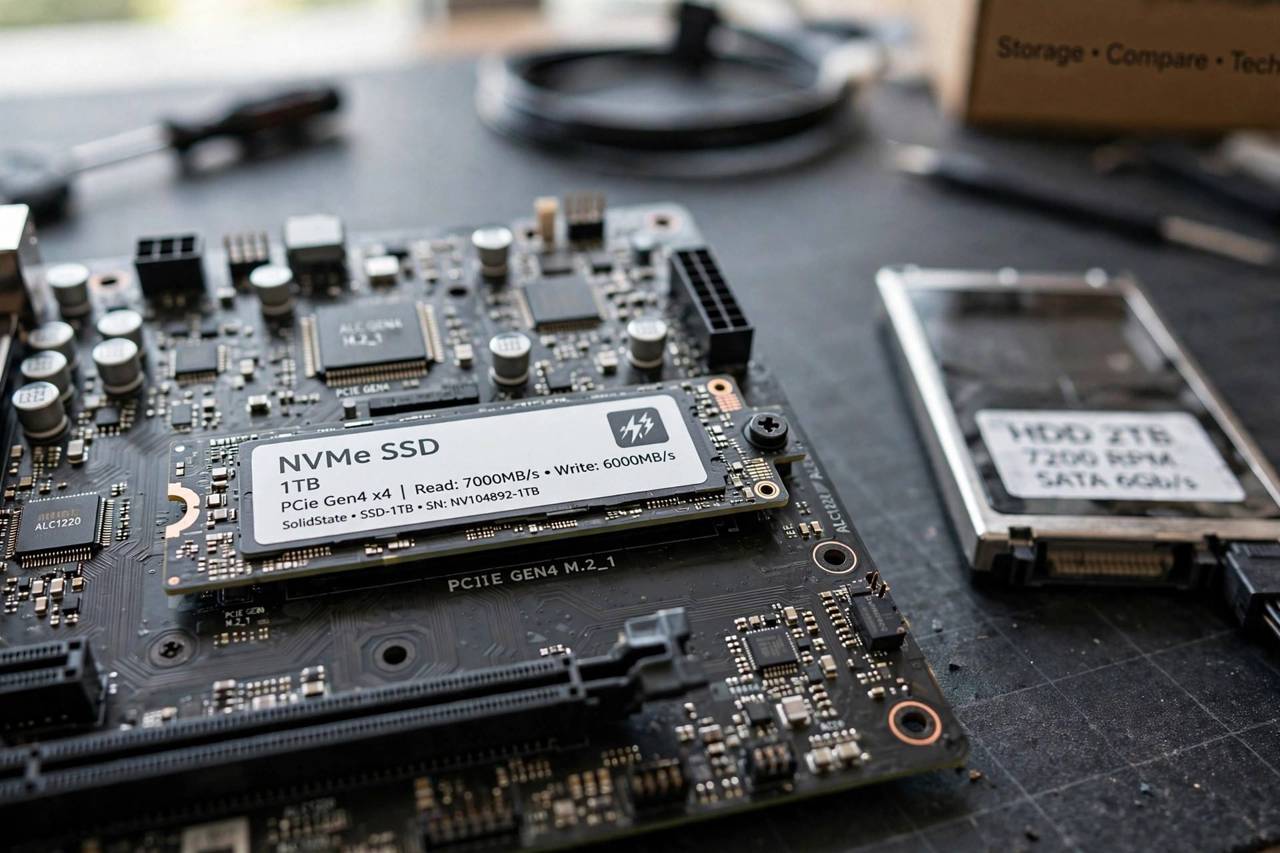
There are different flavors of SSD. SATA SSDs use the older interface and are the easiest drop-in replacement for an HDD. NVMe SSDs connect directly to the fastest lanes in the computer and are several times quicker again. For most everyday use, even a basic SATA SSD feels transformative compared to any HDD.
Speed: Where the Difference Hits Hardest
Speed is the reason SSDs won. A typical HDD reads data at around a hundred megabytes per second, with noticeable delays as the head seeks across the disk. A SATA SSD reads at five times that rate with near-zero seek time. An NVMe SSD can be thirty or more times faster than an HDD. These are not subtle differences. They change how a computer feels.
Boot times tell the story best. A computer with an HDD might take a minute or more to become usable after pressing the power button. The same computer with an SSD is typically ready in fifteen seconds. Programs launch instantly instead of bouncing in the dock. Files copy in seconds instead of minutes. The whole machine feels a generation newer.
This is why the single best upgrade for an aging computer is almost always storage. If your old laptop feels slow, check how to speed up an old laptop before buying a new one. Replacing the HDD with an SSD costs a fraction of a new machine and often delivers most of the perceived improvement.
Durability, Noise, and Power Use
SSDs win on durability for everyday hazards. Drop a running laptop with an HDD and the head can crash into the platter, destroying data instantly. SSDs do not care about drops, vibration, or being jostled in a bag. For laptops and portable drives, this alone justifies the switch.
HDDs do have one durability argument: when they fail, they often fail gradually, with warning signs like strange noises and slow sectors that give you time to back up. SSDs can fail suddenly with less warning, though modern drives are very reliable. Either way, the real lesson is that all drives fail eventually, and backups matter more than the technology choice.
SSDs are silent and sip power. HDDs hum, click, and draw noticeably more energy. On a desktop these differences are minor. On a laptop they translate directly into quieter operation and longer battery life. In data centers, the power and cooling savings of SSDs at scale are enormous, which is part of why the industry migrated.
Capacity and Price: Where HDDs Still Win
Here is the HDD’s remaining stronghold. Per gigabyte, hard drives are dramatically cheaper than SSDs. If you need to store many terabytes of video, backups, or archives, HDDs give you far more space for the money. A large HDD costs less than a much smaller SSD, and for bulk storage that sits mostly idle, the speed difference barely matters.
The smart setup for many people is a hybrid: a modest SSD for the operating system and programs, where speed matters, plus a large HDD for media libraries and backups, where capacity matters. This combination delivers most of the SSD experience at a fraction of the all-SSD cost.
Prices shift constantly, but the trend has been clear for a decade: SSDs get cheaper per gigabyte every year, and the capacity where SSDs make sense keeps rising. For a primary drive in any computer you actually use, SSD is the default choice now. HDDs have retreated to the bulk-storage role, where they remain excellent value.
Which One Should You Choose
For your main computer’s primary drive, choose SSD without hesitation. The speed difference transforms daily use, and prices have fallen to the point where there is little reason to boot from spinning disks anymore. This applies to laptops especially, where the durability and battery benefits stack on top.
For secondary storage, external backup drives, media servers, and archives, HDDs still make sense when capacity per dollar is the priority. A big HDD holding your photo library or video collection is a perfectly rational choice.
If you are unsure what is inside your current machine, learning how computers work at a basic level makes these decisions easier. Storage is just one component, but it is the one you feel most directly every time you press the power button.
What Is an SSD vs HDD for a Laptop Upgrade
Laptops are where the question of what is an SSD vs HDD matters most, because the upgrade is so transformative and the constraints are tighter. First, check what your laptop has and whether it can be upgraded. Many laptops from the last decade shipped with 2.5-inch HDDs that swap directly for 2.5-inch SATA SSDs. Some thinner models use M.2 slots, and a few have storage soldered to the board, which cannot be upgraded at all. Your manufacturer’s specs or a quick model search will tell you.
If the swap is possible, the process is straightforward. Back up everything first, because you will be replacing the drive that holds your data. Then either clone the old drive to the new SSD with a USB adapter and free cloning software, or do a fresh operating system install, which many people prefer because it clears years of accumulated cruft. Physically, it is usually a few screws on the bottom panel.
Choose the SSD size generously. A 500GB drive is the practical minimum today, with 1TB the sweet spot for most people. SSDs also slow down when nearly full, so buy more space than you think you need. The price difference between sizes is small compared to the regret of running out.
After the upgrade, keep the old HDD as an external backup drive with an inexpensive USB enclosure. It is the perfect second life: the drive that was too slow to boot from becomes perfectly good bulk storage. Just remember the backup rule still applies. The SSD is fast and reliable, but no drive is immortal, and your files deserve two copies in two places.
Whichever you choose, the decision matters more than most hardware choices. Storage is the component you interact with every single time you use your computer. Get it right and everything feels faster.
Frequently Asked Questions
What is the main difference between SSD and HDD?
An HDD stores data on spinning magnetic disks with a moving read/write head. An SSD stores data on flash memory chips with no moving parts. SSDs are much faster, quieter, and more durable, while HDDs offer more capacity for less money.
Is SSD better than HDD for gaming?
Yes, mainly for loading times. Games installed on an SSD load levels and textures dramatically faster. In-game frame rates depend more on the graphics card and processor, so an SSD will not make games run smoother, just load quicker.
Do SSDs last longer than HDDs?
For typical consumer use, both last many years. SSDs handle physical shocks better and have no mechanical wear, but their memory cells wear out with heavy writing. HDDs can warn you before failing but are vulnerable to drops. Back up important data regardless of drive type.
Can I replace my HDD with an SSD?
In most desktops and many older laptops, yes. A 2.5-inch SATA SSD is a direct physical replacement for a laptop HDD. Clone your existing drive or do a fresh install of your operating system. Some thin modern laptops have soldered storage that cannot be upgraded, so check your model first.
Why are HDDs still sold if SSDs are better?
Because they are far cheaper per gigabyte. For bulk storage like video archives, backups, and media servers where speed barely matters, HDDs remain the economical choice. SSDs dominate where speed and responsiveness matter.