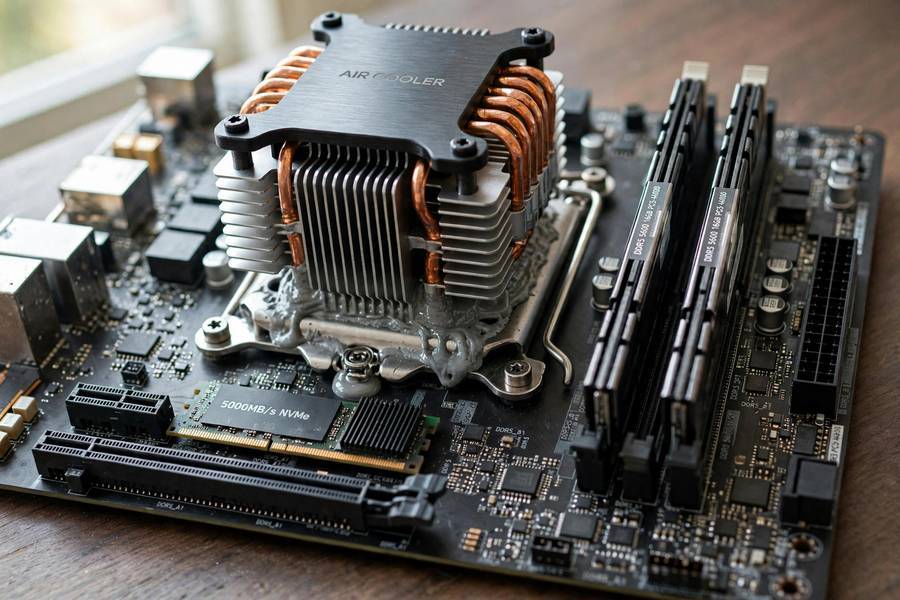
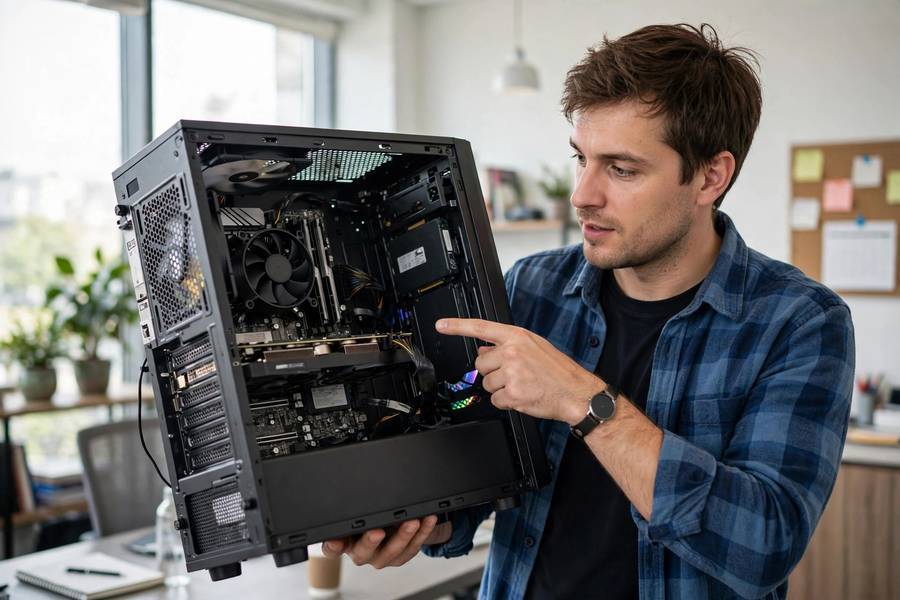
The first computer I ever took apart was a beige desktop my family was about to throw out. I unscrewed the side panel expecting something magical, and honestly? It looked disappointingly ordinary. A green circuit board, a metal box with a fan, some sticks that looked like oversized gum wrappers. But when I finally understood what each of those boring-looking parts actually does, computers stopped feeling like magic boxes. That’s the goal of this guide: no magic, no jargon walls, just what’s actually happening in there.
Every computer — your phone, your laptop, a server in a data center — works the same fundamental way. It takes input, processes it, stores what it needs, and gives you output. Everything else is engineering layered on top of that idea. Let’s peel the layers back.
Table of Contents
- The One-Sentence Version
- The Four Jobs Every Computer Does
- Meet the Main Parts: Hardware
- CPU: The Brain (Sort Of)
- RAM: The Desk
- Storage: The Filing Cabinet
- Motherboard, Power, and the Rest
- Binary: The Language Computers Speak
- How Software Fits In
- What Happens When You Press the Power Button
- How a Computer Runs Your Click
- Why Computers Are Fast (and Sometimes Not)
- Frequently Asked Questions
The One-Sentence Version
A computer is a machine that follows instructions, stored as electrical patterns, billions of times per second.
That’s it. Everything — your games, your browser, your video calls — is just a very long list of instructions being executed very quickly. If you only remember one thing from this article, remember that: computers don’t think. They follow instructions extremely fast.
The Four Jobs Every Computer Does
Engineers describe computers with the input-process-store-output model, and it’s still the clearest way to think about it:
- Input: You type, click, tap, speak. Sensors turn physical actions into electrical signals.
- Processing: The CPU reads those signals and performs calculations on them, following program instructions.
- Storage: The computer saves data it needs now (RAM) and data it needs later (your drive).
- Output: Results become something you can see, hear, or feel — pixels on a screen, sound from speakers.
Every app you use is a choreographed dance of those four steps, repeated millions of times per second.
Meet the Main Parts: Hardware
CPU: The Brain (Sort Of)
The CPU (central processing unit) is usually called “the brain” of the computer. It’s not a terrible analogy, but here’s the more honest version: the CPU is more like an extremely fast, extremely literal employee who can only do one tiny task at a time — but does it billions of times per second.
Modern CPUs have multiple cores, each of which can work on a different task simultaneously. A quad-core CPU is like having four of those employees. CPU speed is measured in gigahertz (GHz) — how many cycles of work each core can do per second. But clock speed isn’t everything; a modern 3 GHz CPU does far more per cycle than a 3 GHz CPU from 2010, thanks to better design.
One important detail: the CPU can’t remember much by itself. It has a tiny bit of ultra-fast memory built in (called cache), but for anything bigger it has to talk to RAM.
RAM: The Desk
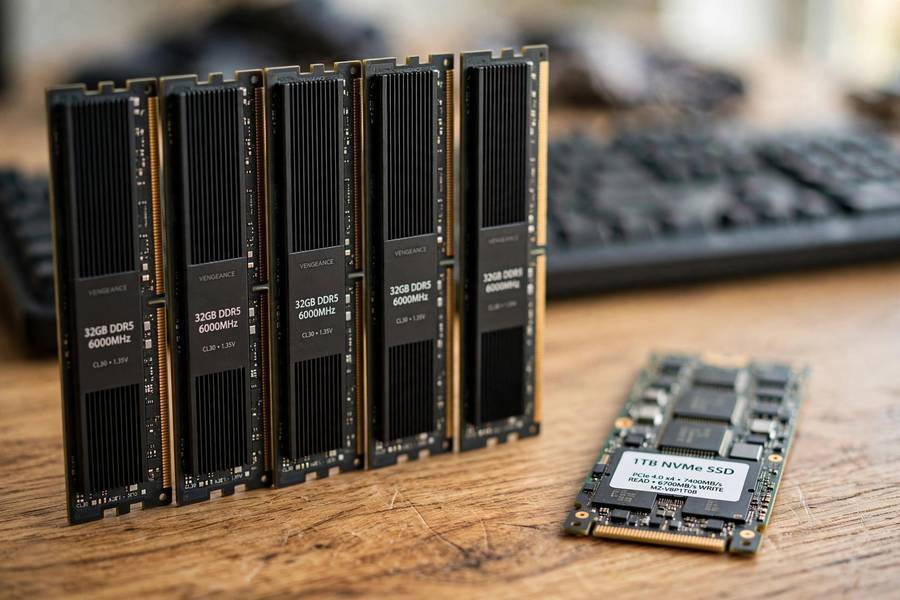
RAM (random access memory) is the computer’s working space. Here’s the analogy I use with friends: your hard drive is the filing cabinet, and RAM is the desk. You don’t do your work inside the filing cabinet — you pull out the folders you need and spread them on the desk.
RAM is fast but temporary. When you open an app, the computer loads it from storage into RAM so the CPU can access it quickly. Close the app or turn off the computer, and the desk gets cleared. More RAM means a bigger desk — you can have more apps open without the computer slowing down to fetch things from storage.
How much do you actually need? For most people in 2026: 8 GB is the floor, 16 GB is the comfortable sweet spot, and 32 GB+ is for video editing, serious gaming, or virtual machines. More than you need doesn’t make things faster — it just sits there empty.
Storage: The Filing Cabinet
Storage keeps everything when the power is off: your operating system, your apps, your files, your photos. Two main types exist today:
- HDD (hard disk drive): spinning metal platters read by a tiny arm, like a microscopic record player. Cheap, large capacity, slow, and fragile (moving parts + drops = bad day).
- SSD (solid state drive): no moving parts — data stored in flash memory chips. Much faster, more durable, and now cheap enough that there’s little reason to buy an HDD unless you need huge capacity on a budget.
When your computer boots in 10 seconds instead of two minutes, that’s the SSD doing its job.
Motherboard, Power, and the Rest
The motherboard is the big circuit board everything plugs into — it lets the CPU, RAM, storage, and everything else talk to each other. The power supply converts wall-socket electricity into the precise voltages each component needs. The GPU (graphics processing unit) is a specialized chip for rendering images and video — and these days it’s also the workhorse behind AI, which is why graphics cards cost what they do. If you’re curious about that side of things, my piece on how AI models are trained explains why GPUs became the engines of the AI boom.
Binary: The Language Computers Speak
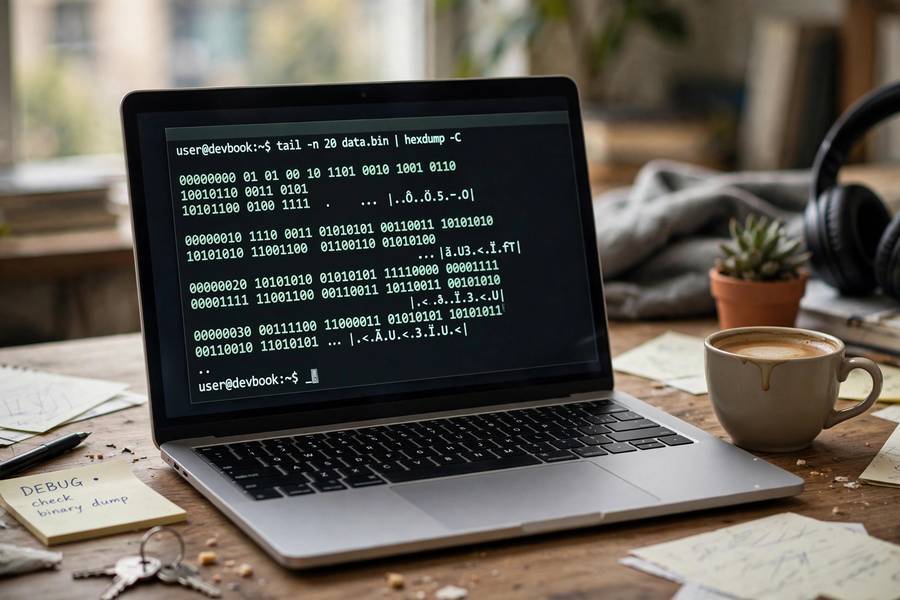
At the bottom of everything, computers speak one language: on and off. Every piece of data — your photos, your passwords, this article — is stored as patterns of bits, each bit being a 0 or a 1. Eight bits make a byte. Your phone’s photo is millions of bytes; a movie file is billions.
Why only ones and zeros? Because hardware is electrical, and the simplest reliable signal is “current flowing” vs. “current not flowing.” Engineers built everything else — numbers, letters, images, video, encryption — out of clever arrangements of those two states.
When you type the letter “A,” your computer doesn’t store a little picture of an A. It stores a pattern like 01000001, and your screen’s software knows to draw an A whenever it sees that pattern. Every layer of computing is built on this trick: patterns of bits, interpreted by layers of software, that eventually become something meaningful to a human.
How Software Fits In
Hardware is the body; software is the personality. Software is just instructions — programs — stored as data on your drive and executed by the CPU.
The operating system (Windows, macOS, Linux, iOS, Android) is the master program that manages everything else: which app gets CPU time and RAM, how files are organized, how hardware talks to software. Drivers are little translator programs that let the OS talk to specific hardware — when you plug in a printer and it “just works,” that’s the OS loading a driver.
Applications — your browser, photo editor, games — run on top of the OS, requesting resources from it. Most software started as code written by humans, then compiled (translated) into machine instructions your CPU executes directly.
Software also explains why two identical computers can feel completely different: one running a lean OS with a few apps, the other bloated with background programs fighting over resources.
What Happens When You Press the Power Button
This sequence takes seconds but involves several staged steps: electricity flows to the motherboard, the firmware (BIOS/UEFI) checks the hardware, a bootloader hands control to the operating system, the OS kernel loads into RAM with its drivers and services, and finally you see the login screen. When a computer “won’t boot,” something in this chain broke — usually a drive failure, corrupted system files, or a firmware setting gone wrong.
How a Computer Runs Your Click
Let’s trace a single action — clicking a link in your browser — to see the whole machine working:
- The mouse sends an electrical signal through the USB port. A driver tells the OS: “the pointer is at these coordinates, and the left button was pressed.”
- The OS asks the browser: “something was clicked at these coordinates — is that yours?” The browser checks what UI element is there.
- The browser realizes it’s a link. It asks the OS’s networking stack to fetch the page — which is where Wi-Fi and networking come in.
- Data arrives as packets of bits. The browser parses the HTML, figures out what to draw, and hands drawing commands to the GPU.
- The GPU renders the pixels and pushes them to your screen, 60+ times per second.
All of that happened in a fraction of a second. The click you thought was “instant” was actually a chain of programs and hardware components cooperating. It’s genuinely impressive — and it’s also why troubleshooting “my computer is slow” means figuring out which link in the chain is the bottleneck.
Why Computers Are Fast (and Sometimes Not)
Computers feel slow for boring, practical reasons: too little RAM (the desk is full, so the computer constantly swaps things back to slower storage), an old spinning HDD bottlenecking everything, too many background programs fighting over resources, or overheating — a hot CPU slows itself down to avoid damage, and laptops are especially prone to this.
One more thing worth knowing: modern computers never truly sit idle. Your phone is constantly checking for messages, updating apps, and indexing files. What AI tools actually do on your devices — voice assistants, photo sorting, predictive text — all ride on top of this same hardware, just running smarter software.
Frequently Asked Questions
A computer follows instructions stored as electrical patterns (ones and zeros). It takes input from you, the CPU processes it by executing instructions billions of times per second, it stores data in RAM (temporary) and on a drive (permanent), and it shows you the result on screen or through speakers.
RAM is temporary working memory that the computer uses while it’s running — it gets cleared when you power off. Storage (SSD or HDD) keeps your files permanently, even with the power off. Think of RAM as a desk and storage as a filing cabinet.
The CPU executes instructions — simple operations like adding numbers, comparing values, and moving data around. Modern CPUs have multiple cores so they can handle several tasks at once, and each core can perform billions of cycles per second.
The most common causes are too many background programs using CPU and RAM, a nearly full drive, overheating (which forces the CPU to slow down), or too little RAM for what you’re doing. Check what’s running in the background first — that’s the usual culprit.
Binary is data represented as ones and zeros. Computers use it because hardware works with electrical signals, and the simplest reliable signal is current flowing (1) versus not flowing (0). Everything — text, photos, video, software — is built from clever arrangements of those two states.
If your computer still has an old spinning hard drive (HDD), upgrading to an SSD gives the biggest speed boost. If you already have an SSD but everything lags with many apps open, adding RAM helps. A new CPU is rarely worth it as an upgrade on its own.