Phishing emails are the #1 way cybercriminals break into accounts — not through sophisticated hacking, but by tricking you into handing over the keys yourself. The good news: once you know the patterns, phishing emails are surprisingly easy to spot.
I’m Sophia, and I treat every unexpected email like it’s guilty until proven innocent. Here’s the checklist I run through — it takes about 30 seconds and it works.
Table of Contents
- What Phishing Actually Is
- Red Flags in the Sender
- Red Flags in the Message
- Red Flags in Links and Attachments
- The 30-Second Verification Habit
- Real Phishing Examples (Anonymized)
- What To Do If You Clicked
- Frequently Asked Questions
What Phishing Actually Is
Phishing is a fake message — email, text, or DM — designed to look like it’s from someone you trust (your bank, Apple, Amazon, your boss) so you’ll click a malicious link, download malware, or type your password into a fake login page.
The key insight: phishing doesn’t hack your computer, it hacks your trust. The email itself is harmless until you act on it. That’s actually empowering — it means the defense is entirely in your hands, and it’s mostly about slowing down for 30 seconds.
Variants have their own names: smishing (SMS phishing), vishing (voice-call phishing), and spear phishing (targeted at you specifically, using your name, company, or colleagues — much more convincing).
Red Flags in the Sender
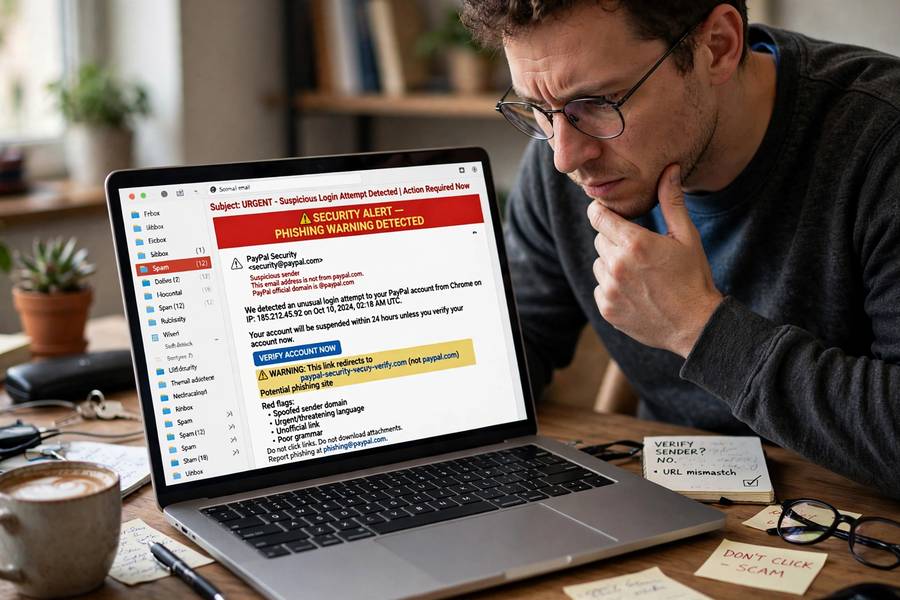
1. The address doesn’t match the company. “support@amaz0n-security.com” is not Amazon. “apple@notice-appleid.com” is not Apple. Always expand the sender name to see the full address — on phones, tap the name.
2. Free email domains for “official” mail. Your bank will never email from a @gmail.com address. Neither will a government agency.
3. Slight misspellings. micros0ft, paypa1, netfIix (capital i instead of L). Attackers register lookalike domains by the thousands.
4. “Via” or “on behalf of” tags. Gmail sometimes shows “via sendgrid.net” or similar — meaning the sender used a bulk-mail service. Legit companies occasionally do this too, but combined with other flags it’s suspicious.
Red Flags in the Message
5. Urgency and threats. “Your account will be suspended in 24 hours!” “Unauthorized login detected — verify NOW!” Phishing runs on panic. Real companies do send security alerts, but they never demand instant action via email link.
6. Too good to be true. You won a lottery you didn’t enter. A refund you weren’t expecting. A job offer with an absurd salary. If it triggers greed or excitement instead of fear, it’s the same trick in reverse.
7. Generic greetings. “Dear Customer,” “Dear User,” “Dear valued member.” Real services that know your name use it. (Though note: some legitimate bulk mail is generic too — it’s a flag, not proof.)
8. Bad grammar and awkward phrasing. Not as reliable as it used to be — AI has made phishing grammar much better — but sloppy writing in a “bank” email is still a strong signal.
9. Requests for sensitive info. No legitimate company asks for your password, full Social Security number, or credit card details by email. Ever. This one alone catches most phishing.
Red Flags in Links and Attachments
10. Hover before you click. On desktop, hover over any link to see the real destination in the bottom corner. If the text says “apple.com” but the link goes to “apple-verify.tk” — that’s phishing. On mobile, long-press the link to preview it (don’t tap through).
11. Unexpected attachments. “Invoice.zip,” “Payment details.doc,” “Shipping label.pdf.exe” — unexpected attachments, especially with double extensions or archive formats, are classic malware delivery. Even PDFs and Office docs can carry malicious macros.
12. Mismatched branding. Logos that look slightly off, wrong fonts, broken images, or a login page that doesn’t quite match the real site’s design. Attackers copy branding quickly and imperfectly.
The 30-Second Verification Habit
When an email triggers even one flag, do this instead of clicking:
- Don’t click the link. Don’t download the attachment. Don’t reply.
- Go to the source directly. Open your browser and type the company’s real address yourself (or use their official app). Log in there and check for the alert the email mentioned. If your account is really locked, you’ll see it there.
- Check the sender independently. Search for the company’s official support contact — don’t use phone numbers or links from the suspicious email.
- Report it. Most email apps let you report phishing (Gmail: the “…” menu → Report phishing). Forward texts to 7726 (SPAM) in the US.
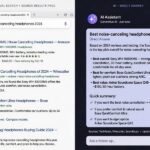
This habit defeats essentially all phishing, because phishing depends on you using their link instead of going to the real site yourself. The mechanics of how you actually reach websites safely connect to how a search engine works — navigating directly to known-good addresses rather than following links you’re handed.
Real Phishing Examples (Anonymized)
Patterns are abstract; examples make them concrete. Here are composites of real phishes, with the tells:
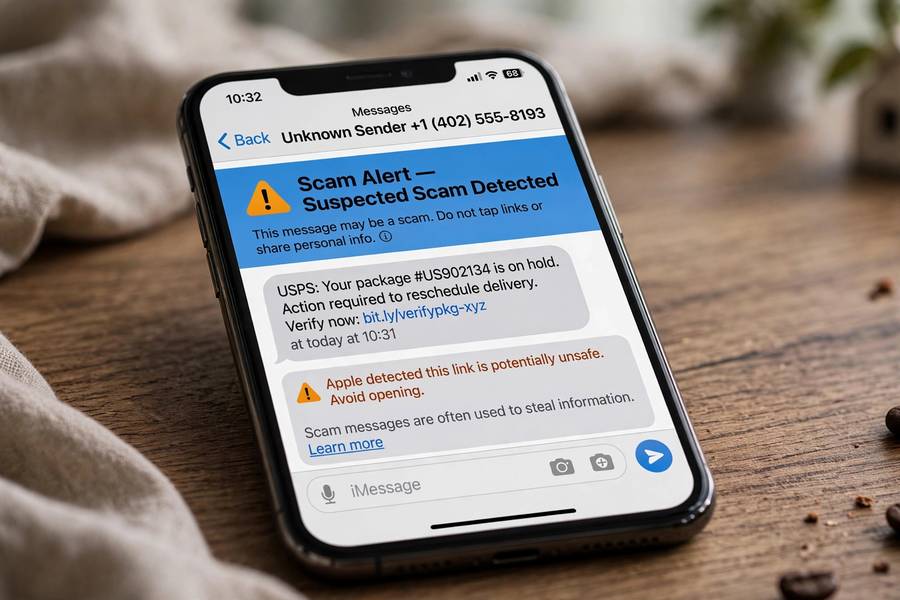
The “package delivery” text: “USPS: Your package could not be delivered. Update your address: [link].” Tell: you weren’t expecting a package, the link domain isn’t usps.com, and USPS doesn’t text links like this. During holiday seasons these spike massively.
The “boss” email: “Hi — are you available? I need you to buy gift cards for a client meeting. Send me the codes ASAP. — [CEO’s name].” Tell: sent from a Gmail address, not the company domain; unusual request; urgency. This is spear phishing’s most common corporate form, and it works because employees don’t want to question the boss.
The “account locked” email: Apple/PayPal/Netflix logo, “unusual sign-in detected,” big VERIFY button. Tell: hover the button — the link goes to a random domain. The real companies’ security emails direct you to open the app yourself.
The “invoice” attachment: “Please see attached invoice #48291 and remit payment.” From a vendor-ish name, with a .zip or .doc attachment. Tell: unexpected, vague, attachment-based. One double-click can install ransomware.
The “HR document”: “Updated benefits enrollment — review and sign by Friday.” Sent company-wide. Tell: check the sender domain carefully; real HR uses internal systems, not random file links.
The common thread in every one: an emotional trigger (fear, urgency, greed, authority) plus a link or attachment you’re meant to act on without thinking. The 30-second habit breaks every single one of these — because none of them survive “let me check this directly instead.”
What To Do If You Clicked
Don’t panic — act fast:
- If you entered credentials: Change that password immediately, from the real site. If you reuse that password anywhere else (please stop doing that), change those too.
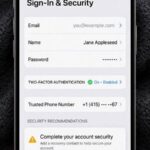
- Turn on two-factor authentication everywhere important — email, banking, Apple/Google accounts. This single step neuters most stolen passwords.
- If you downloaded something: Run a full antivirus scan. On Windows, Windows Security is built in and solid. Don’t open the file again.
- If you entered payment info: Call your bank or card issuer right away. They deal with this daily.
- Watch for follow-ups. Sometimes the first phish is just reconnaissance for a more targeted second attempt.
And be extra careful on public networks afterward — understanding how WiFi works helps you see why attackers love intercepting traffic on networks they don’t control.
Frequently Asked Questions
Check the sender’s real address for misspellings, look for urgency or threats, never trust links without hovering to preview the destination, and be suspicious of unexpected attachments or requests for passwords and payment details.
Don’t click links or download attachments. Report it as phishing in your email app, delete it, and if it claims an account problem, check by going directly to the company’s real website or app — never through the email’s link.
Just clicking usually isn’t enough to cause harm, but don’t enter any information. If you entered credentials, change those passwords immediately from the real site and enable two-factor authentication. If you downloaded a file, run an antivirus scan.
Yes — attackers can spoof sender addresses or compromise real accounts. That’s why you should verify unexpected requests through a separate channel (official app, known phone number) rather than trusting the email alone.
Spear phishing is phishing targeted at a specific person, using their name, employer, or colleagues to seem legitimate. It’s far more convincing than generic phishing — verify any unusual request (especially involving money or credentials) through a second channel.
It stops most of it. Even if attackers steal your password, they can’t log in without the second factor. Use app-based or hardware-key 2FA rather than SMS codes where possible, since SMS can be intercepted.