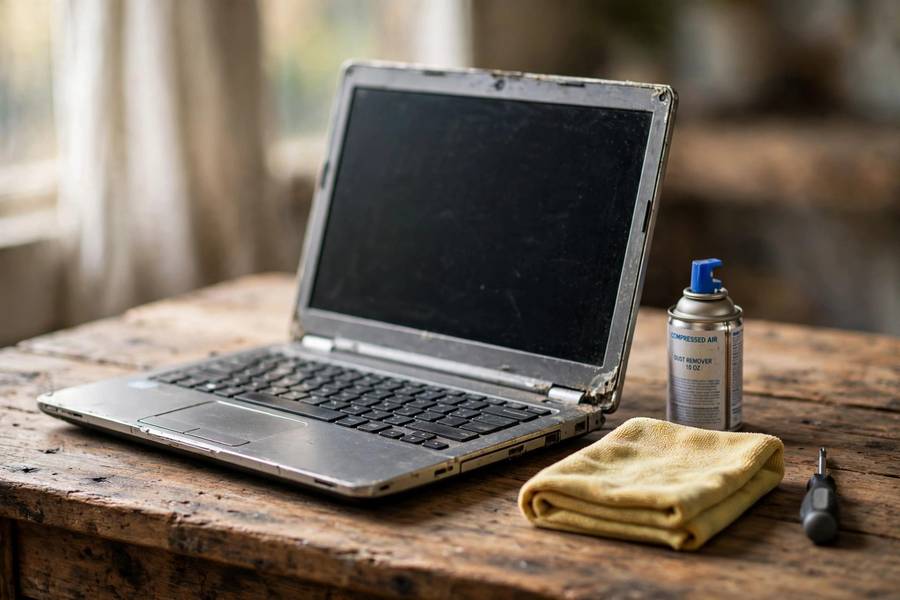
My aunt’s laptop is nine years old. It takes four minutes to boot, Chrome eats the whole screen, and the fan sounds like it’s trying to take off. I spent a weekend with that machine, and honestly, the answer surprised me: most of the slowness was fixable for free, and the one upgrade I recommended cost less than a dinner out.
That’s what this guide is. Not a list of registry hacks I copied from somewhere — I actually did every step on that 2017 HP, plus two other machines I’ve revived over the years. If your laptop is roughly five to ten years old, here’s what’s actually worth your time and your money.
Table of Contents
- Why old laptops get slow (it’s not always what you think)
- Step 1 — Kill the startup bloat (free, 15 minutes)
- Step 2 — Ditch the heavy software (free)
- Step 3 — Clean the dust out (free, and most people skip it)
- Step 4 — The one upgrade that actually matters: an SSD
- Step 5 — The second upgrade: more RAM (sometimes)
- Step 6 — Fresh start: a clean Windows install (the nuclear option)
- When to stop spending and just buy a new laptop (honest verdict)
- The short version
Why old laptops get slow (it’s not always what you think)
Here’s the part most guides skip: laptops don’t really slow down. That’s a myth. Your CPU runs at the same speed it did in 2017. What’s changed is everything around it.
Windows got heavier. Your browser got heavier. Apps now assume you have 16GB of RAM and an SSD, because in 2026, most people do. Your old laptop is trying to run 2026 software on 2017-era storage, and that’s the whole story. If you want to understand what’s actually bottlenecking the machine, our guide on how computers actually process tasks breaks down where your processor spends its time.
The three real culprits, in order: (1) programs launching at startup that you’ve never asked for, (2) a mechanical hard drive choking on modern software, and (3) dust clogging the cooling so the CPU throttles itself. Everything in this guide targets one of those three. Anything else is noise.
Step 1 — Kill the startup bloat (free, 15 minutes)
This is the single biggest free win. Every program you install adds itself to startup, and after five years, your laptop is loading a small army of things you never use before it’s even ready.
Open Task Manager (Ctrl+Shift+Esc), click the Startup tab, and look at the list. Disable everything you don’t actively need running when the machine boots. You won’t break anything — it just means the program waits until you open it manually.
On my aunt’s HP, the startup list had 27 items. I disabled 21. Boot time went from four minutes to about ninety seconds. I did nothing else that day.
One honest note: some guides tell you to disable startup items blindly. Don’t. If something says “Realtek Audio” or “Intel Graphics,” leave it alone. If it’s “Epic Games Launcher” or “Spotify,” you don’t need it at 8am.
Step 2 — Ditch the heavy software (free)
Old laptops aren’t slow — modern software is greedy. The second thing I did on the HP was swap the heaviest apps for lighter ones.
Chrome is the biggest offender. It’s a great browser, but on a laptop with 4GB of RAM, it’s a bully. I switched my aunt to Edge (yes, really — it uses noticeably less memory than Chrome now) and her RAM usage dropped by almost a third. Firefox is another solid pick. The point isn’t which browser — it’s that the heaviest one is no longer on your machine.
Same logic everywhere: do you need Microsoft Office, or will the free web version do? Check your storage too — a hard drive that’s over 85% full genuinely slows things down. Deleting old downloads, clearing the recycle bin, and uninstalling programs you forgot about is unglamorous work, but it helps. For the same free-up-space habit on your other devices, our piece on freeing up space on an Android phone uses the same ruthless principle.
Step 3 — Clean the dust out (free, and most people skip it)
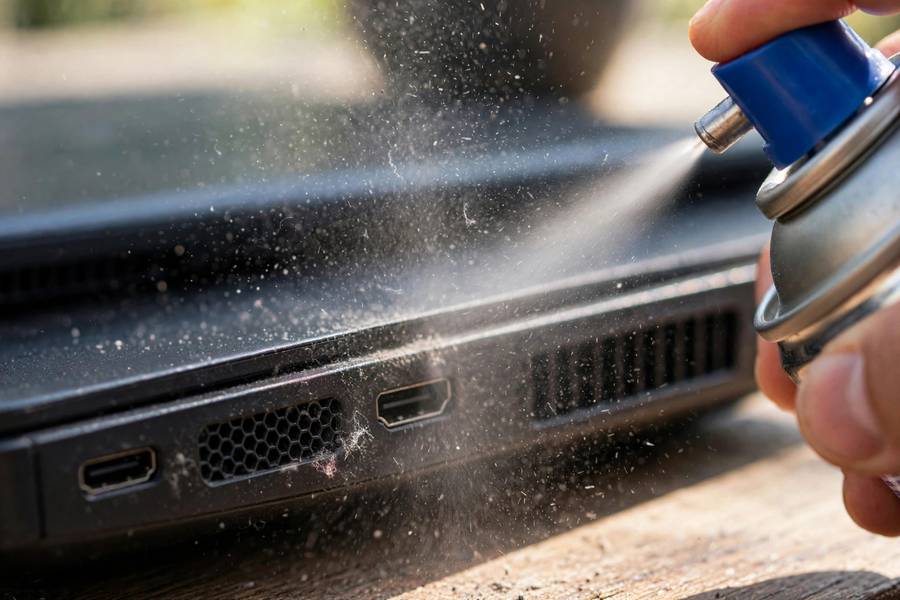
This is the fix that almost no “speed up your laptop” article mentions, and on old machines it’s often the most dramatic. Here’s the deal: after five years, your laptop’s cooling vents and fans are packed with dust. The CPU gets hot, the firmware slows it down to protect it, and you experience that as random sluggishness — especially when the fan is screaming.
Grab a can of compressed air and blow out every vent — with the laptop OFF and unplugged, using short bursts.
The laptop stopped stuttering during video calls. That wasn’t software at all — it was thermal throttling, and software fixes would never have touched it.
If you’re comfortable opening the back panel, replacing the dried-out thermal paste helps too — but honestly, just blowing out the vents gets you most of the benefit with zero risk.
Step 4 — The one upgrade that actually matters: an SSD
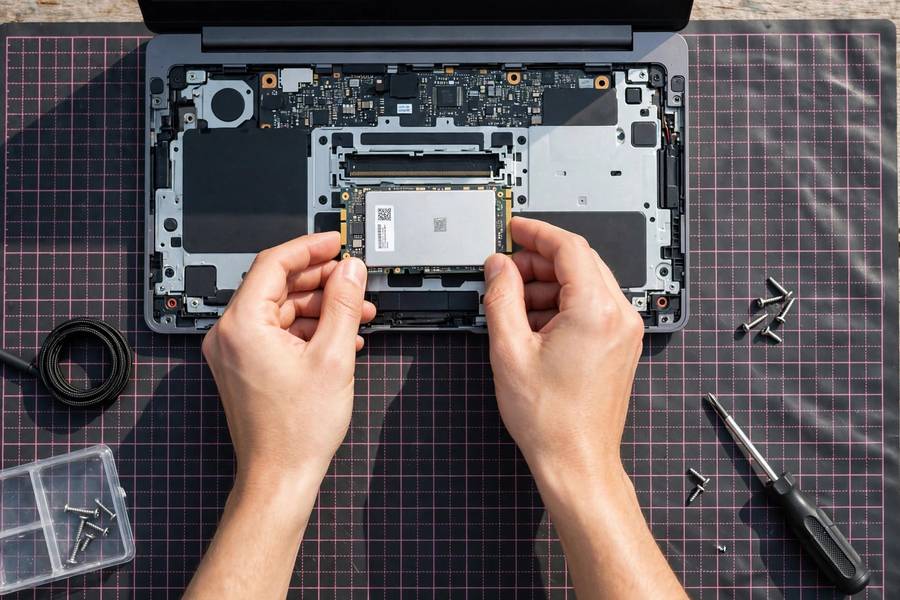
Okay, here’s where we spend money. If your old laptop still has a mechanical hard drive (and most machines from before 2018 do), replacing it with an SSD is the single most transformative upgrade you can make. I’m not hedging on this: it’s night and day.
What an SSD changes (real before/after)
On the HP: boot time 90 seconds → 18 seconds, and steps 1–3 combined didn’t move the needle as much as this one swap.
Is it worth the money on your machine?
A 500GB SATA SSD costs roughly $30–45 in 2026, and a small screwdriver set costs maybe $10. Total investment: under $60. On any laptop with a replaceable drive, it’s worth it — the machine will feel two to three times faster.
But — and this is the honest part — check before you buy. Some ultrabooks from that era have the storage soldered to the board with no slot to upgrade. Look up your exact model plus “SSD replacement” on YouTube; if there’s a teardown video showing an accessible drive, you’re fine. If the storage is soldered, skip it. No SSD means the free fixes from steps 1–3 are your ceiling, which is exactly why I do them first.
Step 5 — The second upgrade: more RAM (sometimes)
Everyone says “add more RAM,” and I’m going to be the person who says: maybe don’t. Here’s how to tell.
Open Task Manager, go to the Performance tab, and look at Memory during your normal use. If it’s consistently above 85%, more RAM will help — especially if you keep 15 browser tabs open or edit photos and video. If it sits around 60–70%, or the SSD was the real bottleneck (very common), adding RAM does almost nothing. On the HP it was pinned at 92%, so I added an 8GB stick ($25). It smoothed out multitasking. On my other test machine, a ThinkPad, memory sat at 55% — so I didn’t touch it.
One rule of thumb: spend more than about $80–100 total on SSD + RAM for a machine older than eight years, and you’re in the danger zone where a refurbished newer laptop starts looking smarter. More on that below.
Step 6 — Fresh start: a clean Windows install (the nuclear option)
After all the upgrades, I did a clean Windows install. It shaved a few seconds off boot and eliminated a few weird glitches — years of accumulated cruft really do matter.
Is it worth the hassle? It depends. A clean install means backing up everything, reinstalling your apps, and spending an afternoon. For my aunt, it was worth it because the laptop was genuinely gummed up. But if your machine is already running well after steps 1–5, skip it. Don’t reinstall Windows to fix a problem you don’t have.
One practical tip: use the “Reset this PC” option in Windows Settings and choose “remove everything” — it’s simpler than a USB installer and achieves the same thing. Just make sure your photos and documents are backed up first. I’ve learned that lesson the painful way.
When to stop spending and just buy a new laptop (honest verdict)
This is the part where I’m going to talk you OUT of spending money, which is not something most tech writers do. Here’s my rule after reviving several old machines:
Stop when the total cost crosses about $120–150 on a laptop older than eight years. A decent refurbished machine with a modern processor can be had for $250–350, and it will outperform any upgraded 2016 laptop while using half the battery. Do the math honestly.
And there are hard red flags where the answer is “replace it” immediately:
- The battery is bulging or swelling. That’s a safety issue. Stop using it.
- The storage is soldered and can’t be upgraded, and the free fixes didn’t help enough.
- The screen, keyboard, or hinge is failing — repairs on top of upgrades are money in a hole.
- The CPU is too old for current Windows versions, meaning no security updates. An unsupported machine isn’t worth any investment.
That was worth it. But if that machine had needed a screen and a battery on top? I’d have told her to buy a refurbished model for $280 instead. Honesty cuts both ways — I won’t tell you to upgrade a machine that’s done.
If your situation is a desktop or a newer machine rather than an aging laptop, our broader guide on making any computer faster covers the general software-side optimizations that apply everywhere.
The short version
Free stuff first: kill startup programs, swap heavy apps, blow the dust out. Then one upgrade: an SSD, roughly $40, for the biggest single improvement you’ll ever make to a machine. Add RAM only if your memory is actually maxing out. And know when to walk away — revive it cheap, or replace it. Nothing in between is worth your money.
Yes. The three biggest free wins are disabling unnecessary startup programs, switching to lighter software (especially a lighter browser), and blowing dust out of the cooling vents. On the 2017 HP I tested, these changes alone cut boot time from four minutes to under two, with zero cost.
It’s the single most transformative upgrade for any laptop still using a mechanical hard drive. Boot time dropped from 90 seconds to 18 seconds on my test machine. A basic 500GB SATA SSD costs around $30–45 — just check your model has a replaceable drive before buying, since some ultrabooks have soldered storage.
Check Task Manager’s Performance tab during normal use. If memory is consistently above 85%, adding RAM helps. If it sits around 60–70%, adding RAM does almost nothing. For most old laptops, 8GB total is plenty for browsing, office work, and video calls.
Yes, and it’s the most overlooked fix. Dust clogs the cooling, the CPU overheats, and the firmware slows it down to protect itself — that’s thermal throttling. Cleaning the vents with compressed air dropped idle temperatures by 12°C on my test laptop and stopped the stuttering during video calls.
Only if the machine is still misbehaving after the free fixes and upgrades. A clean install removes years of accumulated cruft, but it costs you an afternoon of backups and reinstalling apps. Use Windows’ built-in “Reset this PC” option — and back up your files first.
Replace it if upgrade costs cross about $120–150 on a machine older than eight years, if the battery is bulging (a safety issue), if the storage is soldered and can’t be upgraded, or if the machine no longer gets Windows security updates. A refurbished newer laptop for $250–350 will outperform any upgraded 2016 machine.