Your computer probably isn’t dying. It’s just exhausted — running 40 background programs, a browser with 60 tabs, and a hard drive that’s 94% full. I fix slow computers for friends and family more often than I’d like to admit, and 90% of the time the fix takes under an hour and costs nothing.
No registry cleaners. No sketchy “PC optimizer” downloads that are somehow always free but definitely want your credit card. Just the stuff that actually works, in the order I’d do it if your laptop were sitting on my desk right now. I’ve ordered these by impact-per-minute: start at the top, and stop when your computer feels fast again — most people never make it past step 5.
- Step 1: Restart It (Seriously)
- Step 2: Kill Startup Programs
- Step 3: Free Up Disk Space
- Step 4: Tame Your Browser
- Step 5: Uninstall the Junk
- Step 6: Check for Malware
- Step 7: Update Everything
- Step 8: Add More RAM
- Step 9: Switch to an SSD
- Step 10: Reinstall the Operating System
- When It’s Time for a New Computer
- Frequently Asked Questions
Step 1: Restart It (Seriously)
I know — you’ve heard it from every IT person ever. But most people don’t restart; they close the lid, which just sleeps. Weeks of sleep accumulate memory leaks, stuck processes, and pending updates. A real restart clears it all in two minutes.
Do a full restart right now — not sleep, not hibernate — before trying anything else. I’d estimate a third of “my computer is slow” complaints are fixed right here.
Step 2: Kill Startup Programs
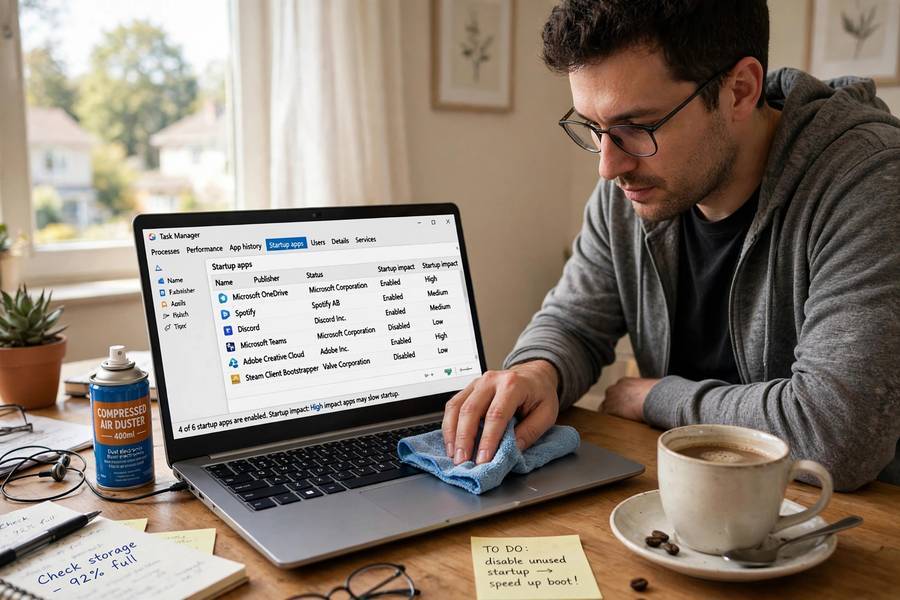
This is the biggest silent killer of computer speed, and almost nobody checks it. Dozens of programs set themselves to launch at boot — chat apps, updaters, cloud storage, printer utilities, game launchers — and each one steals a little CPU and memory forever after.
On Windows: Press Ctrl+Shift+Esc to open Task Manager, click the Startup tab, and look at the “Startup impact” column. Disable everything marked High impact that you don’t need the second your computer turns on. Spotify, Discord, Steam, Adobe updaters — they all launch perfectly fine when you click them manually. Keep your antivirus and cloud backup; nuke the rest.
On Mac: System Settings → General → Login Items. Remove anything you don’t recognize or don’t need immediately. Also check the “Allow in Background” list below it — that’s where the sneaky ones hide.
Be a little ruthless here. If you haven’t consciously decided a program should run at startup, it shouldn’t. This one change can cut boot times in half on a cluttered machine.
Step 3: Free Up Disk Space
A nearly full drive is a slow drive. Your OS needs free space for temp files, updates, and virtual memory. Rule: keep 15–20% of your drive free. On 512GB, that’s 75–100GB.
Fastest wins: empty the Recycle Bin/Trash (I’ve seen 80GB sitting in Trash), clear Downloads, uninstall finished games. Then run the built-in cleaner — Disk Cleanup on Windows, or System Settings → General → Storage on Mac.
Still cramped? Move photos and videos to an external drive or cloud. Media files are the usual hogs and don’t need to live on your main drive.
Step 4: Tame Your Browser
Your browser is probably the hungriest program on your computer. Each tab eats memory — Chrome tabs run 100–300MB each, so 40 tabs can swallow 8GB of RAM by themselves. Extensions pile on more.
Here’s my browser diet, in order:
- Close tabs you’re not using. Bookmark them instead — that’s what bookmarks are for.
- Audit extensions. Remove everything you don’t actively use. Each one runs constantly. Ad blockers and password managers earn their keep; the 2019 coupon toolbar does not.
- Clear the cache monthly. Don’t do it daily — you’ll just slow page loads.
- Check for a runaway tab. In Chrome, Shift+Esc opens Chrome’s task manager showing memory per tab. One misbehaving tab can eat gigabytes. Kill it.
If your computer only feels slow when browsing, the problem was never your computer — it was your 63 tabs. And if websites load slowly but everything else is fine, the culprit might be your network, not your machine — here’s how WiFi actually works, which helps you tell the difference.
Step 5: Uninstall the Junk
Every computer accumulates cruft: the free trial antivirus that came with the laptop, three different photo editors, the printer software for a printer you recycled in 2022, games you played once.
On Windows: Settings → Apps → Installed Apps, sort by size, and remove what you don’t use. Pay special attention to anything with “toolbar,” “optimizer,” “booster,” or “driver updater” in the name — these are somewhere between useless and actively harmful.
On Mac: Open Finder → Applications and drag unused apps to Trash. Check also for leftover helper apps in ~/Library — or use a free uninstaller like AppCleaner that finds the scattered support files too.
While you’re here: if you see multiple antivirus programs installed, remove all but one. Two antivirus programs fighting each other will slow your computer more than most actual viruses would.
Step 6: Check for Malware
Real talk: if your computer got suddenly, dramatically slower for no apparent reason — especially with pop-ups, new toolbars, or your browser homepage changing itself — suspect malware before anything else.
The good news: you almost certainly don’t need to buy anything. Windows Security (built into Windows) is genuinely good now — run a full scan, not just the quick one. On Mac, the built-in protections handle most threats, but a free Malwarebytes scan is a solid second opinion on either platform.
Run the scan, remove what it finds, restart. If the scan finds a pile of “potentially unwanted programs,” those probably arrived bundled with some free software you installed — another reason to be careful with free downloads.

Step 7: Update Everything
I know updates are annoying. They’re also one of the highest-value maintenance tasks, because updates include performance fixes, not just security patches. Graphics driver updates alone have fixed stuttering and sluggishness on machines I’ve worked on.
Update in this order: your operating system (Windows Update / Software Update on Mac), your browser, then your drivers — especially graphics drivers, which you should grab from NVIDIA, AMD, or Intel directly rather than waiting on Windows Update. Then restart.
One caveat: on very old machines, major OS version upgrades can occasionally make things worse. Security updates: always yes. Optional feature upgrades on a 2016 laptop: think twice.
Step 8: Add More RAM
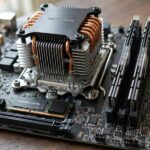
Now we’re into hardware. RAM is your computer’s short-term memory — the workspace where active programs live. When it fills up, your computer starts using the much slower drive as overflow (called paging or swapping), and everything crawls.
How to tell if you need more: Open Task Manager (Windows) or Activity Monitor (Mac) during your normal workload. If memory usage is consistently above 80–85%, more RAM will help. If it’s sitting at 50%, RAM isn’t your problem — skip this step.
How much is enough in 2026: 8GB is the bare minimum and honestly not enough for comfortable multitasking. 16GB is the sweet spot for most people. 32GB if you edit video, run VMs, or keep 100 Chrome tabs open as a lifestyle.
The catch: many thin laptops have soldered RAM that can’t be upgraded. Check your model’s specs first. Desktops and chunkier laptops usually have upgradeable slots — often $30–60 for a meaningful bump.
Step 9: Switch to an SSD
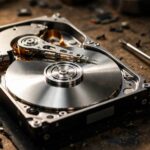
If your computer still has a spinning hard drive, this is the single biggest speed upgrade possible. Moving from a hard drive to an SSD makes a 7-year-old laptop feel new. Boot times drop from minutes to seconds. Everything is snappier.
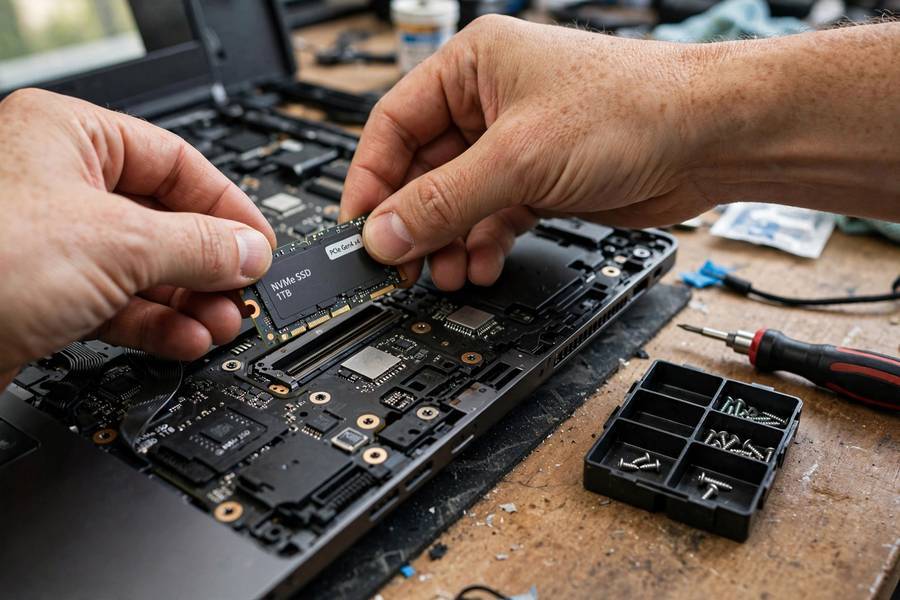
A 500GB SSD costs ~$40–50; 1TB runs $60–80. Cloning your existing drive (free tools like Macrium Reflect) keeps all files and settings — no reinstall needed. The physical swap takes 15 minutes with a screwdriver on most laptops.
If your computer already has an SSD and still feels slow, the drive isn’t the problem — look back at steps 1–7.
Step 10: Reinstall the Operating System
The nuclear option — and sometimes the right one. If you’ve done everything above and the machine is still sluggish, years of accumulated cruft, broken drivers, and half-removed software may be beyond practical cleanup. A fresh install wipes the slate clean.
Back up your files first. I mean it — photos, documents, browser bookmarks, license keys. Then use the built-in reset: Windows has “Reset this PC” (choose the cloud download option for the cleanest result), and Mac has Erase + reinstall via Recovery Mode.
Budget half a day: the reinstall takes an hour or two, then reinstalling programs and restoring files takes the rest. Only do this after trying the easier steps — it’s the most effort for a problem that usually has a simpler cause.
When It’s Time for a New Computer
Sometimes the honest answer is that no tuning will fix it. Consider replacing when:
- The computer is 8+ years old and struggles with basic tasks even after SSD and RAM upgrades.
- It can’t run a supported OS anymore — no security updates is genuinely risky.
- The battery is dead, screen failing, or multiple components dying — repairs near half the price of new rarely make sense.
- Your needs changed — video editing or demanding work software may need a different machine.
But don’t upgrade just because it feels slow. Work through this list first — most “slow” computers are fixable in an afternoon.
Oh, and one last thing: if pages load slowly but your computer feels fine otherwise, the bottleneck is your connection, not your hardware. Slow search results and buffering video point at the network. Diagnose before you spend.
Frequently Asked Questions
Sudden slowdowns are usually caused by a Windows or software update installing in the background, a nearly full hard drive, new malware, or a failing drive developing bad sectors. Check Task Manager for what’s using resources, run a malware scan, and verify your drive has at least 15–20% free space.
Only if you’re actually running out of memory. Check Task Manager or Activity Monitor during normal use — if memory sits above 80–85% consistently, more RAM helps a lot. If it’s at 50%, RAM isn’t your bottleneck and upgrading won’t change anything. In 2026, 16GB is the sweet spot for most people.
Yes — it’s the single biggest upgrade for any computer still running on a spinning hard drive. Boot times drop from minutes to seconds, programs launch instantly, and the whole machine feels years newer. A 500GB SSD costs around $40–50, and cloning your existing drive means you keep all your files and settings.
Most are useless at best and harmful at worst — many are bundled with adware or upsell you aggressively. Windows’ built-in Disk Cleanup and Storage Sense do everything legitimate cleaners do. Skip anything promising to “boost” or “optimize” your PC, especially registry cleaners, which can break your system.
At least once a week. Closing the lid only puts the computer to sleep — memory leaks, stuck background processes, and pending updates accumulate until a real restart clears them. If your computer has been “on” for weeks via sleep, a restart alone may fix your slowness.
An SSD and RAM upgrade can make a 10-year-old laptop usable for basic tasks — browsing, email, documents — for under $100. But if it can’t run a currently supported operating system, or you need it for demanding work, put that money toward a replacement instead. Don’t sink upgrade money into a machine with a failing screen or dead battery.