Forgetting your Apple ID password is uniquely stressful — it locks you out of iCloud, the App Store, iMessage, and basically your entire Apple life. The good news: Apple gives you several ways back in, and at least one of them will work for your situation.
I’m Sophia. I’ve walked friends through this more times than I can count. Here’s every method, ordered from easiest to last-resort.
Table of Contents
- Before You Start: What You’ll Need
- Method 1: Reset on Your iPhone or iPad
- Method 2: Reset on Your Mac
- Method 3: Reset on the Web (No Apple Device)
- Method 4: Use a Friend’s Apple Device
- Account Recovery: The Last Resort
- Preventing Future Lockouts
- If You’re Locked Out Right Now: Triage
- After the Reset: Secure Your Account
- Frequently Asked Questions

Before You Start: What You’ll Need
Apple verifies your identity before allowing a reset. Depending on the method, you’ll need one or more of:
- Your Apple ID email address (usually your iCloud email)
- Your device passcode (the 4/6-digit code you unlock your iPhone with)
- Access to a trusted device or trusted phone number (for two-factor codes)
- Your recovery key, if you enabled one (this replaces other verification — and if you lost it too, recovery gets much harder)
If you have your iPhone and know its passcode, the reset takes about a minute. Everything else takes longer — which is exactly why the passcode method exists.
Method 1: Reset on Your iPhone or iPad
If you’re signed in on the device (even if you forgot the Apple ID password), this is the fastest path:
- Go to Settings → [your name] → Sign-In & Security (or Password & Security on older iOS).
- Tap Change Password.
- Enter your device passcode.
- Enter your new password twice and tap Change.
That’s it. Your device passcode proves it’s really you — no email verification loop, no waiting. This works because Apple treats “person holding the unlocked phone who knows the passcode” as verified identity.
Method 2: Reset on Your Mac
Similar flow on macOS:
- Go to System Settings → [your name] → Sign-In & Security.
- Click Change Password.
- Enter your Mac login password when prompted.
- Set your new Apple ID password.
On older macOS: System Preferences → Apple ID → Password & Security → Change Password.
Method 3: Reset on the Web (No Apple Device)
No Apple device handy? Use any browser:
- Go to iforgot.apple.com.
- Enter your Apple ID email and continue.
- Choose how to verify: you’ll be offered options based on your account — typically a code sent to your trusted phone number, or verification on a trusted device.
- Enter the verification code, then set your new password.
Important: Only use the real iforgot.apple.com — typed by you, not reached via an email link. Phishing emails love to impersonate this exact page. (If you’re unsure what a phishing attempt looks like, the warning signs are worth knowing — fake password-reset emails are one of the most common lures.)

Method 4: Use a Friend’s Apple Device
Borrowing an iPhone or iPad? You don’t need to sign out of anything:
- Open the Apple Support app (free on the App Store) on their device.
- Under Support Tools, tap Reset Password.
- Tap “A different Apple ID” and enter yours.
- Follow the verification steps.
Your information stays private — the app doesn’t store your Apple ID on their device, and their data is untouched.
Account Recovery: The Last Resort
If you can’t verify through any method — no trusted device, no trusted number, no passcode — Apple offers account recovery. Be warned:
- It can take several days (Apple deliberately delays it as a security measure against attackers).
- You’ll get updates via text or email as it progresses.
- You cannot speed it up by calling Apple Support — they use the same system.
- If you set up a recovery contact (a trusted person who can vouch for you), they can dramatically speed this up.
Set up a recovery contact now, before you need one: Settings → [your name] → Sign-In & Security → Account Recovery → Add Recovery Contact. Future-you will be grateful.
Preventing Future Lockouts
The best password reset is the one you never need. Set these up now, while you have access:
1. Add a recovery contact. Settings → [your name] → Sign-In & Security → Account Recovery → Add Recovery Contact. Choose someone you trust (family member, close friend). If you’re ever locked out, they can vouch for you and dramatically speed up recovery. This is the single most underused Apple security feature.
2. Keep your trusted phone number current. Changed numbers without updating Apple? That’s how most lockouts happen. Settings → [your name] → Sign-In & Security → check your trusted numbers yearly — especially after switching carriers.
3. Generate a recovery key (advanced). A 28-character code that serves as the ultimate backstop. Settings → [your name] → Sign-In & Security → Recovery Key. Print it and store it somewhere physically safe (not in Notes, not in a photo). Warning: if you enable it and lose it and forget your password, even Apple can’t help you.
4. Use a password manager. Store your Apple ID password (and every other password) in one. iCloud Keychain is built in and fine; third-party managers work too. The goal: never rely on memory for important passwords again.
5. Write down nothing on sticky notes — but do keep a sealed envelope with critical credentials somewhere safe at home (safe, lockbox). Low-tech, effective, and immune to hacking.
People get locked out in predictable ways: changed phone numbers, forgotten passwords after years of Face ID (you stop typing it, then forget it), and “I set up 2FA on a device I no longer own.” All five steps above directly address these. An hour of setup now saves days of account recovery later.
If You’re Locked Out Right Now: Triage
Stop panicking, start here — in this order:
1. Try the device passcode method first. On any iPhone/iPad where you’re signed in: Settings → [your name] → Sign-In & Security → Change Password with your device passcode. This works even when every other method fails, and most people skip it.
2. Check if you’re actually locked out. Sometimes it’s just one app — sign out and back in there before assuming the whole account is compromised. iCloud.com in a browser is a quick account-status check.
3. Don’t guess repeatedly. Too many wrong attempts can trigger additional security delays. If you’ve tried twice and failed, switch to iforgot.apple.com instead of hammering the same wrong password.
4. Start account recovery immediately if nothing works. It takes days, and the clock starts when you start it. Every hour you spend trying random passwords is an hour added to your lockout.
5. While you wait: Make sure you can receive the recovery updates (keep that trusted number active), warn anyone who might need to reach you via iMessage/FaceTime, and — this is important — don’t create a new Apple ID as a “temporary” fix. Splitting your digital life across two IDs creates a mess that takes longer to untangle than the recovery itself.
After the Reset: Secure Your Account
Once you’re back in:
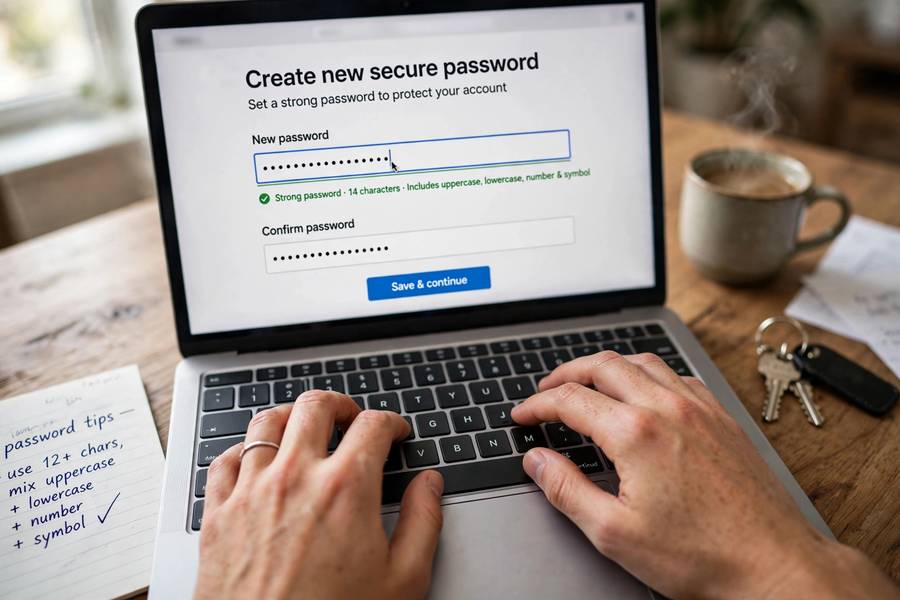
- Turn on two-factor authentication if it isn’t already (Settings → [your name] → Sign-In & Security). This is the single most important account security step.
- Check trusted devices: Remove any you don’t recognize (Settings → [your name] → scroll to devices).
- Use a strong, unique password. A password manager makes this painless — and understanding how a search engine works is a good reminder of why unique passwords matter: breached passwords from one site get tried everywhere.
- Update the password anywhere else you used the old one (and stop reusing passwords).
Keep reading: if this helped, you’ll also like how wireless earbuds work — I wrote them in the same plain-English style.
Frequently Asked Questions
Go to Settings → [your name] → Sign-In & Security → Change Password, enter your device passcode, and set a new password. This is the fastest method when you’re signed in on the device.
Go to iforgot.apple.com in any browser, enter your Apple ID email, and verify via your trusted phone number or another method Apple offers. Or use the Apple Support app on a friend’s Apple device and choose “A different Apple ID.”
Account recovery — the last resort when no verification method works — typically takes several days. Apple intentionally delays it as a security measure. Having a recovery contact set up in advance can speed things up significantly.
A recovery key is a 28-character code you can generate as an extra-secure account recovery method. If enabled, it replaces other verification options — which means losing both your password and recovery key makes recovery extremely difficult. Store it somewhere safe.
No — Apple Support cannot bypass the automated reset and recovery process. They’ll direct you to iforgot.apple.com or the on-device methods. This is by design: if support could override it, attackers could social-engineer their way in.
Never reuse your Apple ID password. Your Apple ID guards your photos, messages, backups, and payment methods — a breach anywhere else shouldn’t become a breach of everything. Use a unique password plus two-factor authentication.