Your iPhone is full of apps you downloaded once and never opened again — the meditation app from January, three different photo editors, that game your friend insisted was amazing. Deleting them takes seconds, but Apple gives you several different ways to do it, and they don’t all do the same thing.
I’m Sophia, and I do a phone declutter every few months. Here are all four methods, what each one actually does, and how to fix it when an app refuses to delete.
Table of Contents
- Method 1: Delete from the Home Screen
- Method 2: Delete from the App Library
- Method 3: Delete from Settings (Best for Storage)
- Method 4: Offload Instead of Delete
- What “Remove from Home Screen” Means
- When Apps Won’t Delete: Fixes
- Freeing Storage Beyond Apps
- Frequently Asked Questions
Method 1: Delete from the Home Screen
The fastest way, and the one most people know:
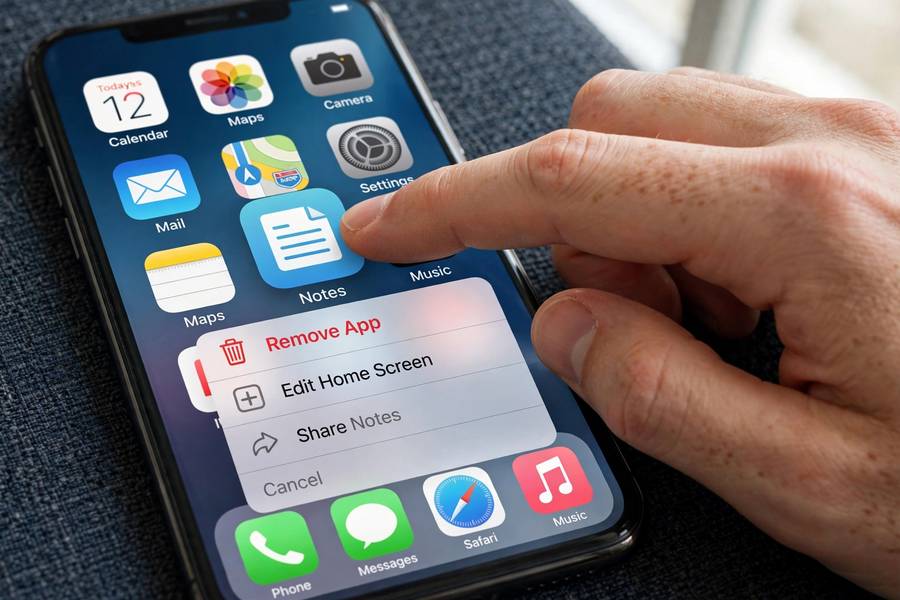
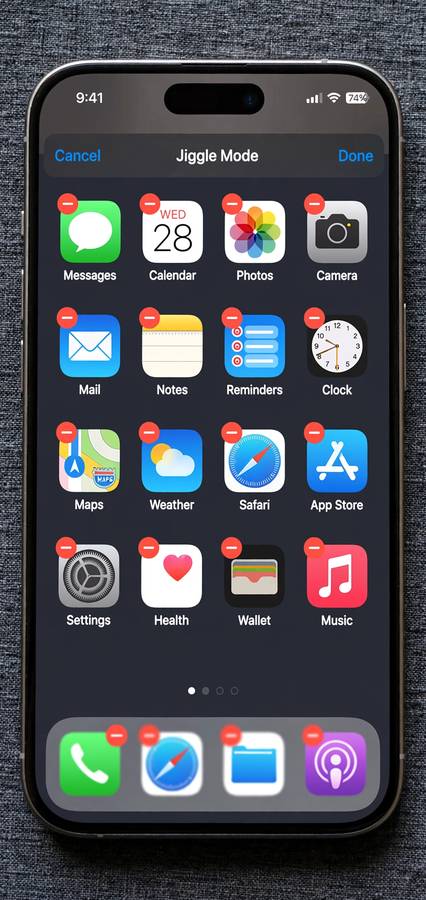
- Touch and hold the app icon until a menu appears (or until the icons start jiggling).
- Tap Remove App.
- Tap Delete App, then confirm with Delete.
The app and all its local data are removed from your iPhone. This works for any app on your Home Screen pages.
Note: If you only see “Remove from Home Screen” and not “Delete App,” the app might only exist in your App Library — see Method 2.
Method 2: Delete from the App Library
Since iOS 14, every app also lives in the App Library (swipe left past your last Home Screen page). Apps you removed from the Home Screen but didn’t delete are still here, taking up space.
- Open the App Library.
- Find the app (use the search bar at the top if needed).
- Touch and hold the app icon.
- Tap Delete App, then confirm.
This is the method to use when you’re not sure whether an app is truly gone. The App Library is also great for auditing — search for apps you forgot you had.
Method 3: Delete from Settings (Best for Storage)
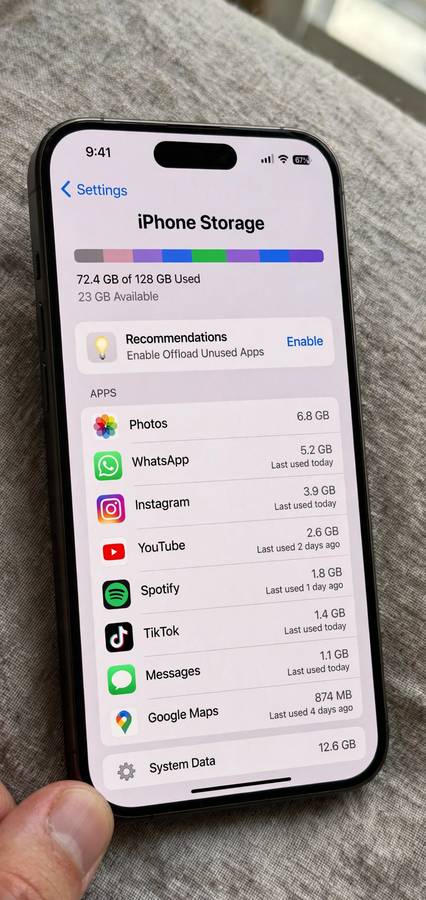
If your goal is freeing up space, do it from Settings — it shows you exactly how much storage each app uses:
- Go to Settings → General → iPhone Storage.
- Wait for the list to load (it takes a few seconds to calculate sizes).
- Tap any app to see its size and its Documents & Data size.
- Tap Delete App and confirm.
Why this method is better for storage: Some apps are small but hoard gigabytes of data (looking at you, social media and streaming apps). The storage screen reveals the true footprint — an app that’s 200 MB might hold 4 GB of cached data. Deleting from here wipes both.
Pro tip: Sort by size mentally and attack the biggest offenders first. You’ll often find one forgotten app eating 5+ GB.
Method 4: Offload Instead of Delete
Offloading removes the app itself but keeps its documents and data. If you reinstall later, everything is right where you left it.
- Go to Settings → General → iPhone Storage.
- Tap the app.
- Tap Offload App (instead of Delete App).
Use offloading for apps you might want again — travel apps between trips, seasonal games, work tools during a break. You free the app’s size while keeping your login, settings, and files.
Auto-offload: iOS can do this automatically. Go to Settings → App Store → Offload Unused Apps and toggle it on. iOS will offload apps you haven’t used in a while when storage runs low. Your data stays safe.
What “Remove from Home Screen” Means
This trips people up. When you long-press an app and choose Remove from Home Screen (instead of Delete App), the app is not deleted — it’s just hidden from your Home Screen pages. It still lives in the App Library, still takes up storage, still updates.
Use it for: apps you want to keep but don’t want cluttering your Home Screen. It’s organization, not deletion.
The distinction matters because people often think they’ve freed space when they’ve only tidied up. If storage is the goal, delete — don’t just remove.
When Apps Won’t Delete: Fixes
The delete option is missing: Some built-in Apple apps (App Store, Camera, Phone, Messages, Safari) can’t be deleted — only removed from the Home Screen. Most other built-in apps (Stocks, Compass, Watch, Tips) can be deleted in recent iOS versions.
Screen Time restrictions: If deletion is blocked, check Settings → Screen Time → Content & Privacy Restrictions → iTunes & App Store Purchases → Deleting Apps. If it’s set to “Don’t Allow,” change it to “Allow.” This is the #1 cause of the missing delete option, especially on kids’ or work phones.
The app is stuck “Waiting” or “Loading”: A half-downloaded app sometimes can’t be deleted normally. Try restarting your iPhone, then delete it. If that fails, go to Settings → General → iPhone Storage, find the app, and delete it from there.
Jiggle mode won’t activate: Make sure you’re touching and holding (not 3D-pressing hard). On newer iPhones without 3D Touch, it’s a sustained press — hold for about a second until the menu appears.
Freeing Storage Beyond Apps
Deleting apps is step one. If you’re still short on space, these are the real storage hogs:
Photos and videos. The #1 iPhone storage consumer. Options: enable iCloud Photos (Settings → [your name] → iCloud → Photos → Optimize iPhone Storage — keeps thumbnails locally, full-res in iCloud), or offload to a computer/Google Photos and delete local copies. A single 4K video can eat 400 MB per minute.
Messages attachments. Years of photos, videos, and GIFs in Messages pile up silently. Check Settings → General → iPhone Storage → Messages to see the damage. Enable auto-delete: Settings → Messages → Keep Messages → 1 Year (or 30 Days). Your ancient group chats don’t need to live on your phone forever.
Downloaded media. Netflix, Spotify, Apple Music, podcasts, and YouTube downloads accumulate. Audit each app’s downloads — in Spotify: Your Library → Downloaded; in Podcasts: delete old episodes. Streaming doesn’t need to mean storing.
The “Other”/System Data category. If Settings → General → iPhone Storage shows a huge grey “System Data” bar, it’s mostly caches. A backup + restore (via computer) is the only reliable way to shrink it — annoying, but effective for extreme cases.
Safari data. Settings → Apps → Safari → Clear History and Website Data wipes cached web content. You’ll be logged out of websites, but it can free surprising amounts of space.
Work through this list top-down and most “storage full” crises resolve without deleting a single app you actually use.
Organizing What Remains
Deleted the dead weight? Now make what’s left effortless to use:
Use the App Library. You don’t need every app on your Home Screen. Keep one clean page of daily essentials; let the App Library (swipe left past your last page) hold the rest, auto-categorized. Less visual clutter, same access.
Folders by action, not category. Instead of a “Social” folder, try “Morning” (news, weather, calendar) and “Evening” (streaming, reading, games). Organizing by when you use apps beats organizing by what they are.
Search instead of hunting. Swipe down on the Home Screen and type two letters — iOS finds any app instantly. Once this becomes habit, Home Screen organization barely matters.
Audit notifications. Settings → Notifications — turn off badges and banners for everything that doesn’t truly need your attention. A decluttered phone isn’t just about storage; it’s about attention. The average person gets 60+ notifications a day, and most are noise.
Quarterly review. Set a recurring reminder: every three months, swipe through the App Library and delete anything unused. Fifteen minutes, four times a year, and your phone stays lean permanently.
Keep reading: if this helped, you’ll also like how wireless earbuds work, how a search engine works — I wrote them in the same plain-English style.
Frequently Asked Questions
Touch and hold the app icon, tap Remove App, then Delete App and confirm. Or go to Settings → General → iPhone Storage, tap the app, and choose Delete App. Both fully remove the app and its data.
Deleting removes the app and all its data. Offloading removes only the app itself but keeps your documents, settings, and data — so if you reinstall later, everything is restored.
Core apps like Phone, Safari, Messages, Camera, and the App Store can’t be deleted. For other apps, the usual cause is a Screen Time restriction: check Settings → Screen Time → Content & Privacy Restrictions → Deleting Apps and set it to Allow.
No — it only hides the icon. The app remains in the App Library, still installed and using storage. To actually delete it, choose Delete App instead, or remove it from the App Library or Settings.
iOS doesn’t offer bulk deletion from the Home Screen, but the fastest workflow is Settings → General → iPhone Storage — the size-sorted list lets you quickly work through space-hogging apps one by one.
No — deleting an app does not cancel subscriptions. Cancel in Settings → [your name] → Subscriptions. Always cancel first, then delete.