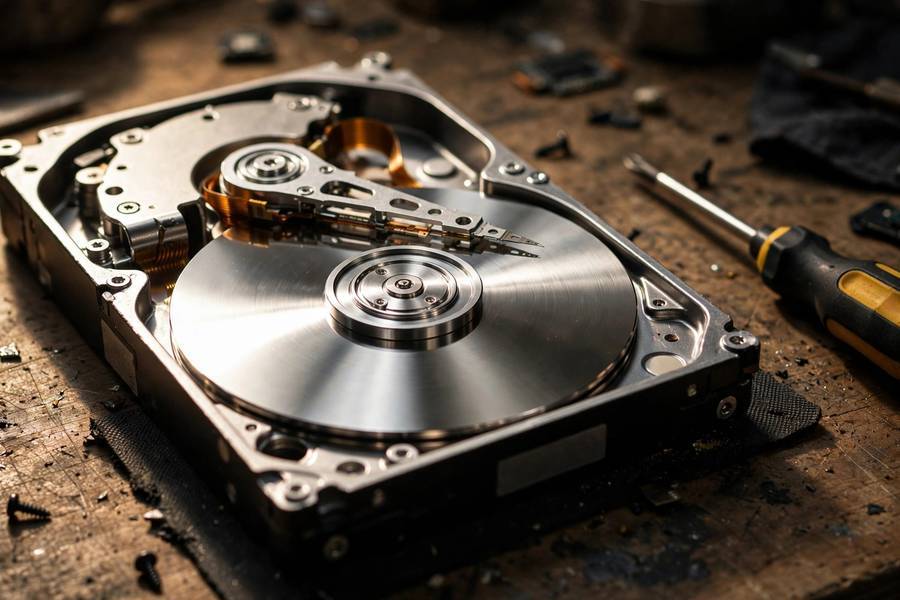
I killed a hard drive last year. Not on purpose — it was a ten-year-old 1TB drive that started making the clicking sound every tech person dreads. Before I recycled it, I took it apart with a Torx screwdriver. Inside I found a mirror-smooth metal disc, an arm that moved with watch-like precision, and magnets strong enough to pinch my fingers.
A hard drive is one of the last truly mechanical things inside your computer — tiny parts moving at insane speeds, storing your photos as invisible magnetic patterns. Here’s how the whole thing works, what the parts do, how it differs from an SSD, and how to keep yours alive longer.
- The Short Version
- Inside a Hard Drive: The 4 Key Parts
- How Data Gets Written and Read
- Tracks, Sectors, and Where Your Files Live
- Why Hard Drives Are Slow (and Fragile)
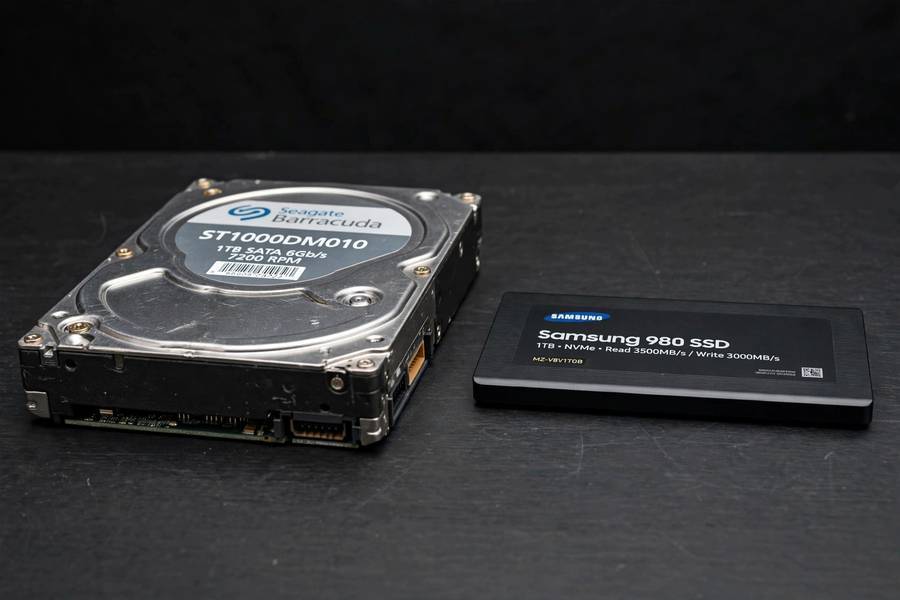
- HDD vs SSD: The Honest Comparison
- How to Make a Hard Drive Last Longer
- Frequently Asked Questions
The Short Version
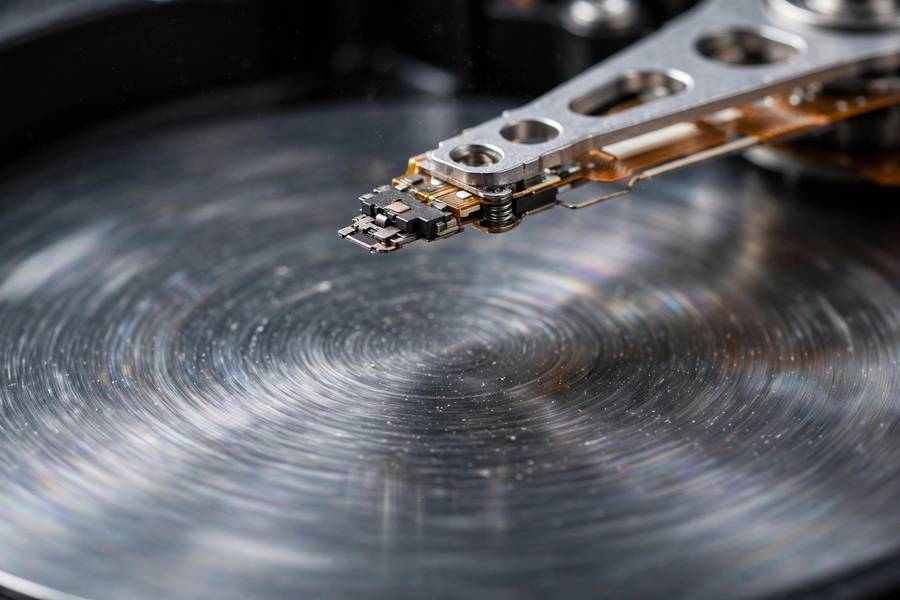
A hard disk drive (HDD) stores your data as magnetic patterns on spinning metal discs called platters. A tiny arm with a read/write head at its tip swings across the platter surface — like a record player needle, except it never touches the disc — and either magnetizes microscopic spots (writing) or senses their magnetism (reading).
Everything else is engineering around that one idea. A modern 4TB drive holds roughly 4 trillion bytes on platters spinning 5,400–7,200 times per minute, with the head floating ~3 nanometers above the surface — a fingerprint ridge is about 10,000 times taller than that gap. That’s why the inside of a drive is sealed.
Inside a Hard Drive: The 4 Key Parts
Four things matter. Here’s what each does:
1. The platters. The actual storage: rigid aluminum or glass discs coated on both sides with a thin magnetic layer (usually a cobalt alloy). Desktops stack two to five platters on one spindle; laptops one or two. Both sides of every platter store data.
2. The spindle motor. Spins the platters at constant speed — 5,400 RPM (laptops/external) or 7,200 RPM (desktops). Faster spin means the head reaches data sooner. The motor must hold that speed rock-steady; tiny wobble would throw the head off its microscopic target.
3. The actuator arm and read/write heads. The precision instrument of the device: the arm pivots from a corner, and at its tip sits the read/write head — an electromagnet smaller than a grain of sand. A voice coil (same idea as a loudspeaker) swings the arm across the platter in milliseconds. One head per platter surface; they all move together.
4. The logic board. The green circuit board on the drive’s underside. It translates your computer’s requests into physical head movements, manages cache memory, and handles error correction. When a drive “dies” electronically, it’s often this board — the mechanics inside can be perfectly fine.
How Data Gets Written and Read
Here’s the part I find genuinely cool: your files are stored as the direction of magnetization in microscopic regions of the platter coating.
Writing: The head contains a tiny electromagnet. As the platter spins beneath it, the drive pulses electric current through the head, flipping the magnetic orientation of minuscule spots on the surface — north-up might mean “1,” north-down might mean “0” (the real encoding schemes are fancier, but that’s the idea). Each spot is absurdly small: on a modern drive, a single bit occupies an area roughly 40 by 10 nanometers.
Reading: The process reverses. As magnetized spots sweep under the head, their magnetic fields induce tiny electrical signals in the head’s exquisitely sensitive magnetoresistance sensor. The logic board decodes those signals back into your ones and zeros, then into your photos, documents, and videos.
Tracks, Sectors, and Where Your Files Live
Your files aren’t laid out on the platter like books on a shelf. The organization works like this:
The platter surface is divided into concentric circles called tracks — think tree rings, hundreds of thousands of them. Each track is divided into sectors, typically holding 4,096 bytes (4KB) each. Your operating system’s file system groups sectors into clusters and keeps a master map (on Windows it’s called the Master File Table; the concept is the same everywhere) recording which clusters belong to which file.
This is why fragmentation happens: when you save a file, the drive puts its pieces wherever there’s free space at that moment. Delete some files, save new ones, and over time a single photo might be scattered across dozens of locations. The head has to physically travel to each piece, which slows things down — one reason old drives get sluggish. (SSDs don’t care about fragmentation because they have no moving head, which is one of several reasons they feel so much faster.)
It’s also why “deleted” files can sometimes be recovered: deleting usually just erases the map entry, not the data. The magnetic patterns sit there until something new overwrites them. Good to know if you’re selling an old drive — “deleted everything” isn’t the same as wiped.
Why Hard Drives Are Slow (and Fragile)
Two fundamental limits, both caused by the fact that parts have to physically move:
Speed: the tyranny of milliseconds. Before reading, the head must swing to the right track (seek time, ~8–15 ms) and wait for the right sector to spin underneath (rotational latency, ~4–8 ms). An SSD does the equivalent in ~0.1 ms — roughly a hundred times faster. A hard drive tops out around 80–160 MB/s; even a basic SSD does 500 MB/s, NVMe drives 3,000–7,000 MB/s. For booting or launching apps — thousands of tiny reads — that gap feels enormous.
Fragility: precision machinery hates surprises. The head flies nanometers above a disc spinning over a hundred times per second — shock, vibration, or a drop while running can cause a head crash. Heat degrades lubricants and electronics, and bearings, motors, and actuators simply wear out. Most hard drives last 3 to 5 years of regular use; some reach a decade, some die in year two.
The famous click of death — rhythmic clicking — is the actuator arm swinging to its limit because it can’t find its track. If you hear it, stop using the drive and back up immediately: that’s failure in progress, not a warning.
HDD vs SSD: The Honest Comparison
Since SSDs have taken over laptops and most desktops, is the hard drive obsolete? Not quite. Here’s the honest breakdown from someone who’s used both heavily:
| Hard Drive (HDD) | Solid State Drive (SSD) | |
|---|---|---|
| How it stores data | Magnetic patterns on spinning platters | Electrical charges in flash memory chips |
| Speed | 80–160 MB/s | 500–7,000 MB/s |
| Moving parts | Yes (motor, arm, heads) | None |
| Shock resistance | Fragile — drops can kill it | Excellent — nothing to break |
| Noise | Hums, clicks | Silent |
| Price per terabyte (2026) | ~$15–25 | ~$50–80 |
| Best for | Bulk storage, backups, media libraries | Operating system, apps, games, laptops |
My rule of thumb: SSD for anything you interact with daily — your operating system, programs, and active projects. The speed difference genuinely changes how a computer feels. HDD for bulk storage where speed doesn’t matter — movie collections, photo archives, backups. A 4TB hard drive for backups costs less than a nice dinner; the SSD equivalent costs several times more.
One more thing people get wrong: SSDs aren’t immortal either. Their memory cells wear out after a certain number of writes. In practice, a modern SSD will outlast the computer it’s in for normal use — but “no moving parts” doesn’t mean “lasts forever.” Back up regardless of which type you own.
How to Make a Hard Drive Last Longer
You can’t make a drive immortal, but you can avoid killing it early. This is the advice I give friends, in order of impact:
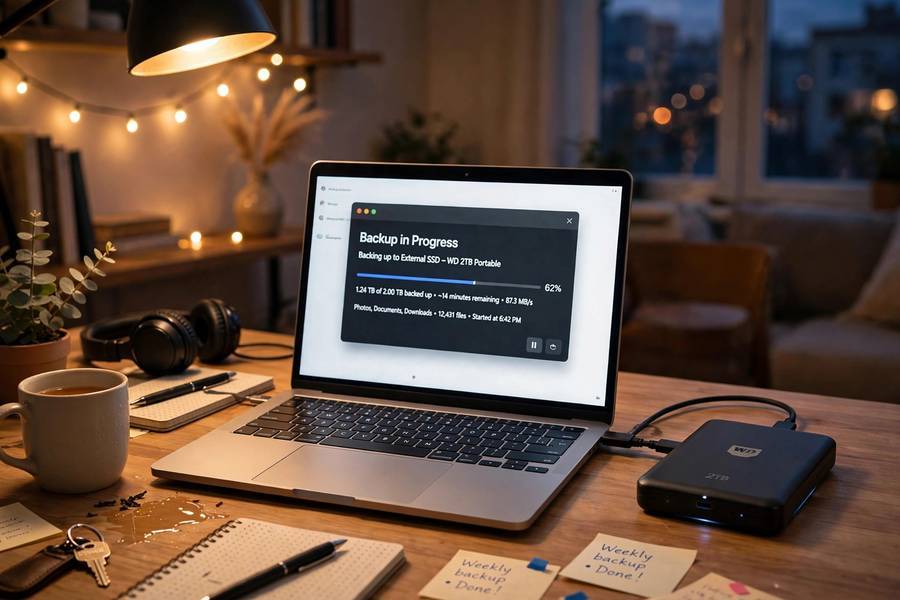
- Back up, always. This is the only tip that truly matters. Drives die; backups make it an inconvenience instead of a tragedy. Follow the 3-2-1 rule: 3 copies of important data, on 2 different types of media, with 1 copy offsite (cloud counts).
- Don’t move it while it’s running. Sudden motion is what parks heads into platters — move running laptops gently, if at all.
- Keep it cool. Heat is a slow killer — give drives breathing room and keep vents dust-free.
- Don’t fill it past 85%. A nearly full drive fragments badly, and your OS needs free space for temp files and updates.
- Watch its health. Drives self-monitor via SMART — free tools like CrystalDiskInfo (Windows) read it and warn of early failure signs. Check every few months.
- Defragment occasionally — HDDs only. Windows’ built-in Optimize tool consolidates fragmented files on spinning drives. Never defrag an SSD.
- Plan replacement around year five. Drives are cheap; data recovery starts around $300 with no guarantees. Replace on your schedule, not the drive’s.
Before selling or recycling a drive, wipe it properly (Windows’ full format or a tool like DBAN) or physically destroy the platters — deleting files isn’t enough.
Whether it’s your backup drive or the datasets search engines index and AI models learn from, it comes down to one trick: tiny magnets, spinning fast, read by a head flying closer to the surface than seems possible. Nineteenth-century physics at twenty-first-century precision.
Frequently Asked Questions
Most hard drives last 3 to 5 years of regular use, though some run for a decade and a few fail early. Heat, physical shocks, and heavy use shorten life. Because failure is a matter of when, not if, keep backups of anything important and consider replacing drives holding critical data around the five-year mark.
The usual culprits are fragmentation from years of use, the drive being more than 85% full, a 5,400 RPM model doing heavy work, or early failure — bad sectors force repeated re-reads. Run the built-in disk check, free up space, and check the drive’s SMART health. If health warnings appear, back up immediately.
Sometimes. If the logic board failed, a specialist can often transplant parts or read the platters directly — but professional recovery typically starts around $300 and climbs into the thousands, with no guarantee. If the platters themselves are scratched, recovery may be impossible. This is why backups beat recovery every time.
For speed, durability, and silence, yes — SSDs are dramatically faster (500–7,000 MB/s versus 80–160 MB/s) and have no moving parts to break. For cheap bulk storage, hard drives still win at roughly a third of the price per terabyte. Most people are happiest with an SSD for the operating system and apps, plus a hard drive for backups and media archives.
A rhythmic clicking — the “click of death” — means the read/write head can’t find the track it’s seeking and keeps resetting. It’s a sign of failure in progress, not a future warning. Stop using the drive right away, back up whatever you can still access, and plan for replacement.
For a traditional spinning hard drive, yes — occasional defragmentation consolidates scattered file pieces and can noticeably improve speed; Windows includes a built-in Optimize tool. Never defragment an SSD: it provides no benefit and wears out the flash memory cells. Modern operating systems usually handle SSDs automatically with a different process called TRIM.