I accidentally deleted an entire vacation album last year — 200 photos, gone in one thumb slip. The panic was real. But here’s what I learned after digging into every recovery method: “deleted” almost never means gone immediately. Your phone just hides the files and marks the space as reusable. If you act fast and in the right order, you can usually get your photos back. Here’s everything I found, from the stuff that takes ten seconds to the tools that actually work when things get serious.
Table of Contents
- The golden rule: stop using the device
- iPhone: check Recently Deleted first
- Android: check the trash folder
- Recover from your cloud backups
- Recover from a computer backup
- Using third-party recovery software
- What about SD cards and cameras?
- How to stop this happening again
- Frequently Asked Questions
The Golden Rule: Stop Using the Device
Before anything else: if the photos matter, stop taking new photos, stop downloading apps, and stop browsing. Deleted files stay recoverable only until new data overwrites them. Every new photo, app install, or software update shrinks your odds. This isn’t scare tactics — it’s literally how storage works. The deleted photo is still there, but your phone will happily write over it the moment it needs the space.
Related: delete apps on android.
So step one is always: put the phone down (except to do the recovery), and work through the steps below in order.
iPhone: Check Recently Deleted First
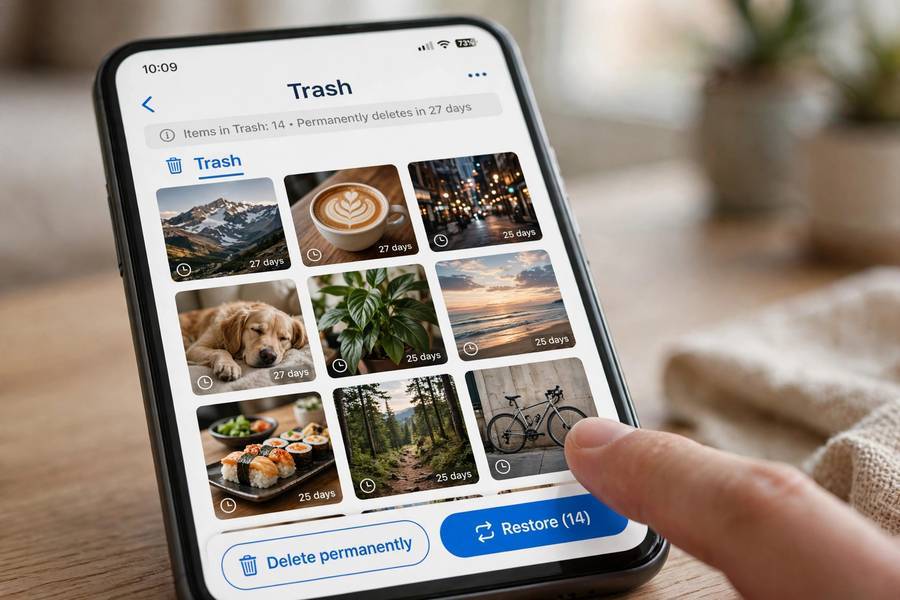
On an iPhone, deleted photos sit in a safety net for 30 days. Open the Photos app, scroll down to Utilities, and tap Recently Deleted. If your photos are there, tap Select, pick the ones you want, and hit Recover. Done. This solves the problem 90% of the time, and it’s worth saying: most people who panic-search “how to recover deleted photos” just haven’t looked here yet. I know I hadn’t.
Want the full picture? Read our guide to delete apps on iphone.
Note: if you emptied the Recently Deleted folder, or the 30 days passed, keep reading — you’re not out of options.
Android: Check the Trash Folder
Android’s Google Photos app has the same idea. Open Google Photos, tap Library, then Trash. Backed-up items stay in Trash for 60 days; items never backed up are kept 30 days. Select your photos and tap Restore. Samsung phones have a similar thing in the Gallery app — open Gallery, tap the menu, and look for Trash or Recycle Bin.
One catch: if you used your phone’s built-in file manager to delete photos instead of Google Photos, they may not land in this trash. Then the backup step below becomes your best bet.
Recover From Your Cloud Backups
If the photos were synced before you deleted them, your cloud account probably still has copies.
iCloud (iPhone)
Go to iCloud’s Photos page on a computer and sign in. Check the Recently Deleted album there — it sometimes has a separate 30-day clock from your phone. Even better, check your full photo library: if the deletion never synced (say, you were offline), the photos may still be sitting in iCloud untouched.
Google Photos (Android)
Go to photos.google.com and look around. Same logic — the web version can show photos that haven’t synced the deletion yet. Also check Archive in the Library tab; photos you’ve archived (not deleted) live there and are easy to confuse with gone.
Dropbox, OneDrive, Amazon Photos
If you had camera upload enabled in any of these, open the app and check. They keep their own copies independent of your phone’s trash, which means a phone deletion doesn’t always mean a cloud deletion.

Recover From a Computer Backup
This is the method that saved my vacation album. If you’ve ever backed up your phone to a computer, the backup may contain the photos even if your phone doesn’t anymore.
iPhone users: If you back up to a Mac or PC (Finder or iTunes), restoring from that backup brings back photos — but restoring wipes your current phone state and replaces it with the backup. That’s a sledgehammer, so before you do it, back up your phone now so you don’t lose anything newer. Then restore the older backup and extract what you need.
Android users: If you used Samsung Smart Switch or another backup tool, check those backup files on your computer for the photo folders before doing a full restore.
Honest opinion: full restore is annoying and risky. Try the cloud options first, and only go here if the photos are genuinely worth the hassle.
Using Third-Party Recovery Software
When the trash is empty, the cloud has nothing, and there’s no backup — this is the last resort. Recovery software scans your phone’s or SD card’s storage for files that are deleted-but-not-overwritten.
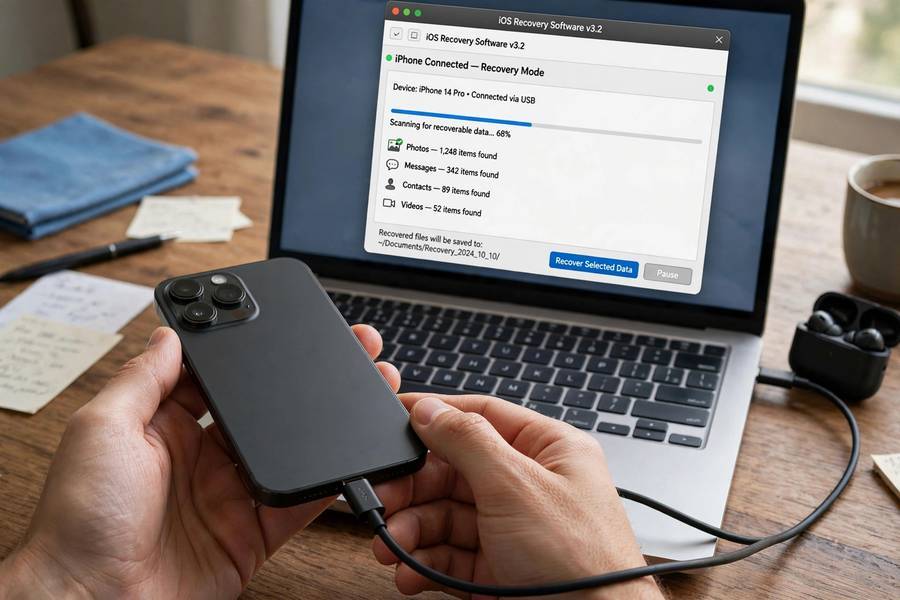
Tools like Disk Drill, EaseUS Data Recovery, and Dr.Fone are the ones people actually use. The honest breakdown:
- They work best on SD cards and USB drives, not phones. Phones use encrypted storage and newer Android/iOS versions block the low-level access these tools need.
- On phones, they typically require connecting the phone to a computer via USB, and sometimes root access (Android) or a full backup extraction (iPhone).
- The free versions almost always limit how much you can recover — expect to pay $40–$80 if it actually finds your photos.
- They work worst the longer you’ve waited. A week of heavy phone use after deletion and your chances drop a lot.
My take: try the free scan first to see if it even finds your photos. Only pay if the preview shows the actual files you want. Too many people buy the software before confirming the files exist.
What About SD Cards and Cameras?
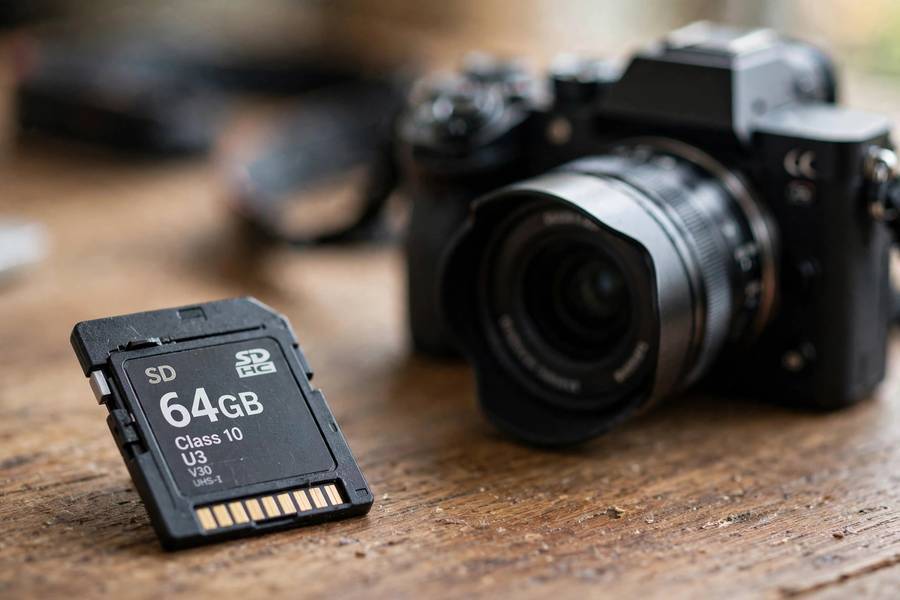
Here’s the good news: SD cards are the easiest recovery case. They don’t have trash folders or encryption getting in the way — deleted files just sit there until overwritten. Recovery software shines here.
If you deleted photos from a camera’s SD card:
- Stop using the card immediately. Don’t take more photos on it.
- Put the card in a computer with a card reader (not through the camera).
- Run recovery software like Disk Drill or the free version of PhotoRec — point it at the card, not at a drive.
- Save recovered files to your computer’s hard drive, never back onto the same card.
I’ve recovered photos from a card I’d formatted in-camera using this exact process. Formatted is not the same as wiped — the camera just marked everything as free space.
How to Stop This Happening Again
Recovery is stressful. Prevention is boring but free:
- Turn on automatic cloud backup (iCloud Photos or Google Photos) and leave it on. This single setting would prevent most photo-loss disasters.
- Once a year, back up your photos to a hard drive. Clouds have limits and accounts get locked. A $60 external drive with your photos on it is cheap insurance.
- Be careful with “free up space” buttons. Both iPhone and Android offer to remove local copies of photos that are backed up. That’s fine — until something goes wrong with the backup.
- Before any phone reset or trade-in, verify the backup actually contains your photos. Open the cloud on a computer and spot-check. Don’t trust the “backup complete” message alone.
Frequently Asked Questions
Yes, sometimes. Once the trash is emptied, the photos aren’t erased immediately — the storage space is just marked as reusable. Stop using the device right away, then check your cloud backups or try recovery software. Your odds drop fast the more you use the phone afterward.
In your phone’s Recently Deleted or Trash folder, typically 30 days. After that, recoverability depends on whether the storage space has been overwritten by new data — it could be days, weeks, or longer, but there’s no fixed window.
Mostly no. Free versions usually let you scan and preview found files but cap how much you can actually recover. Run the free scan first to confirm your photos are found, then decide if the paid version is worth it.
Usually yes. Check the Recently Deleted or Trash folder in your Photos app, and check your cloud account (iCloud.com or photos.google.com) on your phone’s browser. Most recoveries are done entirely on the phone.
A factory reset makes recovery extremely difficult on modern phones because storage is encrypted and the encryption keys are destroyed. Unless you have a backup, photos lost in a factory reset are generally gone for good.
Partially. Because of iOS encryption and restricted access, most tools can only recover from iTunes/Finder backups or iCloud backups — not directly from the phone’s storage. Android tools have slightly more access, especially with root, but newer phones are locked down too.