Android backups are quieter than iPhone backups — they mostly just happen in the background, and most people never check. That’s fine until you need a restore and discover your photos stopped syncing eight months ago. Let’s make sure yours actually works.
I’m Sophia. Here’s how to verify and set up Android backup properly — Google’s way, Samsung’s way, and the manual belt-and-suspenders method.
Table of Contents
- How Android Backup Works (The Big Picture)
- Method 1: Google One Backup
- Method 2: Samsung Cloud (Samsung Phones)
- Method 3: Manual Backup to Computer
- What Gets Backed Up (And What’s Missing)
- How to Restore
- Verify Your Backup Actually Worked
- WhatsApp Backups: The Special Case
- Frequently Asked Questions
How Android Backup Works (The Big Picture)
Unlike Apple’s single iCloud Backup, Android splits backup across services:
- Google One backup: Apps, app data, call history, contacts, device settings, SMS — backed up to your Google account automatically.
- Google Photos: Photos and videos — separate sync, needs to be enabled on its own.
- Google Drive: Documents and files you save there.
- Samsung Cloud (Samsung phones): A parallel backup of Samsung apps, settings, home screen layout, and more.
The fragmentation is Android’s weakness here: you must check each piece rather than trusting one toggle. Let’s do that now.
Method 1: Google One Backup
This is the core backup for all Android phones:
- Go to Settings → Google → Backup (on Samsung: Settings → Accounts and backup → Google Drive → Back up data, or via the Google One app).
- Make sure Backup by Google One is toggled on.
- Tap Back Up Now to run it immediately.
Verify it worked: The backup screen shows the last backup time and what’s included. If it says “Waiting to back up” for days, check that you’re on Wi-Fi (backups pause on mobile data by default) and that you have enough Google storage.
Storage: Every Google account gets 15 GB free, shared across Gmail, Drive, and Photos. If your backup doesn’t fit, Google One plans start at 100 GB for a couple dollars a month. Photos in original quality eat this fast — consider “Storage saver” quality in Google Photos to stretch it.
Method 2: Samsung Cloud (Samsung Phones)
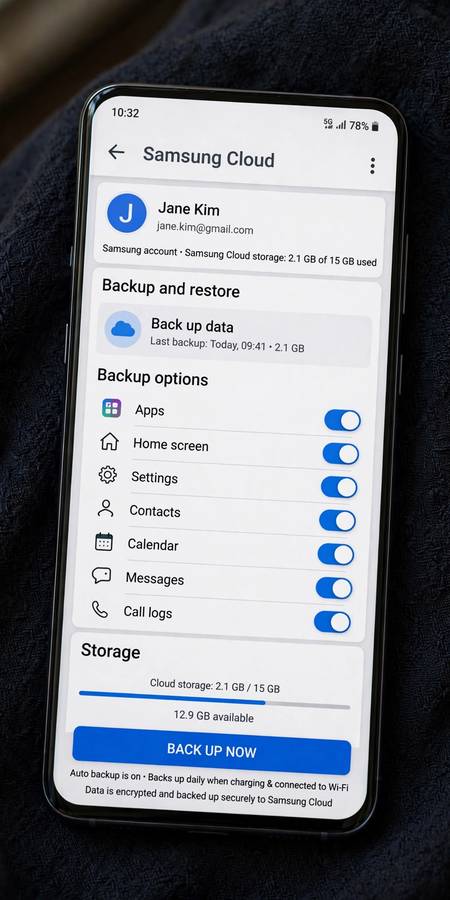
Samsung phones get a second, Samsung-specific backup layer:
- Go to Settings → Accounts and backup → Samsung Cloud.
- Tap Back up data and choose categories (apps, home screen, settings, messages, etc.).
- Enable Auto back up for continuous protection.
Samsung Cloud is especially good at things Google misses: your home screen layout, Samsung app data (Notes, Calendar), and system settings. If you’re on Samsung, run both — they complement each other, and Samsung Cloud restore is noticeably more complete for Samsung-specific stuff.
Method 3: Manual Backup to Computer
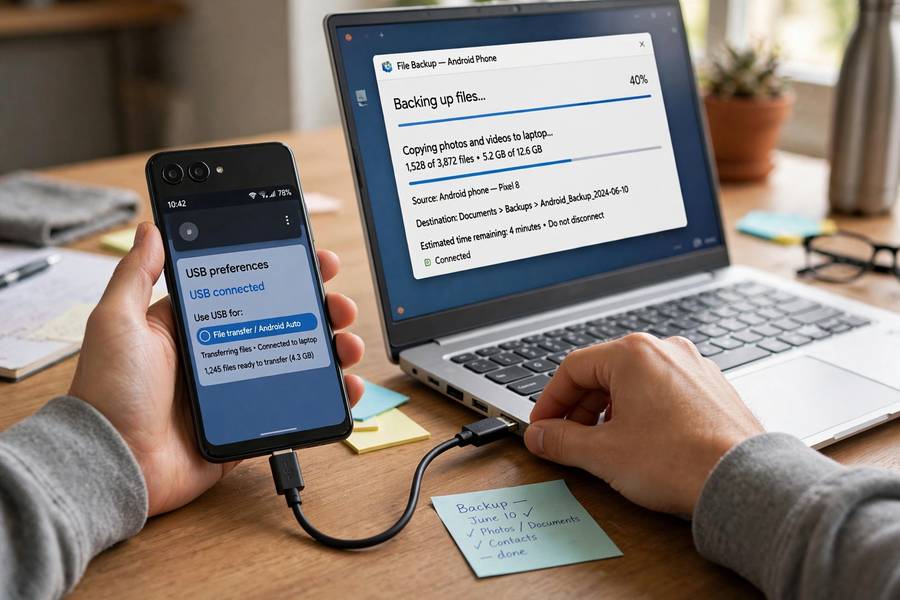
For the truly irreplaceable (photos, videos, documents), a local copy is worth the ten minutes:
- Connect your phone to a computer with a USB cable.
- On the phone, tap the USB notification and select File Transfer.
- Copy the DCIM folder (photos/videos), Documents, and anything else important to your computer.
Also consider: Google Photos’ “partner sharing” or shared albums as a second cloud copy of photos. And for documents, keeping originals in Google Drive (not just on-device) means they’re backed up continuously.
This manual step matters because cloud restores can fail in edge cases — corrupted backups, account lockouts, expired payment methods on storage plans. A local copy is your independent safety net.
What Gets Backed Up (And What’s Missing)
Google One backup includes: Installed apps list, app data (for apps that support it), call history, contacts, device settings (Wi-Fi passwords, wallpaper, display settings), SMS messages.
Google Photos includes: Photos and videos — only if backup is enabled in the Photos app itself. Check: Photos app → profile → Photos settings → Backup → on. This is the #1 thing people assume is working when it isn’t.
Not included: Downloaded music/video files, some app data (apps must opt into Google’s backup framework — many games don’t), authenticator app codes (use the app’s own cloud sync or transfer feature!), and files in “secure folder” areas.
Critical warning — authenticator apps: Google Authenticator and similar apps historically did NOT back up your 2FA codes. Newer versions offer cloud sync — enable it, or use the app’s transfer/QR export feature before switching phones. Losing 2FA codes is one of the most painful phone-migration experiences possible.
How to Restore
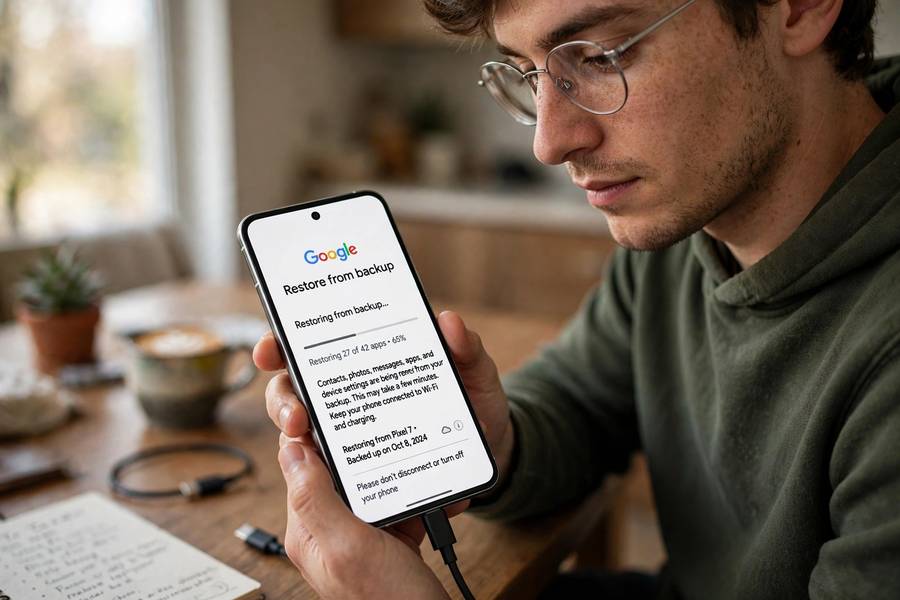
New phone setup: During Android setup, sign in with the same Google account and choose Restore from your backup. Apps reinstall, settings return, and messages come back. Google Photos content syncs separately once you open the Photos app.
Samsung to Samsung: Samsung’s Smart Switch (cable, Wi-Fi, or PC) moves even more — it’s the most complete Android transfer method in existence. Use it for Samsung-to-Samsung moves.
After a factory reset: Same flow — sign in during setup and restore from the Google One backup.
Selective restore isn’t really a thing on Android — it’s all-or-nothing per backup. If you only need photos, just open Google Photos; they’re independent of the device backup.
Verify Your Backup Actually Worked
A backup you haven’t verified is a hope, not a plan. Check these four things today:
1. Google One backup status. Settings → Google → Backup — confirm it says “Backed up” with a recent date, not “Waiting to back up.” If it’s been waiting for days, connect to Wi-Fi, plug in, and tap Back Up Now. A backup that never completes protects nothing.
2. Google Photos backup. Open the Photos app → tap your profile picture → Photos settings → Backup. Confirm it’s on and shows “Backup complete.” Scroll through — if photos from last month are missing, backup was off and you didn’t know. This is the single most common Android backup failure.
3. Check your storage headroom. Google One app or one.google.com — if you’re at 14.8 of 15 GB, new backups are silently failing. Either clean up (Gmail attachments, Drive trash) or upgrade. A full storage quota is a backup that stopped working without telling you.
4. Do a test restore of one thing. The ultimate verification: on your current phone, pick one photo and confirm it loads full-resolution from the cloud (not just a thumbnail). If it loads, your backup chain works end to end.
Set a quarterly calendar reminder titled “backup check” — two minutes, four checks, permanent peace of mind. The people who lose data are never the people who verified.
WhatsApp Backups: The Special Case
WhatsApp deserves its own section because it backs up separately from everything else — and it’s where most people keep their most important conversations and media.
How it works: WhatsApp → Settings → Chats → Chat backup — it backs up to Google Drive on its own schedule (daily, weekly, monthly — set it to daily). This includes messages and, optionally, videos (videos balloon the backup size enormously — consider excluding them).
The gotcha: WhatsApp backups are tied to your phone number and Google account. Change numbers without using WhatsApp’s Change Number feature first, and your backup becomes unrestorable. Moving to iPhone? The transfer happens during initial setup via Move to iOS — it cannot be done afterward without third-party tools.
Media bloat: WhatsApp’s Manage storage screen (Settings → Storage and data) often reveals gigabytes of forwarded videos and memes. Clean it before it eats your Google storage quota — which, remember, is shared with your device backup.
My rule: Daily WhatsApp backup, videos excluded, storage managed quarterly. Your chats survive anything; your storage quota survives too.
Keep reading: if this helped, you’ll also like how a search engine works, how WiFi works — I wrote them in the same plain-English style.
Frequently Asked Questions
Go to Settings → Google → Backup, toggle Backup by Google One on, and tap Back Up Now. Also enable backup in the Google Photos app separately — photos don’t back up through the main toggle alone.
Yes, using your free 15 GB of Google storage (shared with Gmail and Drive). If you need more, Google One paid plans start at 100 GB. Using “Storage saver” quality in Google Photos stretches the free tier much further.
Only if Google Photos backup is enabled separately in the Photos app (profile → Photos settings → Backup). The main Google One device backup does not include photos — this is the most common backup gap on Android.
Use both: Google One backup (Settings → Google → Backup) for apps and core data, plus Samsung Cloud (Settings → Accounts and backup → Samsung Cloud) for Samsung apps, home screen layout, and system settings. Samsung’s Smart Switch is best for phone-to-phone transfers.
Not automatically in older versions. Enable cloud sync inside your authenticator app, or use its transfer/QR export feature before switching phones. Losing 2FA codes during a phone switch can lock you out of accounts.
During setup of a new (or reset) phone, sign in with the same Google account and choose Restore when offered. Apps, settings, call history, and messages return automatically; photos sync separately through the Google Photos app.