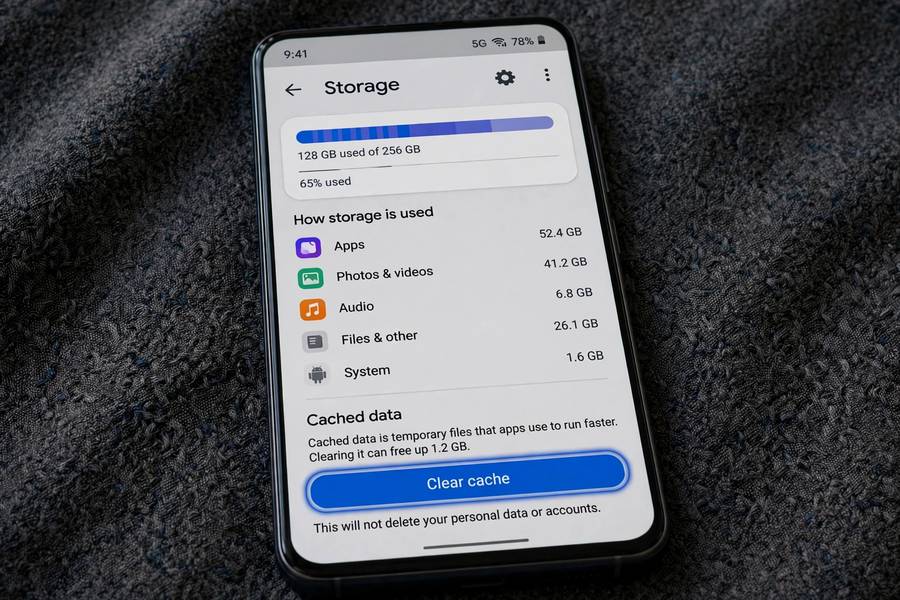
“Clear your cache” is the “turn it off and on again” of Android advice — everyone suggests it, few explain what it does. Sometimes it fixes a misbehaving app instantly. Sometimes it does nothing at all. Here’s when it helps, when it doesn’t, and exactly how to do it.
I’m Sophia, and I clear app caches strategically, not ritualistically. Let me show you the difference.
Table of Contents
- What Cache Actually Is
- When Clearing Cache Helps
- When It Doesn’t Help
- How to Clear Cache for One App
- How to Clear Cache for All Apps
- Cache vs Data: Don’t Mix Them Up
- Clearing Browser Cache (Chrome & Samsung Internet)
- The Storage Deep-Clean Walkthrough
- Frequently Asked Questions
What Cache Actually Is
Cache is temporary data apps store to load faster — thumbnails, pre-loaded feeds, saved images from websites you’ve visited. Instead of re-downloading the same Instagram photos every time you open the app, it keeps copies locally.
Think of it like a desk drawer where apps stash frequently-used supplies. It’s useful, it’s automatic, and it grows over time. A social media app can accumulate gigabytes of cache without you ever noticing — until your storage fills up.
Key point: cache is disposable by design. Apps can rebuild it anytime. Deleting it never harms the app or your personal data.
When Clearing Cache Helps
- An app is misbehaving: Crashing, freezing, showing stale content, or glitching after an update. Corrupted cache files are a common cause, and clearing them is the fastest fix.
- You’re low on storage: Cache can balloon to several GB across apps. Clearing it reclaims space instantly.
- An app shows outdated content: A news or shopping app stuck showing yesterday’s data may be serving stale cache.
- After a major app update: Old cached files sometimes conflict with new app versions.
When It Doesn’t Help
- Your phone is slow overall. Cache isn’t the usual culprit — low RAM, an aging battery, or a nearly-full storage drive are more likely. (And note: Android manages cache intelligently on its own; aggressively clearing it can actually make apps slower temporarily since they must rebuild the cache.)
- Battery drain. That’s almost never cache — check battery usage stats for the real offender.
- As “regular maintenance.” Unlike the old days, modern Android handles cache well. Clear it when there’s a symptom, not on a schedule.
How to Clear Cache for One App
This is the method you’ll use 99% of the time:
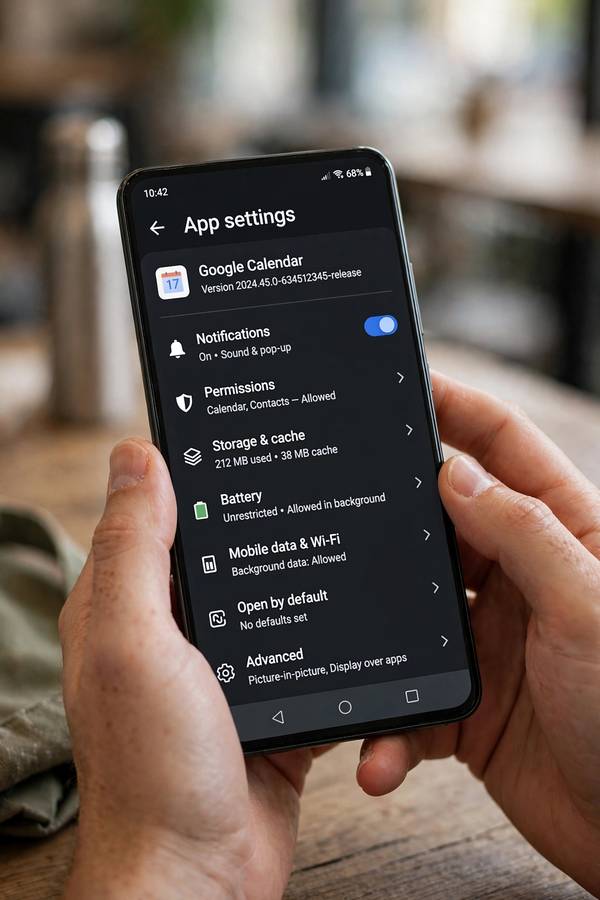
- Open Settings → Apps (or Apps & notifications).
- Tap See all apps and find the misbehaving or space-hogging app.
- Tap Storage & cache (or just Storage).
- Tap Clear cache.
Done. The app keeps working, your logins and data are untouched, and the problematic cached files are gone.
Finding the worst offenders: In Settings → Storage, you can see which apps use the most space. Social media, browsers, and streaming apps are usually the biggest cache hoarders.
How to Clear Cache for All Apps
Stock Android removed the old “clear all cached data” button years ago (it caused more problems than it solved). Current options:
- One by one via the method above — tedious but precise.
- Files by Google app: Open Files → Clean tab → it suggests junk files and large cached items to remove safely.
- Device Care (Samsung): Settings → Device care → Storage → clean options vary by model.
- Recovery mode wipe cache partition: An advanced option (power off, boot into recovery, “wipe cache partition”). It clears system-level cache without touching your data. Only needed for persistent system-wide glitches.
Honestly, clearing individual apps as needed beats any nuclear option. Targeted beats blanket.
Cache vs Data: Don’t Mix Them Up
On the same Storage screen you’ll see two buttons — and they do very different things:
| Clear Cache | Clear Data / Clear Storage | |
|---|---|---|
| Removes | Temporary files | Everything: logins, settings, saved files, databases |
| App still logged in? | Yes | No — it’s like a fresh install |
| Safe to tap casually? | Yes | No — only when you mean it |
“Clear data” is the nuclear option. It resets the app to factory-fresh state. Useful when an app is deeply corrupted or you want a true fresh start — but you’ll lose logins, preferences, and offline content. Never tap it by accident.
Clearing Browser Cache (Chrome & Samsung Internet)
Browsers are the biggest cache accumulators on most phones — every site you visit stores images, scripts, and data. Here’s how to clear them:
Chrome: 1. Open Chrome → tap the three dots → Settings → Privacy and security → Delete browsing data. 2. Choose a time range (Last hour, 24 hours, All time). 3. Check Cached images and files (leave passwords and autofill unchecked unless you want those gone too). 4. Tap Delete data.
Samsung Internet: 1. Open Samsung Internet → Menu (three lines) → Settings → Personal browsing data → Delete browsing data. 2. Select Cached images and files and delete.
When browser cache clearing helps: A website showing outdated content, pages loading incorrectly, or login loops on a specific site. For site-specific issues, you can clear data for just that site: Chrome → Settings → Site settings → All sites → [the site] → Clear & reset.
What you’ll notice: Sites may load slightly slower on first revisit (they’re rebuilding cache) and you’ll stay logged in — clearing cache doesn’t clear cookies or logins unless you check those boxes too.
The Storage Deep-Clean Walkthrough
When one app’s cache isn’t the issue and you need real space back, do this 10-minute routine:
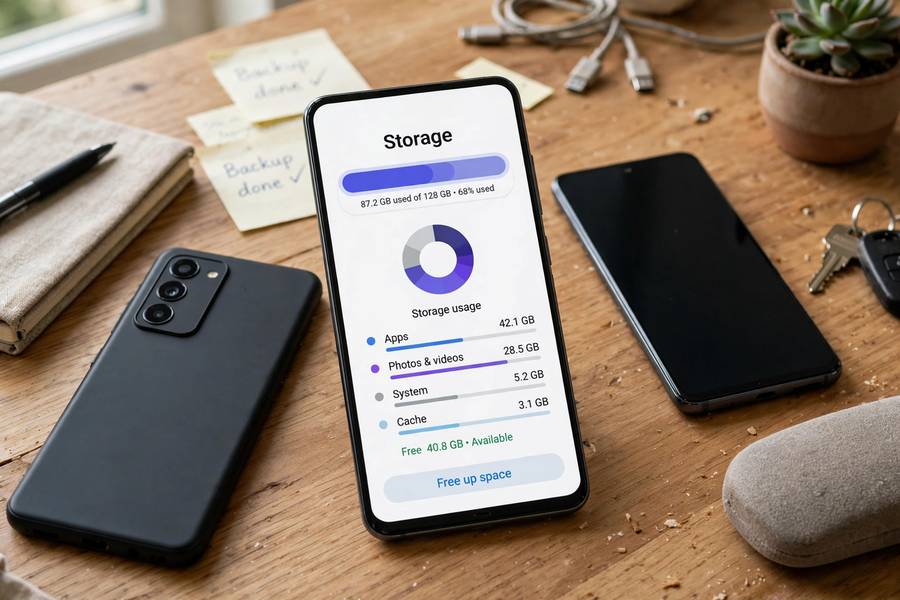
- Settings → Storage — see the big picture. Note which categories are largest.
- Files by Google → Clean tab. It identifies junk files, duplicate files, old screenshots, and large media. Review its suggestions — they’re usually safe to accept in bulk.
- WhatsApp/Telegram media. Messaging apps silently hoard gigabytes. In WhatsApp: Settings → Storage and data → Manage storage — it shows large files and forwards you can bulk-delete. This alone often frees 2–5 GB.
- Downloaded files. Files app → Downloads — old APKs, PDFs, and installers accumulate. Delete what’s done serving its purpose.
- Offline maps and streaming downloads. Google Maps offline areas, Spotify/Netflix/YouTube downloads — audit each app’s offline content and trim what you won’t use soon.
- Screenshots and screen recordings. They pile up fast. Files by Google flags old ones for review.
Do this quarterly and storage anxiety becomes a non-issue. The theme throughout: cache is a symptom-level fix; the deep clean is where the gigabytes live.
When to Factory Reset Instead
Sometimes cache-clearing isn’t enough and the nuclear option is warranted. Consider a factory reset when:
- Multiple apps misbehave simultaneously — suggesting system-level corruption, not one bad app
- Storage shows huge “System” usage that no amount of cache-clearing shrinks
- Battery drain persists after identifying and restricting the offending apps
- You’re selling or giving away the phone — always reset before transfer
How to do it safely: 1. Back up first. Google One backup + Google Photos backup + manual copy of anything precious. Verify the backups (see the checks in any good backup guide). 2. Remove your Google account (Settings → Passwords & accounts → Google → Remove account) — this disables Factory Reset Protection, which would otherwise lock the next user out. 3. Settings → System → Reset options → Erase all data (factory reset). 4. Set up fresh or restore from backup.
After the reset: Install apps gradually rather than restoring everything at once. If the problem was a misbehaving app, a blanket restore just reimports it. Add apps back over a few days and watch for the issue’s return — that’s how you identify the true culprit.
A factory reset feels drastic, but it’s the most reliable fix in Android’s arsenal. Twenty minutes of setup beats months of a glitchy phone.
Keep reading: if this helped, you’ll also like how a search engine works, how WiFi works — I wrote them in the same plain-English style.

Frequently Asked Questions
Yes — cache is temporary data that apps rebuild automatically. Clearing it never deletes your personal data, logins, photos, or settings. It’s one of the safest troubleshooting steps on Android.
No. Clearing cache only removes temporary files like thumbnails and pre-loaded content. Your photos, messages, contacts, and app data are stored separately and are completely unaffected. (Don’t confuse it with “Clear data,” which does reset the app.)
Stock Android no longer has a one-tap “clear all cache” button. Clear apps individually via Settings → Apps → [app] → Storage & cache → Clear cache, or use the Files by Google app’s Clean tab for guided junk removal.
Rarely. Cache exists to make apps faster, so clearing it can briefly slow things down while apps rebuild it. Clear cache to fix misbehaving apps or free storage — not as a speed boost.
Clear cache removes only temporary files (safe, logins preserved). Clear data resets the app completely — logins, settings, and saved content are wiped as if freshly installed. Use clear data only deliberately.
Only when needed — a misbehaving app, stale content, or low storage. Modern Android manages cache well on its own, so routine cache-clearing isn’t necessary maintenance.