Changing jobs, ditching an old email provider, or just tired of that address you made in high school? Your Apple ID email can be changed — and everything (purchases, iCloud, subscriptions) comes with it.
I’m Sophia. This is one of Apple’s better-designed processes, but there are a few gotchas. Here’s the full walkthrough.
Table of Contents
- What Happens When You Change It
- Method 1: Change on iPhone or iPad
- Method 2: Change on Mac
- Method 3: Change on the Web
- Rules and Limitations
- When the Change Won’t Go Through
- Common Scenarios
- Updating Your Email Everywhere Else
- Frequently Asked Questions
What Happens When You Change It
First, the reassurance: changing your Apple ID email doesn’t create a new account. It’s the same Apple ID with a new username. Everything transfers automatically:
- App Store and iTunes purchases
- iCloud data (photos, backups, documents)
- Subscriptions (Apple Music, iCloud+, etc.)
- iMessage and FaceTime registration (updates automatically on your devices)
What changes: you’ll sign in with the new email going forward. Your devices will prompt you to re-enter the password once — that’s normal.
Method 1: Change on iPhone or iPad
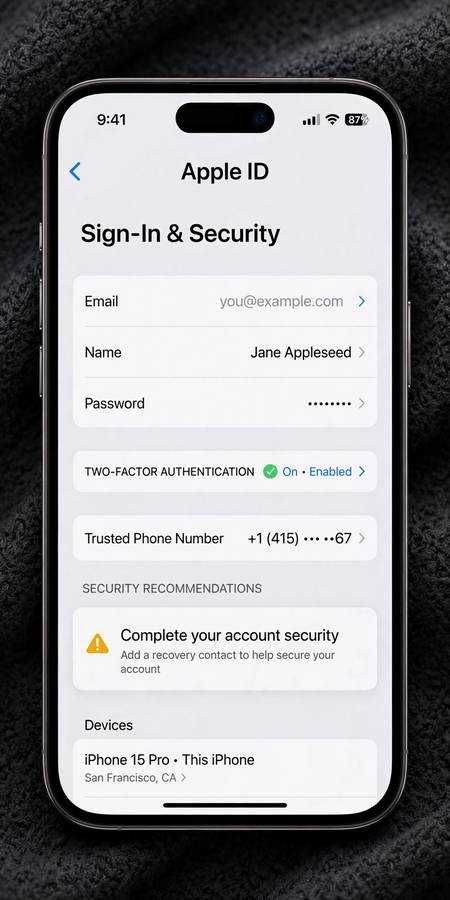
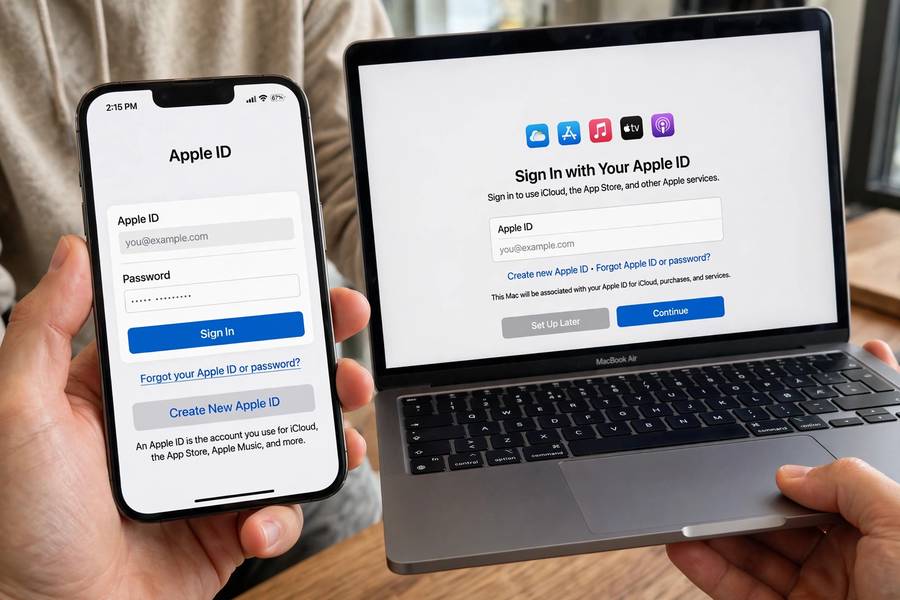
- Go to Settings → [your name] → Sign-In & Security.
- Tap your Apple ID email at the top (under “Email & Phone Numbers”).
- Tap Change Email (or edit the email field, depending on iOS version).
- Enter the new email address.
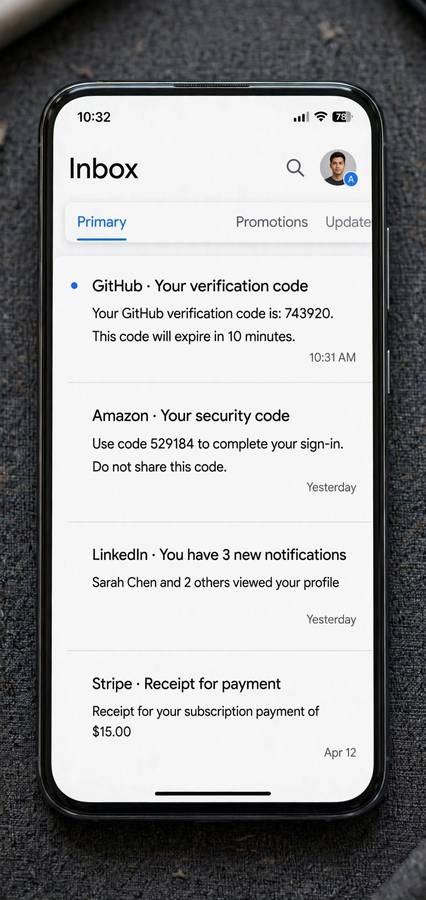
- Apple sends a verification code to the new address — enter it.
Done. Your devices update automatically; you may be asked to sign in again with the new email on some devices.
Method 2: Change on Mac
- Open System Settings → [your name] → Sign-In & Security.
- Click your Apple ID email and choose to change it.
- Enter the new address and verify with the emailed code.
Method 3: Change on the Web
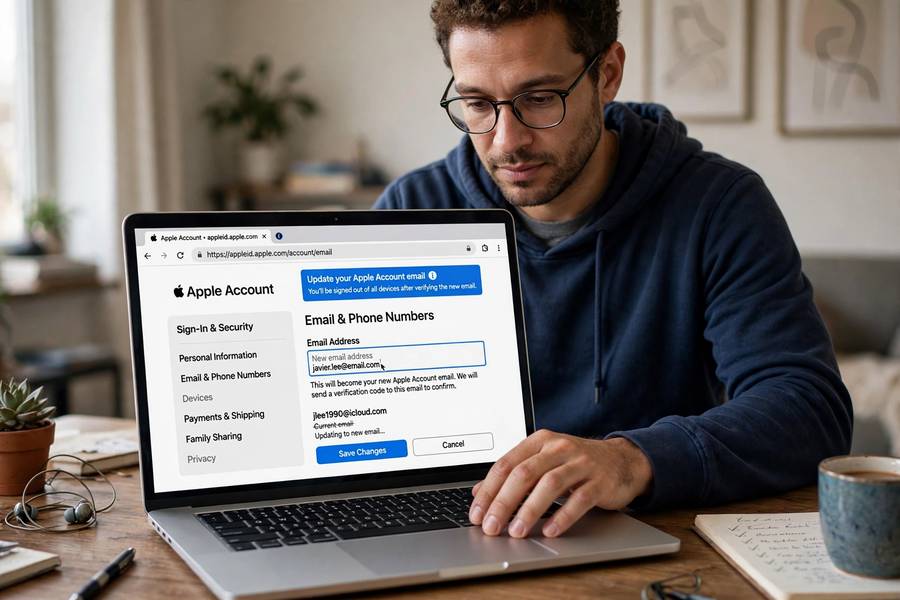
- Go to account.apple.com and sign in.
- Go to Sign-In and Security → Apple ID (email).
- Enter the new email address.
- Verify with the code Apple sends to it.
The web method is useful if you’re changing from an address you can no longer access — as long as you can still sign in to the account itself.
Rules and Limitations
- The new email can’t already be an Apple ID. If you’ve ever created an Apple ID with that address (even years ago), you’ll need to delete that account first or pick a different address.
- It must be a valid, working email you can receive the verification code at.
- iCloud email addresses (@icloud.com, @me.com, @mac.com) generally can’t be changed to a non-Apple address as the primary — if your Apple ID is an @icloud.com address, it’s typically permanent as the username. (You can add other reachable email addresses, but the iCloud address stays the login.)
- Changing to an Apple email: You can change a third-party email Apple ID to an @icloud.com address — but it’s one-way. Once you switch to @icloud.com, you can’t switch back to third-party.
- Family Sharing organizers: You can change your email freely; family members aren’t affected.
When the Change Won’t Go Through
“This email is already in use”: The address is tied to another Apple ID. Either use a different address or sign in with that address and delete the old account first (account.apple.com → Privacy → Delete account — this is permanent, so only for genuinely abandoned accounts).
No verification code arrives: Check spam/junk, wait a few minutes, and use Resend Code. Make sure you can actually receive mail at the new address — typos here are embarrassingly common.
“You can’t change to an iCloud address” errors: See the one-way rule above. If your ID is already @icloud.com, the username is fixed.
Devices asking for the old password: After changing, sign out and back in on any device still showing the old email. Usually it resolves itself within minutes as Apple’s servers propagate the change.
After Changing: Device Checklist
The email change propagates automatically, but run through this checklist to avoid weird sign-in loops:
- iPhone/iPad: You should stay signed in. If an app (App Store, iMessage) asks for your password, enter it with the new email as the username.
- Mac: Check System Settings → [your name] — it should show the new email. If not, sign out and back in.
- Apple Watch: It follows your iPhone automatically, but confirm Apple Pay cards are still active (they should be — the underlying account didn’t change).
- iCloud.com and iTunes on Windows: Sign in fresh with the new email.
- Family members: Tell them nothing changed on their end — but if they ever need to help you recover the account, they should know the new address.
- Email filters and password manager: Update the saved username in your password manager so autofill keeps working. If you had Apple-related filters or rules tied to the old address, update those too.
Most people complete this whole transition in under 15 minutes. The most common “problem” is simply forgetting which email is now the username when signing in somewhere new — give it a week and the new one becomes automatic.
Common Scenarios
“I’m changing jobs and losing my work email.” Do this before your last day — while you can still receive the verification code at the old address if something goes wrong. Change to a personal email you control permanently.
“My Apple ID is an old email I can’t access.” You can still change it as long as you can sign in (password + 2FA). The verification code goes to the new address, not the old one. The old address is only a username — you don’t need inbox access to abandon it.
“I want to use my new iCloud email as my Apple ID.” If your current ID is a third-party address, you can switch it to an @icloud.com address — but remember it’s one-way. Make sure you actually want the iCloud address as your permanent username before committing.
“We’re getting married / divorced and names are changing.” Your Apple ID email doesn’t have to match your legal name — but many people prefer the alignment. Change the email whenever you’re ready; nothing else about the account is affected, including Family Sharing.
“I share an Apple ID with my spouse and want to split.” This is the hard one — Apple doesn’t offer account splitting. The practical path: one person keeps the existing ID (with its purchase history), the other creates a new Apple ID, and you connect via Family Sharing to share purchases going forward. Each person’s iCloud data stays with their own sign-in.
Updating Your Email Everywhere Else
The Apple ID change is instant; the ripple effects take a week. Work through these:
Password manager: Update the stored username for apple.com / iCloud entries. Otherwise autofill keeps offering the dead address and you’ll wonder why logins fail.
Email filters and rules: If you had filters filing Apple receipts or iCloud notifications, update them to the new address — or better, filter by sender (apple.com / icloud.com) instead of by your address, which survives future changes.
Two-factor and recovery: Your trusted email for account recovery might be the old address — update it in account.apple.com → Sign-In and Security if so. And if the old email was a rescue email, replace it.
Third-party “Sign in with Apple”: Apps where you used Sign in with Apple are unaffected — they reference the account, not the email. But any app where you manually typed the old email as a username needs updating individually.
Tell the humans: Anyone who shares purchases, calendars, or Find My with you doesn’t need to do anything — but if they ever need to look you up or help with recovery, they should know the new address. A 30-second message now prevents confusion later.
Keep reading: if this helped, you’ll also like how a search engine works, how WiFi works — I wrote them in the same plain-English style.
Frequently Asked Questions
Yes — go to Settings → [your name] → Sign-In & Security on iPhone, or account.apple.com on the web. Your purchases, iCloud data, and subscriptions all transfer automatically; it’s the same account with a new username.
No. Changing the email doesn’t create a new account — App Store purchases, iCloud data, subscriptions, and everything else stay intact. Only the sign-in username changes.
Yes, you can change a third-party email Apple ID to an @icloud.com address — but it’s one-way. Once switched to @icloud.com, you cannot change back to a third-party email as your Apple ID username.
The address is already registered as an Apple ID (possibly one you created years ago and forgot). Use a different address, or sign in with the old account and delete it first.
Usually within minutes. Devices may prompt you to sign in again with the new email. If a device still shows the old address after an hour, sign out and back in manually.
Yes — the family organizer can update a child’s Apple ID email through Family Sharing settings or account.apple.com. The child’s account, purchases, and parental controls are unaffected.