How to Use AI for Emails at Work

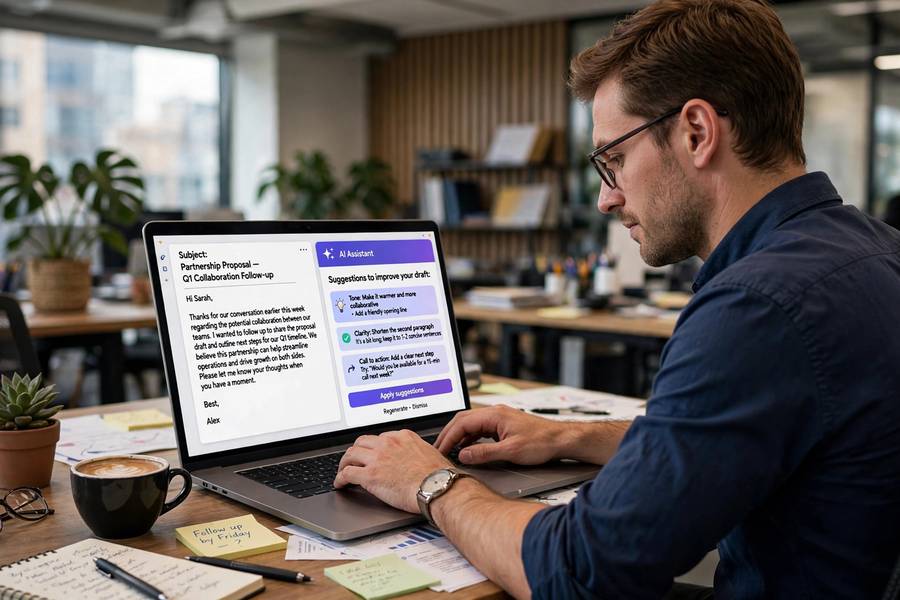
The average office worker spends over two hours a day on email. Two hours — a quarter of the working day — on a task that is, for the most part, not the actual job. Writing updates, answering routine questions, threading through reply-alls, composing the diplomatic version of what you actually think. It’s necessary work, and it’s mostly toil.
AI is genuinely good at email toil. I’ve spent the last year integrating AI into every part of my email workflow — drafting, summarizing, triaging, tone-checking — and the honest result is about 45 minutes saved daily. Not the “10x productivity” of the hype, but 45 real minutes, every day, doing work I’d rather be doing. This guide covers the practical playbook: what works, what to avoid, and the situations where AI-written email will quietly sabotage you. The bigger picture: how to use AI at work.
The 45-Minute Promise (What’s Realistic)
Let’s set expectations honestly. AI won’t eliminate email — nothing will, short of organizational revolution. What it does is compress the time each email takes:
- Routine replies: 5 minutes → 1 minute (draft, glance, send)
- Complex updates: 20 minutes → 8 minutes (bullets in, draft out, edit)
- Thread catch-up: 15 minutes of reading → 2 minutes of summary
- Delicate messages: 30 minutes of agonizing → 15 minutes (AI draft as starting point, heavy edit)
Across a typical inbox, that compounds to 30-60 minutes daily for most knowledge workers. Not life-changing in the abstract — life-changing in the aggregate. Forty-five minutes a day is nearly four hours a week, sixteen hours a month. That’s a part-time assistant you don’t have to manage.
The catch, which I’ll repeat until it’s boring: the savings come from draft-then-edit, not from autopilot. Every minute you save by skipping the edit is borrowed against your credibility.
Use Case 1: Drafting From Bullets
The highest-value pattern: you provide the thinking, AI provides the prose.
How it works: dump your raw thoughts as bullets — the points, the decisions, the asks — and have AI compose them into a coherent email. “Q3 numbers attached, down 4% due to the supplier delay, need finance to approve the revised forecast by Friday, attaching the comparison sheet.”
What you get back: a structured email with a clear subject line suggestion, the context up front, the numbers stated plainly, and the ask with its deadline highlighted. Ninety seconds of your bullets become a professional email.
Why this works so well: writing is two tasks — thinking (what to say) and composing (how to say it). Most people’s bottleneck is composing, not thinking. AI removes the composing bottleneck while leaving the thinking — the part that’s actually yours — intact. The email still contains your judgment; it just arrives wearing better sentences.
The edit pass: always read before sending. Check names, numbers, dates, and tone. The AI will occasionally invent a detail to smooth a transition (“as we discussed last Tuesday” — did you?). Kill those. What survives the edit is genuinely your email, just faster.
Use Case 2: Taming the Monster Thread
Everyone knows the monster thread: 47 messages, 12 participants, three side conversations, and you were added at message 31. The old options were reading everything (20 minutes) or asking “can someone catch me up?” (social cost). Now there’s a third option.
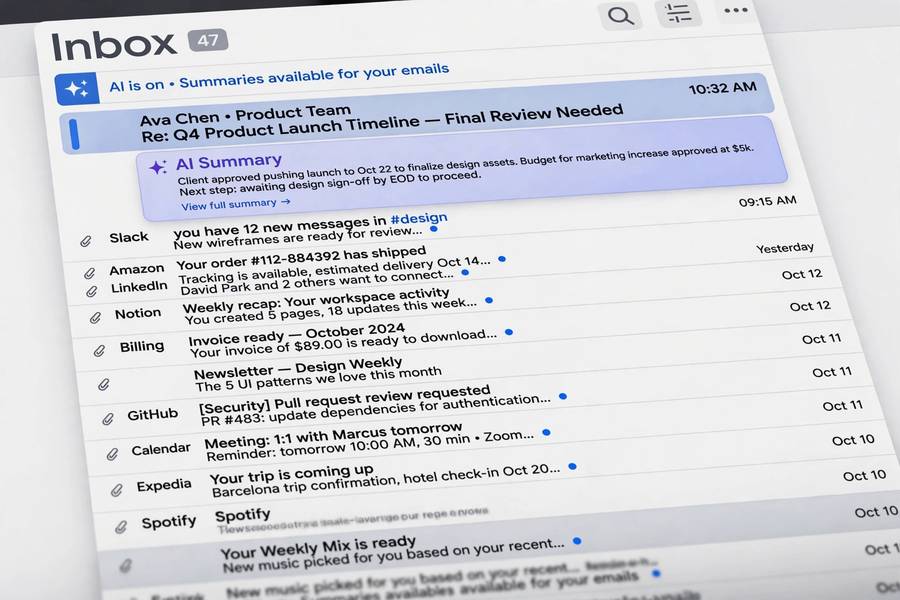
Thread summarization: paste the thread (or use a built-in AI summary feature) and ask for: the key decisions made, the open questions, what’s needed from you specifically, and the current state of each sub-topic. What you get is a briefing, not a transcript — the 20-minute read compressed to a 2-minute brief.
Caveat: summaries flatten. They capture what was said, not how it was said — and in office politics, the how matters enormously. A summary won’t tell you that Sarah’s “fine, let’s do it your way” was actually furious. For politically loaded threads, the summary is triage, not replacement: it tells you which 8 of the 47 messages to actually read.
Pro move: after catching up via summary, reply referencing the specific messages you did read. “Sarah’s point in her Tuesday message about the timeline risk is the key issue” — this signals you actually engaged, which the summary alone wouldn’t.
Use Case 3: Tone Translation
The most underrated use: adjusting how a message lands without changing what it says.
The frustrated draft: you’ve written the email you feel — sharp, direct, possibly career-limiting. Instead of sending it (don’t) or softening it through five agonizing rewrites, ask AI: “make this diplomatic but firm, keep all the substantive points.” What comes back preserves your position while removing the edges that would derail the conversation.
The too-blunt technical update: engineers and analysts often write emails that are accurate and accidentally alarming. “The database migration failed and we’re assessing data integrity” becomes “We hit an issue with the migration and have paused to verify everything — update by 3pm.” Same facts, managed anxiety.
The too-soft ask: the opposite problem — your request is so hedged nobody knows it’s urgent. “I was wondering if maybe at some point you might have a chance to look at…” becomes “Could you review this by Thursday? It’s blocking the release.” AI is good at finding the assertive middle.
The principle: tone is a separate layer from content, and it’s the layer most people handle worst under time pressure or emotion. Outsourcing the tone layer to AI while keeping the content layer human is one of the highest-leverage uses in this entire guide.

Use Case 4: Triage and Prioritization
Beyond writing, AI helps manage the inbox itself:
Smart summaries in the inbox view. Some email clients now show AI-generated one-line summaries per thread — “Sarah confirming the venue; needs your approval by Friday.” You can triage a full inbox from the list view without opening most messages.
Priority detection. AI learns which senders and topics actually get your responses versus which just look urgent. The “important” markers get smarter over time — less about formatting (ALL CAPS, “URGENT”) and more about your behavioral history.
Suggested replies. The one-tap responses (“Thanks, will review by Friday”) are genuinely useful for the large class of emails that need acknowledgment, not thought. Use them freely — nobody expects profundity in a confirmation.
Batch processing. My routine: twice daily, go through the inbox with AI summaries on, handle the quick ones with suggested replies or 30-second AI drafts, flag the three that need real thought for later. Inbox zero in 20 minutes, twice a day.
The Prompt Patterns That Actually Work
Specific prompts beat vague ones. My most-used patterns:
The brief: “Write a [type] email to [audience] about [topic]. Key points: [bullets]. Tone: [professional/friendly/firm]. Include: [specific asks with deadlines]. Length: [short/medium].”
The rewrite: “Rewrite this email to be [more diplomatic/more concise/more assertive]. Keep all facts and deadlines unchanged: [paste draft].”
The summary: “Summarize this email thread. I need: key decisions, open questions, action items for me specifically, and current status. Thread: [paste].”
The difficult conversation: “Help me draft an email about [sensitive topic]. I need to communicate [hard truth] while preserving the relationship. Tone: honest but kind. Points I must include: [bullets].”
Notice the pattern: context, constraints, and the human’s actual thinking as input. The prompt is a brief, not a wish. Garbage briefs produce garbage drafts — the AI can’t think for you, only write for you.
Where AI Email Goes Wrong
The failure modes, from my year of doing this:
Hallucinated details. The AI invents a meeting date, a figure, a name to make the prose flow. This is the most dangerous failure because the email looks perfect. Verify every specific before sending — names, numbers, dates, commitments.
Tone deafness. AI doesn’t know your relationship with the recipient. The perfectly professional email to your work best friend reads as cold; the friendly email to the new VP reads as presumptuous. You supply the relationship context; the AI can’t.
Over-delegation. The slow slide from “AI drafts, I edit” to “AI drafts, I glance” to “AI drafts, I send.” Each step feels efficient; the endpoint is emails going out under your name that you didn’t really write. The glance is not an edit. Stay at “I edit” — it’s where the time savings are anyway.
The Situations to Never Automate
Some emails should be entirely human, always:
Apologies. An AI-drafted apology is an oxymoron — the remorse is the message, and outsourcing it proves you don’t feel it. Write these yourself, slowly.
Condolences and personal news. Same principle. If it matters to a human, a human should write it.
Negotiations. AI can help you think through positions, but the actual messages in a negotiation carry strategic weight that requires your judgment in every sentence.
Performance feedback. Anything about someone’s work, delivered in writing, deserves your full personal attention. The recipient can tell the difference, and the difference is respect.
Anything where the relationship is the point. If the email’s purpose is maintaining or building a relationship — not just transmitting information — write it yourself. The medium is the message here.
The rule: if getting it wrong has human consequences beyond inefficiency, keep the AI out of the driver’s seat. Use it to think, not to speak.
Data Hygiene: What Not to Paste
Email contains the most sensitive data in most offices, so the rules matter:
Never paste into unvetted tools: unreleased financials, customer personal data, credentials, legal matters, HR issues, anything under NDA. If you wouldn’t forward it to a stranger, don’t paste it into a chatbot.
Know your tool’s data policy. Enterprise AI (Copilot, enterprise ChatGPT/Claude, Google Workspace AI) typically commits to not training on your data. Free consumer tiers often don’t. The difference is everything — use only approved tools for work email.
Check your company’s AI policy. Most companies now have one. It usually specifies approved tools, prohibited data types, and disclosure requirements. Read it before you start, not after an incident.
Remember the thread problem. Pasting a 47-message thread into AI means pasting 47 messages’ worth of other people’s data. The summarization is useful; the data exposure is real. Use built-in features (which operate within your email system) over copy-paste to external tools where possible.
And while you’re thinking about email safety: the same AI that’s helping you write is helping phishers write more convincing lures. Knowing how to spot a phishing email is the defensive complement to everything in this guide.
Frequently Asked Questions
The best pattern is bullets-to-draft: provide your key points as bullets, let AI compose the email, then edit for accuracy and voice. Also useful: thread summarization for long chains, tone adjustment for delicate messages, and AI-drafted follow-ups. Always review before sending — AI can hallucinate details like dates and names.
For routine and informational emails, yes — it’s becoming standard practice. But never fully automate sensitive messages: apologies, condolences, negotiations, and performance feedback should be written personally. And always check your company’s AI policy regarding approved tools and data handling.
Yes, effectively. Ask for key decisions, open questions, your specific action items, and current status. It compresses a 20-minute read into a 2-minute brief. But summaries flatten tone and politics — for sensitive threads, use the summary to identify which messages to actually read in full.
Unreleased financials, customer personal data, credentials, legal matters, HR issues, and anything under NDA. Use only company-approved AI tools for work email, and prefer built-in email AI features over copying thread content into external chatbots.
Keep reading: