How to Speed Up a Slow Laptop: 15 Fixes That Actually Work


Remember when your laptop was fast? If you’re searching for how to speed up a slow laptop, those fast days probably feel like a distant memory — you’re now making coffee while web pages load. I have good news: most slow laptops aren’t dying. They’re just neglected. And almost every cause of slowness is fixable.
I’m going to walk you through exactly how to speed up a slow laptop — starting with the free five-minute fixes, moving through deeper cleanup, and ending with the hardware upgrades that can make an old machine feel new again. Work through them in order; most people see dramatic improvement before they spend a cent.
First: Diagnose Before You Treat
Before changing anything, figure out WHAT is slow. “Slow” means different things:
- Slow to start up? Too many startup programs, most likely.
- Slow when multitasking? Probably not enough RAM, or a nearly full drive.
- Slow in one specific program? That program’s problem — update it, reinstall it, or check its requirements.
- Slow web browsing? Browser overloaded with tabs and extensions, usually.
- Slow at everything, all the time? Could be a failing hard drive, overheating, or malware. Deeper investigation needed.
- Suddenly slow (was fine yesterday)? Recent update, new software, or malware. Think about what changed.
Open Task Manager (Windows: Ctrl+Shift+Esc) or Activity Monitor (Mac) and look at what’s consuming CPU, memory, and disk. The numbers don’t lie — they’ll point you at the culprit faster than any guessing.
How to Speed Up a Slow Laptop: Free Five-Minute Fixes
1. Restart your laptop (seriously)
When did you last actually restart — not sleep, RESTART? Weeks of uptime accumulates stuck processes, memory leaks, and pending updates. A fresh restart fixes a shocking percentage of “slow laptop” complaints. Do this first, every time.
2. Close what you’re not using
Forty browser tabs, six applications, Spotify, Discord, and a game launcher — all consuming RAM simultaneously. Close what you’re not actively using. Your laptop isn’t slow; it’s overwhelmed. (Bookmark the tabs instead of hoarding them — your future self won’t miss them.)
3. Disable unnecessary startup programs
Every program that launches at startup steals time and resources. Windows: Task Manager → Startup tab → disable anything you don’t need immediately at boot. Mac: System Settings → General → Login Items. Be aggressive — you can always launch things manually. This alone can cut boot time dramatically.
4. Uninstall what you don’t use
That game you played twice in 2023, the printer software for a printer you no longer own, three different video players — they’re consuming disk space and often running background processes. Quarterly uninstall purges keep things lean.
5. Update everything
OS updates, driver updates, browser updates. Updates include performance improvements and bug fixes — running years-old software on modern web is like running a marathon in flip-flops. Turn on automatic updates and stop postponing them.
Browser Speed: Where Most “Slowness” Lives
Here’s an uncomfortable truth: for many people, “my laptop is slow” really means “my browser is slow” — because the browser is where they spend 90% of their time.
- Audit your extensions. Each extension consumes memory and CPU. Disable everything, then re-enable only what you genuinely use daily. Ad-blockers are worth keeping (they actually speed up browsing by blocking heavy ads); most other extensions are negotiable.
- Clear the cruft periodically. Cached data helps speed things up normally, but a bloated cache causes problems. Clear browsing data every few months — or when things feel off.
- Limit tabs. Each tab is a separate memory-hungry process. If you chronically have 50+ tabs, use a tab manager extension or — radical idea — bookmarks.
- Try a different browser. Sometimes the browser itself is the problem. If Chrome feels heavy, try Edge, Firefox, or Safari — you might be surprised.
Free Up Disk Space (The Hidden Bottleneck)
Here’s something most people don’t know: a nearly full drive makes EVERYTHING slower. Your operating system needs free space for virtual memory, temporary files, and updates. The rule of thumb: keep at least 15-20% of your drive free.
- Check what’s eating space: Windows: Settings → System → Storage. Mac: Apple menu → About This Mac → Storage. The built-in analyzers show exactly where your gigabytes went.
- Empty the trash/recycle bin. Deleted files still occupy space until you empty it. Obvious, often forgotten.
- Clear downloads. The Downloads folder is where files go to be forgotten. Sort by size, delete what you don’t need.
- Move big media to external storage. Photo and video libraries are the usual space hogs. An external drive for archives frees enormous space cheaply.
- Use cloud storage smartly. Services that offer “files on demand” keep files in the cloud and download only when opened — huge space savings. Just make sure you have the backup side covered too.
If your laptop still has a traditional spinning hard drive (HDD), it’s also worth defragmenting occasionally on Windows (never defrag an SSD — it’s unnecessary and wears the drive). But honestly, if you’re still on an HDD, the upgrade in the next section will change your life.
Check for Malware and Overheating
Malware scan
Malware doesn’t always announce itself — cryptominers and spyware just quietly consume your resources. Run a full scan with your built-in protection (Windows Security / XProtect) plus a reputable on-demand scanner. If your laptop got suddenly slow for no apparent reason, this is a prime suspect.
Overheating
Laptops slow themselves down when hot (thermal throttling) to prevent damage. Signs: fans screaming constantly, the base uncomfortably hot, sudden slowdowns during demanding tasks. Fixes: use it on hard flat surfaces (not beds/pillows — they block vents), clean dust from vents with compressed air, and consider a cooling pad for heavy workloads. A laptop full of dust can lose a shocking amount of performance.
The Hardware Upgrades That Transform Old Laptops
If software fixes aren’t enough, two upgrades deliver the biggest bang for buck in laptop history:
SSD upgrade (the #1 upgrade)
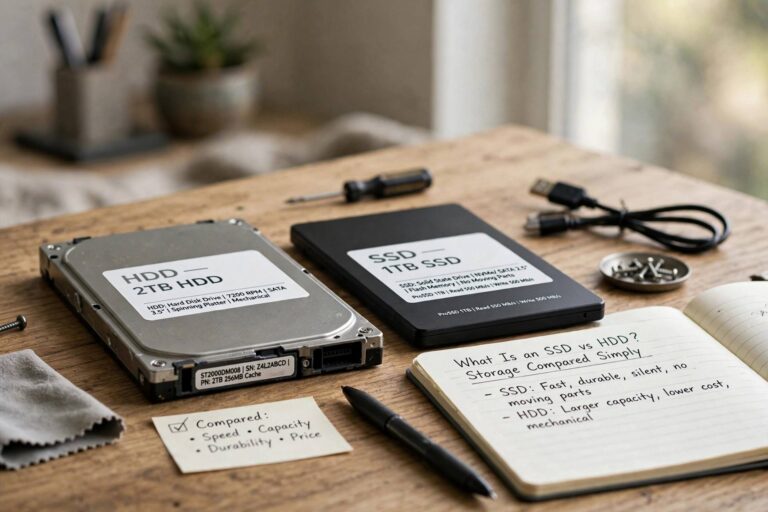
Replacing a spinning hard drive with a solid-state drive (SSD) is the single most transformative upgrade possible. Boot times drop from minutes to seconds. Programs launch instantly. The whole machine feels new. If your slow laptop still has an HDD, stop reading and price an SSD — it’s that impactful. Even a modest SATA SSD (not the fastest NVMe) is a night-and-day difference over spinning rust.
RAM upgrade (the #2 upgrade)
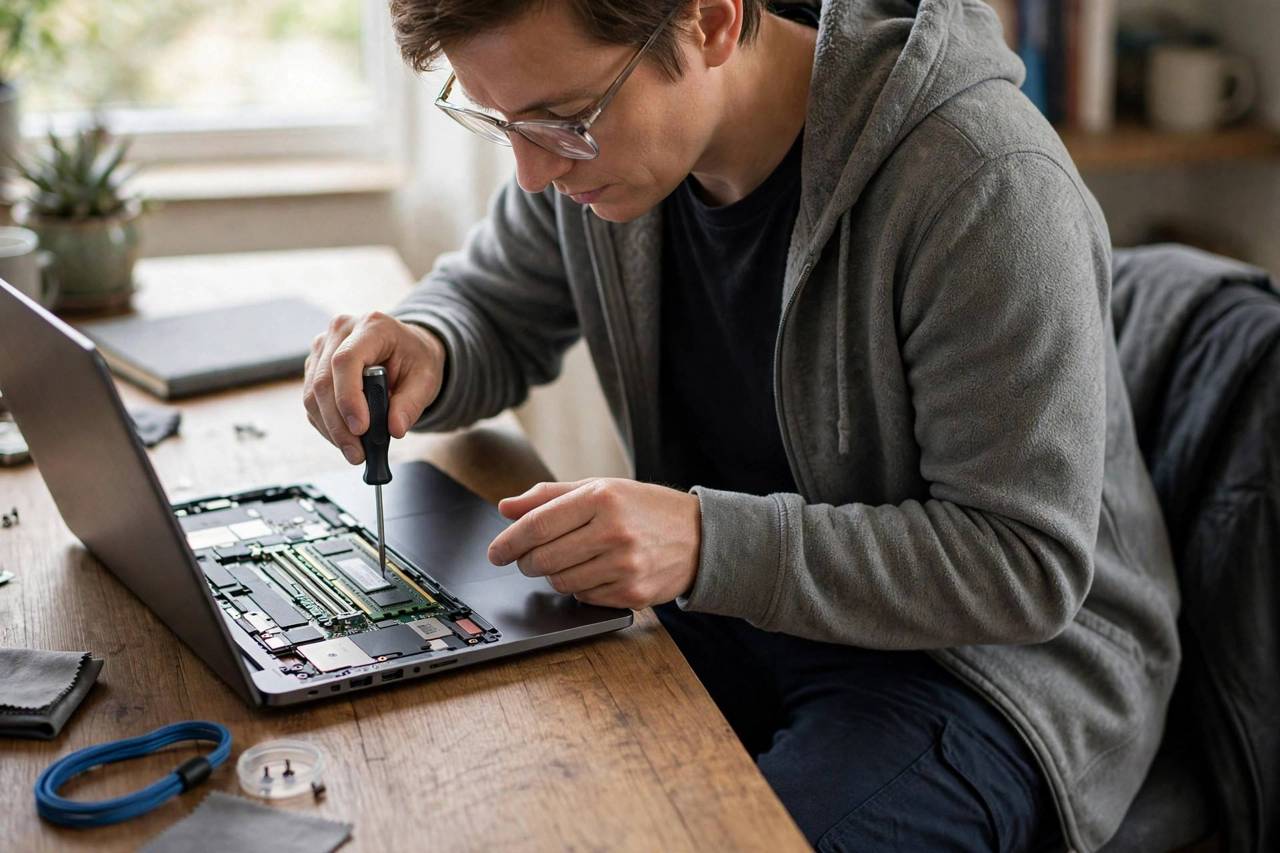
If you’re constantly maxing out memory (check Task Manager/Activity Monitor during normal use), more RAM eliminates the stuttering and swapping that makes multitasking painful. 8GB is the minimum comfort level today; 16GB is the sweet spot. Caveat: many thin modern laptops have soldered RAM that can’t be upgraded — check your model’s specs before buying.
For the broader context on general computer performance, see how to make your computer faster and how computers work — understanding the parts helps you spend upgrade money wisely. And if your laptop is truly elderly, here’s how to speed up an old laptop with strategies specific to aging hardware.
Adjust Visual Effects and Power Settings
- Reduce visual effects: Windows: System → Advanced system settings → Performance → “Adjust for best performance” (or selectively disable animations). Mac: Reduce motion and transparency in Accessibility settings. You won’t miss the animations; you’ll notice the snappiness.
- Power plan: On Windows, make sure you’re on “Best performance” (or Balanced) when plugged in — “Power saver” throttles your CPU significantly. On battery, the trade-off is yours to choose.
- Disable search indexing (selectively): If you rarely use OS search, disabling the indexer frees constant background activity. Most people should leave it on, but it’s an option for the performance-obsessed.
The Nuclear Option: Fresh OS Install
When nothing else works — years of accumulated cruft, mysterious problems, a machine that’s just tired — a clean operating system reinstall is the ultimate reset. It wipes everything and starts fresh, which resolves essentially all software-caused slowness.
Before you do it: back up EVERYTHING (documents, photos, browser bookmarks, passwords, license keys). Use the built-in reset features (Windows: “Reset this PC”; Mac: erase and reinstall macOS) which automate most of the process. After reinstalling, add back only what you actually use — this is your chance to break the clutter cycle.
It’s drastic, but I’ve seen decade-old laptops feel genuinely usable after a fresh install plus an SSD. Sometimes the best fix is a clean slate.
Your Speed-Up Action Plan
- Right now (10 min): Restart, close unused programs, disable startup bloat.
- Today (30 min): Uninstall unused software, update everything, audit browser extensions, run a malware scan.
- This week: Free up disk space to 20%+, clean dust from vents, check for the SSD/RAM upgrade path.
- If still slow: SSD upgrade first, RAM second, fresh OS install as the final option.
Work the list in order. Most laptops are dramatically faster by step 2 — no spending required. Your laptop isn’t old; it’s just been waiting for a little attention.
FAQ
How to speed up a slow laptop for free?
Restart it, close unused programs and tabs, disable unnecessary startup programs, uninstall software you don’t use, update everything, clear browser extensions, and free up disk space to at least 20% free. These free steps resolve most laptop slowness.
Will adding more RAM speed up my laptop?
Only if RAM is the bottleneck — check Task Manager/Activity Monitor during your normal use. If memory is consistently above 85-90%, more RAM will help significantly. If RAM usage is low, the slowness is elsewhere (usually storage speed or too many background processes).
Is it worth upgrading an old laptop with an SSD?
Almost always yes, if the laptop is otherwise functional. An SSD upgrade is the single most impactful performance improvement for any laptop still running a spinning hard drive — boot times, program launches, and general responsiveness all transform. It’s far cheaper than a new laptop.
Why is my laptop so slow all of a sudden?
Sudden slowness usually means something changed: a recent update, new software, malware infection, a failing hard drive, or overheating from dust buildup. Check Task Manager for resource hogs, run a malware scan, and think about what changed recently. Gradual slowness is usually clutter; sudden slowness is usually a specific cause.
How often should I restart my laptop?
At least once a week — more often if you notice sluggishness. Sleep mode is convenient but doesn’t clear stuck processes, memory leaks, or apply pending updates the way a full restart does. Make weekly restarts a habit and you’ll prevent a whole category of slowdowns.