How to Transfer Data From Old Phone to New Phone

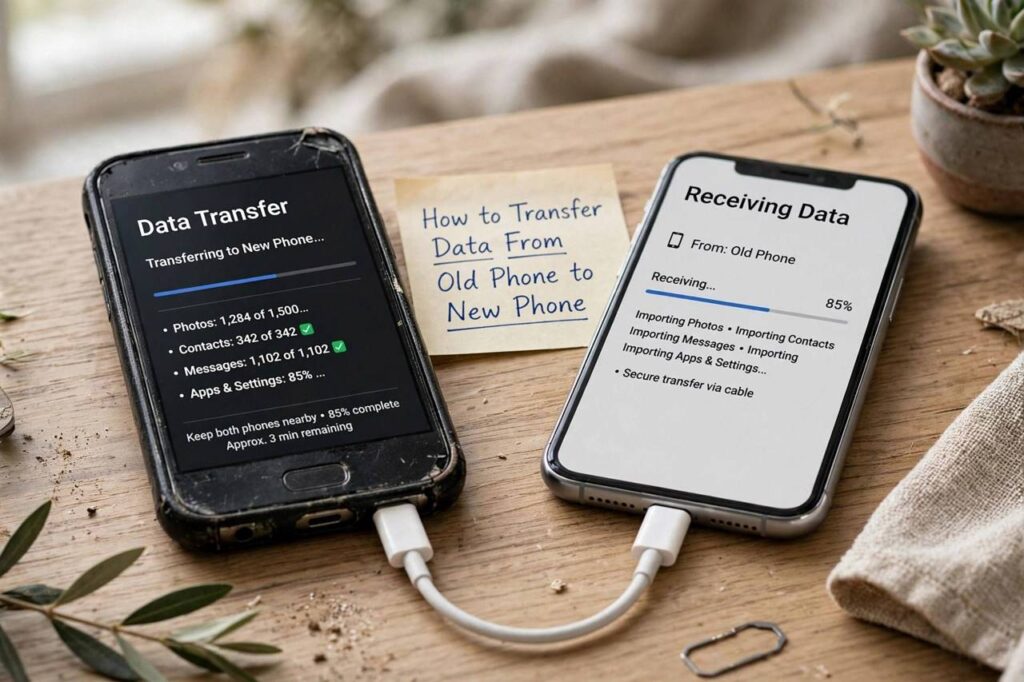
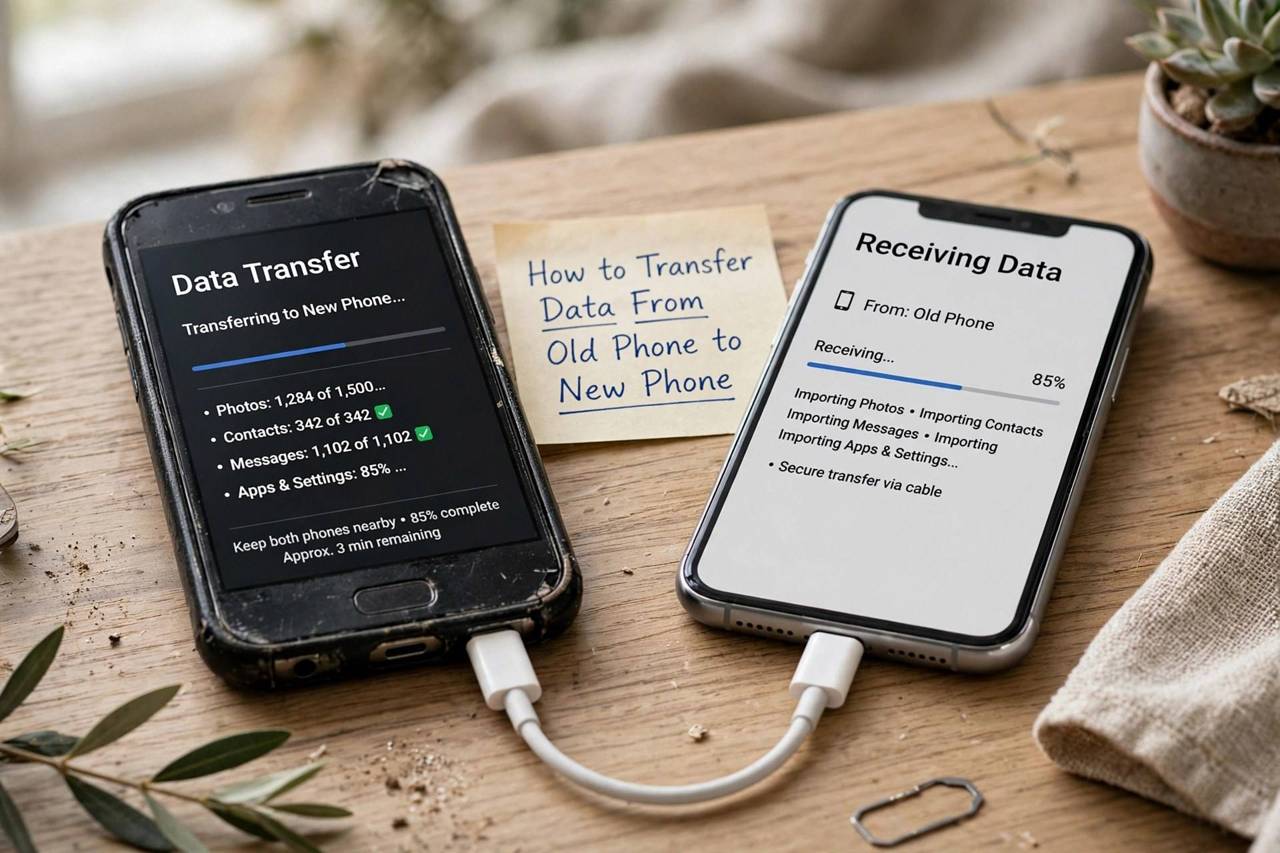
New phone day is exciting right up until you realize your entire digital life — photos, messages, apps, passwords — lives on the old one. Knowing how to transfer data from old phone to new phone turns a stressful afternoon into a smooth twenty-minute process. Whether you are moving iPhone to iPhone, Android to Android, or switching sides entirely, there is a reliable built-in method for each path. This guide covers all four transfer scenarios step by step, plus what to do before you start, what does not transfer automatically, and how to verify everything made it across.
Before You Start: The Pre-Transfer Checklist
Five minutes of prep prevents most transfer headaches. First, back up the old phone — to the cloud, to a computer, or both. Second, charge both phones above fifty percent and connect them to stable Wi-Fi; transfers stall or corrupt on weak connections and dying batteries. Third, update both phones to the latest OS version available, since transfer tools work best when versions match. Fourth, know your Apple ID or Google account passwords — you will be asked for them. Fifth, if you use an authenticator app for two-factor logins, plan its migration separately (many require manual re-setup). Finally, remove any old screen protectors or cases that interfere with cable connections. Do this checklist and the actual transfer is almost boring.
iPhone to iPhone: Quick Start
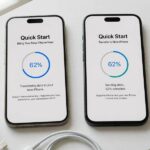
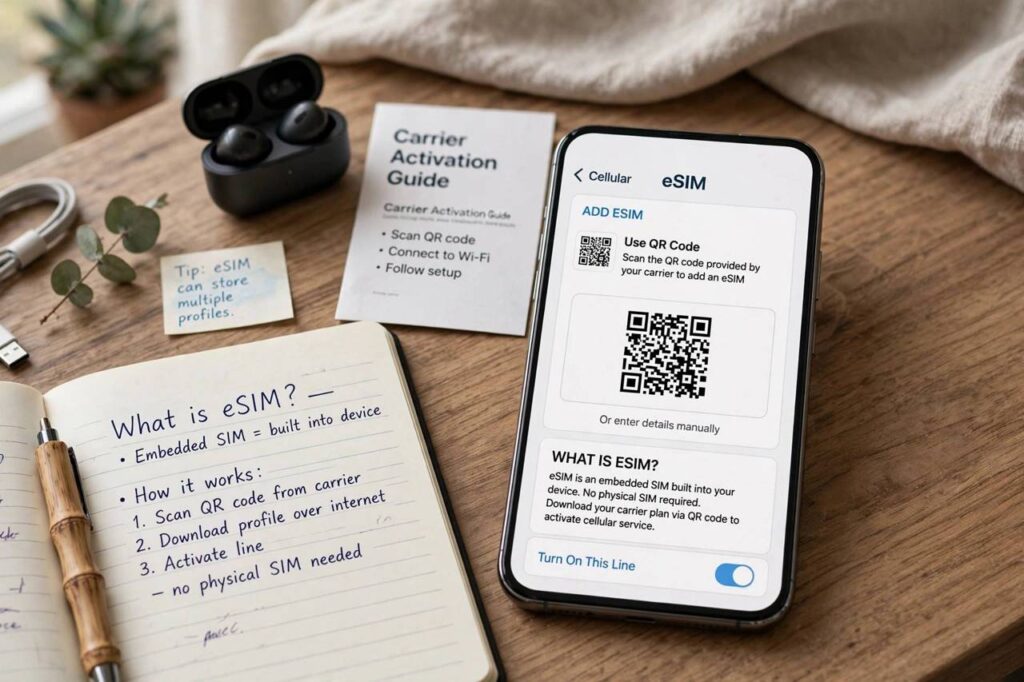
Apple’s Quick Start is the gold standard of phone transfers. Place the new iPhone next to the old one, turn the new one on, and a setup prompt appears on the old phone — scan the animated pairing pattern with the old phone’s camera, enter the old passcode on the new phone, and choose Transfer from iPhone. Keep the phones close and on Wi-Fi while everything copies directly: apps, photos, messages, settings, even most app logins. eSIMs can transfer during this process on supported carriers. The whole thing typically takes 15 to 45 minutes depending on how much data you have. For the detailed walkthrough, see our guide to transferring to a new iPhone, and make sure you understand backing up your iPhone first — a fresh backup is your safety net if anything interrupts the transfer.
Android to Android: Cable or Wireless
Google’s setup flow offers transfer during initial setup: connect the phones with a USB-C cable (fastest and most reliable) or use the wireless option over Wi-Fi. Sign in with the same Google account and the new phone pulls across apps, contacts, messages, photos (via Google Photos), call history, and device settings. Samsung phones get the excellent Smart Switch app, which handles even more — including data from iPhones — via cable, wireless, or computer. Pixel phones use a similar built-in flow with an included adapter. Cable transfers are worth the minor hassle: they are faster, immune to Wi-Fi drops, and handle large photo libraries without timing out. Whatever brand you use, start from backing up your Android phone so you have a restore point.
iPhone to Android: Switching Sides
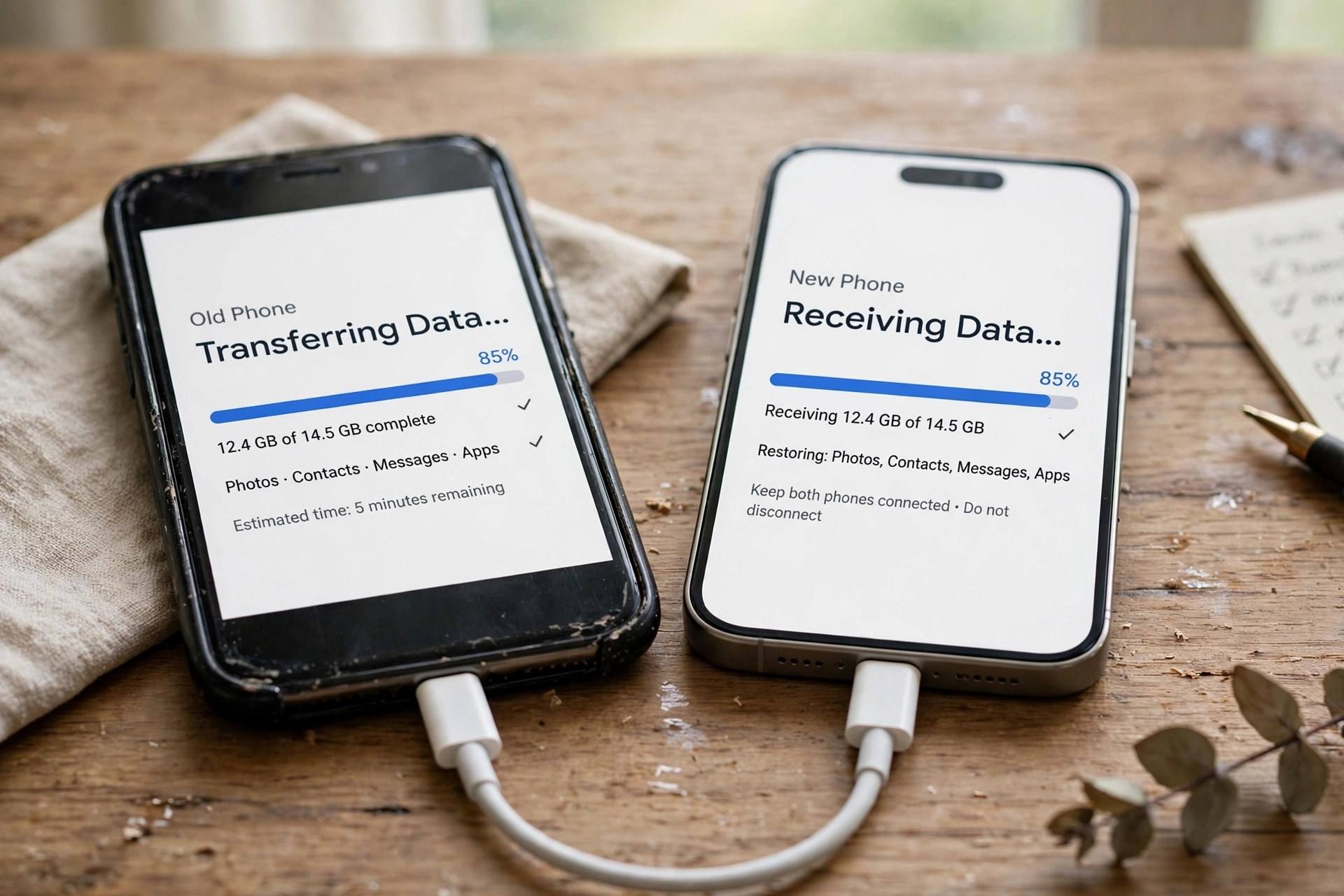
Moving from iPhone to Android used to be painful; it is now straightforward. During Android setup, choose the transfer option and connect the iPhone via cable (most new Android phones include the needed adapter). Contacts, photos, videos, messages, and many apps transfer directly. Two gotchas to handle: first, deregister iMessage on the old iPhone before switching (turn off iMessage and FaceTime, or use Apple’s deregistration page) — otherwise texts from iPhone friends may vanish into Apple’s servers. Second, WhatsApp chats need their own in-app transfer; start it before wiping the old phone. Purchased apps and media do not cross platforms — you will rebuy apps, though many developers honor cross-platform licenses for subscriptions.
Android to iPhone: Move to iOS
Apple’s Move to iOS app (free on the Play Store) handles the reverse trip. Install it on the Android phone, start setup on the new iPhone, and when you reach the transfer screen, enter the code shown on the iPhone into the Android app. Contacts, message history, photos, videos, web bookmarks, mail accounts, and calendars transfer over Wi-Fi direct. Free apps transfer as placeholders — you will re-download them from the App Store, signed into the same developer accounts. WhatsApp offers its own chat migration within this flow. Like the reverse direction, paid apps stay behind. The transfer runs in the background while you finish iPhone setup, which is a nice touch.
What Does Not Transfer Automatically
Even the best tools leave gaps — know them in advance. Authenticator apps and banking apps almost always require manual re-verification for security reasons; set these up before wiping the old phone. Downloaded music and offline maps need re-downloading. Bluetooth pairings (watches, earbuds, cars) must be re-paired. Some app data, especially in games without cloud save, stays behind — check your most important apps’ backup settings first. Health data transfers within the same ecosystem (Apple Health to iPhone, Google Fit to Android) but not across platforms. And anything stored only in an app that you have not opened in months is worth verifying manually. The rule: if an app holds something irreplaceable, confirm its own backup before you wipe anything.
After the Transfer: Verify, Then Wipe
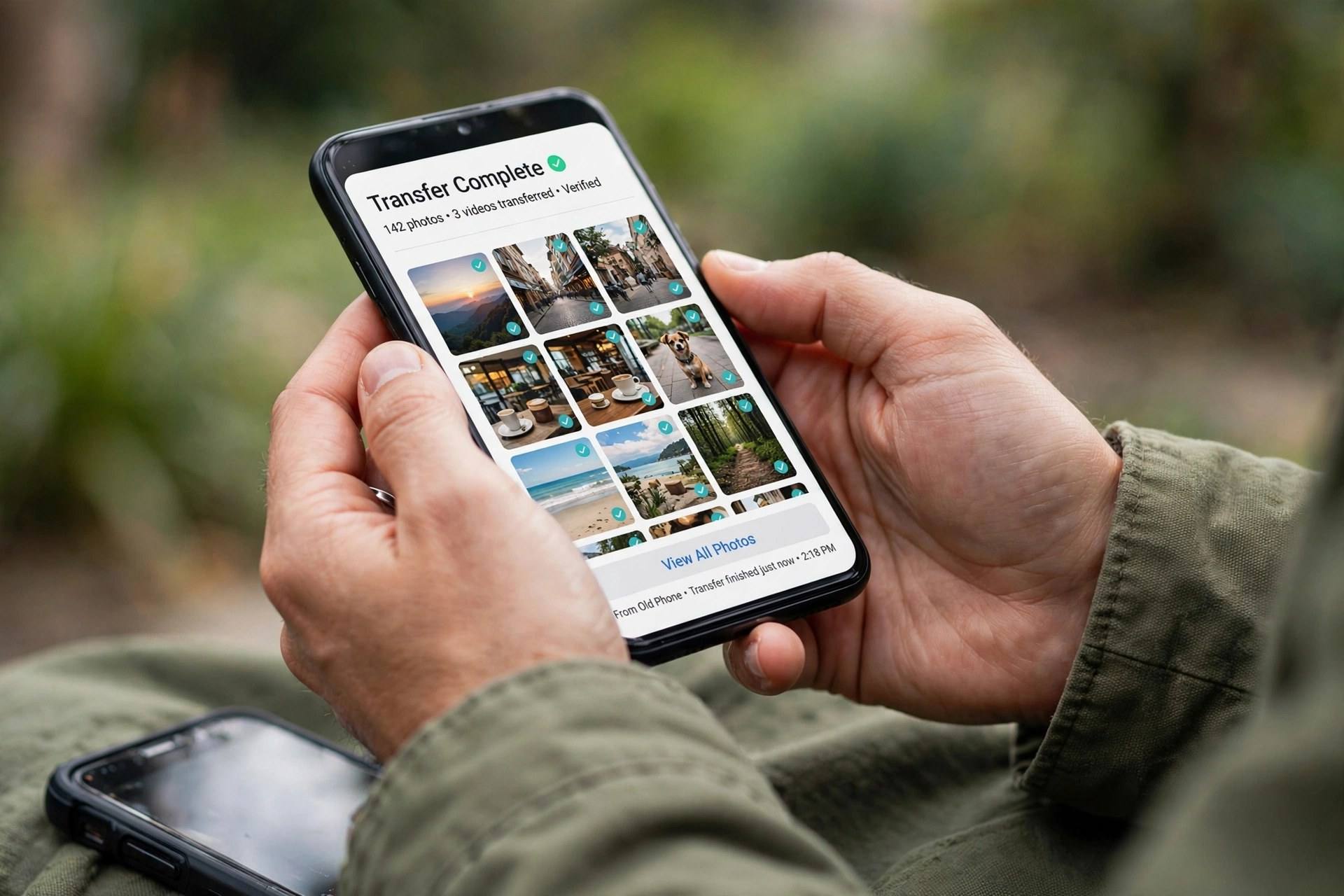
Do not wipe the old phone the moment the progress bar finishes. Spend fifteen minutes verifying: open photos and scroll to the oldest, check messages and contacts, confirm authenticator and banking apps work, test a call and a text. Keep the old phone (powered off, stored safely) for a week as a fallback — most “missing data” discoveries happen within days. Only then wipe it: on iPhone, Settings > General > Transfer or Reset > Erase All Content; on Android, Settings > System > Reset > Erase all data. Remove the old phone from your Apple ID or Google account device list, and if trading in or selling, remove the SIM and any memory card. A verified transfer plus a proper wipe is the complete job — that is how to transfer data from old phone to new phone without the anxiety.
How to Transfer Data From Old Phone to New Phone: The Master Checklist
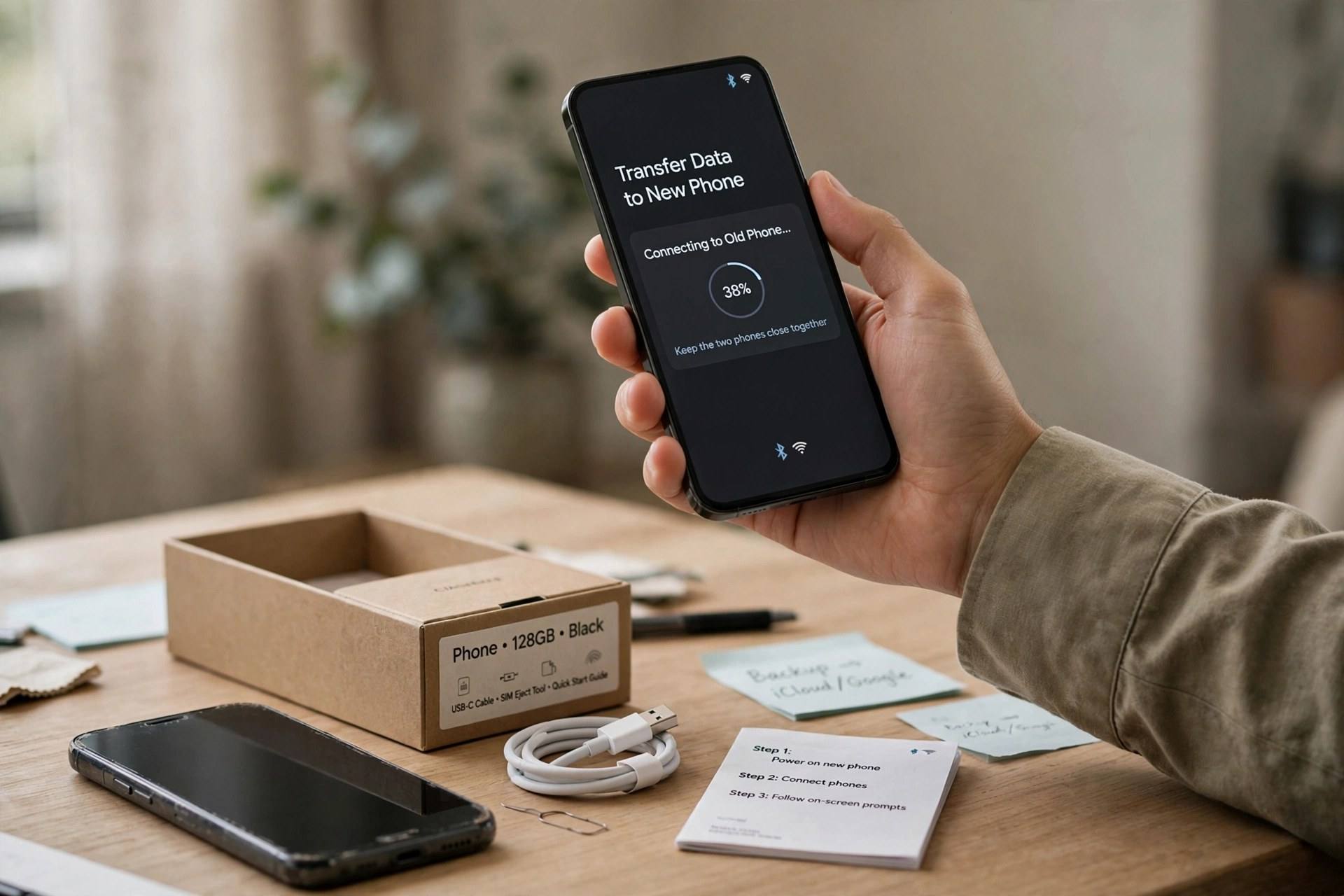
Run through this list and nothing gets missed. Before: back up the old phone twice (cloud plus computer if possible); charge both phones past 50 percent; update both to the latest OS; confirm you know your Apple ID and Google passwords; migrate or note authenticator app setups; remove cases that block cables. During: use a cable when available; keep phones close and awake; do not interrupt the transfer; handle WhatsApp migration in-app before wiping. After: verify photos, messages, contacts, and critical apps; test calls, texts, and mobile data; keep the old phone for a week; then factory-reset it, remove it from your accounts, and remove the SIM. Print this or screenshot it — it is the difference between a smooth hour and a stressful weekend.
Fixing the Most Common Transfer Problems
When transfers misbehave, the causes are usually mundane. Stalled progress: weak Wi-Fi or a sleeping phone — keep both awake, plugged in, and on strong Wi-Fi, or switch to cable. Missing photos: they may still be uploading to cloud backup on the old phone — open the photos app there and wait for sync to complete first. Apps not appearing: they transfer as placeholders until re-downloaded; check the app store’s purchased list. Texts not arriving after a platform switch: deregister iMessage (the classic gotcha). Running out of space on the new phone: the transfer needs free space beyond the data size — clear room first. And if all else fails, restore from the backup you made at the start — which is exactly why the checklist puts backup first.
Switching Ecosystems: What Actually Changes
Moving between iPhone and Android involves more than data — the ecosystem shifts under you. Leaving iPhone means losing iMessage, FaceTime, and AirDrop; replacements include WhatsApp or Signal for messaging, Google Meet or Zoom for video, and Nearby Share for file transfers. Leaving Android means gaining iMessage and FaceTime but losing deep Google Assistant integration, customizable defaults, and (on some phones) expandable storage habits. Smartwatches rarely cross over — an Apple Watch needs an iPhone, and while some Android watches have limited iOS support, expect to replace yours. Subscriptions usually transfer if billed through the app store account you keep, but check each one. Give yourself two weeks to adjust before judging the switch; the first days are always disorienting, and most switchers report the friction fading fast.
When to Ask for Help With Your Transfer
Most transfers go smoothly, but know when to call in reinforcements. Carrier stores will often perform the transfer for you free when you buy the phone there — worth asking. Manufacturer support lines can walk through stuck transfers step by step. If photos or messages are genuinely missing and no backup exists, data recovery services can sometimes retrieve them from the old phone, though success is not guaranteed and costs are real. For business phones with mobile device management, your IT department should handle migration — do not wipe a managed device without their go-ahead. And if you are helping a less tech-savvy relative, do the transfer together in person rather than over the phone; the verification step needs eyes on the screen. There is no shame in getting help — the goal is your data, safe, not your pride, intact.
Frequently Asked Questions
How long does transferring data to a new phone take?
Typically 15 to 45 minutes for the transfer itself, depending on data volume and method — cable is fastest. Add prep time for backups and updates, and verification time afterward. Budget about an hour total.
Do I need Wi-Fi to transfer data between phones?
Cable transfers work without Wi-Fi and are the most reliable option. Wireless transfers need both phones on stable Wi-Fi. Either way, keep both phones well charged during the process.
Will my WhatsApp chats transfer to my new phone?
Yes, but WhatsApp handles its own migration — use the in-app chat transfer feature before wiping the old phone. It works for same-platform moves and, with some limitations, cross-platform ones.
What should I do with my old phone after transferring?
Verify everything on the new phone first and keep the old one for a week as backup. Then factory-reset it, remove it from your accounts, and trade it in, sell it, or recycle it.
Why are my texts not arriving after switching from iPhone to Android?
You probably still have iMessage registered. Turn off iMessage and FaceTime on the old iPhone, or use Apple’s online deregistration tool to remove your number — otherwise iPhone messages keep routing to Apple instead of SMS.