How to Recover Deleted Photos on Android (All Brands)

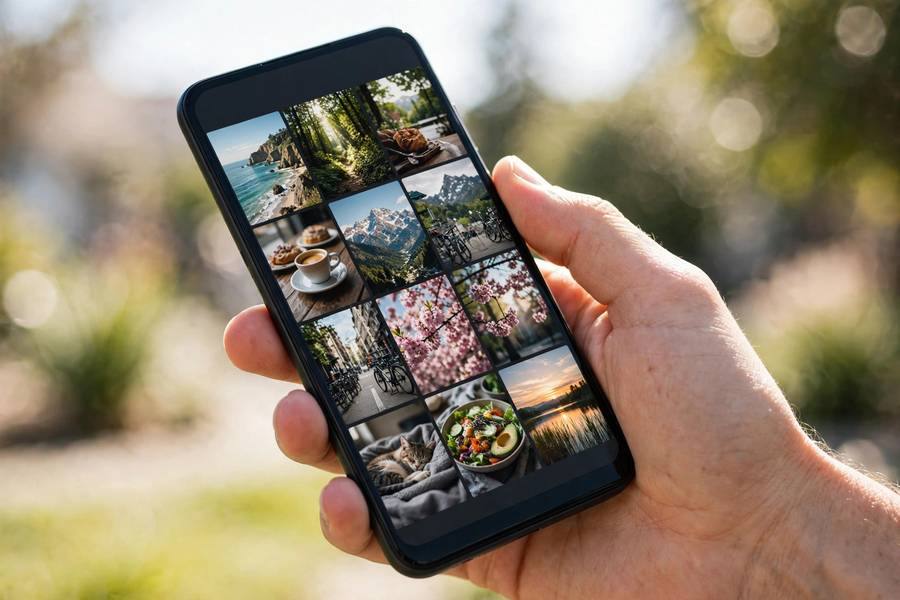
Deleted photos on your Android phone? Take a breath — this is one of the most fixable tech problems there is. Android phones have not one but several safety nets for deleted photos: the trash folder in your gallery app, Google Photos backup, and your phone’s own backup system. I’ve guided countless Android users through this, and the vast majority get their photos back within minutes. The key is checking the right places in the right order instead of panicking.
Android recovery is a little different from iPhone because Android isn’t one single system — Samsung, Google Pixel, Xiaomi, and other brands each handle photos slightly differently. This guide covers all of them: the trash folders, the cloud backups, the brand-specific quirks, and what to do when the easy methods don’t work. For the universal principles behind photo recovery on any device, see my complete guide on how to recover deleted photos.
First: Stop to Protect Your Photos
Before you do anything else, stop taking new photos and avoid installing new apps. When photos are deleted from your phone’s internal storage, the data remains until new data overwrites it. Every photo you take, every app you download, every update that installs risks overwriting the deleted photos permanently.
This matters most for photos that were stored on internal storage without any cloud backup. If your photos were backed up to Google Photos, this urgency doesn’t apply — the cloud copy is safe regardless of what you do on the phone. But until you’ve confirmed a backup exists, treat the phone gently: put it on Wi-Fi, don’t take photos, and work through this guide.
Method 1: Google Photos Trash (Works on Every Android)
Google Photos is installed on virtually every Android phone, and it’s the first place to check. Deleted photos land in its trash, where they wait 30 days (60 days in newer versions) before permanent deletion.
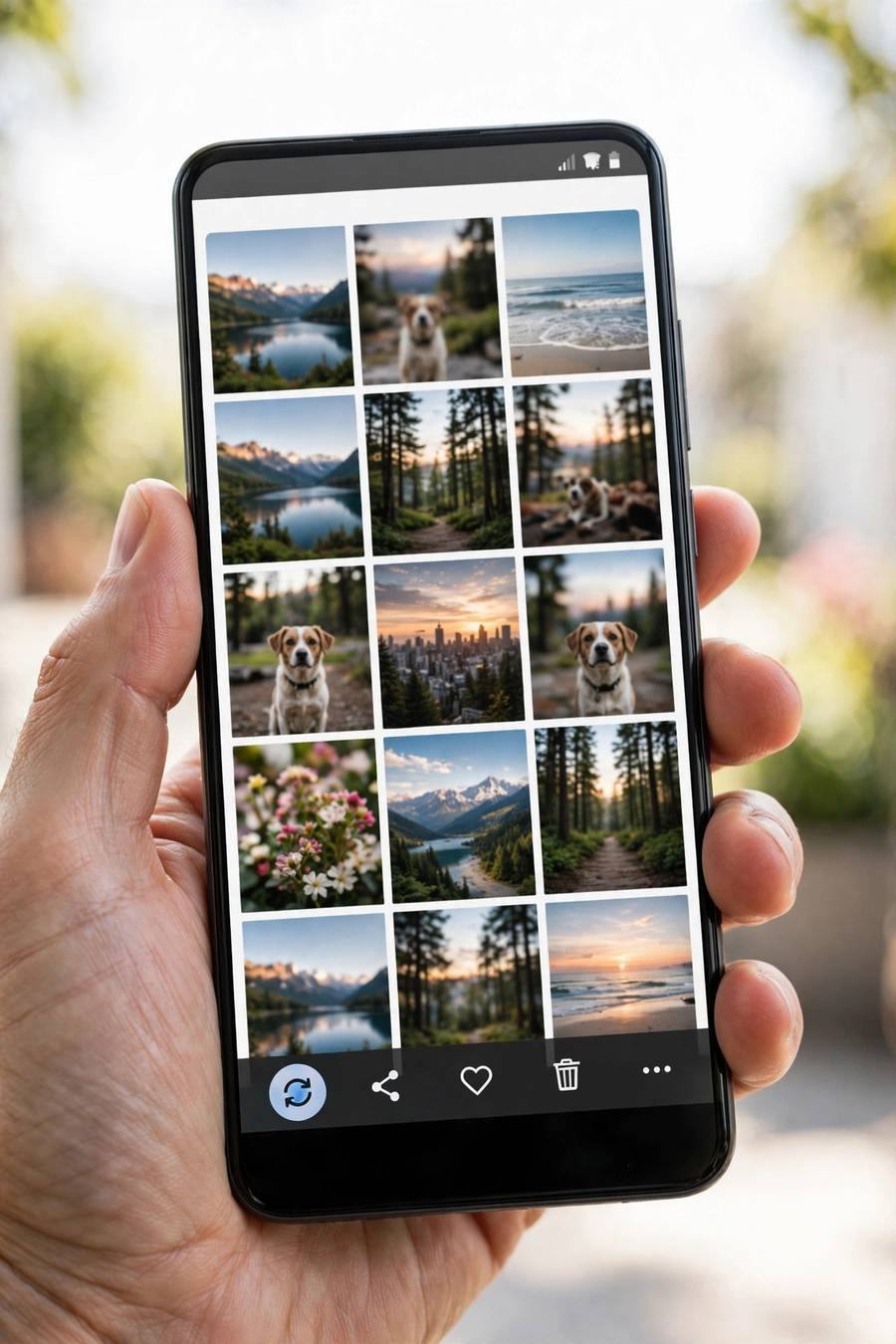
Open Google Photos, tap Library at the bottom of the screen, then tap Trash. You’ll see thumbnails of deleted photos, each showing how many days remain before permanent deletion. Long-press to select the photos you want back — or tap the three-dot menu and choose Select All — then tap Restore. The photos return to your main library instantly, at full quality.
Here’s the detail that matters: Google Photos trash only catches photos that were in Google Photos. If you use a different gallery app as your main photo viewer and never opened Google Photos, your photos may not be there. Also, if backup was turned off and you deleted photos from the device, they still appear in the trash — the trash works independently of backup. But if you emptied the trash, or the 30 days expired, they’re gone from here and you’ll need the methods below.
One more check while you’re in Google Photos: tap your profile picture and confirm backup is turned on. If it is, your photos may also exist in your Google Photos library itself — sometimes people “lose” photos that are simply in a different album or archived. Use the search bar; Google Photos can find photos by content, like “beach” or “birthday.”
Method 2: Your Phone Brand’s Gallery Trash
Most Android brands ship their own gallery app alongside Google Photos, and each has its own separate trash folder. This is the number one reason Android users think their photos are unrecoverable — they check one trash and miss the other.
On Samsung: open the Gallery app, tap the menu (three lines), then Recycle Bin. Select your photos and tap Restore. Samsung’s bin keeps photos for 30 days. Note that Samsung Gallery and Google Photos maintain completely separate trash folders — a photo deleted in one app appears only in that app’s trash.
On Xiaomi/Redmi/POCO: open the Gallery app, tap Albums, scroll to find the Trash album. On OnePlus: Gallery, then Collections, then Recently Deleted. On Motorola and most others using Google Photos as the default gallery, the Google Photos trash is the only one. If you’re not sure which gallery app you use, check both Google Photos and your brand’s gallery app — it takes thirty seconds and covers everything.
Also check whether your gallery app’s trash feature is actually enabled. On some phones, the recycle bin is a setting that can be turned off — if it’s off, deletions are immediate. Turn it on now for future protection, even if it doesn’t help with the current situation.
Method 3: Restore from Google or Samsung Cloud Backup
If the trash folders are empty, your cloud backup is the next best hope. Many Android phones back up automatically without the owner ever thinking about it.
For Google backup: your photos back up through Google Photos (covered above), but your phone also backs up app data, settings, and sometimes device photos through Google One backup. Go to Settings, then Google, then Backup, and check when the last backup ran. If a backup exists from before the deletion, a factory reset followed by restore would bring photos back — but that’s a drastic step that erases everything since. Only consider it if the photos are truly irreplaceable and nothing else worked.
For Samsung users: Samsung Cloud backs up Gallery photos separately. Go to Settings, then Accounts and backup, then Samsung Cloud, then Gallery, and check for backed-up photos. You can restore Gallery data from here without resetting the phone. If you use both Google and Samsung backup — which I recommend — you have two independent chances.
If you’ve never set up proper backups, let this be the moment. My guide on how to back up an Android phone walks through the complete setup so this never happens again.
Checking File Managers and SD Cards
Android’s openness means photos can live in unexpected places. Before declaring photos lost, do a little detective work.
Open your file manager app (Files by Google, Samsung My Files, or similar) and search for your photos. Check the DCIM folder (where camera photos live), the Pictures folder, the Download folder, and any WhatsApp or messaging app media folders — photos you received or sent often survive in app folders even when the gallery copy is deleted. It helps to understand how computers organize storage when hunting through these folders — knowing where apps stash their files turns a blind search into a targeted one. Messaging apps keep their own copies: open WhatsApp, go to a conversation, tap the contact name, then Media, and browse — sent and received photos live there independently.
If your photos were on a microSD card, remove the card and check it on a computer with a card reader. And crucially: photos deleted from an SD card via some file managers bypass the trash entirely. But they’re often still recoverable with recovery software, since the data remains until overwritten. The same principles from my photo recovery guide apply — stop using the card immediately and scan it from a computer.
No Backup? Recovery Apps and Software
If there’s no trash copy and no cloud backup, you’re in the hardest scenario — but not necessarily a hopeless one. The options depend on whether your photos were on internal storage or an SD card.
For SD cards: connect the card to a computer and use desktop recovery software to deep-scan it. This works well and is the same process as recovering from any memory card. For internal storage: it’s much harder. Modern Android phones encrypt their storage, and deleted file recovery from encrypted internal storage is unreliable. Some “photo recovery” apps on the Play Store claim to do it — most can only find thumbnails and cached images, not your full photos. They’re worth a try as a last resort, but keep expectations low.
Be very cautious with recovery apps. The Play Store is full of “photo recovery” apps that are ad farms — they show you thumbnails they found in caches and demand payment or bombard you with ads. A legitimate app will show you previews before asking for anything. Never grant a recovery app suspicious permissions, and never pay before seeing your actual photos in a preview.
The honest truth I give everyone: if the photos were on internal storage, with no backup, and the trash is empty, professional data recovery labs are the only remaining option — and even they struggle with modern encrypted phones. This is exactly why I push backups so hard. The recovery you never need is always better than the recovery that might not work.
Brand-Specific Notes: Samsung, Pixel, Xiaomi, and More
A few brand quirks worth knowing, since Android’s fragmentation is the main source of confusion here.
Samsung
You have two trash folders (Gallery Recycle Bin and Google Photos trash) and two cloud backups (Samsung Cloud and Google). Check all four. Samsung’s Secure Folder can also hide photos — if you ever used it, check there too, since photos moved to Secure Folder don’t appear in the regular gallery.
Google Pixel
Pixels use Google Photos exclusively, so there’s one trash folder and one backup system. Simple. But Pixels also aggressively manage storage — the “Free up space” feature deletes device copies of backed-up photos, which is fine as long as the cloud copies exist. If you’re panicking about missing photos on a Pixel, check Google Photos on the web (photos.google.com) — they’re often there.
Xiaomi, OnePlus, Motorola, and others
Check the brand gallery app’s trash first, then Google Photos. Xiaomi’s Gallery has a Trash album that’s easy to miss — it’s at the bottom of the Albums tab. OnePlus’s “Recently Deleted” is under Collections. When in doubt, open every gallery and file app on the phone and look for trash, bin, or recently deleted sections.
For iPhone users reading this for a friend: the iPhone process is simpler — one Recently Deleted album — and it’s covered in my guide on backing up an iPhone, which also explains iCloud recovery.
Preventing This Next Time
Once your photos are back, spend ten minutes making sure this never happens again. Turn on Google Photos backup (Photos app, profile picture, Photos settings, Backup) and confirm it completes. If you’re on Samsung, turn on Samsung Cloud Gallery sync too — two backups are better than one.
Make sure the recycle bin is enabled in your gallery app’s settings. And periodically verify your backup is actually working — open photos.google.com on a computer and confirm recent photos appear there. A backup you assume is running but isn’t is worse than no backup, because it gives you false confidence.
Finally, before any major phone change — a factory reset, a new phone, a repair shop visit — verify your photos are safe first. When you set up a new phone or switch devices, confirm photos arrived before wiping the old one. This one habit prevents the most heartbreaking losses I see.
Frequently Asked Questions
It depends on your apps. Google Photos has a trash under Library, then Trash. Samsung’s Gallery app has a separate Recycle Bin in its menu. Xiaomi, OnePlus, and others have their own gallery trash folders. Check every gallery app on your phone — they maintain separate trash folders, and your deleted photo is only in the trash of the app you deleted it from.
It’s difficult. If photos were on a microSD card, desktop recovery software can often find them. If they were on internal storage with no backup and the trash is empty, recovery is unreliable because modern Android encrypts internal storage. Some apps can find thumbnails and cached copies, but full recovery without a backup is unlikely.
No — and you shouldn’t. Rooting voids warranties, breaks security features like banking apps, and isn’t necessary for any of the reliable recovery methods. Trash folders, cloud backups, and SD card recovery software all work without root. Be skeptical of any guide that tells you to root for photo recovery.
Open photos.google.com on a computer and sign in with your Google account. If your photos appear there, they were backed up and are safe regardless of what happens on the phone. You can also check backup status in the Google Photos app under your profile picture — it shows the last backup time.
Many are not. The Play Store has numerous “photo recovery” apps that are essentially ad farms — they find cached thumbnails, show alarming results, then demand payment or show constant ads. A legitimate tool shows you real previews before asking for anything. For SD cards, desktop software is far more reliable than any phone app.