How to Recover Deleted Photos on Samsung Galaxy Phones

Samsung phones are the most popular Android phones in the world, and they have a photo recovery setup that’s both generous and confusing: two separate gallery apps, two separate trash folders, and two separate cloud backups. I’ve lost count of how many Samsung owners told me their photos were “permanently gone” when they were actually sitting in the other trash folder, untouched. If you use a Samsung Galaxy phone, this guide is written specifically for you.
I’ll walk you through Samsung’s complete recovery landscape in the right order: the Gallery Recycle Bin, Google Photos trash, Samsung Cloud backup, Secure Folder (a hiding spot people forget), and SD card recovery. I’ll also explain how Samsung’s system differs from other Android phones, because those differences are exactly where photos get “lost.” For the broader principles that apply to any device, see my full guide on how to recover deleted photos.
Understanding Samsung’s Photo Maze: Two Galleries, Two Trashes
Here’s the thing that confuses every Samsung owner: your phone has two photo apps. Samsung Gallery (the one with the flower-like icon) and Google Photos (the pinwheel icon) both show your photos, and both have their own trash. When you delete a photo in Samsung Gallery, it goes to Samsung Gallery’s Recycle Bin — not Google Photos’ trash. Delete in Google Photos, and it goes to Google Photos’ trash — not Samsung’s bin.
Most people don’t realize which app they deleted from. They check one trash, find nothing, and panic. So rule number one of Samsung photo recovery: check both trashes, every time. It takes a minute and it resolves the majority of “lost photo” cases I see on Samsung phones.
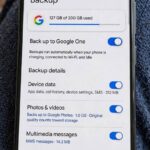
The same doubling applies to backups. Samsung Cloud backs up your Gallery photos; Google Photos backs up to your Google account. These are independent — a photo can be backed up to one, both, or neither. This redundancy is actually wonderful for recovery, because it gives you two independent chances to find every photo.
Method 1: Samsung Gallery Recycle Bin
Start here, since Samsung Gallery is the default gallery on Galaxy phones and where most deletions happen. Open the Gallery app, tap the menu icon (three horizontal lines, bottom right on newer phones), and tap Recycle Bin. If you don’t see it, tap Settings within the Gallery menu and make sure the Recycle Bin feature is turned on — on some phones it’s a toggle that can be disabled.
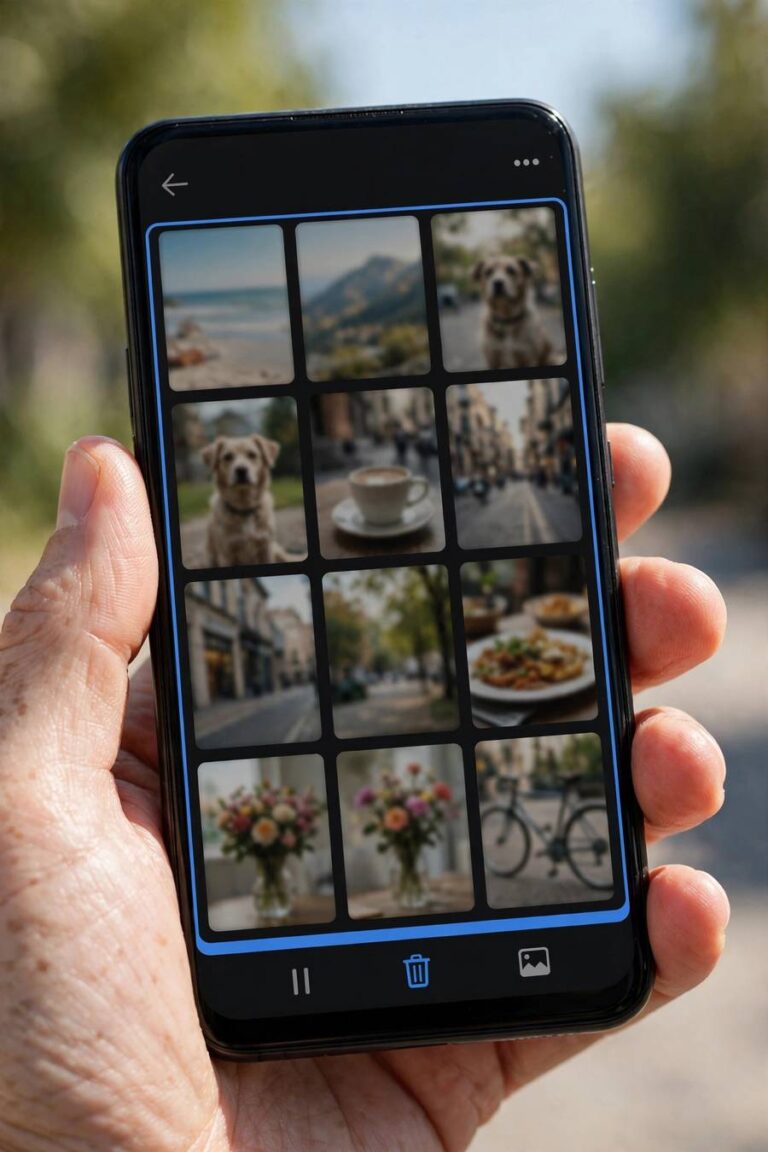
Inside the Recycle Bin, you’ll see deleted photos with the days remaining before permanent deletion (30 days). Tap the photos you want — or tap Select All — then tap Restore. They return to the Gallery exactly where they were, albums included.
Two Samsung-specific details. First, the Recycle Bin only works if it was enabled before the deletion. If it was off, deletions were immediate and you’ll need the backup methods below. Turn it on now regardless — it’s in Gallery Settings, and it’s the cheapest insurance on your phone. Second, emptying the Recycle Bin is permanent for the bin, but if the photos were also backed up to Samsung Cloud or Google Photos, those copies survive independently.
Method 2: Google Photos Trash
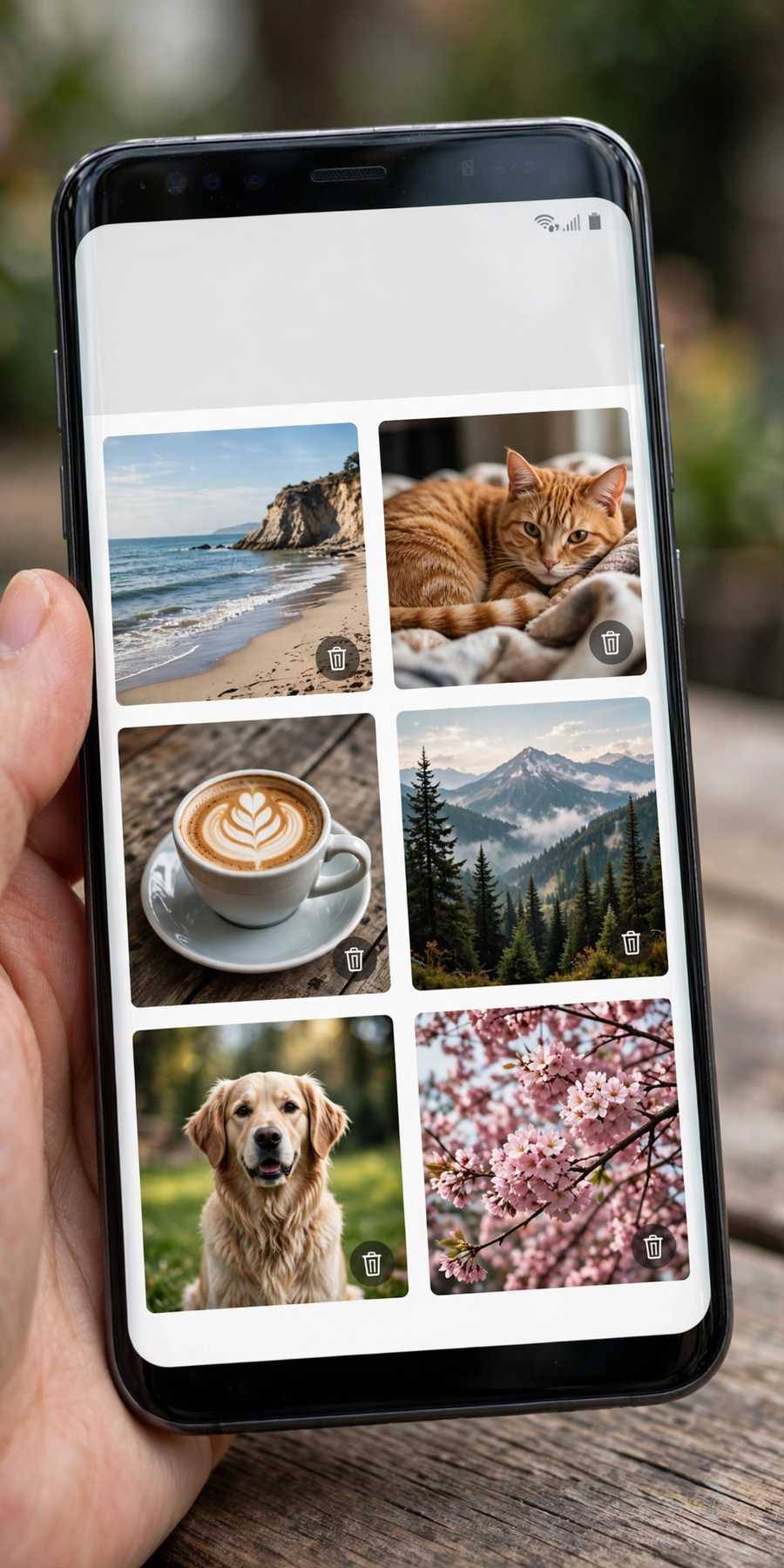
Now check the other trash. Open Google Photos, tap Library at the bottom, then Trash. Select your photos and tap Restore. Even if you never intentionally used Google Photos, it may have been backing up in the background — Samsung phones prompt you to enable it during setup, and many people tap through without realizing.
While you’re here, check whether backup is on: tap your profile picture, and look for backup status. If backup was on, your “deleted” photos might not be deleted at all in Google’s eyes — search for them in the main Photos tab. I’ve found “lost” photos sitting normally in people’s Google Photos libraries, where they’d been backed up automatically months ago.
Also visit photos.google.com on a computer and sign in. The web view sometimes reveals photos that don’t show properly in the app, and it’s the definitive test of whether your Google backup contains the photos. If they’re on the web, they’re safe — you can download them from there regardless of what the phone says.
Method 3: Samsung Cloud Gallery Backup
Samsung Cloud is the backup most Galaxy owners forget they have. It silently backs up your Gallery photos to your Samsung account, independent of Google. Here’s how to check it and restore from it.
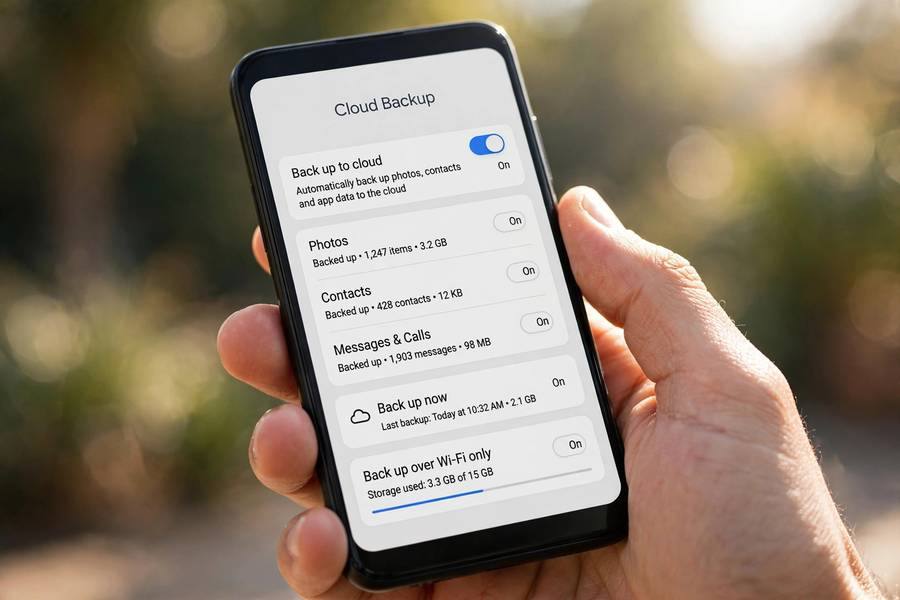
Go to Settings, then Accounts and backup, then Samsung Cloud. Tap Gallery and look at the sync status and what’s stored. If Gallery sync was on, your photos exist in Samsung Cloud even if they’re gone from the phone. You can restore them directly: in the Samsung Cloud settings, find the restore or download options for Gallery data.
You can also browse your Samsung Cloud photos from a computer at Samsung’s cloud web portal — sign in with your Samsung account and look for Gallery. This is useful when the phone itself is damaged or reset, since the cloud copy doesn’t depend on the phone at all.
A practical tip: Samsung Cloud’s free tier has limited storage (it varies by region and has changed over the years), so Gallery sync sometimes pauses silently when storage fills up. If your backup stopped months ago, that’s probably why. Consider it a nudge to check your complete Android backup setup — photos are only one part of what should be protected.
The Forgotten Hiding Spot: Secure Folder
Secure Folder is Samsung’s encrypted private space, and it’s a surprisingly common reason photos “disappear.” If you ever moved photos to Secure Folder — or if someone set it up for you — those photos don’t appear in the regular Gallery at all. They’re not deleted; they’re hidden behind separate authentication.
Open Secure Folder (find it in your app drawer; it looks like a folder with a lock). Authenticate with your fingerprint, PIN, or Samsung account. Then open the Gallery app inside Secure Folder and look for your photos. If they’re there, you can move them back to the regular Gallery: select them, tap More, then “Move out of Secure Folder.”
I’ve seen this scenario more than once: a parent sets up Secure Folder, moves some photos there, forgets about it, and months later the family thinks the photos are lost. If your Samsung ever had Secure Folder enabled, check it before concluding anything is gone.
Photos on a microSD Card
Many Samsung phones support microSD cards, and photos stored there follow different rules. The Gallery Recycle Bin sometimes doesn’t cover SD card deletions depending on your settings — photos deleted from the card may vanish immediately.
If your missing photos were on the SD card: stop using the card right now, remove it from the phone, and connect it to a computer with a card reader. Desktop recovery software can deep-scan the card for deleted photo data. Don’t install recovery apps on the phone for this — they can’t do the job properly, and installing them risks overwriting the data.
Going forward, consider whether the SD card is the right home for important photos. Cards are convenient for extra space, but they’re also the most failure-prone storage in your phone. Let me put it this way: I treat SD cards as temporary overflow, never as the only copy of anything. Your phone’s internal storage plus cloud backup is the safer combination.
When Photos Aren’t in Any Trash
If you’ve checked both trashes, both clouds, Secure Folder, and the SD card, and the photos are still missing, here are the remaining possibilities.
Check your messaging apps. Photos you sent or received via WhatsApp, Telegram, or Samsung Messages live in those apps’ own storage, independent of the Gallery. Open WhatsApp, go to the relevant chat, tap the contact name, then Media — I’ve recovered “lost” family photos from here many times. Same for photos shared to social media: check your Facebook, Instagram, and shared Google Photos albums, including archived posts.
Check other devices signed into your accounts. A tablet, an old phone, or a computer with the same Samsung or Google account may hold synced copies. And check Samsung’s “My Files” app — search for image files by name or browse the DCIM and Pictures folders directly, since gallery apps sometimes fail to display photos that are actually present in storage.
If the phone was recently factory reset, recovery gets much harder — a reset wipes the encryption keys, making internal storage data effectively unrecoverable. In that case, your only hope is a cloud backup from before the reset. This is why I always say: verify backups before resetting, every single time.
Setting Up Samsung Backups So This Never Happens Again
Once your photos are safe, take ten minutes to set up Samsung’s full safety net. You want three things running.
First, Samsung Gallery sync to Samsung Cloud: Settings, then Accounts and backup, then Samsung Cloud, then Gallery — turn sync on. Second, Google Photos backup: open Google Photos, tap your profile picture, then Photos settings, then Backup — turn it on. Running both means every photo is protected twice, by two independent systems. Third, confirm the Gallery Recycle Bin is enabled in Gallery Settings, so future deletions get their 30-day grace period.
Then verify it all works: take a test photo, wait a few minutes on Wi-Fi, and check that it appears at photos.google.com and in your Samsung Cloud. That two-minute test is the difference between assuming you’re protected and knowing you are. For the complete picture — messages, apps, settings, the works — my guide on how to back up an Android phone covers everything, and iPhone households should see how to back up an iPhone too.

Frequently Asked Questions
Samsung Gallery’s Recycle Bin is in the Gallery app: tap the menu icon, then Recycle Bin. Note that Google Photos — also on your phone — has its own separate trash under Library, then Trash. Check both, because a photo deleted in one app only appears in that app’s trash.
Go to Settings, then Accounts and backup, then Samsung Cloud, and check Gallery sync status. If your photos were synced, you can restore or download them from there, or browse them by signing into your Samsung account on Samsung’s cloud web portal from a computer.
The most common reasons: you checked the wrong app’s trash (Samsung Gallery and Google Photos have separate trashes), the Recycle Bin feature was turned off before deletion, the 30 days expired, or the photos were on an SD card. Also check Secure Folder — photos moved there don’t appear in the regular gallery.
It can, but you need to turn it on. Samsung Cloud Gallery sync and Google Photos backup are both opt-in. Many phones prompt during setup and people enable them without realizing, which is why checking both is worthwhile even if you don’t remember setting them up. Verify in Settings under Accounts and backup, and in the Google Photos app.
Only from a cloud backup. A factory reset wipes the phone’s encryption keys, making internal storage data unrecoverable by software. If Samsung Cloud or Google Photos had synced your photos before the reset, restore from there. This is why verifying backups before any reset is essential.