Recently Deleted Photos Recovery: Get Them Back in Minutes

“Recently deleted” is the safety net built into every modern phone, and it’s the reason most photo deletions aren’t disasters. When you delete a photo on an iPhone or Android, it doesn’t vanish — it moves to a holding area where it waits, typically 30 days, giving you a generous window to change your mind. I’ve walked people through this recovery more times than I can count, and it almost always ends with relief: the photos were there all along.
This guide is your complete tour of every “recently deleted” location across iPhone, Android, Windows, Mac, and cloud services — where each one hides, how to restore from it, how the 30-day clock works, and what to do when it’s expired. Think of it as the practical companion to my broader guide on how to recover deleted photos, focused entirely on the easiest recovery path there is.
The Concept: Why “Recently Deleted” Exists
Every operating system maker studied the same user behavior: people delete photos accidentally, or delete in haste and regret it. The solution they all landed on is a grace period — deletion moves the photo to a holding area instead of erasing it, and only after a waiting period (usually 30 days) does permanent erasure happen.
During the grace period, recovery is trivial: open the holding area, select, restore. The photo returns at full quality with all metadata — date, location, edits — intact. It’s as if the deletion never happened. There’s no scanning, no software, no expertise needed. This is genuinely the easiest recovery in all of tech, which is why it’s always the first thing I check.
The tradeoff is storage: photos in Recently Deleted still occupy space until they expire or you empty the folder manually. If you’re deleting to free up space, remember the second step — empty the trash — or you’ll wonder why nothing freed up.
iPhone Recently Deleted: Step by Step
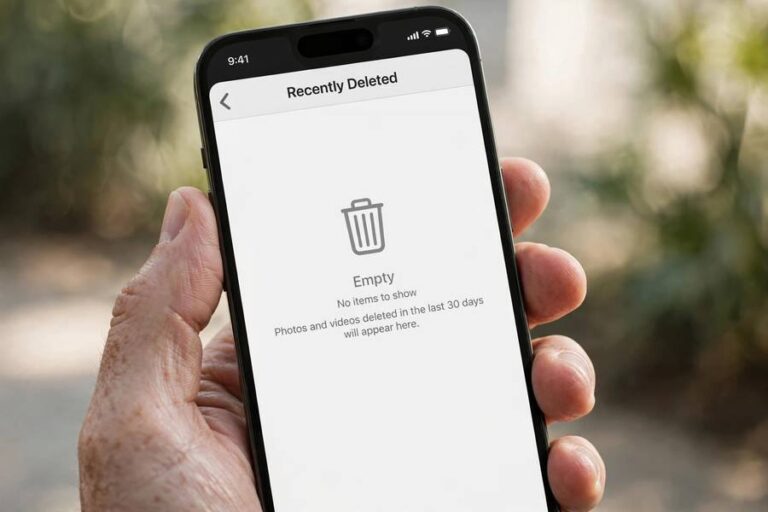
On iPhone, open the Photos app and scroll down past your library to the Utilities section. Tap Recently Deleted. On iOS 16 and later, you’ll need to authenticate with Face ID, Touch ID, or your passcode — Apple locks this album so someone with your unlocked phone can’t browse what you’ve deleted.
Once inside, tap Select in the top corner. Tap individual photos, or tap the three-dot menu and choose Select All. Then tap Recover at the bottom and confirm. Your photos return to the main library immediately, in their original positions with original dates.
A few things iPhone users should know. If you use iCloud Photos, Recently Deleted syncs across devices — recovering on your iPhone restores the photo on your Mac and iPad too, usually within minutes. Deleting from Recently Deleted on any device removes it everywhere. Each photo shows its remaining days, counting down from 30. And if the album is empty but you just deleted something, check that you’re signed into the right Apple ID — family devices sometimes mix accounts.
If your photos aren’t in Recently Deleted, your next stop is your backups. My guide on how to back up an iPhone explains how iCloud backups can recover what the safety net missed.

Android Recently Deleted: Google Photos and Brand Galleries
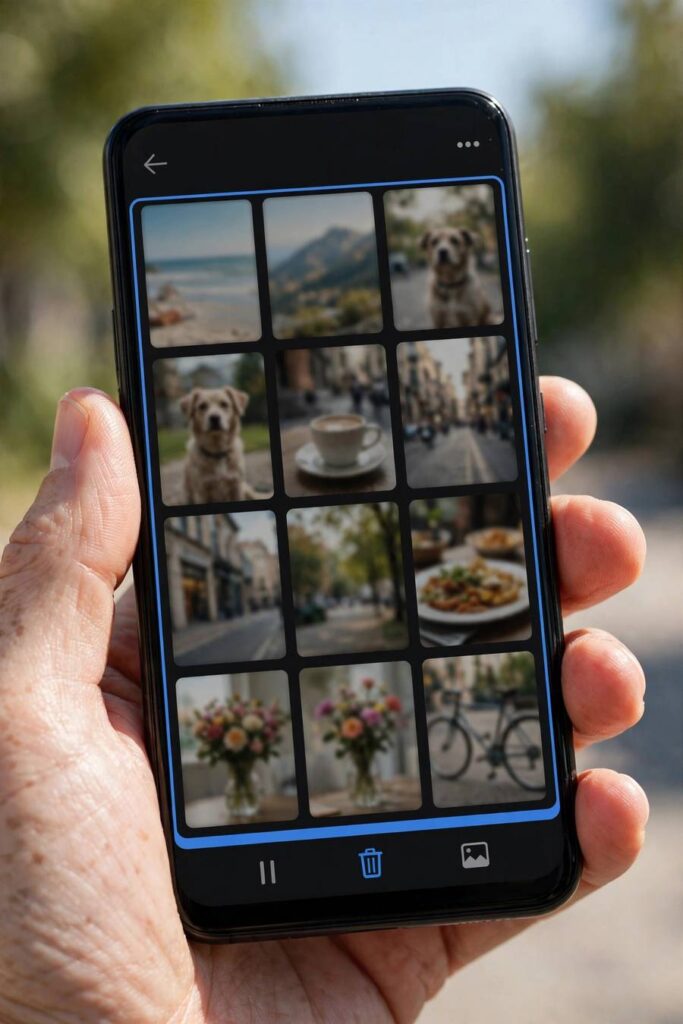
Android’s version is split across apps, so check each one. In Google Photos: tap Library at the bottom, then Trash. Long-press photos to select them, then tap Restore. Google keeps deleted photos 30 days (60 days in newer versions), and each thumbnail shows its remaining time.
In your phone brand’s gallery app, find its separate trash. Samsung Gallery: menu, then Recycle Bin. Xiaomi Gallery: Albums tab, scroll to Trash. OnePlus: Collections, then Recently Deleted. These brand trashes are completely independent of Google Photos’ trash — a photo deleted in Samsung Gallery appears only in Samsung’s Recycle Bin. Check both, always.
One Android-specific warning: photos deleted through a file manager app (rather than a gallery) sometimes bypass the trash entirely, especially on SD cards. And the recycle bin feature can be toggled off in some gallery settings — if yours was off, deletions were immediate. Turn it on now in your gallery’s settings for future protection, even though it can’t help retroactively.
Windows and Mac: Recycle Bin and Trash
On Windows, deleted photos go to the Recycle Bin on your desktop. Open it, find your photos (sort by Date Deleted to find recent ones quickly), right-click, and choose Restore. They return to their original folders.
Windows has exceptions that surprise people: files deleted from USB drives, SD cards, and network locations skip the Recycle Bin entirely. Files larger than the bin’s capacity trigger a “too large” warning — confirming means permanent deletion. And Shift+Delete bypasses the bin by design. If your photos came from any of these paths, you’ll need deeper recovery methods.
On Mac, it’s the Trash in the Dock: open it, right-click your photos, and choose Put Back. Note that the Mac Photos app has its own Recently Deleted album (in the sidebar) separate from the system Trash — photos deleted inside the Photos app go there, not to the Dock. Check both locations. As with Windows, files deleted from external drives have their own hidden trash on the drive itself.
Cloud Recently Deleted: iCloud, Google Drive, Dropbox
Your cloud accounts have their own safety nets, separate from your devices. If you deleted photos through a web browser or the deletion synced from a device, check the cloud trash.
iCloud.com: sign in, open Photos, check Recently Deleted in the sidebar — and separately, open iCloud Drive and check its Recently Deleted. These are two different holding areas. Google: Google Photos trash (in the app or at photos.google.com) is separate from Google Drive’s trash (at drive.google.com, in the sidebar). A photo can be in one, both, or neither depending on where it lived and how it was deleted. Dropbox: deleted files wait 30 days (up to 180 on paid plans) under Deleted files.
The cloud check matters even when your device trash is empty, because sync timing creates gaps. A photo deleted on a phone with poor connectivity might still sit in the cloud’s main library, never having received the deletion. Always verify at the cloud level — it’s the authoritative copy.
Understanding the 30-Day Clock
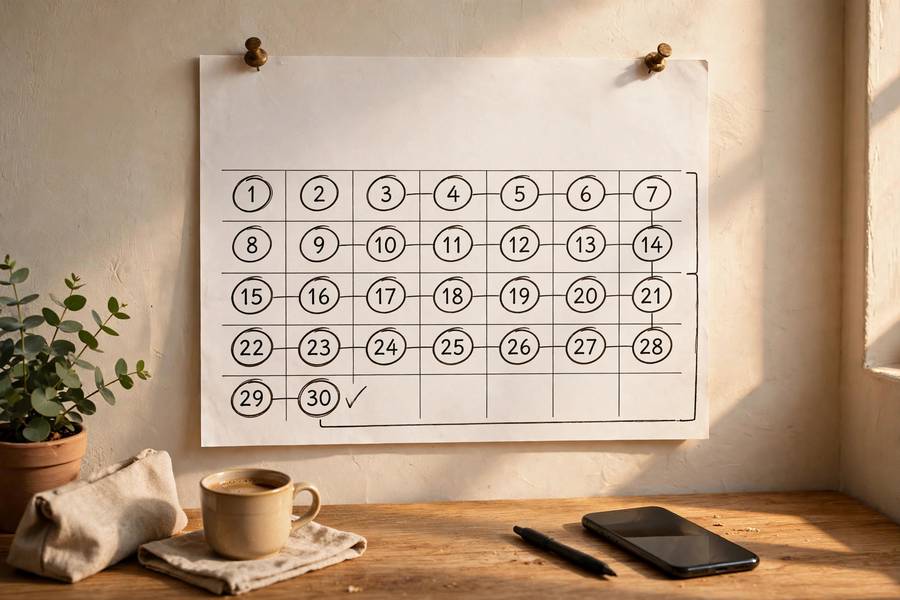
The 30-day grace period has nuances worth understanding. The clock is per-photo: each photo gets 30 days from its own deletion moment, not 30 days from when you notice. The trash folder shows remaining days per photo, so you can see exactly how urgent each recovery is.
Manually emptying the trash or deleting from Recently Deleted ends the clock immediately — there’s no second grace period. On iCloud Photos and Google Photos, emptying trash on one device empties it everywhere, because it’s one synced library. Be careful with “Empty Trash” or “Delete All” buttons; they’re the point of no return for this safety net.
Storage pressure doesn’t shorten the clock — your photos stay the full 30 days even if you’re low on space. But note the reverse: photos in the trash still count against your storage, so a full trash can contribute to “storage full” problems. It’s fine to empty the trash deliberately once you’re sure there’s nothing in it you want — just make it a deliberate decision, not a panicked one.
When the Window Expires: Your Next Options
If the 30 days have passed, the safety net is gone — but you’re not necessarily out of options. Work through these in order.
First, check your backups. An iCloud backup, Google backup, Samsung Cloud backup, or computer backup from before the deletion contains the photos. This is the most reliable post-expiry method. Second, hunt for shared copies: messages, WhatsApp media, email attachments, shared albums, social media posts — every share created an independent copy that the trash expiry didn’t touch. Third, ask people you shared the photos with; their copies survive regardless of what happened on your devices.
Fourth, for photos that lived on computer drives or SD cards, recovery software can sometimes find data after trash-emptying, provided the space hasn’t been overwritten. Act quickly and minimize drive use.
And if none of this works, accept it and build the backup system that makes the next scare a non-event. The people who never lose photos aren’t more careful — they’re just backed up.
Habits That Make This Safety Net Unnecessary
The Recently Deleted folder is a wonderful backstop, but the goal is a setup where you never need it. Two habits get you there.
First, automatic cloud backup that you verify. Turn on iCloud Photos or Google Photos backup, ensure you have enough cloud storage for it to run, and check every few months that recent photos actually appear in the cloud. A backup that’s silently paused by full storage is the most common way people lose photos “despite having backup on.”
Second, deliberate deletion habits. Don’t mass-delete when frustrated about storage — that’s when the wrong photos get swept up. Review the Recently Deleted folder monthly; it takes a minute and catches mistakes while the clock is still running. And before wiping any device — selling a phone, factory reset, trade-in — confirm your photos exist in the cloud first. When you set up a new iPhone, verify the photo library transferred completely before erasing the old one.
For Android users, the equivalent complete setup is in my guide on how to back up an Android phone. Ten minutes of setup, verified once, and photo loss becomes something that happens to other people.

Frequently Asked Questions
Open Photos, scroll to Utilities, tap Recently Deleted, authenticate with Face ID or passcode, tap Select, choose your photos, and tap Recover. They return to your library immediately. This works for 30 days after deletion. If you use iCloud Photos, recovery syncs to all your devices.
Check Google Photos (Library, then Trash) and your brand’s gallery app trash separately — Samsung Gallery has a Recycle Bin in its menu, Xiaomi has a Trash album, and others vary. Select your photos and tap Restore. Each app’s trash is independent, so always check both.
The trash safety net is gone, but check your cloud backups (iCloud, Google, Samsung Cloud, or computer backups from before the deletion), look for shared copies in messages and shared albums, and ask people you shared with. For SD cards and computer drives, recovery software may still find the data if it hasn’t been overwritten.
Yes. Photos in Recently Deleted, trash, or the Recycle Bin still occupy storage until they expire or you empty the folder. If you’re deleting to free up space, empty the trash afterward — otherwise you won’t see any space freed.
On iPhone and Google Photos, yes — recovered photos return to the main library and typically to their original albums with dates and metadata intact. On Windows and Mac, Restore/Put Back returns files to their original folders. Recovery is seamless.