How to Recover Permanently Deleted Photos on iPhone

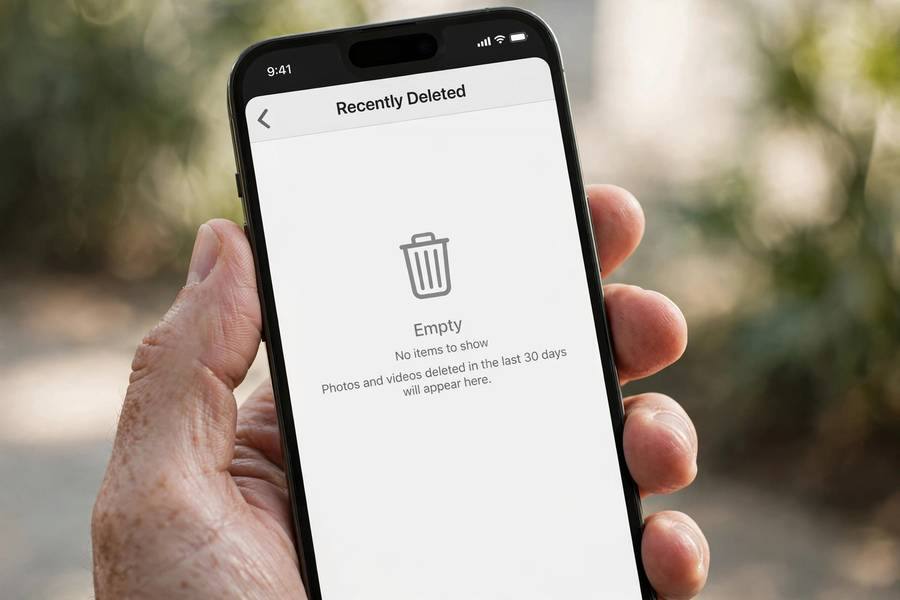
The words “permanently deleted” on an iPhone sound final, and I’ll be honest with you upfront: sometimes they are. But not always — not even close to always. I’ve helped people recover photos they were certain were gone forever, because “permanently deleted” on an iPhone usually means “deleted from the Recently Deleted album,” and there are still several places those photos might exist. What it doesn’t mean is that you should panic or give up.
This guide is the realistic, no-false-promises walkthrough: what “permanently deleted” actually means on iPhone, the four places your photos might still exist, how to check each one, and the honest odds at each stage. I’ll also tell you clearly when recovery isn’t possible, because false hope wastes the time you could spend on the methods that work. For the general recovery landscape, start with my complete guide on how to recover deleted photos.
What “Permanently Deleted” Actually Means on iPhone
On iPhone, deleting a photo is a two-stage process. Stage one: the photo moves to the Recently Deleted album, where it waits 30 days. Stage two: after 30 days — or when you manually delete it from Recently Deleted — it’s “permanently deleted.” That phrase means it’s gone from your photo library and from the safety net. It does not mean it’s gone from everywhere.
Here’s why there’s still hope. Your iPhone doesn’t exist in isolation — it’s part of an ecosystem. iCloud backups may contain the photo as it existed on backup day. Your computer may hold an old backup. You may have shared the photo in a message, where a copy lives independently. A family member’s shared album may hold it. Each of these is a separate copy that the “permanent” deletion on your phone didn’t touch.
What “permanently deleted” does reliably destroy is the photo’s data on the iPhone’s own storage. Modern iPhones encrypt their storage, and deleted file data becomes unrecoverable very quickly — unlike old hard drives, there’s no realistic “undelete” from iPhone internal storage. So forget the idea of scanning the iPhone itself; the recovery happens from your backups and your ecosystem, not from the phone’s storage.
Method 1: Check iCloud.com (The Copy People Forget)
Before anything drastic, check iCloud from a computer. Go to iCloud.com, sign in with your Apple ID, and open Photos. Look in two places: the main library (search for the photo — it might be in an unexpected album) and Recently Deleted.
Here’s why this matters even after “permanent” deletion on the phone: iCloud Photos syncing has timing quirks. If your phone was offline or had sync issues, the deletion may never have propagated to iCloud — meaning the photo still sits in your iCloud library, safe. I’ve seen this happen with people who deleted photos while traveling with poor connectivity. The phone said “permanently deleted,” but iCloud never got the memo.
Also check iCloud’s Recently Deleted separately from the phone’s — they usually mirror each other, but during sync delays they can differ. While you’re signed in, glance at iCloud Drive too, in case the photo was ever saved as a file rather than in the Photos library.
Method 2: Restore from an iCloud Backup
iCloud Backup takes a snapshot of your entire iPhone — including your photo library as it existed at backup time. If a backup ran before you deleted the photos, those photos exist in that backup. This is the most reliable recovery method for permanently deleted iPhone photos.
First, check your backup history: on the iPhone, go to Settings, tap your name, then iCloud, then iCloud Backup, and look at the last successful backup date. If the backup predates the deletion, it contains your photos. There’s the catch, though: restoring an iCloud backup replaces your entire phone with the backup’s contents. Everything from after the backup date — new photos, messages, app data — gets wiped and replaced.
Here’s how I handle this tradeoff with clients. First, make a fresh backup of the phone as it is now (so you don’t lose anything current). Then erase the phone and restore from the older backup containing the photos. Save the recovered photos somewhere safe — AirDrop them to a computer, upload to cloud storage, email them to yourself. Then erase again and restore from the fresh backup to get your current state back, plus the saved photos. It’s a multi-hour process, but for irreplaceable photos, it’s worth it.
An important nuance: if you use iCloud Photos (the syncing service), your photo library is not included in iCloud Backup — it’s already in iCloud. In that case, backup restore won’t bring back photos; the iCloud.com check above is the relevant method. iCloud Backup contains your camera roll only if iCloud Photos is turned off. If you’re fuzzy on how these fit together, my guide on how to back up an iPhone explains both systems clearly.
Method 3: Restore from a Computer Backup
If you’ve ever backed up your iPhone to a Mac or PC — even once, even long ago — that backup might contain your photos. Computer backups are easy to forget about because they sit silently on a hard drive.
On a Mac: open Finder (or iTunes on older macOS), connect the iPhone, select it, and look at the backup dates under the General tab. On Windows: open Apple’s device app and check for backups. If you find a backup from before the deletion, you can restore the phone from it — with the same whole-phone-replacement tradeoff as iCloud restore.
The same two-backup dance applies: fresh backup of current state first, restore the old backup, save the photos elsewhere, then restore the fresh backup. Tedious but effective. And if the computer backup is encrypted (which I always recommend), it contains even more — saved passwords and Health data come along too, though those aren’t relevant to photos.
One more place to check on the computer: the Photos app on Mac, or the Pictures folder on Windows. If you ever imported photos from the iPhone to the computer — even casually, even once — those imported copies are independent of everything on the phone and survive any deletion.
Method 4: Find Copies in Messages, Shared Albums, and Apps
This is the method people underestimate, and it has the highest success rate for the least effort. Every time you shared that photo, a copy was created outside your photo library.
Check your Messages conversations: open the thread with the person you sent the photo to, tap their name at the top, and scroll through the photos section. Sent and received photos live in Messages independently of your library — deleting from Photos doesn’t touch them. Same for WhatsApp (open the chat, tap the name, then Media), Telegram, Signal, and email — search your sent folder for attachments.
Check Shared Albums: open Photos, scroll to Shared Albums, and look through them. Photos you shared to a family album exist there as separate copies. Even if you deleted your library copy, the shared album copy remains until someone deletes it from the album. Also check social media — Facebook, Instagram (including archived posts and stories archive), and any cloud service where you might have uploaded.
Ask the people you shared with. This feels obvious, but people skip it out of embarrassment. The person you texted that photo to still has it, at full quality, and they’d probably be happy to send it back. Some of the most “impossible” recoveries I’ve been part of ended with a simple text message.

Third-Party iPhone Recovery Software: Honest Assessment
You’ll find many programs advertising “iPhone photo recovery” — software that claims to scan your iPhone and find deleted photos. Here’s my honest assessment after seeing these tools in action: they cannot recover deleted photos from a modern iPhone’s internal storage. iPhone storage encryption makes this effectively impossible, regardless of what the marketing says.
What these tools actually do — the legitimate ones — is extract photos from your iTunes/Finder backups and your iCloud backups, presenting them in a nicer interface than Apple’s restore process. That can be genuinely useful: instead of wiping your whole phone to restore a backup, the software pulls just the photos out of the backup file. If that’s what you need, a reputable tool saves you the two-backup dance I described above.
But be wary. Many of these programs are overpriced for what is essentially a backup browser, and the shadier ones are just scareware. Never pay before the software shows you actual previews of your photos. And never install “recovery” software that asks you to jailbreak your iPhone — jailbreaking for photo recovery is never worth the security risk.
When Photos Are Truly Gone (and How to Know)
I promised honesty, so here it is: photos are truly unrecoverable when every copy is gone. That means: deleted from Recently Deleted (or 30 days expired), no iCloud backup predating the deletion, no computer backup, iCloud Photos sync propagated the deletion everywhere, and no shared or messaged copies exist anywhere. When you’ve checked all of these and found nothing, the photos are gone.
You’ll know you’ve reached this point when: iCloud.com shows nothing, your oldest backup postdates the deletion, no computer backup exists, and nobody you shared with has a copy. It’s a painful conclusion, but reaching it quickly matters — because the time you spend chasing impossible recovery is better spent setting up the backups that prevent the next loss.
If you’re in this situation, be kind to yourself. Everyone who takes photos eventually loses some. The photographers with perfect archives aren’t luckier — they just built systems after their first loss. Let this be the loss that builds yours.
Making Sure This Never Happens Again
The best outcome of a photo scare is a backup system that makes it irrelevant next time. Here’s the minimum I’d set up on any iPhone.
Turn on iCloud Photos (Settings, your name, iCloud, Photos) so every photo syncs automatically. Turn on iCloud Backup (Settings, your name, iCloud Backup) so the whole phone backs up nightly. Make sure you have enough iCloud storage — the free 5GB is never enough, and a full iCloud silently stops protecting you. These three settings, checked once, prevent nearly every photo loss scenario.
Add one more layer for irreplaceable photos: periodically export your favorites to a second location — a computer, an external drive, or a second cloud service. And before any major change — a new phone, a reset, a repair — verify your photos are safe. When you set up a new iPhone, confirm your photo library arrived completely before wiping the old phone. Two weeks of keeping the old phone around costs nothing and has saved more photos than any software ever will.

Frequently Asked Questions
Sometimes. “Permanently deleted” means gone from the Recently Deleted album, but copies may exist in iCloud backups, computer backups, iCloud.com (if sync hadn’t propagated the deletion), or in messages and shared albums where you shared the photo. Check all of these before giving up — but be aware that no software can recover deleted data from the iPhone’s encrypted internal storage itself.
Without any backup, your options are: checking iCloud.com in case the deletion didn’t sync, looking for copies in Messages, WhatsApp, email, and shared albums, and asking people you shared the photos with. These “shared copies” are the most common successful recovery path when no backup exists.
Yes — restoring a backup replaces your entire phone with the backup’s contents, wiping anything created after the backup date. The safe approach is to make a fresh backup of your current state first, restore the old backup, save the recovered photos elsewhere, then restore the fresh backup.
No. Apple doesn’t keep copies of your deleted photos and can’t recover them for you. Apple Support will direct you to the same methods in this guide — iCloud.com, backups, and shared copies. Anyone claiming Apple can do more is mistaken.
Not for scanning the iPhone itself — encryption makes that impossible on modern iPhones. Legitimate tools can extract photos from your existing iTunes/Finder or iCloud backups without a full phone restore, which is genuinely useful. But any app claiming to find deleted photos directly on the phone’s storage is not telling the truth.