How to Clear Cache on iPhone: Every Method That Works

When your iPhone starts feeling sluggish — Safari loading old versions of pages, apps hogging gigabytes of mystery storage, websites misbehaving for no clear reason — learning how to clear cache on iPhone is one of the fastest fixes available. Cached data is just temporary files your phone saves to load things faster: website images, app thumbnails, login sessions. Over time that helpful shortcut pile grows into clutter, and occasionally a corrupted cache file causes the exact glitch you are trying to fix. The good news: clearing it is safe, takes minutes, and will not delete your photos, messages, or accounts. This guide walks through every method — Safari, Chrome, individual apps, and the system-level cleanup — so you can pick the right one for your situation.
Clearing the Safari Cache: The Main Fix
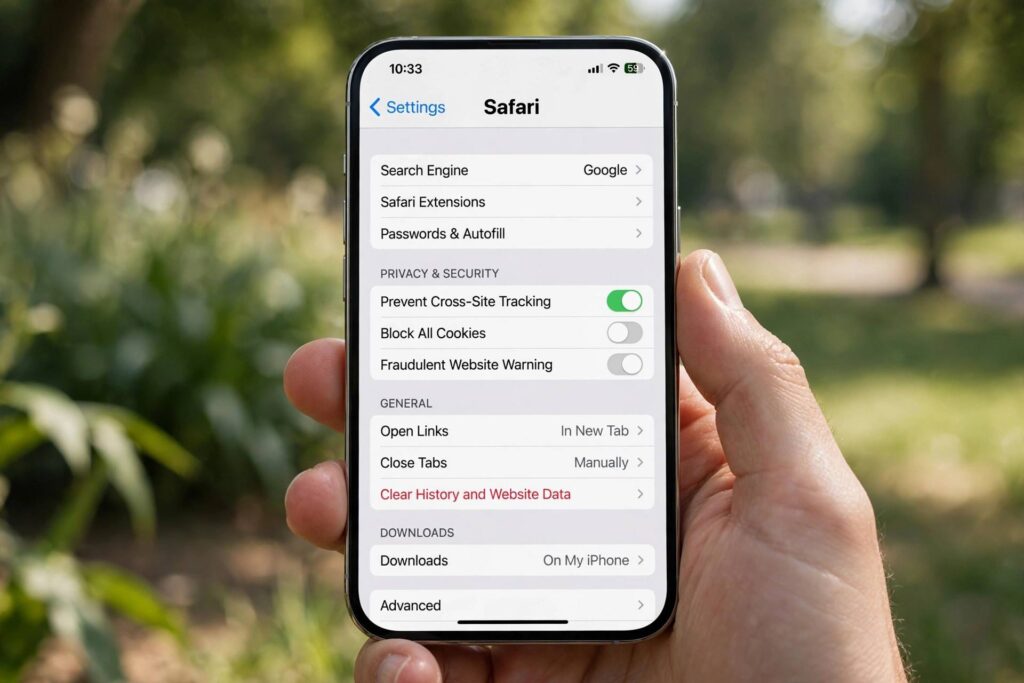
Safari is where most iPhone cache lives, and clearing it solves the majority of browser weirdness. Open Settings, scroll down to Apps (or Safari directly on older iOS versions), and tap Safari. Scroll to “Clear History and Website Data” and tap it, then confirm. This wipes your browsing history, cookies, and cached files across all devices signed into the same iCloud account — a detail worth knowing before you tap, since it also logs you out of websites everywhere. If you want a lighter touch that keeps your history and logins, stay in the Safari settings, tap Advanced, then Website Data. Here you can see exactly how much data each site has stored and delete individual sites with a swipe, or hit “Remove All Website Data” at the bottom for a full clear without touching history. After clearing, Safari will feel briefly slower on your first visits as it rebuilds its cache — that is normal and it speeds back up within a day. If a specific site was glitching, test it now before doing anything more drastic; nine times out of ten, the Safari clear is the whole fix.
Clearing Cache in Chrome and Other Browsers
If Chrome is your daily browser, its cache lives inside the app, not in iPhone Settings. Open Chrome, tap the three dots in the bottom-right corner, and go to Settings, then Privacy and Security, then “Clear Browsing Data.” You get checkboxes for browsing history, cookies and site data, cached images and files, saved passwords, and autofill — check what you want gone. For a pure cache clear, select just “Cached Images and Files” and leave the rest, which preserves your logins and history. Choose the time range at the top: “All time” for a full clear, or “Last hour” if the problem started recently. Tap “Clear Browsing Data” and confirm. Firefox, Edge, and other third-party browsers follow the same pattern — the option is always inside the app’s own settings under privacy or browsing data, never in the iPhone’s Settings app. This split confuses people: Apple built Safari’s cache controls into system Settings, but every other browser manages its own. If you use multiple browsers, clear each one separately.
Freeing Up App Cache and Storage
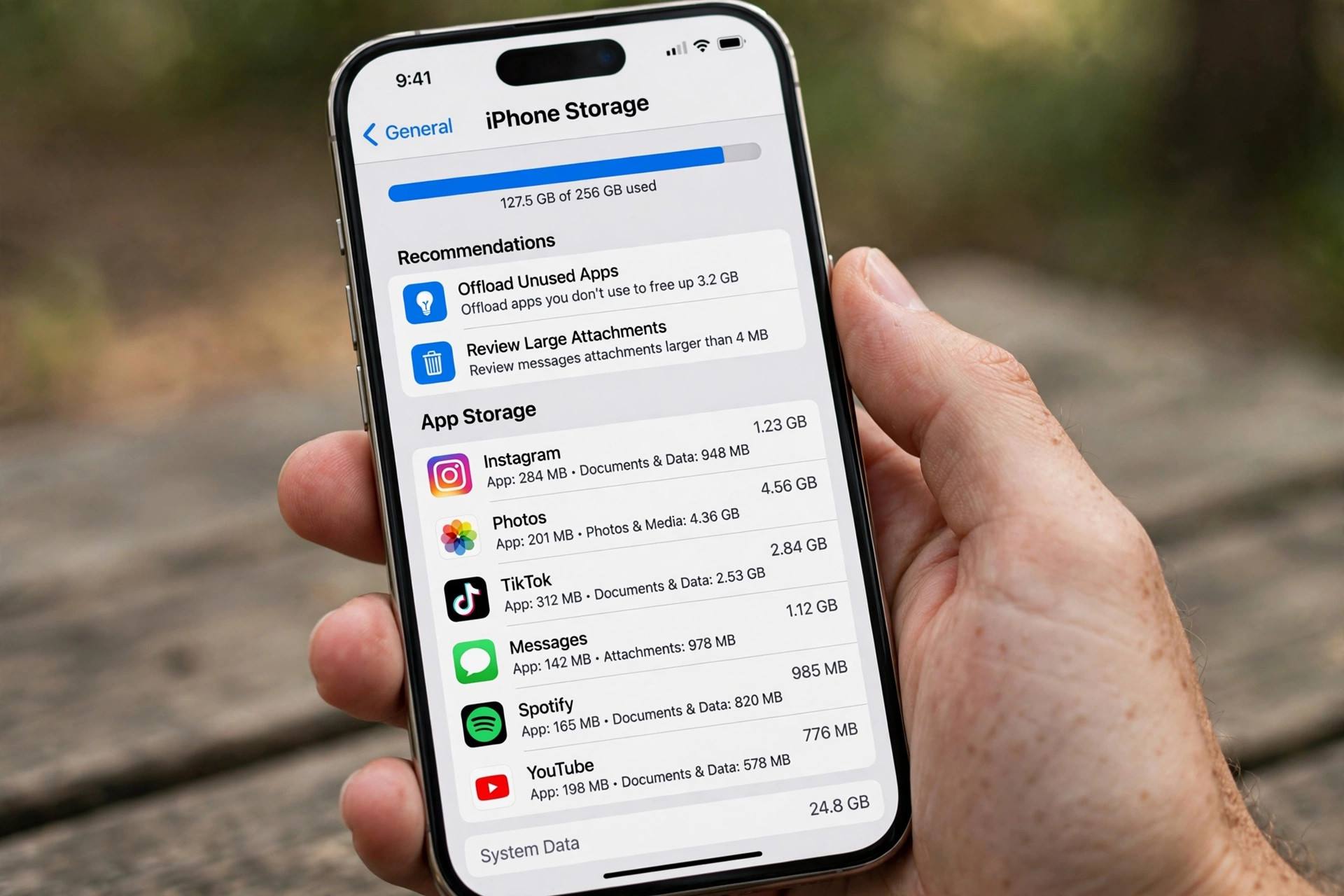
Individual apps accumulate their own caches — social media apps are the worst offenders, sometimes ballooning to multiple gigabytes of thumbnails and preloaded videos. iPhones do not offer a universal “clear app cache” button the way Android does, which is why clearing cache on Android is a one-tap job while iPhone owners need workarounds. The official iPhone method is offloading: go to Settings, then General, then iPhone Storage. Tap any heavy app and choose “Offload App.” This deletes the app itself but keeps your documents and data — reinstalling from the App Store gives you a fresh copy without the accumulated cache. If the app still misbehaves after offloading, the stronger move is “Delete App” from the same screen, which removes everything including your local data, then reinstall fresh. Some apps, particularly social and streaming ones, include their own “Clear Cache” option inside their settings menus — check there first, since it is the cleanest option when available. And if your storage is critically full rather than just cluttered, the iPhone Storage screen shows exactly what is eating space, which often reveals a forgotten downloaded playlist or a podcast backlog dwarfing every cache on the phone.
The Nuclear Options: Restart, Reset Settings, Restore
Work through these in order, escalating only if the gentler methods failed. First, the plain restart: hold the side button and a volume button, slide to power off, wait thirty seconds, and power back on. This clears temporary system memory and resolves a surprising number of glitches on its own — always try this before anything destructive. Second, reset all settings: Settings, General, Transfer or Reset iPhone, Reset, then “Reset All Settings.” Despite the alarming name, this does not delete your data — it resets Wi-Fi networks, wallpaper, brightness, and privacy permissions to defaults while leaving photos, apps, and files intact. It fixes deep settings corruption that cache clears cannot reach. Third, and genuinely last resort: a full restore. Back up to iCloud or a computer first — this is non-negotiable — then erase and restore the phone. A fresh restore eliminates every software gremlin at once, but it costs you an afternoon of setup. If problems persist after a clean restore, you are likely looking at a hardware issue, and it is time for Apple Support rather than more cache clearing.
Keeping Cache Under Control Going Forward
You do not need to clear cache on a schedule — iOS manages temporary files reasonably well on its own, and obsessive clearing just forces your phone to redownload everything, wasting battery and data. Clear cache when you have a reason: a misbehaving website, an app acting strangely, or storage running low. A few habits reduce buildup naturally. Close out of Safari tabs you are done with — hundreds of open tabs each hold cached data. Review iPhone Storage every few months and offload apps you have not opened in ages. Stream rather than download when you have the connection for it, since downloaded media dwarfs cache in storage terms. Keep iOS updated, because Apple continuously improves storage management and fixes the bugs that cause cache corruption in the first place — if you just moved to a new device, setting up a new iPhone cleanly rather than restoring a bloated backup avoids carrying years of cruft forward. And when individual apps start feeling heavy, remember that deleting apps on iPhone you no longer use is the single fastest way to reclaim space — no cache clear competes with removing a two-gigabyte app you opened twice last year.
What Clearing Cache Will and Won’t Do
Set expectations correctly and you will never be disappointed. Clearing cache will: fix websites showing outdated content, resolve many login and loading glitches, free up storage space (sometimes gigabytes), and occasionally speed up a sluggish browser. Clearing cache will not: delete your photos, messages, contacts, or apps; remove viruses (iPhones do not get traditional viruses — if someone told you that you have one, it is a scam pop-up); fix a cracked screen, dying battery, or failing hardware; or make an iPhone 8 run like an iPhone 16. If your phone is slow everywhere, all the time, the cause is usually an aging battery throttling performance, a nearly full storage drive, or simply an old device struggling with new software — cache is not the culprit. Check Battery Health in Settings first; a battery below 80 percent maximum capacity explains more “slowness” than all caches combined. Cache clearing is a targeted tool for specific problems, not a tune-up ritual. Use it when the symptoms point at it, and spend the saved time on the fixes that actually match your problem.
How to Clear Cache on iPhone Without Losing Anything Important
The fear that stops most people from clearing cache is losing something that matters — saved logins, game progress, downloaded playlists. Here is how to clear aggressively while keeping everything safe. First, know what each method touches. Clearing Safari’s cached images and files alone (via Advanced, then Website Data) removes only temporary files; your history, bookmarks, and reading list stay put. The bigger “Clear History and Website Data” button additionally wipes history and logs you out of websites everywhere on your iCloud devices — annoying but recoverable, since passwords saved in iCloud Keychain refill automatically when you sign back in. For apps, offloading is the safe middle ground: the app is deleted but your documents and data are preserved, so the fresh reinstall picks up right where you left off. Full deletion is the only destructive option, and even then, anything synced to iCloud — photos, contacts, messages, app data for iCloud-enabled apps — restores when you sign back in. Before any major cleanup, do two things: check that iCloud Backup is current (Settings, your name, iCloud, iCloud Backup), and screenshot or note any logins you do not have saved in a password manager. With those two precautions, you can clear with total confidence. The realistic worst case of a cache clear is re-logging into a few websites — a five-minute inconvenience, not a data disaster.
Frequently Asked Questions
Will clearing cache delete my photos or messages?
No. Clearing browser or app cache only removes temporary files like stored images, website data, and cookies. Your photos, messages, contacts, apps, and files are completely unaffected. The one exception: clearing Safari’s website data logs you out of websites, so you will need to sign in again.
Why is there no “clear all app cache” button on iPhone?
Apple’s design philosophy keeps cache management inside each app rather than exposing a system-wide control. You clear Safari’s cache in Settings, other browsers inside their own apps, and individual apps via offloading or reinstalling. Android offers a per-app clear-cache button; iOS does not.
How often should I clear the cache on my iPhone?
Only when needed — there is no benefit to a schedule. Clear it when a website or app misbehaves, or when you need to free storage. Routine clearing just forces your phone to re-download cached data, costing battery and mobile data for no gain.
Does clearing cache make my iPhone faster?
Sometimes, marginally — mainly by freeing storage space or fixing a corrupted file that was causing glitches. If your phone is slow overall, check battery health and available storage first; those are far more common causes of genuine slowness than cache.
What is the difference between offloading and deleting an app?
Offloading removes the app but preserves its documents and data, so reinstalling restores everything minus the accumulated cache. Deleting removes the app and all its data entirely. Offload first; delete only if offloading did not fix the problem.