How to Clear Browser Cache on iPhone (Safari & Chrome)


Your iPhone’s browser feels sluggish. Pages load halfway and stall. A website shows you yesterday’s version no matter how many times you refresh. Nine times out of ten, the culprit is a bloated browser cache — months of stored website data clogging things up. Learning how to clear browser cache on iPhone takes about thirty seconds, and it’s one of those small maintenance habits that keeps your phone feeling fast.
I’ll show you how to do it in Safari and Chrome (the two browsers most iPhone users have), explain what the cache actually is, what clearing it does and doesn’t delete, and when it’s the right fix versus when something else is going on.
What Is Browser Cache, Anyway?
When you visit a website, your browser saves pieces of it — images, stylesheets, scripts — in a local storage area called the cache. Next time you visit, it loads those pieces from your phone instead of downloading them again, which makes pages load faster. In theory, it’s brilliant.
In practice, cached data goes stale. Websites update, but your browser keeps serving the old saved version. Cache files get corrupted. And over months, the cache grows into gigabytes of digital clutter that slows everything down. Clearing it forces a fresh start: the browser re-downloads everything clean, and most of the time, the weird behavior disappears with it.
Important: clearing cache is not the same as clearing everything. Your cache is just stored website files. Your bookmarks, saved passwords (stored in iCloud Keychain), and browsing history are separate — though as we’ll see, iPhone gives you the option to clear those too. If you’re doing broader phone cleanup, clearing cache on Android covers the equivalent process on that platform, and speeding up a slow device has more speed-up tips.
How to Clear Browser Cache on iPhone in Safari
Safari is the default iPhone browser, so let’s start here. You have two options depending on how thorough you want to be:
Option 1: Clear history and website data (the full reset).
- Open Settings and scroll down to Safari.
- Tap Clear History and Website Data.
- Confirm. This clears your browsing history, cookies, and cache across all devices signed into your iCloud account.
Option 2: Clear cache for specific websites (surgical).
- Open Settings → Safari → Advanced → Website Data.
- You’ll see how much data each site is storing — sometimes shockingly large amounts.
- Tap Edit to remove individual sites, or Remove All Website Data to clear everything without touching your history.
Option 2 is my recommendation for most people: it clears the problematic cached files while keeping your history intact. Use Option 1 when you want the full fresh start (or when troubleshooting a stubborn issue).
How to Clear Browser Cache on iPhone in Chrome
If you use Chrome on your iPhone, the process lives inside the app:
- Open Chrome and tap the three dots (•••) at the bottom right.
- Tap Settings, then Privacy and Security.
- Tap Clear Browsing Data.
- Check Cached Images and Files (and Cookies if you want a fuller reset), choose your time range, and tap Clear Browsing Data.
Chrome lets you pick a time range — last hour, last 24 hours, all time. If you’re troubleshooting a specific recent problem, clearing just the last 24 hours often fixes it without logging you out of everything.
What Clearing Cache Will (and Won’t) Do
It will: fix most website display glitches, resolve “stuck” old versions of pages, free up storage space (sometimes gigabytes), and often speed up a sluggish browser noticeably.
It won’t: delete your bookmarks, remove apps, or harm your phone in any way. It’s one of the safest maintenance tasks you can do.
Heads up — it might: log you out of websites (if you clear cookies along with cache). This is the main side effect, and it’s just a minor inconvenience: log back in and you’re fine. Your saved passwords in iCloud Keychain make this painless — your iPhone will offer to fill them in.
When Clearing Cache Isn’t Enough
Sometimes the browser isn’t the problem. If clearing cache doesn’t help, consider:
The website itself is down or broken. Try the site on another device or network. If it’s broken everywhere, no amount of cache-clearing on your end will fix it.
Your iPhone storage is full. iPhones get sluggish when storage is nearly full. Check Settings → General → iPhone Storage. If you’re near capacity, offload unused apps and clear out old downloads — deleting apps you don’t use is the fastest win.
Too many tabs. Dozens of open tabs eat memory. Close the ones you don’t need — in Safari, you can close all tabs at once by long-pressing the tab button.
Software needs updating. An outdated iOS or browser version can cause all kinds of weirdness. Check for updates before assuming something is seriously wrong.
Let me add one more scenario to the “not enough” list: the website itself is the problem. If one specific site is slow or broken while everything else flies, no amount of cache-clearing on your end will fix a struggling server. Try the site on a different network (switch from Wi-Fi to cellular) — if it’s still bad, it’s them, not you. Also check whether the site has an app; badly optimized mobile websites are depressingly common, and the native app is often dramatically faster.
How Often Should You Clear Your Cache?
There’s no need to do this weekly — the cache is doing useful work most of the time. A good rhythm: clear it when you notice problems (stale pages, glitches, slowness), or every few months as routine maintenance. Think of it like cleaning out a closet: not a daily chore, but neglect it for a year and you’ll feel the difference.
Pair it with other occasional iPhone hygiene — reviewing which apps are eating your storage, backing up your data regularly, and keeping iOS updated — and your phone will stay fast and reliable far longer. Thirty seconds of cache-clearing every few months is one of the best effort-to-result ratios in all of phone maintenance.
Clearing Cache in Other iPhone Browsers (Firefox, Edge, Brave)
Safari and Chrome cover most iPhone users, but if you’ve gone with an alternative browser, the steps are just as simple — they’re just hiding in slightly different menus.
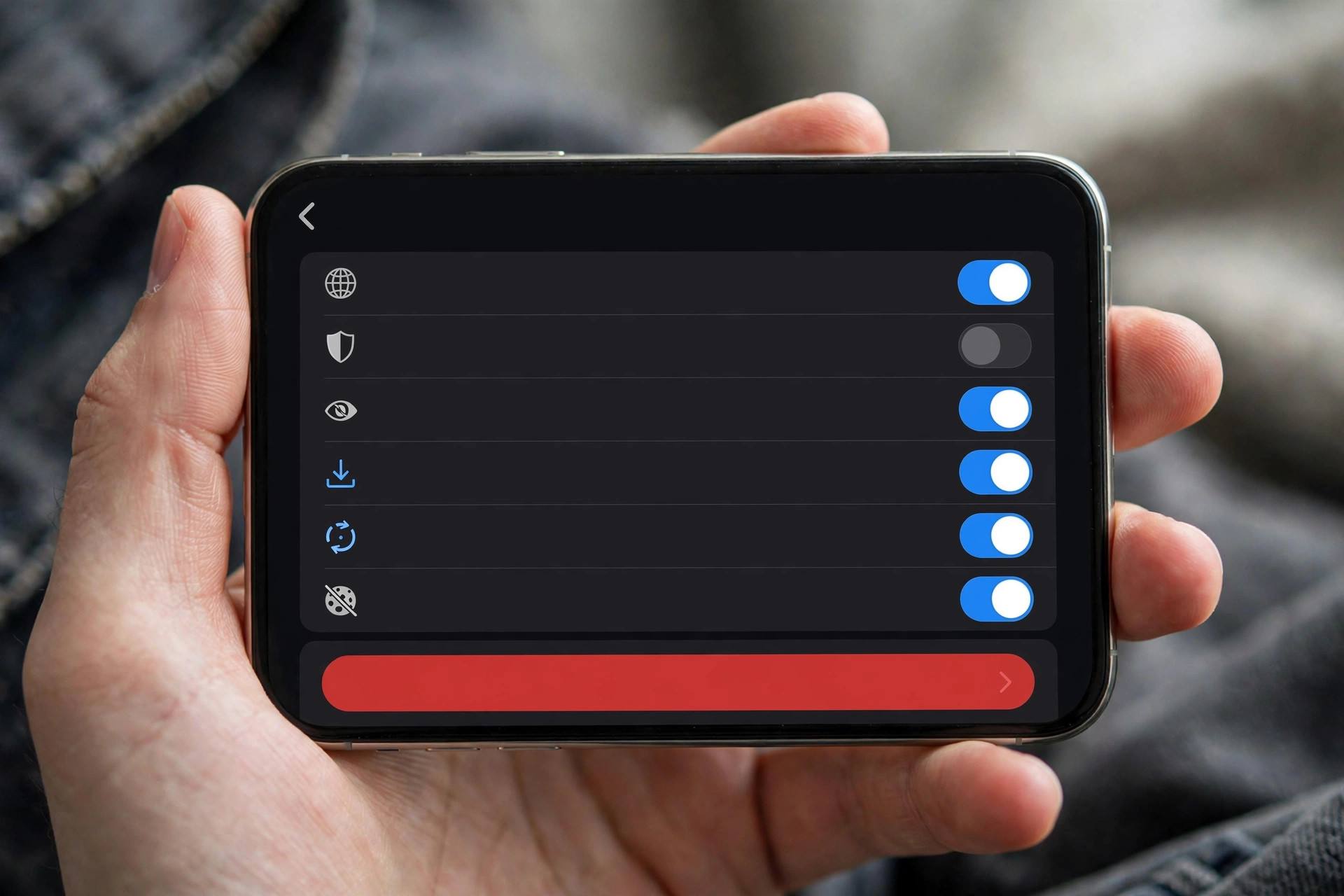
Firefox: tap the hamburger menu (three lines) in the bottom-right corner, go to Settings, then scroll to Privacy and tap “Data Management.” You’ll see toggles for cache, cookies, browsing history, and more — leave the ones you want to keep switched on, then tap “Clear Private Data.” Confirm, and you’re done.
Edge: tap the three dots at the bottom of the screen, go to Settings, then Privacy and Security, then “Clear browsing data.” Choose your time range (I usually pick “All time” for a proper reset), make sure “Cached images and files” is checked, and tap “Clear now.”
Brave: tap the three dots, go to Settings, then Brave Shields & Privacy, and scroll to “Clear Private Data.” Select what you want to remove and confirm. Brave also has a nice touch: you can set it to clear private data automatically when you close all tabs, which means you never have to think about cache buildup again.
One thing to note across all of these: iOS handles browsers a bit differently than desktop. Every iPhone browser is required to use Apple’s WebKit engine under the hood, so cache behavior is more similar across browsers than you’d expect. The steps differ, but what you’re clearing is essentially the same stuff.
iPhone Storage Full? Cache Is Only Part of the Story
Here’s something that surprises people: clearing your browser cache might free up a few hundred megabytes, but if your iPhone is gasping for storage, the browser cache is rarely the real culprit. Let me show you where the gigabytes actually hide.
Check the real numbers first. Go to Settings, then General, then iPhone Storage. Wait for the list to load — it takes a moment — and look at what’s actually eating space. For most people, the top offenders are Photos, Messages attachments, and a handful of apps with bloated “Documents & Data.”
Messages is the silent storage killer. Years of shared photos, videos, and GIFs pile up invisibly. In that same iPhone Storage screen, tap Messages and you’ll see exactly how much space attachments use — I’ve seen phones with 20GB+ sitting in old group chats. You can review large attachments and delete them in bulk without losing the conversations themselves.
Offload unused apps instead of deleting them. This iOS feature (Settings, then General, then iPhone Storage, then “Offload Unused Apps”) removes the app itself but keeps its data, so when you reinstall, everything is exactly where you left it. It’s the best of both worlds and it happens automatically once enabled.
For individual apps (looking at you, social media apps with multi-gigabyte caches): iOS doesn’t offer a per-app “clear cache” button the way Android does. Your options are deleting and reinstalling the app, or checking inside the app’s own settings — many apps now include a cache-clearing option buried in their settings menu. It’s annoying, but that’s the iOS way.
FAQ
How do I clear the cache on my iPhone Safari browser?
Go to Settings → Safari → Clear History and Website Data for a full reset, or Settings → Safari → Advanced → Website Data to remove data for specific sites while keeping your history.
Will clearing cache delete my passwords on iPhone?
No. Saved passwords live in iCloud Keychain, separate from the browser cache. Clearing cache may log you out of websites (if cookies are cleared too), but your iPhone will offer to fill your saved passwords when you log back in.
How do I clear Chrome cache on iPhone?
Open Chrome, tap the three dots → Settings → Privacy and Security → Clear Browsing Data, check Cached Images and Files, choose a time range, and confirm.
Is it safe to clear browser cache on iPhone?
Completely safe. It only removes stored website files. Your bookmarks, apps, photos, and passwords are untouched. The only side effect is possibly being logged out of some websites.
Why is Safari so slow on my iPhone?
Common causes: a bloated or corrupted cache, nearly-full phone storage, dozens of open tabs, or outdated software. Clear the cache first — it fixes the majority of Safari slowness — then check storage and updates if problems persist.
How do I clear app cache on iPhone, not just the browser?
iOS doesn’t have a universal ‘clear app cache’ button like Android does. For most apps, your options are: check the app’s own settings for a cache or storage option (many social and streaming apps now include one), or delete and reinstall the app — which clears its cached data while your account and cloud-synced content stay intact. For system-level buildup, the Offload Unused Apps feature under Settings > General > iPhone Storage handles the heavy lifting automatically.