How to Free Up iPhone Storage: 9 Proven Ways to Reclaim Gigabytes

Few things are more frustrating than the “iPhone Storage Almost Full” warning popping up right when you are trying to take a photo or install an update. The good news: learning how to free up iPhone storage is mostly about knowing where the hidden gigabytes live — because the culprit is rarely what you think. It is almost never your apps themselves. It is message attachments from three years ago, podcast episodes you forgot you downloaded, and app caches quietly ballooning to 8 GB. Do not worry. I will walk you through this patiently, starting with the single most important safety step, then nine methods ordered from biggest impact to smallest. By the end, you will have reclaimed gigabytes without losing a single photo or message you care about. Let us take it one step at a time.
Before Anything: Back Up First
I know you want to jump straight to deleting things, but please do this first: back up your iPhone to iCloud or a computer. Storage cleanup involves deleting things, and even careful people make mistakes. A fresh backup means every step below is reversible. Go to Settings, tap your name, tap iCloud, tap iCloud Backup, and tap Back Up Now. Wait for it to finish. Now we can clean with confidence.
Step 1: See Exactly What’s Eating Your Space
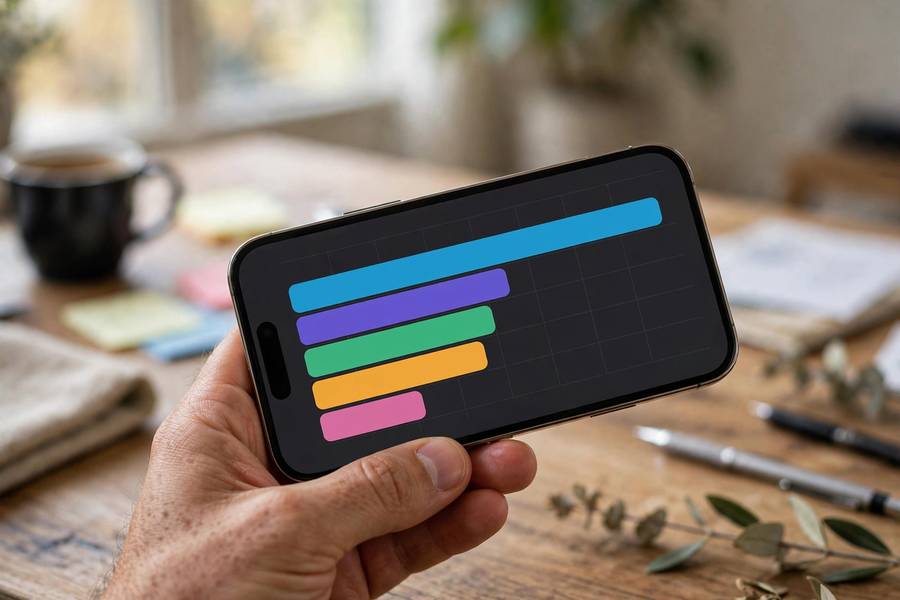
Open Settings, then General, then iPhone Storage. Wait for the list to finish loading — it takes a minute to calculate. You will see a color-coded bar and a list of apps sorted by size. Here is what to look for: any single app over 1 GB that you barely use, a huge “System Data” or “iOS” chunk, and Photos and Messages near the top. This screen is your map for everything below. The single biggest surprise for most people is that Photos is often not the real problem — Messages attachments and app data usually are. Keep this screen open; you will come back to it.
How to Free Up iPhone Storage: 9 Methods That Actually Work
1. Offload unused apps (the fastest win)
Offloading removes the app itself but keeps all its data and documents — the app reinstalls automatically the next time you tap its icon. Go to Settings, then General, then iPhone Storage, tap any large app you rarely open, and tap Offload App. For a hands-free version, go to Settings, then App Store, and turn on Offload Unused Apps — your iPhone will quietly offload apps you have not opened in a while. This alone often frees 2 to 5 GB in under a minute, and you lose nothing.
2. Optimize your photo storage
If Photos is genuinely large, do not start deleting pictures one by one — that is the slowest method for the smallest gain. Instead, go to Settings, tap your name, tap iCloud, tap Photos, and turn on iCloud Photos with Optimize iPhone Storage selected. Your iPhone then keeps lightweight versions on the device and full-resolution originals in iCloud, downloading them on demand. One honest caveat: the effect is gradual, not instant — originals upload over hours or days. And buying more iCloud storage does not free space on your phone; it only gives the cloud more room. The phone’s fixed capacity is what we are managing here.
3. Clear out Messages attachments (the hidden giant)
This is the number-one hidden storage hog I see. Years of group-chat videos, GIFs, and voice notes pile up silently. Go to Settings, then General, then iPhone Storage, then tap Messages. Tap Review Large Attachments and delete the massive videos and files you will never watch again — your text conversations stay completely intact. For a permanent fix, go to Settings, then Messages, then Keep Messages, and change it from Forever to 1 Year or 30 Days. This alone has freed 10+ GB for people I have helped.

4. Delete downloaded streaming media
Netflix episodes from a flight six months ago, Spotify playlists downloaded “just in case,” podcast episodes stacking up — streaming apps are storage vampires. Open each app and clear its downloads: in Netflix, go to Downloads and delete finished titles; in Spotify, remove downloaded playlists you no longer need; in Podcasts, go to Settings and turn off automatic downloads, then delete old episodes. Check YouTube and Apple TV the same way. This routinely recovers 3 to 8 GB.
5. Reinstall bloated social apps
Social apps accumulate cache relentlessly. If TikTok, Instagram, or Snapchat shows several gigabytes of “Documents & Data” in the iPhone Storage list, the cleanest fix is to delete the app and reinstall it fresh from the App Store. Your account, posts, and messages live on the company’s servers, so you lose nothing — but the gigabytes of cached videos and temp files vanish. I do this with my heaviest social apps every few months, and it reliably recovers 2 to 4 GB each time.
6. Empty Recently Deleted (photos and files)
Here is a catch that confuses everyone: deleted photos and files sit in Recently Deleted for 30 days and still count against your storage until that period ends or you empty the folder manually. After any cleanup, open Photos, go to Albums, scroll to Recently Deleted, and tap Delete All. Do the same in the Files app. Many people delete 5 GB of photos, see no change, and assume the phone is broken — this is why.
7. Tame WhatsApp and Telegram media
If you are in active group chats, WhatsApp may be your single largest app. Open WhatsApp, go to Settings, then Storage and Data, then Manage Storage. Delete forwarded videos and large files from group chats — they are almost always the biggest items and almost never worth keeping. Then go to Settings, then Chats, and turn off Save to Camera Roll so new incoming media stops duplicating into your photo library. Telegram users: go to Settings, then Data and Storage, then Storage Usage, and clear the cache there.
8. Clear Safari and browser data
Browsers accumulate website data over time. Go to Settings, then Safari (or Apps, then Safari on newer iOS), and tap Clear History and Website Data. This signs you out of websites, so make sure you know important passwords first — or use your password manager. Then open Chrome or any other browser you use and clear its browsing data from within the app’s own settings. Modest gains here — usually a few hundred megabytes — but every bit counts when you are near the limit.
9. Restart your iPhone
It sounds too simple, but a restart clears temporary system caches and can shrink a bloated “System Data” category noticeably. Hold the side button and a volume button, slide to power off, wait 30 seconds, and power back on. Then recheck Settings, then General, then iPhone Storage — you may find an extra gigabyte or two simply evaporated. Do this after the other steps for the full effect.
The Maintenance Habit: Keep Storage Healthy Going Forward
Freeing space once feels great; keeping it free is the real victory. The good news is that maintenance takes almost no effort once you set it up. First, leave Offload Unused Apps turned on permanently (Settings, then App Store) — your iPhone will quietly manage app bloat in the background forever. Second, set a recurring monthly reminder to spend five minutes in Settings, then General, then iPhone Storage: glance at the top of the list, offload anything huge you have not touched, and clear out Messages attachments. Third, keep Optimize iPhone Storage enabled and resist the urge to download streaming content “just in case” — stream instead. Finally, once or twice a year, do the social-app reinstall trick on your heaviest apps. I do mine every spring and fall, and my phone has not shown me a storage warning in years. Think of it like tidying a room: ten minutes of upkeep beats another full-day deep clean.
What NOT to Do
- Do not buy more iCloud storage expecting it to free phone space. iCloud storage and iPhone storage are completely separate. More iCloud room helps backups and photo sync; it adds zero bytes to your phone.
- Do not delete photos one by one as your main strategy. It is the slowest method with the smallest payoff. Optimize storage and clear attachments first.
- Do not use “phone cleaner” apps from the App Store. iOS does not allow third-party apps to actually clean system storage — these apps are useless at best and data harvesters at worst.
- Do not factory reset as a first resort. A reset erases everything and takes hours to set up again. The nine methods above recover just as much space with none of the risk.
FAQ
Why is my iPhone storage full even after deleting photos?
Because deleted photos sit in Recently Deleted for 30 days and still occupy space — empty that folder manually. Also, photos are often not the real culprit: check Messages attachments, WhatsApp media, and app caches in Settings, then General, then iPhone Storage. And remember that “Optimize iPhone Storage” moves full-resolution originals to iCloud gradually, not instantly.
What is “System Data” on iPhone storage, and can I delete it?
System Data is iOS’s bucket for caches, logs, Siri voices, and temporary files. You cannot delete it directly, but a restart, an iOS update, and clearing Safari data usually shrink it. If it stays stubbornly huge (15+ GB), backing up and restoring the phone is the reliable fix — but try everything else first.
Does offloading apps delete my data?
No. Offloading removes only the app binary; your documents, settings, and saved data stay on the phone, marked by a small cloud icon on the app. Tapping the icon reinstalls the app and everything is exactly as you left it. It is the safest space-saving feature on the iPhone.
How much free space should I keep on my iPhone?
Aim to keep at least 5 to 10 GB free. iOS needs breathing room for updates (which often require several gigabytes temporarily), photo processing, and normal caching. Performance noticeably degrades when the phone is nearly full, so treat 90% full as your warning line, not 99%.
Will deleting the Messages app’s attachments delete my conversations?
No. Reviewing large attachments and deleting videos, photos, and files from Messages removes only the media files — your text messages remain intact. The conversation history, contact info, and everything you typed stays exactly where it was.