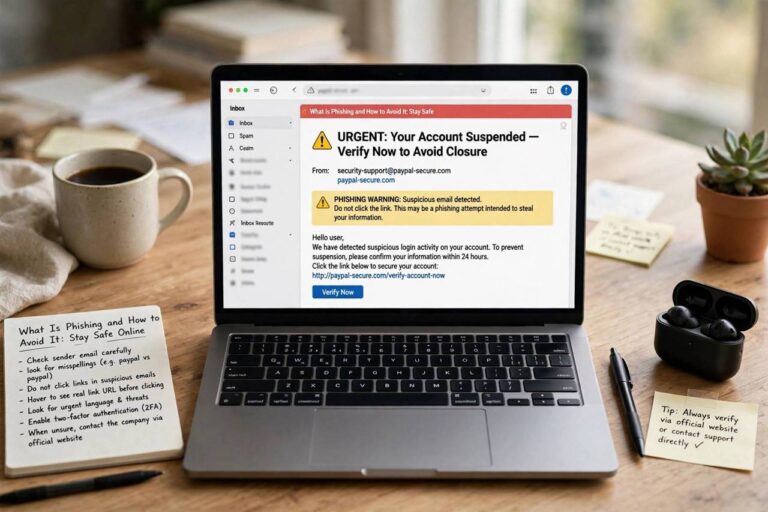
How to Set Up Two Factor Authentication (Protect Every Account)

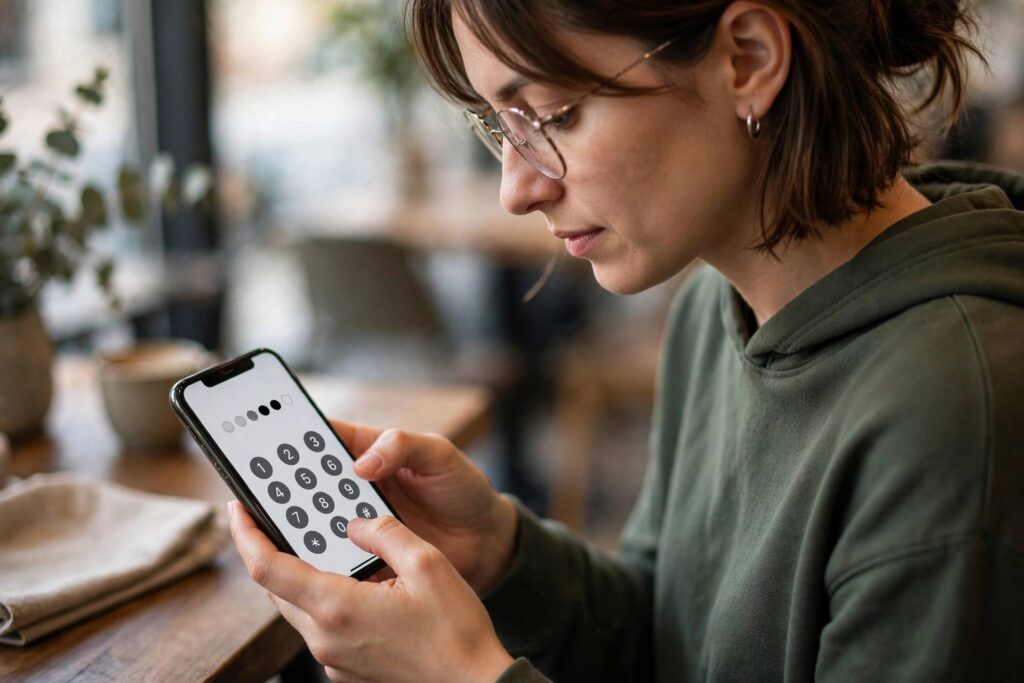
If you do one thing for your online security this year, make it this: learn how to set up two factor authentication and turn it on. It’s the single highest-impact security step most people haven’t taken — and it takes about two minutes per account. A stolen password becomes nearly useless to a thief when this one setting is on.
I know security setup feels technical and intimidating. It isn’t. I’m going to walk you through exactly how to set up two factor authentication, explain the different methods in plain language, and show you which accounts to protect first. By the end, you’ll be meaningfully safer online. Let’s do this together.
What Is Two Factor Authentication?
Two factor authentication (2FA) — also called two-step verification or multi-factor authentication — means proving your identity in two different ways when you log in, instead of just one.
The “factors” are categories of proof:
- Something you know: Your password. (The traditional single factor.)
- Something you have: Your phone, an authenticator app, or a physical security key.
- Something you are: Your fingerprint or face. (Used on phones, less common for web logins.)
With 2FA enabled, logging in requires your password PLUS a second proof — usually a temporary code from your phone. A thief who steals your password (through phishing, a data breach, or guessing) still can’t get in without that second factor. That’s the whole game: one stolen piece is no longer enough.
Think of it like a deadbolt on your front door. The regular lock (password) keeps casual intruders out. The deadbolt (second factor) stops anyone who picked the first lock. You wouldn’t secure your home with just the handle lock — don’t secure your accounts that way either.
The 2FA Methods, Ranked Best to Worst
Not all second factors are equal. Here’s the honest ranking:
1. Security keys (best)
Small USB or NFC devices (like YubiKeys) that you tap to approve logins. They’re phishing-proof — the key cryptographically verifies the real site, so fake login pages can’t trick it. If you want maximum security for your most important accounts, this is it. Slight cost, slight hassle, best protection.
2. Authenticator apps (excellent)
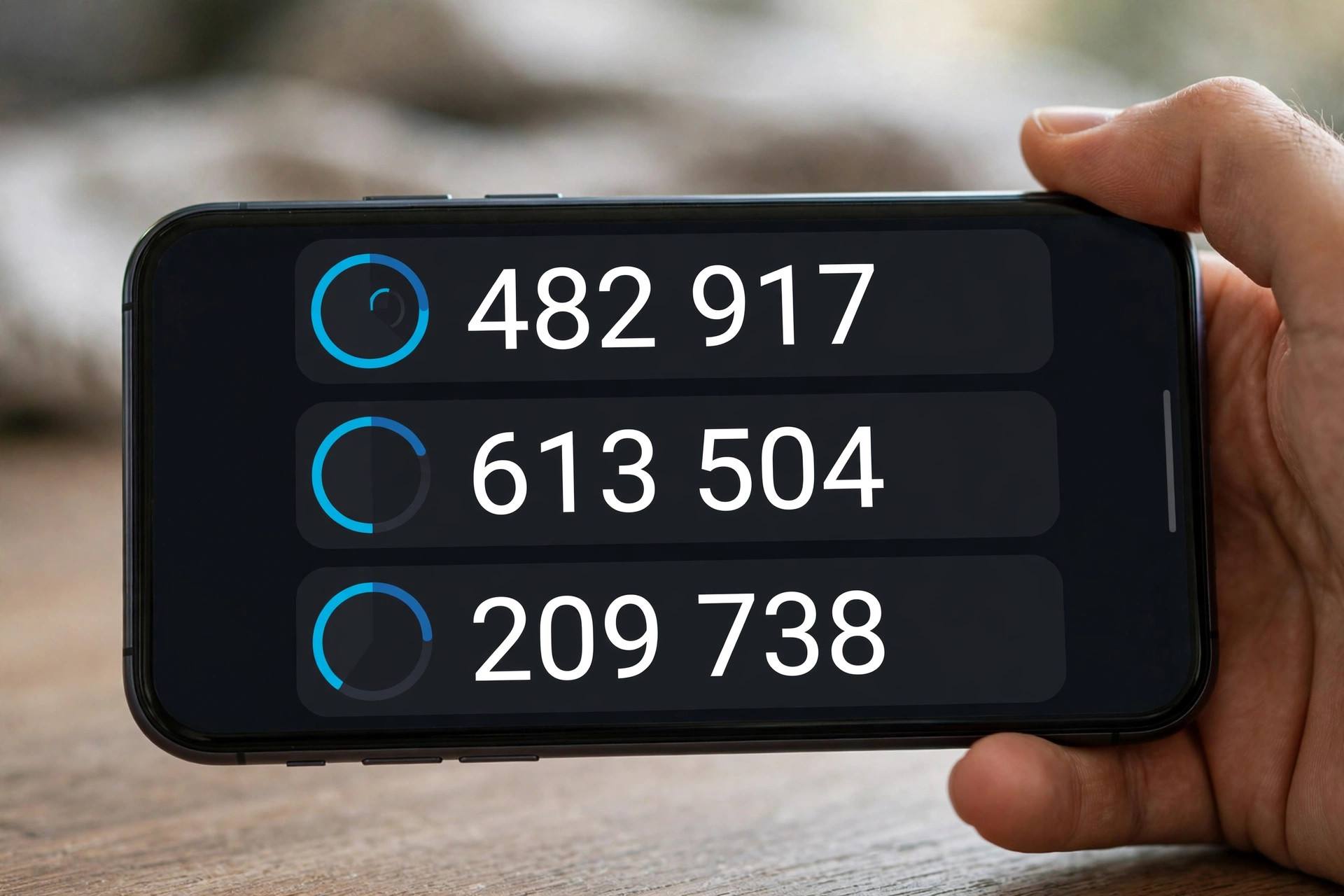
Apps like Google Authenticator, Microsoft Authenticator, or Authy generate rotating 6-digit codes every 30 seconds. Free, work offline, and far more secure than SMS. This is the sweet spot for most people — strong security with minimal friction.
3. SMS text codes (good, not great)
Codes sent via text message. Better than nothing — significantly better — but vulnerable to SIM-swapping attacks (where a thief convinces your carrier to transfer your number to their phone). Use SMS only when app-based 2FA isn’t offered.
4. Email codes (better than nothing)
Some services send codes to your email. This is only as secure as your email account — which is exactly why your email needs the strongest 2FA of all (see below).
The hierarchy matters, but here’s the key insight: ANY 2FA beats NO 2FA by an enormous margin. Don’t let perfect be the enemy of protected. Start with whatever method each service offers.
Which Accounts to Protect First (Priority Order)
Don’t try to secure everything in one sitting — you’ll burn out. Work through this priority list:
- Your email account. This is #1 with a bullet. Your email is the master key — password resets for everything else flow through it. If someone owns your email, they own your digital life. Use an authenticator app here at minimum.
- Banking and financial accounts. Obvious, but often overlooked. Every bank and investment account that offers 2FA should have it on.
- Password manager. If you use one (and you should — here’s the case for why are password managers safe), its vault holds every password you own. Protect it with the strongest 2FA available — ideally a security key.
- Cloud storage and phone accounts. Your Apple ID / Google account holds your photos, backups, location history, and purchase power. Enable 2FA here immediately. (Locked out of Apple ID? Here’s how to reset your Apple ID password.)
- Social media. Hijacked social accounts are used for scams targeting your friends and family. Protect them.
- Everything else, gradually. Shopping, streaming, forums — work through them over a week or two. Every account with 2FA is one fewer easy target.

How to Set Up Two Factor Authentication: The General Steps
Every service phrases it slightly differently, but the process is nearly always the same:
- Install an authenticator app on your phone (Google Authenticator, Microsoft Authenticator, or Authy — all free). Do this first, once.
- Go to the account’s security settings. Look for “Security,” “Privacy,” “Login,” or “Account” settings, then “Two-factor authentication,” “2-Step Verification,” or “Two-step login.”
- Choose “authenticator app” as your method (preferred) or SMS if that’s all that’s offered.
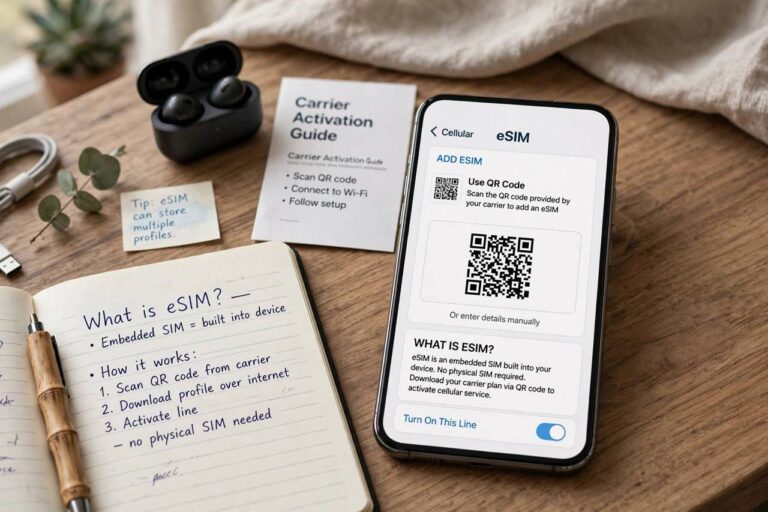
- Scan the QR code with your authenticator app (or enter the setup key manually). The account appears in your app, generating codes.
- Enter the current code to confirm setup. This proves the app and account are linked correctly.
- SAVE YOUR BACKUP/RECOVERY CODES. The service will show one-time recovery codes — write these down and store them somewhere safe (printed, in a safe, or in your password manager). If you lose your phone without these, account recovery is painful.
That last step is the one everyone skips and later regrets. Recovery codes are your lifeline if your phone is lost, stolen, or replaced. Save them NOW, while you’re setting up — not later.
Quick Setup Guides for Major Services
- Google: myaccount.google.com → Security → 2-Step Verification → Get started. Google also offers passkeys now — even more convenient than codes.
- Apple: Settings → [your name] → Sign-In & Security → Two-Factor Authentication. Apple uses trusted-device codes automatically.
- Microsoft: account.microsoft.com → Security → Advanced security options → Add a new way to sign in.
- Facebook/Instagram: Settings → Accounts Center → Password and security → Two-factor authentication.
- X (Twitter): Settings → Security and account access → Security → Two-factor authentication.
- Amazon: Account → Login & security → Two-Step Verification (2SV) Settings.
Interfaces change, but the path is always: account settings → security → two-factor/2-step → follow the prompts. If you get stuck, search “[service name] enable two factor authentication” — every major service has a help page.
What If You Lose Your Phone?
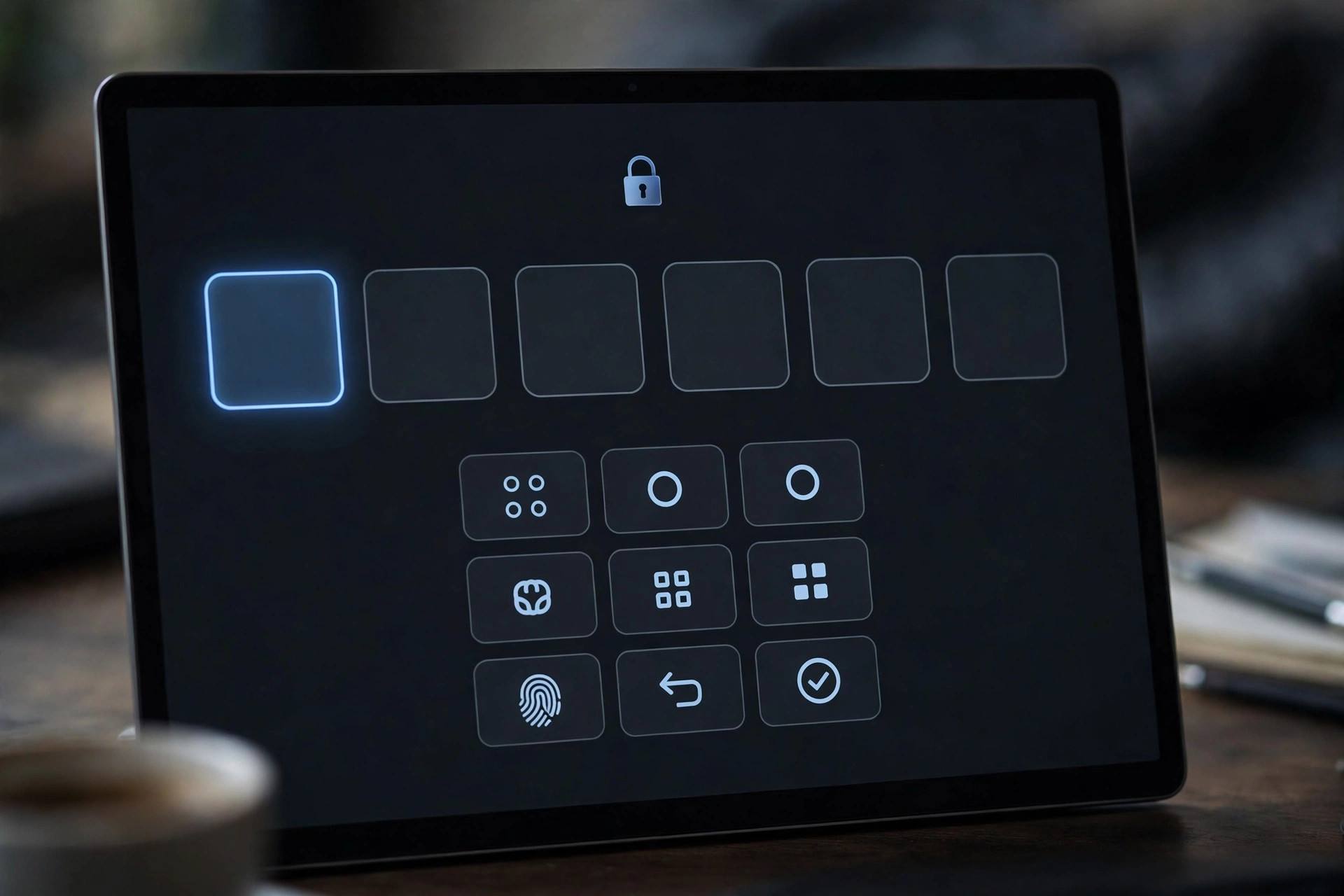
This is the fear that stops people from enabling 2FA — and it’s solvable with thirty seconds of preparation:
- Recovery codes: Those codes I told you to save? This is what they’re for. Each one logs you in once without the second factor.
- Backup authenticator: Some apps (like Authy) sync across devices or offer encrypted cloud backup. Set this up in the app’s settings.
- Multiple 2FA methods: Many services let you register both an authenticator app AND a backup phone number, or an authenticator plus a security key. Redundancy is your friend.
- Print and store: Old school, but effective — print recovery codes and keep them with important documents.
The nightmare scenario (lost phone, no recovery codes, no backup) usually requires contacting the service’s support with identity verification — slow and stressful. Thirty seconds of preparation now prevents all of it.
Common 2FA Objections, Answered
- “It’s annoying to enter codes every time.” Most services offer “remember this device” — you enter the code once per device, then only again for new devices or after a long time. The daily friction is near zero.
- “I don’t have anything worth stealing.” Your email alone is worth stealing — it unlocks password resets everywhere. And your identity, contacts, and photos have value to scammers even if your bank balance doesn’t impress them.
- “SMS 2FA isn’t perfect, so why bother?” Because attackers go for easy targets. SMS 2FA blocks the vast majority of automated attacks and casual theft. Upgrade to an authenticator app when you can, but SMS today beats perfect security someday.
- “What about passkeys?” Passkeys are the emerging successor to passwords+2FA combined — cryptographic, phishing-resistant, and more convenient. Where offered (Google, Apple, Microsoft all support them now), they’re excellent. But 2FA remains essential for everything that doesn’t yet support passkeys.
Your 2FA Action Plan (This Week)
Don’t try to do everything today. Here’s a realistic plan:
- Today (15 minutes): Install an authenticator app. Enable 2FA on your email. Save recovery codes.
- Tomorrow (10 minutes): Banking and financial accounts.
- This week: Cloud/phone accounts, password manager, social media — a few per day.
- Ongoing: Enable 2FA on every new account at signup. Future you says thanks.
An hour of setup this week buys you years of dramatically better security. That’s the best return on investment in all of personal cybersecurity. Go do the email one right now — I’ll wait.
2FA for Families: Protecting Everyone
Your security is only as strong as your family’s weakest account — especially shared ones. Help family members enable 2FA on their email and banking, set up a shared password manager family plan, and make sure everyone’s recovery codes are stored somewhere sensible. For older relatives, SMS-based 2FA (while not the strongest) is far better than nothing and much easier to explain than authenticator apps. A 10-minute video call walking them through setup is one of the kindest tech gifts you can give.
FAQ
How to set up two factor authentication on my accounts?
Install an authenticator app, go to each account’s security settings, find “two-factor authentication” or “2-step verification,” choose the authenticator app option, scan the QR code, enter the verification code, and save your recovery codes. Repeat for each important account, starting with email.
Is two factor authentication really necessary?
Yes — it’s the single most effective step most people can take. Passwords get stolen constantly through breaches and phishing; 2FA means a stolen password alone isn’t enough to access your account. Security professionals universally recommend it.
What’s the best two factor authentication method?
Security keys (like YubiKey) are the strongest, followed by authenticator apps, then SMS codes. For most people, an authenticator app is the sweet spot — free, secure, and convenient. Any method is vastly better than none.
What happens if I lose my phone with my authenticator app?
Use your saved recovery codes to log in, then set up 2FA fresh on your new phone. This is why saving recovery codes during setup is critical. Some authenticator apps also offer encrypted cloud backup across devices — enable it.
Does two factor authentication work without cell service?
Authenticator apps generate codes offline — no cell signal or internet needed. That’s one of their advantages over SMS codes, which require cellular reception. Your codes work in airplane mode, abroad, anywhere.