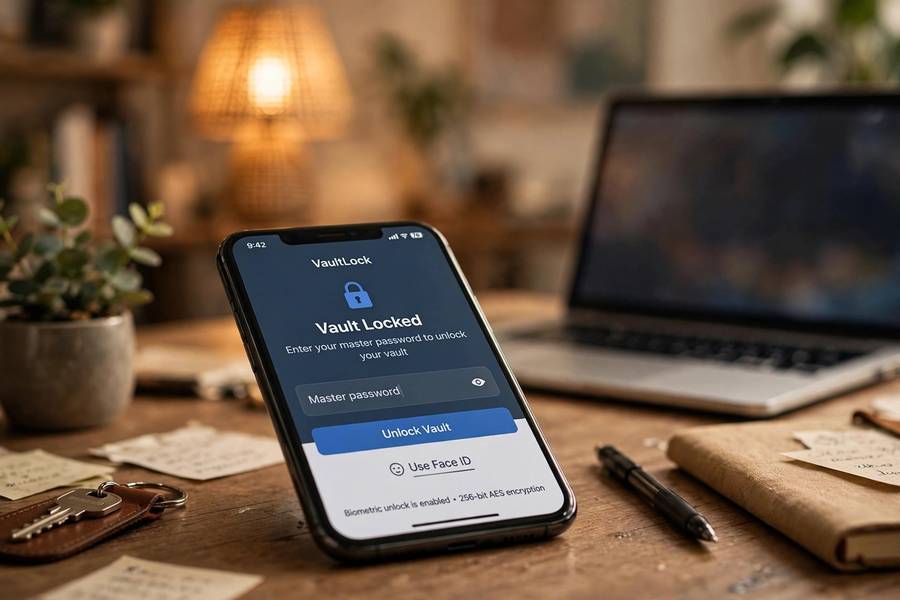
Let me guess how you manage passwords right now. A few favorites you rotate between sites. Maybe a “clever” system — the site name plus a number plus an exclamation mark. Or the dreaded notebook. I have been there. I also spent years testing security software for a living, and here is the short version of this article: yes, password managers are safe — dramatically safer than whatever you are doing now. But “safe” has limits, and I would rather you understand them than buy a false sense of security. Let us go through how these things actually work, where the real risks are, and what separates a good setup from a sloppy one.
Table of Contents
- The Real Question: Safe Compared to What?
- How Password Managers Actually Protect Your Data
- The Master Password: The One Thing That Matters Most
- Real Risks: What Can Actually Go Wrong
- Cloud-Based vs Local: Which Is Safer?
- What Password Managers Cannot Protect You From
- How to Set One Up the Right Way
- Frequently Asked Questions
The Real Question: Safe Compared to What?
“Are password managers safe?” is the wrong framing, though it is the one everyone searches. The right question is: safer than what? Because your password hygiene right now is almost certainly one of these:
- Reusing passwords across sites. The most common habit, and the most dangerous. When one site gets breached — and breaches happen constantly — attackers try your email and password on every other service. This is called credential stuffing, and it is automated.
- Memorable-but-weak passwords. “Summer2024!” is not fooling anyone. Attackers have dictionaries of billions of leaked passwords and patterns.
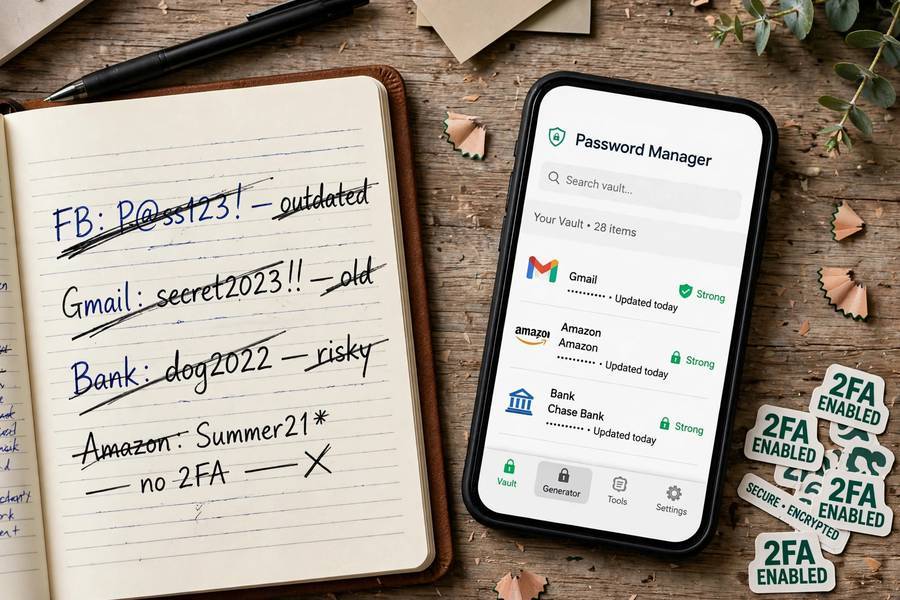
- The notebook / the sticky note / the spreadsheet. Physical or plaintext storage. Anyone who finds it has everything.
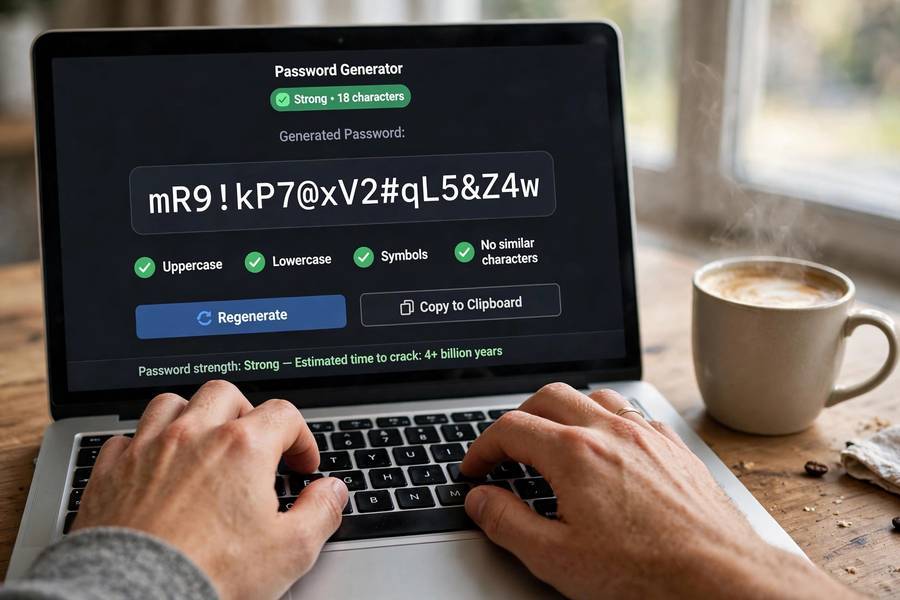
A password manager fixes all three at once: it generates long random passwords, stores a unique one per site, and locks them behind encryption. So the honest answer is not “perfectly safe.” It is: “the single biggest security upgrade most people can make, by a wide margin.”
How Password Managers Actually Protect Your Data
Here is what happens under the hood, minus the jargon.
When you save a password, the manager encrypts it on your device using a key derived from your master password. The standard is AES-256 encryption — the same grade used by governments and banks. The critical detail: with reputable managers, the company never sees your unencrypted data. This is called zero-knowledge architecture. Your encrypted vault gets synced to their servers, but it is just gibberish to them. They could not read your passwords if they wanted to, or if a court ordered them to.
Think of it like a safe deposit box where the bank has the building but only you have the combination — and the bank physically cannot crack the combination.
There are two more layers worth knowing:
- Key derivation: Your master password is run through a slow algorithm (like Argon2 or PBKDF2) that makes brute-force guessing extremely expensive. This is why a strong master password matters so much.
- Autofill protection: A good manager only fills credentials into the real site’s domain. Your notebook will happily hand your bank password to a phishing site that looks like your bank. A password manager will not, because the domain does not match.
The Master Password: The One Thing That Matters Most
Everything in a password manager hinges on one thing: your master password. It is the only password you need to memorize, and it is the key that encrypts everything else.
Here is my honest, tested advice for picking one:
- Length beats complexity. Four or five random words strung together (“correct horse battery staple” style) is stronger and far easier to remember than “P@ssw0rd!47” — and attackers know all the leetspeak substitutions.
- Make it unique. Never reuse your master password anywhere. Ever.
- Write it down once, on paper, stored somewhere safe — then memorize it over a few weeks. This is the one password where a paper backup in a drawer is smarter than forgetting it. If you lose your master password, most zero-knowledge managers cannot recover your vault. That is the price of true privacy.
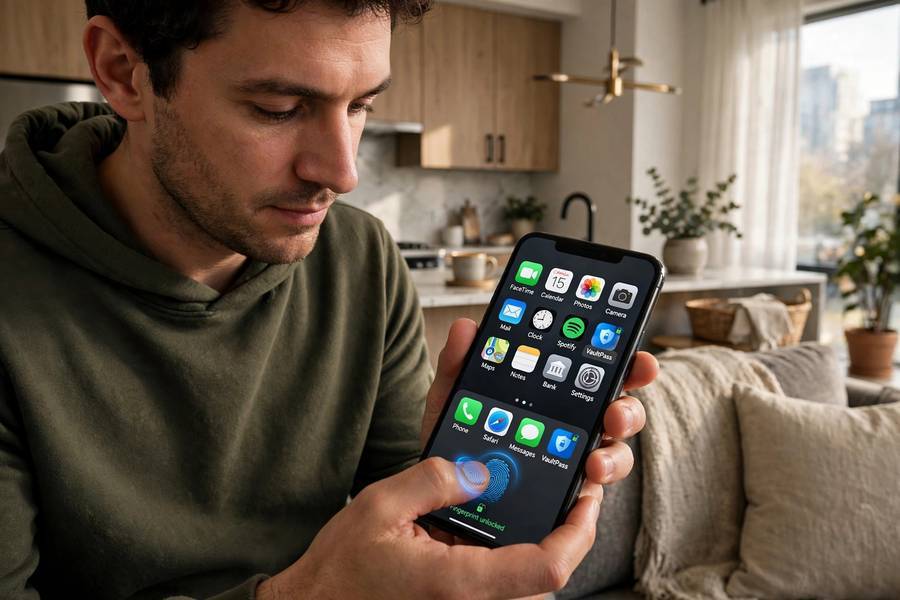
I also strongly recommend turning on two-factor authentication for the manager account itself. Biometric unlock (fingerprint, face) is fine for daily convenience, but make sure the master password is still the root key and you actually remember it.
Real Risks: What Can Actually Go Wrong
I promised honesty, so here are the genuine risks — ranked by how much they should actually worry you.
1. A weak master password (your biggest risk)
No encryption saves you if the master password is “Fluffy123.” Attackers who steal an encrypted vault will throw massive computing power at guessing it. A long, unique passphrase makes this infeasible. This is the number-one failure mode, and it is entirely in your control.
2. Malware on your device
If your computer has a keylogger or screen-capture malware, it can grab passwords as you use them — manager or not. This is not a password-manager weakness; it is a device-security problem. Keep your OS updated, use reputable antivirus, and do not install sketchy software. The manager did not fail you; the device did.
3. The provider gets breached
This has happened — most notably to LastPass in 2022, where attackers stole encrypted vaults. The nuance people miss: the stolen data was encrypted. Customers with strong master passwords were fine; those with weak ones were exposed. The lesson is not “managers are unsafe” — it is “pick a reputable provider and use a strong master password.”
4. Shoulder surfing and unlocked devices
Someone watching you type your master password, or grabbing your unlocked laptop, bypasses all encryption. Lock your devices. Use a screen lock. This is basic, but it is real.
5. Phishing the master password itself
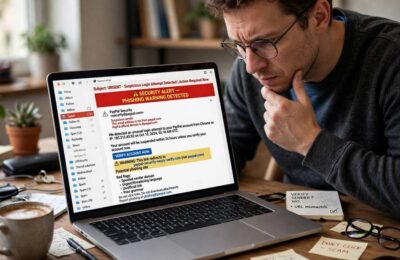
Attackers can fake a login page for your password manager. Bookmark the real site, use the official app, and never enter your master password from an email link. A manager that supports hardware security keys (like a YubiKey) makes this nearly impossible.
Notice what is not on this list: “the encryption gets cracked.” AES-256 with a strong master password is not being broken by anyone you need to worry about.
Cloud-Based vs Local: Which Is Safer?
Password managers come in two broad flavors, and people argue about this endlessly.
Cloud-based (1Password, Bitwarden, Dashlane): Your encrypted vault syncs across devices. Convenient, automatic backups, easy recovery options. The company holds encrypted blobs they cannot read. This is what I recommend for most people because convenience is what makes you actually use it — and a manager you do not use protects nothing.
Local-only (KeePass and variants): Your vault lives on your device only. Nothing leaves your machine. Maximum control, but you handle syncing and backups yourself. If your hard drive dies with no backup, your passwords are gone.
My take after years of testing both: cloud-based with zero-knowledge encryption is the right call for normal humans. The theoretical risk of a provider breach is real but small, and the practical risk of losing a local vault to a dead drive or a forgotten backup is much bigger. Bitwarden is open-source and audited, which is a nice combination if you want to verify rather than trust.
One more practical note: your manager’s syncing and autofill depend on network connectivity concepts not unlike how WiFi works — encrypted traffic between your device and the server. On public networks, that encryption is doing the heavy lifting, which is another reason the zero-knowledge model matters.
What Password Managers Cannot Protect You From
A password manager is a tool, not a force field. Be clear-eyed about its limits:
- It cannot make a breached site safe. If a service stores your password in plaintext and gets hacked, the attacker has it. The manager limits the damage to that one site (because the password was unique), but it cannot prevent the breach.
- It cannot stop you from being phished on sites where you type manually. Autofill protects you when you use it. If you copy-paste credentials into a sketchy link, that is on you.
- It cannot secure your email account by itself. Your email is the master key to password resets everywhere. Protect it with a strong unique password and two-factor authentication, full stop.
- It cannot fix bad security questions. “Mother’s maiden name” is public record in many cases. Treat security answers as extra passwords — generate random strings for them and store them in the manager.
How to Set One Up the Right Way
Enough theory. Here is the practical setup I walk friends through, and it takes about 30 minutes:
- Pick a reputable manager. Look for zero-knowledge architecture, third-party security audits, and a clean breach history. Bitwarden (open-source, free tier is excellent) or 1Password are my usual recommendations.
- Create your master passphrase. Four to six random words. Write it on paper, store it somewhere safe, and memorize it over the coming weeks.
- Enable two-factor authentication on the manager account itself — authenticator app or hardware key, not SMS if you can avoid it.
- Install the browser extension and phone app. The whole point is frictionless access everywhere.
- Import your existing passwords from your browser, then run the manager’s security audit. It will flag reused, weak, and breached passwords.
- Change the important ones first. Email, banking, anything tied to money. Generate a fresh random password for each. Work through the rest over a few weeks.
- Turn on breach monitoring if your manager offers it, so you get alerted when a service you use is compromised.
And here is the habit that makes it all work: when a site asks you to create a password, let the manager generate it. Every time. No exceptions. That single habit is worth more than any feature comparison between brands.
It is also worth understanding the mechanics of the web you are protecting — knowing how a search engine works gives you a better feel for how your data moves around online and why unique passwords per site matter so much when breaches inevitably happen.
Frequently Asked Questions
Yes. Reputable password managers use AES-256 encryption with zero-knowledge architecture, meaning the provider cannot read your passwords. They are significantly safer than reusing passwords, using weak memorable passwords, or storing passwords in plaintext notes.
Attackers would get encrypted vault data, not your passwords. With a strong, unique master password, that encrypted data is effectively unreadable. This is why choosing a reputable provider and using a long master passphrase matters — weak master passwords are the real vulnerability in a breach.
The encryption itself (AES-256) is not practically breakable. Real-world compromises come from weak master passwords, malware on the user’s device, or phishing — not from cracking the vault encryption. Device security and a strong master password address the actual risks.
Yes — a password manager with a unique generated password is far safer for banking than a reused or memorable password. Pair it with two-factor authentication on your bank account and on the password manager itself for the strongest setup.
Look for zero-knowledge architecture, published third-party security audits, and a clean breach history rather than a specific brand name. Bitwarden (open-source, audited) and 1Password are consistently strong choices. Avoid any manager that cannot clearly explain its encryption model.
With zero-knowledge managers, the provider cannot reset it for you — that is the trade-off of true privacy. Some offer emergency access or recovery codes you set up in advance. Write your master passphrase on paper, store it somewhere safe, and set up any recovery options before you need them.