What Is RAM in a Computer? A Plain-English Explanation

Shopping for a computer and drowning in specs? “8GB RAM,” “16GB DDR5,” “upgradeable memory” — it’s alphabet soup. Let’s fix that with a plain-English answer to a simple question: what is RAM in a computer? Five minutes from now, you’ll be a dramatically smarter buyer.
Here’s the one-sentence version: RAM is your computer’s short-term working memory — the fast, temporary workspace where active programs live while you’re using them. Let’s dig into what that actually means and why it matters for you.
What Is RAM in a Computer? The Desk Analogy
Imagine your computer as an office. The hard drive or SSD is the filing cabinet — huge storage, but slow to rummage through. The processor (CPU) is you, the worker, doing the actual thinking. And RAM? RAM is your desk surface.
When you open a program, the computer pulls its files from the filing cabinet (storage) and spreads them out on the desk (RAM) so the worker (CPU) can use them quickly. A bigger desk means more programs open simultaneously without constantly shuffling papers back to the filing cabinet. A tiny desk means constant, slow reshuffling — and that’s exactly what a computer with too little RAM feels like: sluggish, stuttery, frustrating.
Two key traits define RAM: it’s fast (much faster than your hard drive or SSD) and temporary (everything on the “desk” gets cleared when you shut down — that’s why unsaved work disappears if the power goes out).
How RAM Actually Works (The Gentle Version)
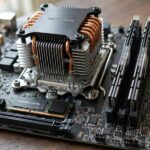
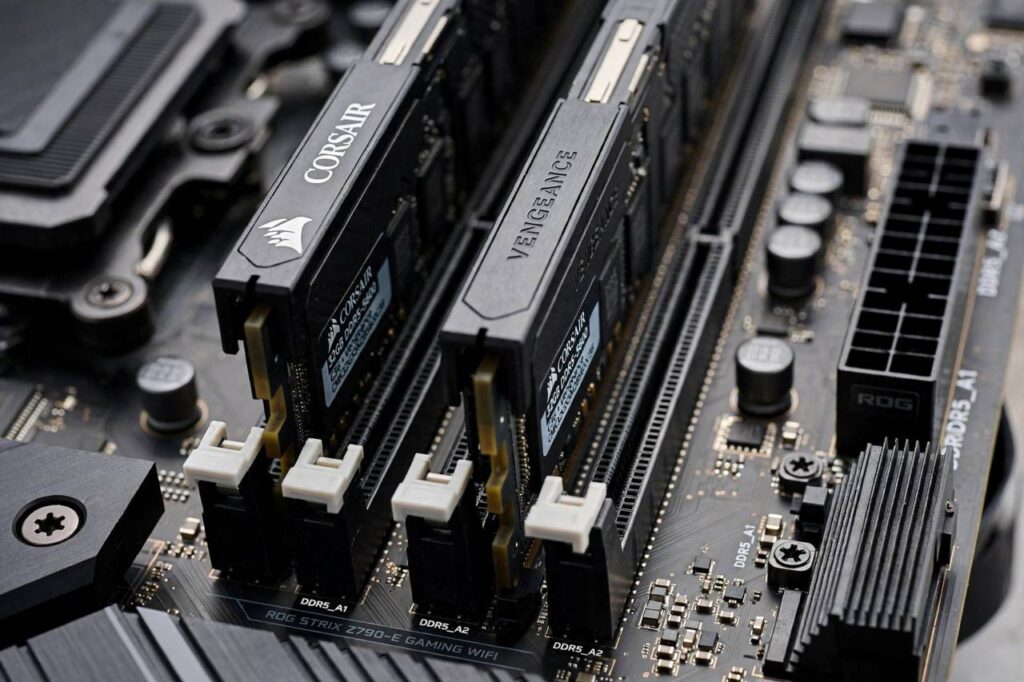
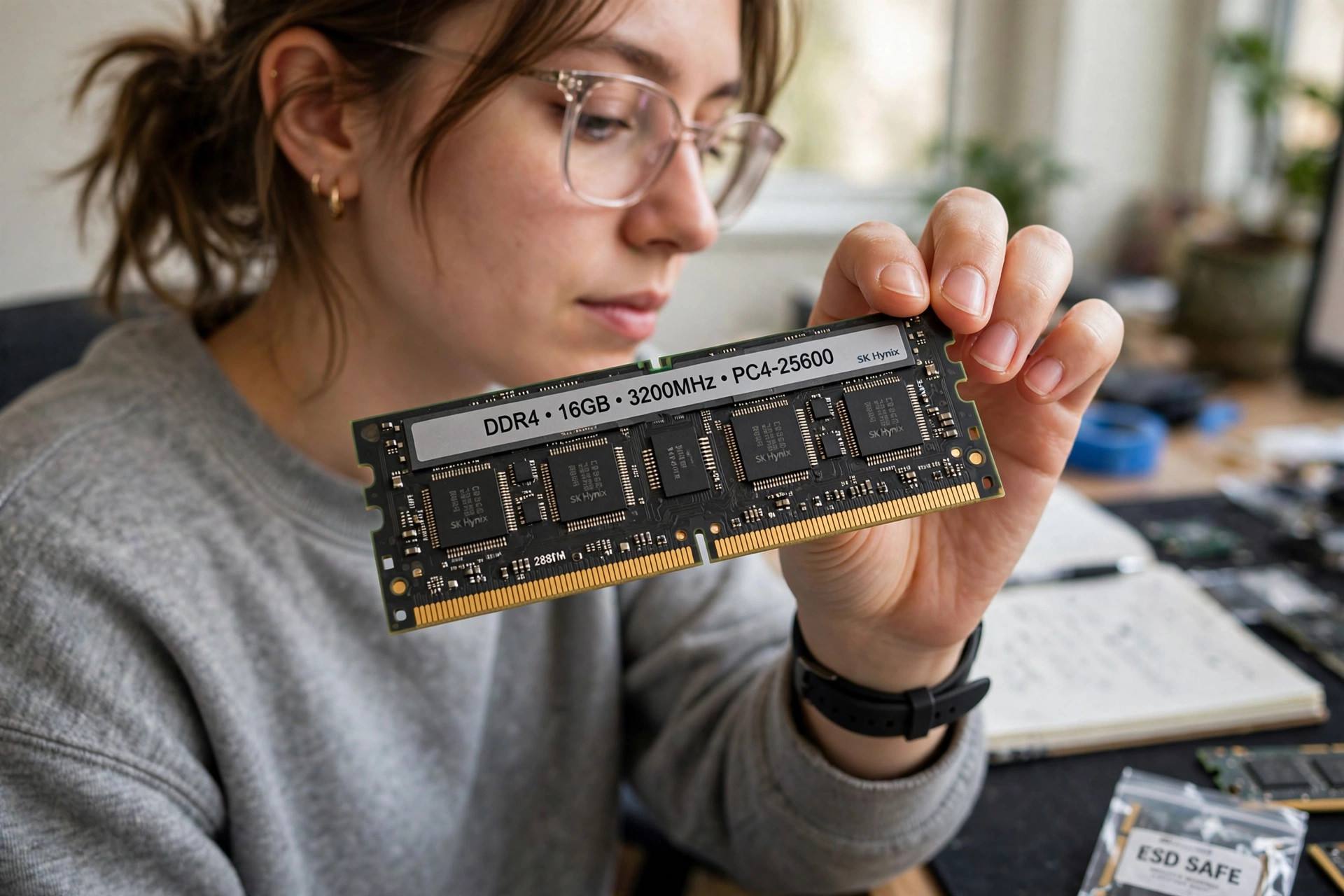
RAM consists of memory chips mounted on small circuit boards called modules (or “sticks”) that plug into slots on your computer’s motherboard. When your computer runs, the operating system constantly moves data between storage and RAM — loading what you need now into memory, and clearing out what you don’t.
A few terms you’ll encounter:
- Capacity (GB): How much the desk holds. 8GB, 16GB, 32GB — bigger number, more simultaneous programs.
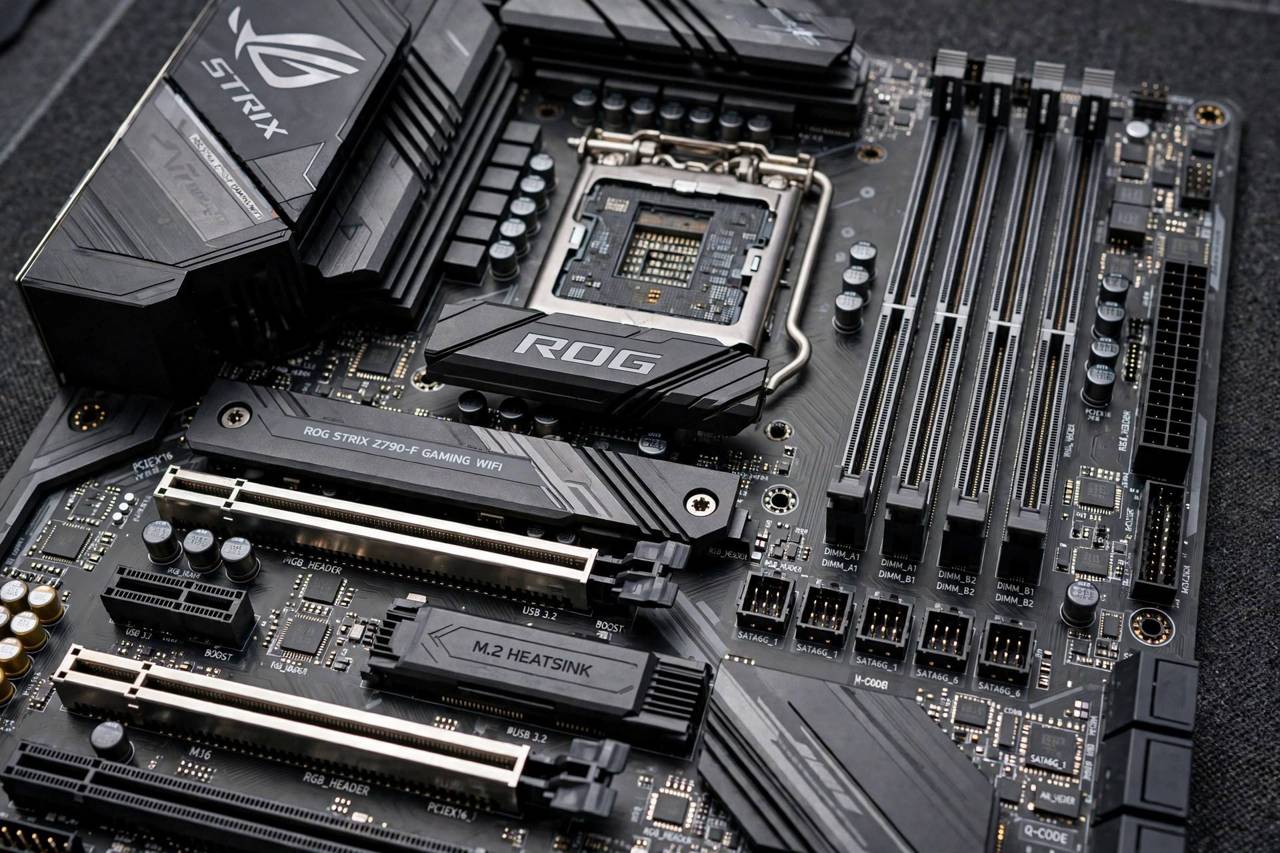
- Type (DDR4, DDR5): The generation of memory technology. DDR5 is newer and faster than DDR4, but they use different slots — they’re not interchangeable.
- Speed (MHz): How fast data moves in and out. Higher is better, though capacity matters more for most people.
- Channels: RAM often works in pairs (dual-channel) for better performance. Two 8GB sticks usually outperform one 16GB stick.
You don’t need to memorize any of this to buy wisely — but now those spec sheets will look a lot less intimidating. If you want the bigger picture of how all the parts fit together, here’s how computers work as a system.
How Much RAM Do You Actually Need?
This is the question everyone really wants answered. Here’s my honest, practical guidance:
- 4GB: Bare minimum. Fine for a Chromebook doing web browsing and little else. I’d avoid this for a main computer in 2026.
- 8GB: The comfortable minimum for everyday use — web browsing with multiple tabs, email, streaming, office documents. Most casual users are happy here.
- 16GB: The sweet spot for most people. Handles heavy multitasking, photo editing, programming, and moderate gaming without breaking a sweat. If you’re buying today and unsure, get 16GB.
- 32GB: For serious work — video editing, 3D rendering, running virtual machines, heavy gaming while streaming. Creative professionals and power users.
- 64GB+: Specialized territory — professional video production, scientific computing, massive datasets. If you need this, you already know.
The most common mistake? Buying too little to save money, then suffering for years. RAM is relatively cheap compared to the frustration of a constantly sluggish computer. When in doubt, go one tier higher than you think you need.
Signs Your Computer Needs More RAM
How do you know if RAM is your bottleneck? Watch for these symptoms:
- Everything slows down with multiple programs open. One program: fine. Five programs: molasses. Classic RAM shortage.
- Constant hard drive churning. When RAM fills up, the computer uses part of your storage as overflow “virtual memory” — dramatically slower. If your drive light is always busy during normal use, you’re probably RAM-starved.
- Browser tab reloads. Switch back to a tab and it reloads from scratch? The browser dumped it from RAM to make room. More RAM keeps more tabs live.
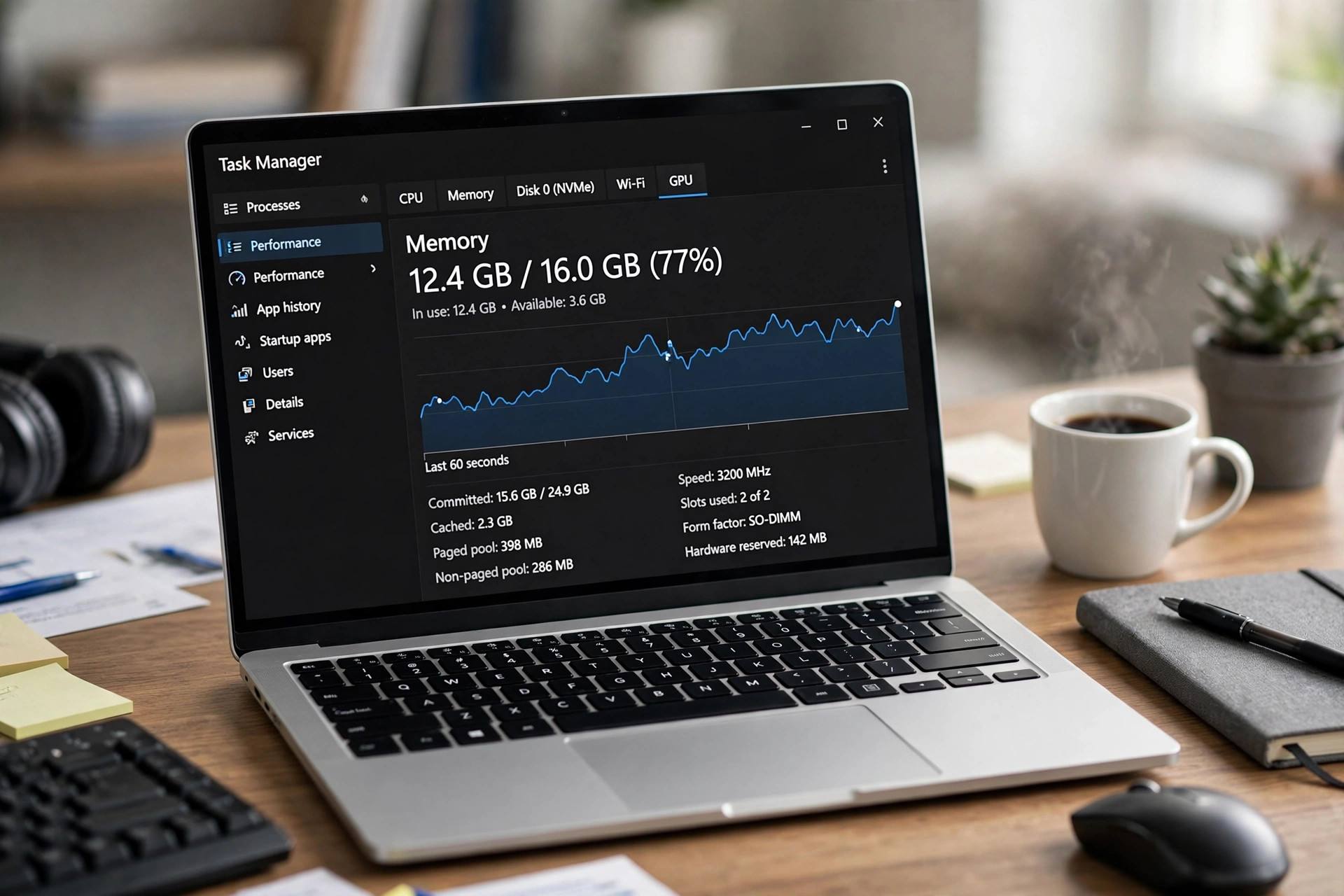
- Check Task Manager / Activity Monitor. On Windows: Task Manager > Performance > Memory. On Mac: Activity Monitor > Memory. If memory usage regularly sits above 80-90% during your normal work, an upgrade will help.
Before buying more RAM, though, rule out other causes of slowness — a full hard drive, too many startup programs, or malware can mimic RAM shortage. Try how to make your computer faster first; if it’s still slow with plenty of free RAM showing, the bottleneck is elsewhere.
Can You Upgrade Your RAM?
Sometimes — and it’s one of the best bang-for-buck upgrades in computing. But it depends on your machine:
- Desktop PCs: Almost always yes. RAM slots are accessible, modules are standardized, and installation takes ten minutes with a screwdriver.
- Laptops: Maybe. Many laptops have accessible RAM slots; many newer ultrabooks have RAM soldered permanently to the motherboard (not upgradeable). Check your model’s specs before buying.
- Macs: Modern Macs (Apple Silicon) have unified memory soldered in — what you buy is what you get forever. Choose carefully at purchase time.
If upgrading: match the type (DDR4 vs DDR5), buy in matched pairs for dual-channel, and check your motherboard’s maximum supported capacity. Installation itself is simple — power off, unplug, ground yourself, open the case, press the new sticks firmly into the slots until the clips snap. If a laptop feels sluggish overall, also check how to speed up an old laptop — RAM is often just one piece of the puzzle.
RAM vs. Storage: Don’t Mix Them Up
This confusion trips up so many buyers. RAM (memory) and storage (hard drive/SSD) are completely different things:
- RAM = workspace. Temporary, super fast, emptied when powered off. Measured in GB (8, 16, 32).
- Storage = filing cabinet. Permanent, slower, keeps everything when powered off. Measured in GB or TB (256GB, 512GB, 1TB).
A computer with 16GB RAM and 256GB storage is very different from one with 8GB RAM and 1TB storage. The first multitasks better; the second holds more files. Salespeople sometimes blur this distinction — now you won’t be fooled.
RAM for Specific Uses: Gaming, Creative Work, and Programming
Different workloads stress RAM differently. Here’s how to think about it for your actual use case:
- Gaming: 16GB is the current sweet spot — enough for the game, the operating system, Discord, and a browser with too many tabs (we’ve all been there). 32GB helps if you stream while gaming or run demanding simulators. Beyond that, your money is better spent on the graphics card.
- Photo and video editing: This is where RAM appetite grows fast. Photo editing is comfortable at 16GB; 4K video editing wants 32GB; complex timelines with effects can justify 64GB. Video editors: RAM is one of your best upgrades.
- Programming: 16GB handles most development comfortably — code editors, browsers, local servers. If you run Docker containers, virtual machines, or Android emulators, 32GB makes life noticeably smoother.
- Everyday office and school work: 8GB is genuinely fine. Documents, spreadsheets, video calls, web research — none of this is RAM-hungry. Save your money.
- Data science and 3D work: These eat RAM for breakfast. 32GB minimum, 64GB+ for serious datasets or complex renders. If this is you, you already know your requirements better than any guide.
Common RAM Myths, Busted
- “More RAM always means a faster computer.” Only up to the point where you have enough. Going from 8GB to 16GB when you’re constantly maxed out: transformative. Going from 32GB to 64GB when you never exceed 20GB: invisible.
- “You need to fill all RAM slots.” Nope. Two sticks in dual-channel is the sweet spot for most people. Empty slots are just upgrade room for later.
- “RAM speed matters more than capacity.” For most users, it’s the opposite — having enough capacity matters far more than having slightly faster RAM. Capacity first, speed second.
- “Closing background apps frees up RAM you need.” Modern operating systems manage memory intelligently — empty RAM is wasted RAM. Aggressively closing everything often slows things down, since reopening costs more than keeping things cached.
- “You can’t have too much RAM.” Technically true for performance, but your wallet disagrees. Money spent on RAM you’ll never use is money not spent on the SSD, processor, or graphics card that would actually help.
Buying RAM: A Quick Checklist
Ready to buy? Run through this list: confirm your motherboard’s RAM type (DDR4 or DDR5 — check the manual or manufacturer’s specs), note the maximum capacity and per-slot limits, buy matched pairs for dual-channel performance, stick with reputable brands, and check the return policy in case of incompatibility. Install with the power fully off and yourself grounded. Then enjoy the satisfying feeling of a computer that finally keeps up with you.
FAQ
What is RAM in a computer in simple terms?
RAM is your computer’s short-term working memory — a fast, temporary workspace where programs live while you’re actively using them. More RAM means more programs can run smoothly at the same time. Everything in RAM is cleared when you shut down.
Is 8GB of RAM enough?
For everyday use — browsing, email, streaming, office work — yes, 8GB is the comfortable minimum. For heavier multitasking, photo/video editing, programming, or gaming, 16GB is the better choice and the current sweet spot for most buyers.
Will more RAM make my computer faster?
Only if RAM is the bottleneck. If your computer is slow because RAM is constantly full, more RAM helps dramatically. If it’s slow for other reasons (old hard drive, weak processor, malware), more RAM won’t fix it. Check your memory usage during normal work to see if you’re actually maxing out.
What’s the difference between DDR4 and DDR5 RAM?
DDR5 is the newer generation — faster data rates and better efficiency than DDR4. However, they use physically different slots and aren’t interchangeable. Your motherboard supports one or the other, so match your purchase to your system.
Does RAM affect gaming performance?
Yes, up to a point. Having enough RAM (16GB for most modern games) prevents stuttering and slowdowns. Beyond “enough,” extra RAM gives diminishing returns for gaming — your graphics card and processor matter more once the RAM requirement is met.