How to Prevent Losing Photos: A Simple Backup System


I’ve watched people lose years of photos in an afternoon — a phone dropped in a lake, a laptop stolen from a car, a “storage full” warning followed by a hasty delete. Every single time, the loss was preventable. Not with expensive equipment or technical wizardry, but with a simple backup habit set up once and then forgotten about. That’s what this guide is: the system I set up for my own family so that no single accident can ever take our photos away.
Prevention beats recovery every time. Recovering deleted photos is stressful, uncertain, and sometimes impossible — I know, because I also write about how to recover deleted photos when things have already gone wrong. But the people who never need that guide are the ones who spent twenty minutes setting up automatic backups. Here’s exactly how to become one of them.
The 3-2-1 Rule: The Only Backup Principle You Need
Professional photographers and IT departments all follow the same simple rule, and it works just as well for your family photos: keep 3 copies of anything important, on 2 different types of storage, with 1 copy off-site (away from your home). It sounds like overkill until the day your house floods or your bag gets stolen on vacation.
Here’s what that looks like in practice for a normal person. Copy 1: the photos on your phone. Copy 2: automatic cloud backup (iCloud or Google Photos). Copy 3: a periodic copy on your computer or an external hard drive kept somewhere safe. The cloud copy is your off-site copy — it survives even if your home doesn’t. You don’t need to think about this daily; you set up the automation once, and the rule takes care of itself.
The most common objection I hear is “I don’t have that many important photos.” But here’s the thing: you don’t get to choose which photos become precious. The blurry snapshot of your kid’s first steps, the last photo with a grandparent, the silly group shot from a trip — their value only grows with time. Back up everything. Storage is cheap; memories aren’t.
iPhone: Set Up Automatic iCloud Backups
If you use an iPhone, iCloud Photos is the easiest protection you’ll ever set up. Go to Settings, tap your name at the top, then iCloud, then Photos, and turn on “Sync this iPhone.” From that moment on, every photo you take uploads to iCloud automatically whenever you have Wi-Fi. Delete a photo from your phone by accident, and you can still find it in iCloud.
The catch is storage. Apple gives you 5GB free, which fills up fast — most people need the 50GB or 200GB plan, which costs less than a coffee per month. I consider this the single best-value purchase in all of personal tech. Also turn on iCloud Backup itself (Settings, then your name, then iCloud Backup) so your whole phone — not just photos — backs up nightly while charging.
One setting deserves your attention: “Optimize iPhone Storage” versus “Download and Keep Originals.” Optimize keeps small previews on your phone and full versions in iCloud, saving space. That’s fine for most people, but understand what it means — if you need a full-resolution original and you’re offline, it won’t be on the phone. For irreplaceable photos, I keep originals downloaded. For a full walkthrough of iPhone backup options, see my guide on how to back up an iPhone.
Android: Set Up Automatic Google Photos Backups
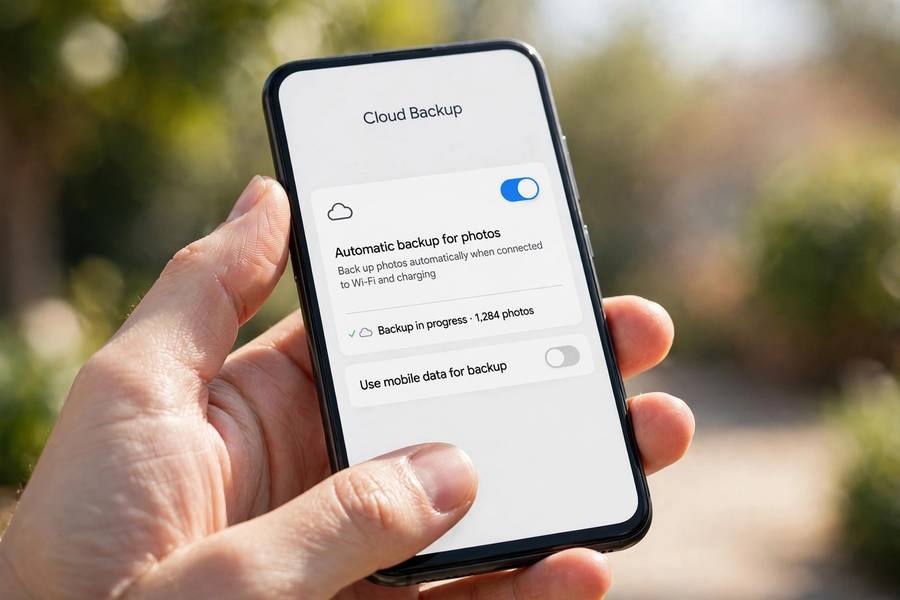
On Android, Google Photos is your automatic safety net. Open the Google Photos app, tap your profile picture, then Photos settings, then Backup, and turn backup on. Choose your Google account and your upload settings. From then on, every photo backs up automatically over Wi-Fi.
Google gives you 15GB of free storage shared across Gmail, Drive, and Photos. If you take a lot of photos or videos, you’ll likely need Google One storage eventually — again, a few dollars a month. In backup settings, you can choose upload size: original quality preserves every pixel, while the storage-saver option compresses slightly to use less space. For most phone photography, the compressed option is visually identical and doubles how much fits.
Samsung users get a bonus option: Samsung Cloud also backs up photos, and you can run both at once for extra safety. And regardless of brand, the same principle applies as iPhone — automatic, over Wi-Fi, set it once. If you want the complete picture of Android backup beyond just photos, my guide on how to back up an Android phone covers messages, apps, and settings too.
Your Second Copy: Computer or External Drive
Cloud backup protects you against a lost or broken phone. But cloud accounts can be locked, hacked, or accidentally deleted too — it happens. That’s why the 3-2-1 rule wants a second type of storage: a copy on a computer or external drive that you control physically.
The simplest version: once a month, plug your phone into your computer and copy new photos over. On a Mac, the Photos app or Image Capture imports everything with a click. On Windows, the Photos app does the same. Create folders by year and month — “2026-10” and so on — so you can find things later. It takes ten minutes while you have coffee.
An external hard drive is even better for this because it doesn’t eat your computer’s storage. A 1TB portable drive costs very little now and holds hundreds of thousands of photos. Keep it somewhere sensible — not next to the computer, ideally. A drawer in another room, or a family member’s house for the truly irreplaceable stuff. Once a quarter, plug it in, copy the new folders over, and put it back. That’s your disaster-proof copy.
A Second Cloud Service for Your Most Precious Photos
I’ll be honest: most people don’t need two cloud services for everything. But for your most precious photos — wedding, new baby, family milestones — a second cloud copy is cheap insurance against the nightmare scenario of losing access to your primary account.
You don’t need to duplicate your entire library. Once or twice a year, export your favorites — the few hundred photos that would genuinely devastate you to lose — and upload them to a second service. Amazon Photos is free for Prime members with unlimited full-resolution photo storage. Dropbox, OneDrive, or even a second Google account all work. Label the folder clearly with the year.
This is also the copy that protects against your own mistakes. Cloud sync services mirror deletions — if you delete a photo everywhere and empty the trash, the cloud copy goes too. A separate annual export, uploaded manually and never synced, is immune to that. Think of it as a time capsule, not a backup.

Daily Habits That Prevent Photo Loss
Technology does most of the work, but a few small habits close the remaining gaps. None of these take more than a few seconds.
First, don’t ignore “storage full” warnings. A full phone can’t back up new photos — that’s exactly when you’re most vulnerable. When the warning appears, don’t mass-delete in a panic (that’s how the wrong photos get deleted). Instead, check that your cloud backup is current, then let the phone optimize storage or offload unused apps. Panic-deleting is one of the top causes of photo loss I see.
Second, keep your phone charged and on Wi-Fi overnight at least a few times a week. Backups happen during these quiet hours. A phone that’s always on cellular data with battery saver on may go weeks without completing a backup.
Third, review your “Recently Deleted” album occasionally — not to recover things, but to make sure nothing important is sitting there about to expire. Both iPhone and Android keep deleted photos for 30 days before permanent deletion. A quick monthly glance catches mistakes while they’re still reversible.
Protecting Photos While Traveling
Vacations are when your photos are most precious and most at risk — you’re taking hundreds a day, far from home, with theft, loss, and water damage all more likely. A little preparation goes a long way.
Before you leave, verify your cloud backup is working and current, and make sure you have enough cloud storage for the trip. Turn on backup over cellular data if your plan allows it, or at minimum back up every night on hotel Wi-Fi. If you’re going somewhere with no connectivity — a cruise, remote hiking — bring a small portable SSD and copy photos to it each evening. It weighs nothing and holds everything.
Consider what happens if your phone is stolen mid-trip. With cloud backup on, you lose the device but keep the photos — annoying, not tragic. Without it, you lose both. I’ve had clients in tears over a stolen phone on day three of a honeymoon with no backup. Don’t be that story. Also, keep your phone’s location tracking on (Find My on iPhone, Find My Device on Android) — it won’t save your photos, but it might save the phone.
Mistakes That Cause Photo Loss (and How to Avoid Them)
Let me share the patterns I see over and over, so you can avoid them.
Trusting a single SD card or USB stick
Memory cards fail. It’s not a question of if but when — they have a limited lifespan and they’re fragile. Never let a memory card be the only copy of anything. Copy photos off the card to your phone or computer the same day you take them.
Deleting the cloud to “free up space”
Some people, confused by sync, delete photos from iCloud or Google Photos thinking the phone copy remains. With sync on, deleting from the cloud deletes everywhere. Never delete from your cloud library unless you have a separate copy elsewhere first.
Letting someone “clean up” your phone
Handing your phone to a well-meaning relative to free up space has caused more photo disasters than hardware failure. If someone else manages your storage, make sure they understand that deleted photos in the trash only survive 30 days.
Assuming the old phone’s photos moved to the new phone
When you set up a new iPhone or switch devices, verify your photos actually arrived before wiping the old phone. Open the Photos app on the new device, scroll back through time, and confirm. Keep the old phone for two weeks as a fallback — this single habit has saved more photo libraries than any software.

Frequently Asked Questions
Turn on automatic cloud backup — iCloud Photos on iPhone or Google Photos backup on Android — and make sure you have enough cloud storage for it to actually work. That one setting, done once, protects you against the most common losses: broken phones, lost phones, and accidental deletions (within the 30-day trash window).
For most everyday situations, yes. But the 3-2-1 rule recommends a second copy on different storage, because cloud accounts can be locked or compromised. Adding a periodic copy to a computer or external drive once a month or quarter covers the remaining risk with very little effort.
Your cloud backup should run automatically every day — that’s the whole point of turning it on. Your second copy (computer or external drive) only needs updating monthly or quarterly. The key word is automatic: any backup system that depends on you remembering to do it will eventually fail.
Yes, for about 30 days. Both iCloud and Google Photos keep deleted photos in a trash or “recently deleted” album for 30 days before permanent deletion, and during that window you can restore them easily. After 30 days, they’re gone unless you have another copy elsewhere.
If your free storage is full, yes — it’s the best-value purchase in personal tech. A full cloud means new photos stop backing up, which silently removes your protection. The basic paid tiers cost a few dollars a month and cover most people’s photo libraries comfortably.