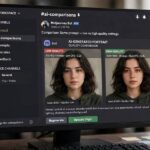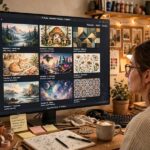
Here’s a small tragedy I see weekly: someone generates a stunning image, square by default, then tries to use it as a YouTube thumbnail or phone wallpaper — and discovers cropping a square into a widescreen destroys the composition. The fix takes four characters typed before generating: --ar 16:9. Aspect ratio is the most skipped setting in Midjourney and one of the most consequential.
This Midjourney aspect ratio guide covers how the --ar parameter works, which ratios suit which purposes, and the mistakes that waste generations. Decide the shape before you generate, not after. For the fundamentals, see how Midjourney works and how to use Midjourney.
Table of Contents
- What –ar Actually Does
- The Ratios You’ll Use 95% of the Time
- Widescreen Ratios: 16:9, 21:9, and Beyond
- Portrait Ratios: 9:16, 4:5, 2:3
- Square and Near-Square: 1:1, 4:3, 3:2
- Matching Ratio to Purpose
- Common Aspect Ratio Mistakes
- Panoramas and Extreme Ratios
- How Ratio Changes Composition Psychology
- Switching Ratios Mid-Project
- Aspect Ratio for Print
- Frequently Asked Questions
What –ar Actually Does
The --ar parameter sets the width-to-height ratio of your generated image, written as --ar W:H at the end of your prompt. Default is 1:1 (square). Example:
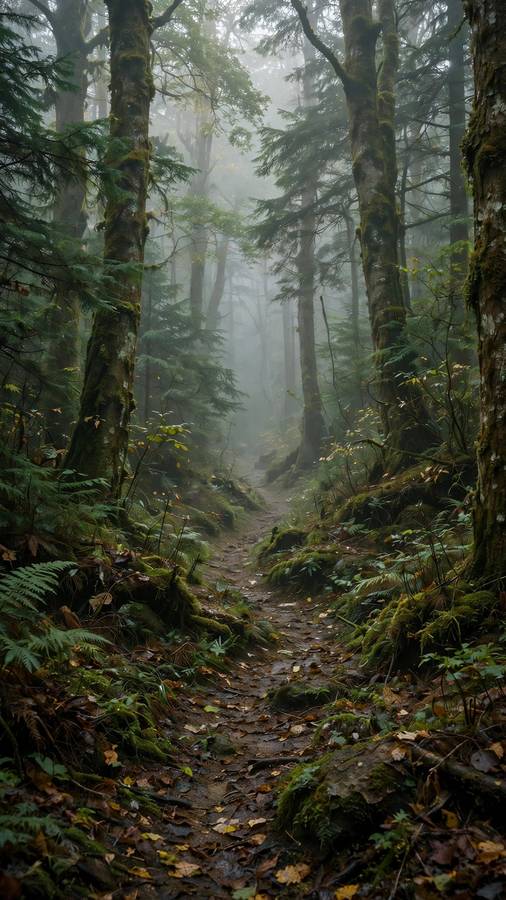
/imagine prompt: misty forest path at dawn, volumetric light, photorealistic --ar 16:9
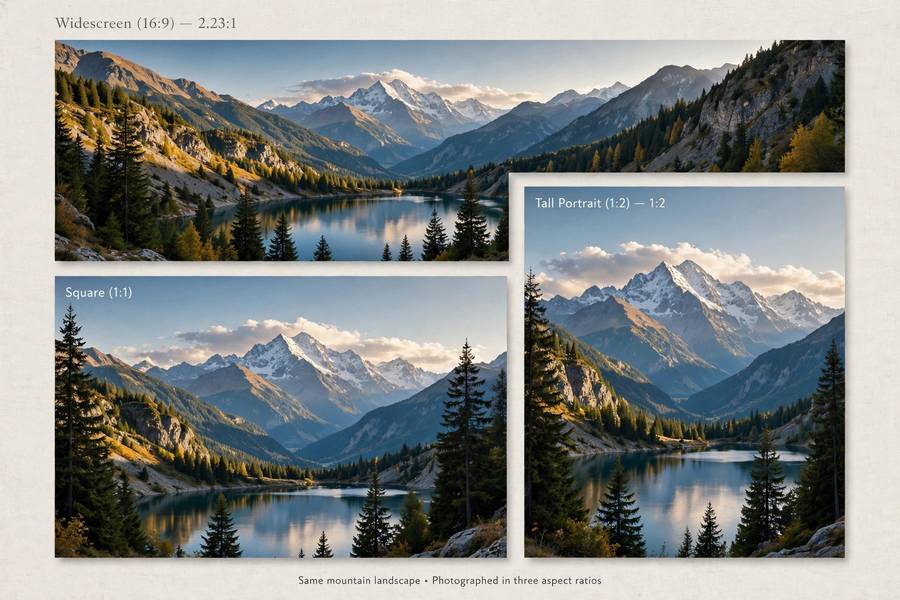
Crucially, this isn’t cropping — Midjourney composes the image natively in that shape. A widescreen generation has genuinely more scene on the sides; a portrait generation has more above and below. That’s why setting it upfront beats cropping afterward: the AI designs the composition for the frame, placing subjects and negative space appropriately instead of you amputating a square.
The Ratios You’ll Use 95% of the Time
Memorize five and you’ll cover nearly every use case:
--ar 1:1— square. Default. Social profile images, album art, general-purpose.--ar 16:9— widescreen. YouTube thumbnails, desktop wallpapers, presentations, blog headers.--ar 9:16— vertical full-screen. Phone wallpapers, stories, reels, TikTok backgrounds.--ar 4:5— portrait social. Instagram feed posts (maximum screen space without cropping).--ar 3:2— classic photo ratio. Prints, photography-style work.
Everything else is specialization. Learn these five cold; look up the rest when a project demands it.
Widescreen Ratios: 16:9, 21:9, and Beyond
Widescreen is the language of cinema and screens. --ar 16:9 matches most displays — it’s the safe default for anything viewed on a monitor or TV: thumbnails, headers, wallpapers, slide decks. The composition naturally spreads horizontally, which suits landscapes, cityscapes, and group scenes.
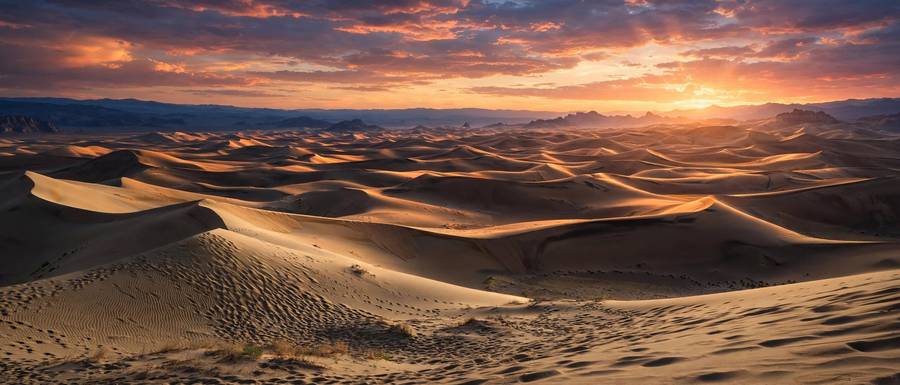
--ar 21:9 (ultrawide) pushes into cinematic panorama territory — epic landscapes, sweeping establishing shots, anything where vastness is the point. It can feel empty with the wrong subject; a single portrait subject in 21:9 floats in a sea of background. Use it when the environment is the subject.
Extreme ratios like --ar 3:1 exist for banner-style panoramas but get finicky — the model sometimes struggles to fill very wide frames coherently. They’re fun to experiment with in relax mode, risky for important work.
Portrait Ratios: 9:16, 4:5, 2:3
Vertical formats dominate mobile, which means they dominate attention. --ar 9:16 is the full phone screen — wallpapers, story backgrounds, short-form video thumbnails. Compositions stack vertically: the model places subjects with headroom above and grounding below, completely different from a cropped square.
--ar 4:5 is the Instagram feed sweet spot — the tallest ratio the feed displays without cropping, maximizing screen real estate. --ar 2:3 matches the classic portrait photography ratio, ideal for character portraits and print work. A well-written prompt in 2:3 with portrait lens terms produces genuinely gallery-worthy character work.
The beginner error here is generating portraits in square and cropping. Don’t — the native vertical composition, with its proper headroom and posture framing, is visibly better.
Square and Near-Square: 1:1, 4:3, 3:2
Square (1:1) is Midjourney’s native default and still the most versatile single choice when you don’t know the end use — profile pictures, prints, general portfolio pieces. It’s also the most forgiving ratio for the model; compositions rarely go wrong in a square.
--ar 4:3 and --ar 3:2 are the classic camera ratios — familiar, balanced, print-friendly. They suit photography-style generations where you want the image to feel like it came from a real camera. Slightly wider than square, slightly less dramatic than 16:9: the jeans-and-t-shirt of aspect ratios.
Matching Ratio to Purpose
Quick reference — decide by destination:
| Purpose | Ratio |
|---|---|
| YouTube thumbnail | 16:9 |
| Phone wallpaper | 9:16 |
| Instagram post | 4:5 |
| Desktop wallpaper | 16:9 |
| Blog header | 16:9 or 21:9 |
| Profile avatar | 1:1 |
| Print/poster | 2:3 or 3:2 |
| Presentation slide | 16:9 |
| Story/reel background | 9:16 |
When in doubt, generate in the ratio of the final destination. Regenerating is cheaper than regretting.
Common Aspect Ratio Mistakes
The hall of shame: forgetting –ar entirely and getting squares for everything. Cropping after instead of composing before — you lose the AI’s native framing. Extreme ratios for important work — test panoramas in relax mode first. Assuming –ar changes resolution — it changes shape, not pixel count; upscale separately for print sizes. Inconsistent ratios in a series — a set of illustrations for one project should share a ratio, or they won’t sit together. And portrait subjects in landscape frames (or vice versa) — match the ratio’s energy to the subject’s energy.
Panoramas and Extreme Ratios
Beyond the standard ratios lies panorama territory: –ar 3:1, 4:1, even wider. These produce sweeping banner-style images — website heroes, event backdrops, ultrawide monitor wallpapers. They work best when the subject is inherently horizontal: landscapes, city skylines, battle scenes, anything where width is the point.
The caveat: extreme ratios are where the model’s composition skills get shakiest. Very wide frames sometimes develop a “repeating” quality — the same hill twice, suspiciously symmetrical clouds — because the model is extrapolating beyond its comfort zone. Mitigate by keeping prompts simpler at extreme ratios (fewer elements, stronger central subject) and always testing in relax mode first. When panoramas work, they’re spectacular; treat them as a specialty tool, not a daily driver.
How Ratio Changes Composition Psychology
Here’s the subtle part most guides skip: aspect ratio doesn’t just change shape, it changes feeling. Wide ratios feel epic and observational — the viewer is a witness to a vast scene. Tall ratios feel intimate and immersive — the viewer is inside the moment with the subject. Square feels balanced and iconic — the subject presented for contemplation, like a portrait in a gallery.
This is why ratio choice is a creative decision, not a technical one. A lone figure in 21:9 reads as isolation and scale; the same figure in 9:16 reads as presence and character. Before generating, ask what feeling the image needs, then pick the ratio that speaks that feeling. The photographers who mastered this a century ago called it “format as expression” — the AI just made it four characters of typing.
Switching Ratios Mid-Project
What if you generated in the wrong ratio? You have options, ranked by quality. Best: regenerate natively in the right ratio — the composition will be designed for the frame, and with your refined prompt it’ll often come out better than the original. Good: use the zoom-out/pan features to extend the canvas, then crop to the target ratio — works well for landscapes with extendable backgrounds. Acceptable: straight cropping, which sacrifices the AI’s native composition but is instant.
What doesn’t work: stretching or squashing the image to fit — distortion is immediately visible and unprofessional. And a workflow tip: when a project needs multiple ratios (say, a YouTube thumbnail and an Instagram post from one concept), generate the widest version first, then crop down — you lose less than going the other direction. Plan the ratio family before you start generating, not after.
Aspect Ratio for Print
Printing adds constraints screens don’t have. Standard print sizes map to specific ratios: 4×6 inches is 3:2, 5×7 is roughly 7:5, 8×10 is 4:5. Generate in the ratio matching your intended print size and you avoid cropping entirely. For gallery wraps and posters, check the print service’s required dimensions first — then set –ar to match.
Resolution matters more in print: generate at the highest quality, upscale fully, and remember that –ar controls shape, not pixel count. A good rule: for prints above 8×10, upscale to maximum and verify the file dimensions against the printer’s DPI requirements before ordering. The most common print disappointment isn’t ratio — it’s a beautiful image printed larger than its resolution supports. Ratio gets the composition right; upscaling gets the sharpness right. You need both.
Frequently Asked Questions
Add –ar W:H at the end of your prompt, e.g. –ar 16:9 for widescreen or –ar 9:16 for vertical. The default is 1:1 square. The image is composed natively in that shape, not cropped.
Use –ar 2:3 for classic portrait framing or –ar 4:5 for Instagram posts. For phone wallpapers, –ar 9:16. Always generate natively in the vertical ratio rather than cropping a square.
–ar 16:9 matches YouTube’s player exactly. Generate natively in 16:9 so the composition fills the frame properly with no cropping needed.
It changes the shape, not the resolution or quality. Very extreme ratios can occasionally produce less coherent compositions, but standard ratios like 16:9, 9:16, and 4:5 are all equally reliable.
Not directly — you’d need to crop (losing the native composition) or use outpainting/zoom features. It’s far better to set –ar before generating, since Midjourney composes specifically for the chosen frame.
Keep reading: