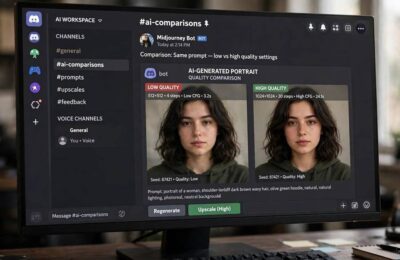
The strangest thing about Midjourney, for newcomers, isn’t the AI — it’s that you operate it inside Discord, a chat app built for gamers. I remember my own first session: staring at a channel where thousands of strangers’ images scrolled past at seizure-inducing speed, wondering where exactly I was supposed to type. Ten minutes later I had my first image. An hour later I didn’t want to leave.
This guide walks through how to use Midjourney on Discord from zero: joining, subscribing, your first generation, and the essential commands. The web interface exists now as an alternative, but Discord remains the full-featured home of the tool — and understanding it teaches you how Midjourney thinks. Broader setup context lives in how to use Midjourney; the engine underneath is explained in how Midjourney works.
Table of Contents
- Step 1: Get a Discord Account
- Step 2: Join the Midjourney Server
- Step 3: Subscribe to a Plan
- Step 4: Find a Quiet Channel
- Step 5: Your First /imagine
- Understanding the U and V Buttons
- Essential Commands Beyond /imagine
- Direct Messages: Your Private Studio
- Discord Tips That Save Your Sanity
- Organizing Work With Threads and Channels
- Troubleshooting: When the Bot Won’t Cooperate
- Generating From Your Phone
- Frequently Asked Questions
Step 1: Get a Discord Account
If you don’t have Discord, sign up free at discord.com or install the app (desktop app recommended — the web version works but the desktop app handles image-heavy channels better). Verify your email. That’s it; no gaming knowledge required, despite the aesthetic. Discord is just a chat platform with servers (communities), channels (topic rooms), and bots (automated helpers) — Midjourney is one such bot, living inside its own server.
Step 2: Join the Midjourney Server
Head to midjourney.com and sign in with your Discord account — this links the two and drops you into the Midjourney Discord server. You’ll land in a lobby with dozens of channels named things like newbies-47. These are public generation channels where everyone types prompts and the bot replies with images. It’s chaotic, fascinating, and the fastest free education in prompting available — watch what others type and what comes out.
Step 3: Subscribe to a Plan
Midjourney requires a paid subscription before generating (the free trial era ended). In any channel, type /subscribe — the bot sends you a personal link to the subscription page. Pick a tier (start with Basic monthly; you can upgrade anytime). The subscription is tied to your Discord account, so use the account you’ll actually generate from. Payment handled on Midjourney’s site, not inside Discord.
Step 4: Find a Quiet Channel
Here’s the step everyone skips and regrets skipping. The newbies channels move fast — your images vanish up the scroll in seconds, and finding them later is miserable. Better options: use the bot in direct messages (message the Midjourney Bot directly — your generations stay private to you), or create your own Discord server (free, takes two minutes) and invite the Midjourney Bot to it. Your own server is the pro move: private channels, no scroll chaos, and you can organize generations by project.
Step 5: Your First /imagine
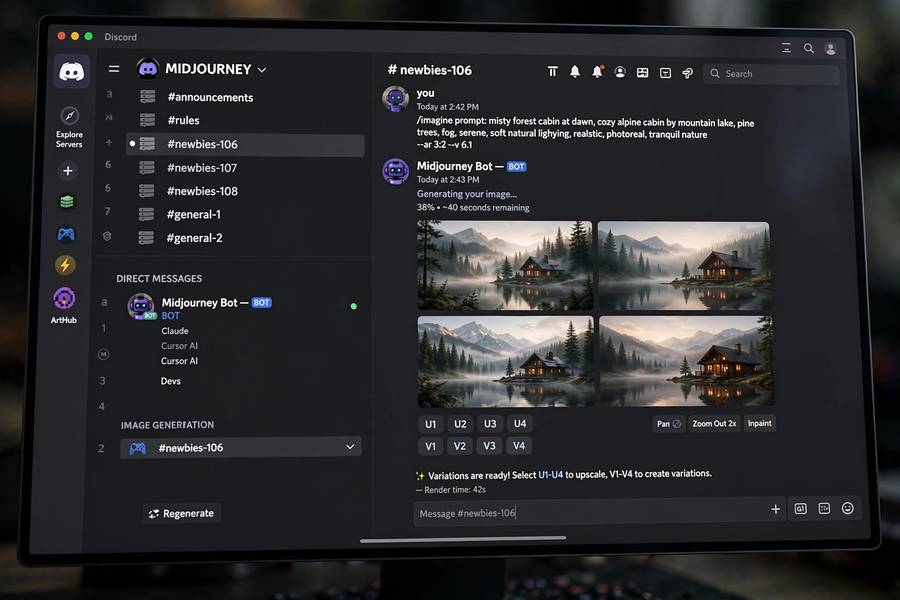
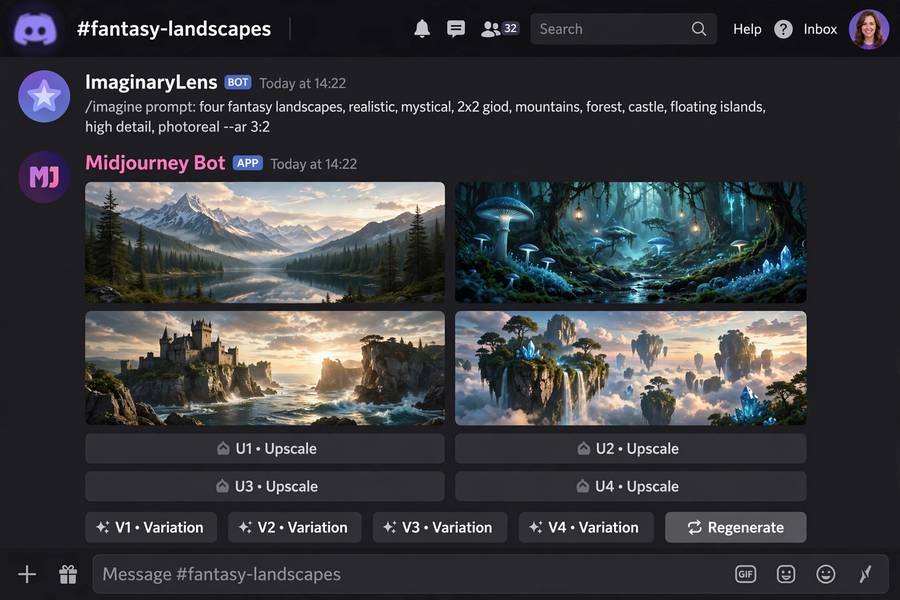
The magic command: type /imagine and press Tab or Enter — Discord shows a prompt field. Type your description, e.g. lighthouse on rocky cliffs during a storm, dramatic waves, cinematic lighting, and hit Enter. The bot acknowledges, shows a progress percentage, and in under a minute delivers four images in a 2×2 grid.
Your first prompt will be mediocre. That’s the point — you’re learning the interface, not making art yet. Generate three or four simple things to get comfortable with the rhythm: prompt, wait, react. Once the mechanics feel natural, study prompt engineering for beginners to make the images actually good.
Understanding the U and V Buttons
Below every image grid sit two rows of buttons — the entire iteration workflow:
U1–U4 (Upscale): picks one of the four images and renders it larger with more detail. U is for “I love this one, make it final.”
V1–V4 (Variation): generates four new images inspired by one of the four — same DNA, new interpretations. V is for “close, but explore around this.”
The numbers map to positions: 1 = top-left, 2 = top-right, 3 = bottom-left, 4 = bottom-right. The core loop of Midjourney mastery is: generate → V the best → generate → V the best → U the winner. Beginners re-roll; practitioners vary. This single habit accounts for most of the quality gap between new and experienced users.
There’s also the re-roll button (circular arrows) — new set from the same prompt — useful when all four miss, but reach for V first when one is close.

Essential Commands Beyond /imagine
A handful of slash commands cover 95% of daily use:
/settings— opens a control panel: model version, stylize level, quality, speed mode (fast/relax). Set once, forget./info— shows your subscription, remaining fast hours, and queue status. Check when generations feel slow./describe— upload an image and get four text prompts describing it. Brilliant for reverse-engineering styles you like./blend— combine 2–5 images into one. Great for merging concepts or styles./show— retrieve any past job by its ID. Your history is never truly lost.
Learn /settings and /info this week; the rest when you need them.
Direct Messages: Your Private Studio
Worth emphasizing: you can run the entire Midjourney experience in DMs with the Midjourney Bot. Find the bot in the member list (or search), open a DM, and type /imagine there. Everything works identically, minus the audience. Your generations don’t appear in public channels — though note they’re still visible in the website gallery unless you have stealth mode (Pro tier and up). For client work or personal projects, DMs or your own server are the sane defaults.
Discord Tips That Save Your Sanity
A few hard-won practicalities: mute the newbie channels after your first day — the notification firehose isn’t worth it. Use threads or your own server to keep project generations together. The bot goes down occasionally — check the status channel before assuming you broke something. Generation speed varies by server load; relax mode during off-peak hours is fastest. And mind the community guidelines — Midjourney moderates content, and repeated violations can restrict your account. When in doubt about a concept, their rules page is the authority.
Organizing Work With Threads and Channels
Once you’re generating regularly, organization becomes the bottleneck. On your own server, create channels per project — “client-logos,” “blog-headers,” “experiments” — so generations stay findable. Discord’s search is decent, but channel separation is better: future you will not remember the prompt that made that perfect image, but you’ll remember which project it was for.
Threads are the underused feature: start a thread on a promising generation and do all its variations inside the thread, keeping the main channel clean. For client work, one thread per deliverable creates a natural audit trail of iterations — surprisingly useful when a client asks “can we go back to the earlier direction?” Also consider a “prompt-library” channel where you pin your best-performing prompts. Six months in, that channel becomes one of your most valuable creative assets.
Troubleshooting: When the Bot Won’t Cooperate
The bot fails sometimes; here’s the triage order. First, check Midjourney’s status channel or website — scheduled maintenance and outages happen, and no amount of retyping fixes a down server. Second, check your subscription with /info — lapsed payments and exhausted fast hours are the most common “it stopped working” causes. Third, try the command in a different channel or DM — occasionally a channel’s permissions glitch.
If generations fail with errors, simplify: drop parameters and test a plain prompt. If plain prompts fail too, it’s the service, not you — wait it out. Never spam the same command repeatedly during an outage; queued jobs can pile up and burn GPU time when service resumes. And keep the support channels in mind for genuine account issues — the community is helpful, but billing problems need official support, not Discord advice.
Generating From Your Phone
Discord’s mobile app runs Midjourney just fine, which means your pocket holds a full AI art studio. The workflow: type /imagine in your server or DM, wait for the grid, tap U or V buttons — all thumb-friendly. It’s genuinely practical for reviewing generations on the go, showing clients options in meetings, or capturing ideas the moment they strike.
Limitations to know: typing long prompts on a phone keyboard is miserable, so mobile is better for reviewing, varying, and upscaling than for original prompting — draft prompts in your notes app and paste them in. Image detail is harder to judge on a small screen; don’t upscale finalists from your phone without checking on a larger display later. But as a companion to desktop work — generate at your desk, review on the couch — mobile Discord is surprisingly capable.
Frequently Asked Questions
Join the Midjourney Discord server, subscribe to a plan with /subscribe, then type /imagine followed by your prompt in any bot-enabled channel or in DMs with the Midjourney Bot. Use U buttons to upscale favorites and V buttons for variations.
Discord is the original and full-featured interface. Midjourney also offers a web interface now, but Discord remains where all features and commands work, and learning it teaches the complete workflow.
The /imagine command is how you generate images: type /imagine, enter your text prompt, and the bot creates four images in about a minute. It’s the primary command you’ll use.
Generate in direct messages with the Midjourney Bot or on your own private Discord server instead of public channels. For full privacy from the website gallery, you need stealth mode (Pro tier and above).
U1-U4 upscale one of the four generated images to final quality; V1-V4 create four new variations based on one image. Numbers correspond to grid positions: 1 top-left, 2 top-right, 3 bottom-left, 4 bottom-right.
Keep reading: