How to Recover Deleted Text Messages on Android

That sinking feeling when you realize an important text is gone — a deleted conversation with an address you need, a two-factor code thread, messages from someone you cannot ask again. How to recover deleted text messages on Android is a race against time, and I want to be straight with you up front: the sooner you act, the better your chances. Every new message, photo, or app update risks overwriting the deleted data permanently.
In this guide I will walk you through every recovery method in order of likelihood: the Samsung Messages trash folder (the easiest win), Google backup restore, your carrier’s records, and third-party recovery tools — plus what to do right now to stop making things worse.
First: Stop Using Your Phone (Seriously)
When you delete a text on Android, it is not immediately erased — the space it occupied is marked as available, and the data lingers until something new overwrites it. That means every action you take now reduces your chances: receiving texts, taking photos, installing apps, even browsing. Put the phone in airplane mode to stop incoming data, avoid installing anything new, and work through the methods below in order. This urgency is not drama — it is how flash storage works.
Method 1: Check the Samsung Messages Trash (Easiest Win)
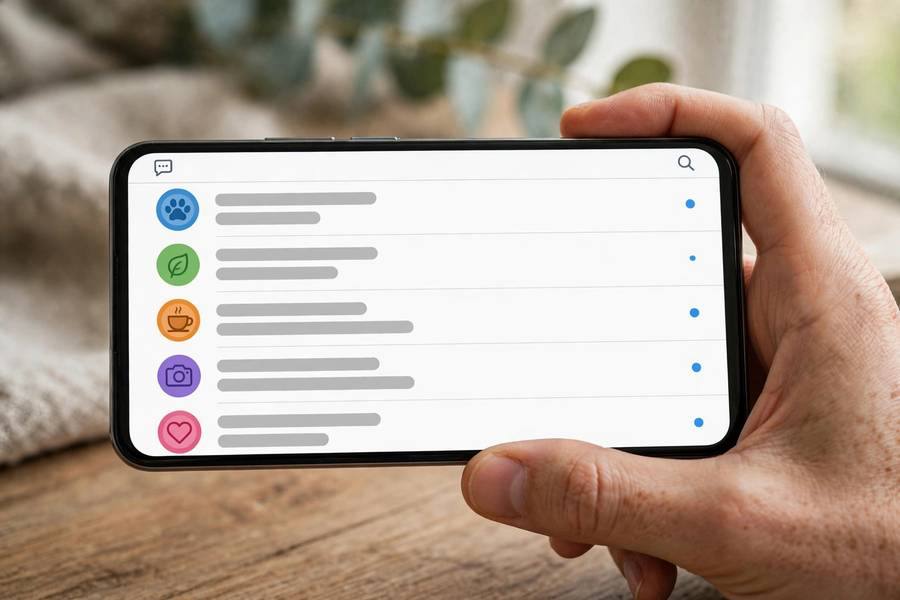
If you use a Samsung phone with the Samsung Messages app, deleted texts are not gone immediately — they sit in a trash folder for 30 days. This is the fastest recovery and works in seconds:
- Open the Samsung Messages app.
- Tap the three-dot menu (top right) and select Trash (on some versions: Settings > Trash).
- Browse the deleted conversations, long-press the ones you want, and tap Restore.
That is it — messages return to your inbox as if nothing happened. Note the limitation: this only works within 30 days of deletion, and only for texts deleted through Samsung Messages. If you use Google Messages as your default SMS app (increasingly common, even on Samsung phones), skip to Method 2 — Google Messages has an archive feature, but archived is not deleted, so check there too: open Google Messages, tap your profile icon, and look under Archived. Many “deleted” texts are just archived.
Method 2: Restore From a Google Backup
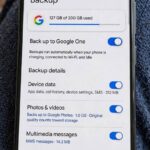
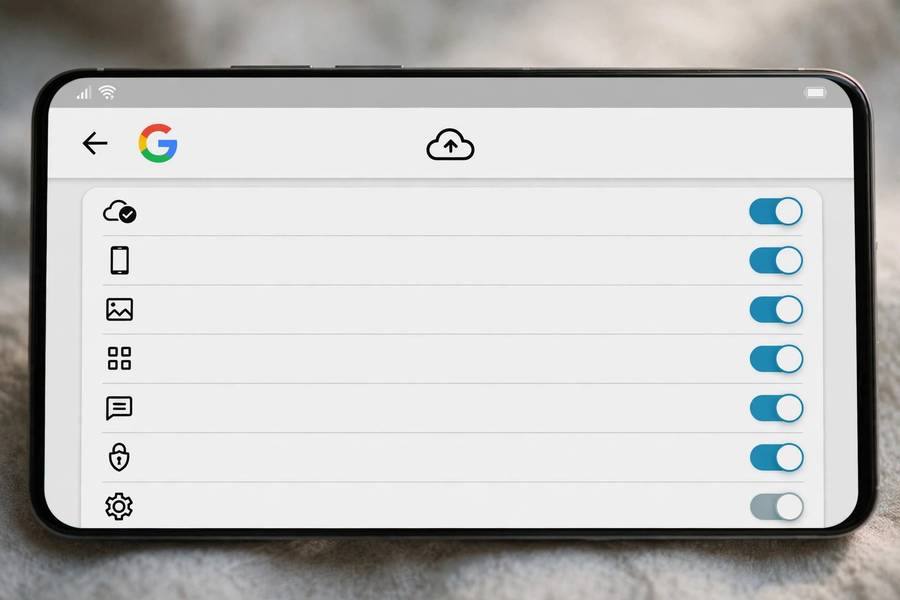
Android’s built-in backup can include SMS messages if it was enabled before the deletion. Here is the catch that trips everyone up: restoring a Google backup requires a factory reset — you cannot surgically restore just the texts through the standard interface.
To check whether a usable backup exists: go to Settings > Google > Backup and look at the last backup date and whether SMS is included. If a backup from before the deletion exists, you face a decision: factory-reset the phone and restore (which recovers the texts but wipes everything since the backup), or live without them. For most people, this tradeoff only makes sense if the lost messages are genuinely critical — legal evidence, for instance.
Before going nuclear, check Google One’s backup details — some carrier and manufacturer backup tools (Samsung Cloud, for example) allow more granular restores of messages without a full reset. Samsung Cloud backup, if enabled, can restore SMS through Settings > Accounts and backup > Samsung Cloud > Restore data, letting you select messages only.
Method 3: Ask Your Carrier
Your mobile carrier retains text message records — but what they keep and what they will give you varies enormously. Most carriers store metadata (who texted whom, when) far longer than content (the actual words). Content retention is typically short — days to weeks — where it exists at all.
Call customer support and ask specifically about message content recovery. Be prepared: carriers generally require the account holder’s identity verification, some charge fees, and many will only release records with a court order or subpoena (particularly relevant in legal disputes — which is also when carrier records matter most). It is a long shot for casual recovery, but for important matters it is worth the phone call.
Method 4: Third-Party Recovery Tools (With Caveats)
A category of desktop software claims to recover deleted Android texts by scanning the phone’s storage for un-overwritten data remnants. Honest assessment: these tools sometimes work, primarily when the deletion was recent and the phone has been lightly used since. They work best on rooted phones (root access allows deeper storage scanning) and less reliably on modern encrypted devices.
The caveats matter. Many of these tools are expensive, some are outright scams, and granting deep storage access to unknown software is a privacy risk — ironic, given you are trying to recover private messages. If you go this route: research the specific tool thoroughly, prefer well-reviewed desktop applications over random Play Store apps, never pay before a scan shows previewable results, and understand that success rates on modern Android versions (with file-based encryption) are modest. Treat this as a last resort, not a plan.
What Does NOT Work
Save yourself time: there is no “recently deleted” folder in Google Messages the way Samsung Messages has — archived is the closest thing, and it is not the same. Undeleting from the notification shade does not work once the notification is gone. WhatsApp, Telegram, and Signal messages follow those apps’ own backup systems, not Android’s SMS recovery — check each app’s chat backup settings separately. And anyone promising guaranteed recovery of months-old deleted texts on a heavily used phone is selling something, not helping.
Prevention: Never Lose Texts Again
The best recovery is the one you never need. Set up these safety nets now:
- Enable Google Backup including SMS: Settings > Google > Backup, and confirm messages are included. It runs automatically when charging on Wi-Fi.
- On Samsung, enable Samsung Cloud backup for messages as a second layer.
- Use Google Messages’ archive instead of delete for conversations you might need — archiving hides without erasing.
- For critical threads, screenshot or export. Several SMS backup apps can export conversations to PDF or XML on a schedule — overkill for most, perfect for business or legal threads.
- Think before bulk-deleting. Most deletions I hear about are accidental mass-deletes during inbox cleanups. Archive; do not purge.
Backups protect more than messages. If you have not set yours up, this walkthrough of how to back up an Android phone covers the full process — photos, apps, settings, and texts — in one pass.
The First-5-Minutes Checklist
Deleted something important? Do this right now, in order:
- Enable airplane mode to stop new data from arriving and overwriting the deleted messages.
- Do not install anything — no recovery apps, no updates. Every install risks overwriting.
- Check Samsung Messages trash (three-dot menu > Trash) or Google Messages archive — the two-second wins.
- Check your backups: Settings > Google > Backup for the last backup date; Samsung Cloud if you are on Galaxy.
- Decide how much the messages matter. Casual thread? Accept the loss and set up prevention. Critical? Proceed to carrier inquiry or professional recovery — and keep the phone in airplane mode until you do.
Most people I talk to skip straight to step 5’s panic and download three sketchy “recovery” apps — which is exactly backwards. The checklist takes two minutes and preserves every option.
Legal and Privacy Notes
A quick word on the serious side. Recovered texts are admissible in legal proceedings in many jurisdictions, which is precisely why people need them — but only attempt recovery on devices and accounts you own or have legal authority over. Recovering someone else’s messages without consent can violate wiretapping and computer-access laws. If messages matter for a court case, talk to a lawyer before doing anything: they can advise on proper preservation (including carrier subpoenas) so the evidence stays admissible. And if you use a third-party recovery tool, remember you are handing a stranger’s software deep access to your most private data — vet it like your privacy depends on it, because it does.
Why Recovery Is Getting Harder on Modern Android
An honest trend to understand: each Android generation makes DIY recovery harder. Modern phones use file-based encryption, meaning deleted data remnants are encrypted gibberish without the keys — older recovery tricks from the unencrypted era simply do not apply. TRIM and garbage collection on flash storage actively zero out deleted blocks far faster than old spinning disks ever did. And scoped storage restrictions limit what third-party apps can even scan.
The practical upshot: the window for recovery keeps shrinking, and the tools keep getting less effective. This is good for your privacy (a thief cannot easily recover your deleted data either) but bad for accidents. It makes the prevention section above not just advice but the entire strategy — on a modern phone, backups are the recovery method. Everything else is a lottery ticket with worsening odds.
How to Recover Deleted Text Messages on Android: Your Best Odds
Summing up the order of operations: airplane mode on, check Samsung trash and Google archive, verify your backups, then decide — carrier inquiry for critical messages, third-party tools as a last resort. And whatever the outcome, set up Google Backup with SMS today so this article becomes a story you tell rather than a guide you need twice.
Frequently Asked Questions
How to recover deleted text messages on Android without backup?
Check Samsung Messages’ Trash folder (holds deletions for 30 days) and Google Messages’ Archive first. Without any backup, third-party recovery tools are the remaining option, with modest success rates that drop the longer you wait and the more you use the phone.
Can you recover deleted texts on Android after 30 days?
Samsung’s trash only keeps messages for 30 days, so that window closes. After that, recovery depends on backups (Google or Samsung Cloud from before the deletion) or carrier records — act quickly either way.
Does Google back up text messages automatically?
Yes, if backup is enabled: Settings > Google > Backup includes SMS when turned on, running automatically while charging on Wi-Fi. But restoring it requires a factory reset — it is an all-or-nothing restore.
Can my carrier recover deleted text messages?
Sometimes. Carriers keep metadata (sender, recipient, timestamps) longer than message content, which is typically retained only briefly if at all. You will need account-holder verification, and some carriers require a court order for content.
Do deleted texts stay on the SIM card?
Modern Android phones store texts in internal storage, not on the SIM — the SIM holds only carrier identity data. SIM-based recovery tools are a dead end for modern phones.
How can I stop this happening again?
Enable Google Backup with SMS included, use archive instead of delete in your messaging app, and export or screenshot critical conversations. Prevention takes two minutes; recovery takes hours and often fails.