How to Update Android Phone: The Safe Way (2026)

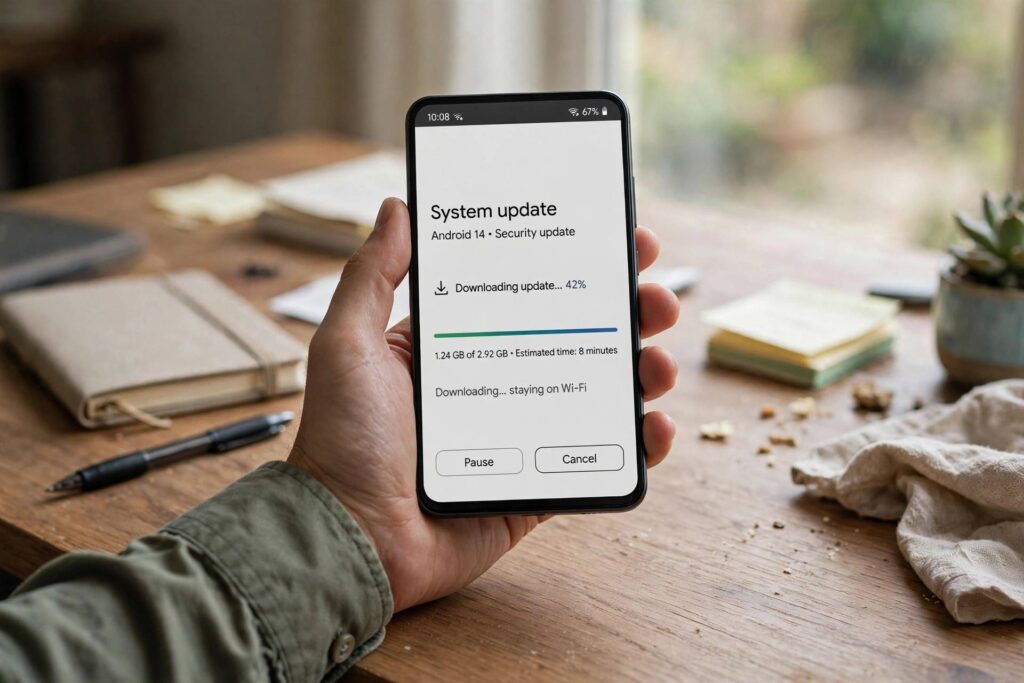
That little “System update available” notification has been sitting there for three weeks, hasn’t it? If you’ve been putting it off because updates feel risky or annoying, here’s how to update Android phone software safely — the normal way, the manual check, and what to do when an update refuses to install. I update my own phones the day patches land, and I’ve never lost data doing it. Here’s the routine that keeps it boring in the best way.
First, why bother? Android updates aren’t just new emojis. Monthly security patches close vulnerabilities that malware actually exploits, and major version upgrades bring battery optimizations, privacy controls, and features your apps will eventually require. Running a two-year-old security patch is like leaving your front door unlocked because the lock “still mostly works.”
How to Update Android Phone Software: The Standard Way
- Connect to Wi-Fi and plug in your charger (or make sure you’re above 50% battery).
- Open Settings.
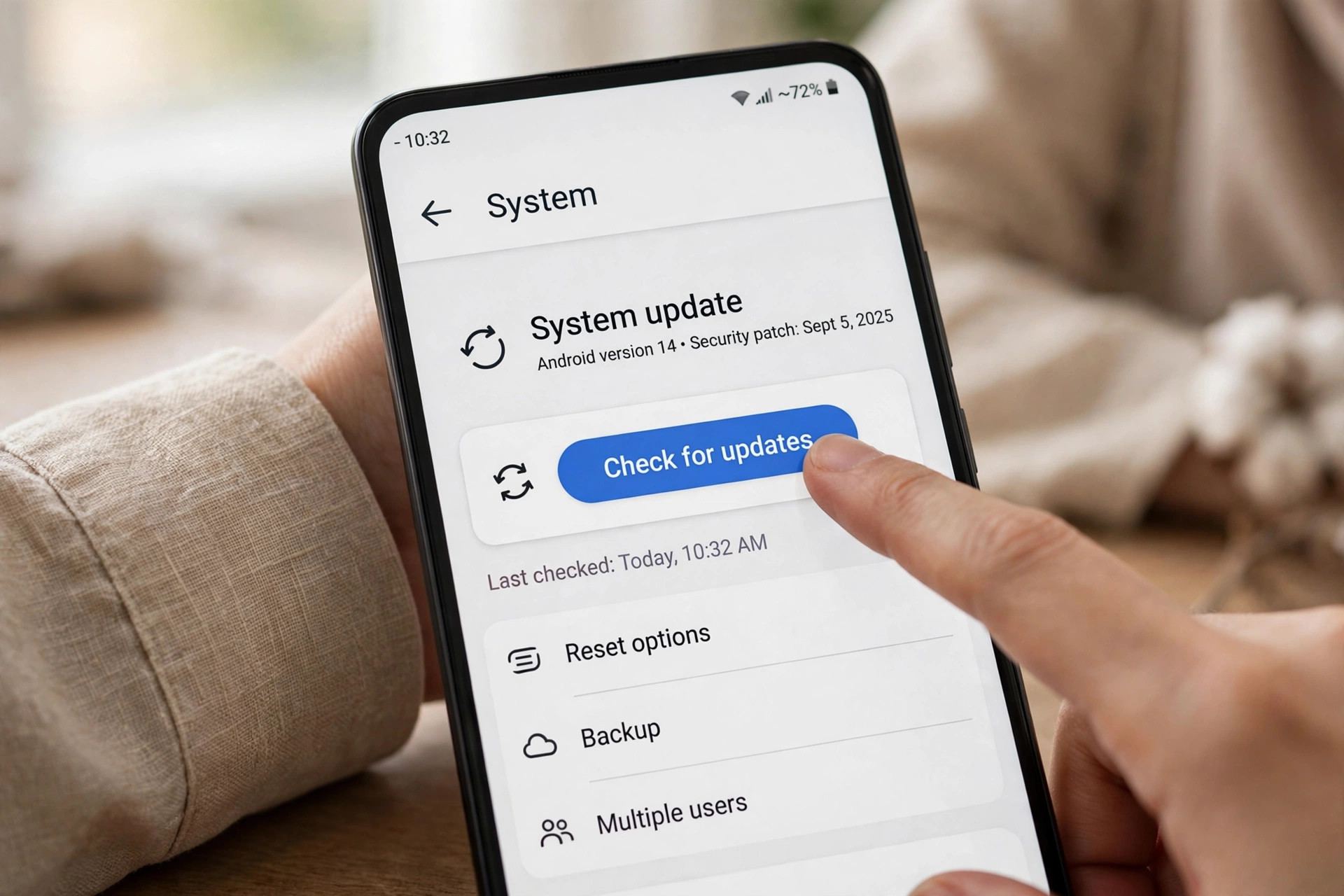
- Scroll down and tap System, then Software update (on Samsung: Settings, then Software update directly).
- Tap Check for update or Download and install.
- If an update is found, tap Download, wait, then tap Install now (or schedule it overnight).
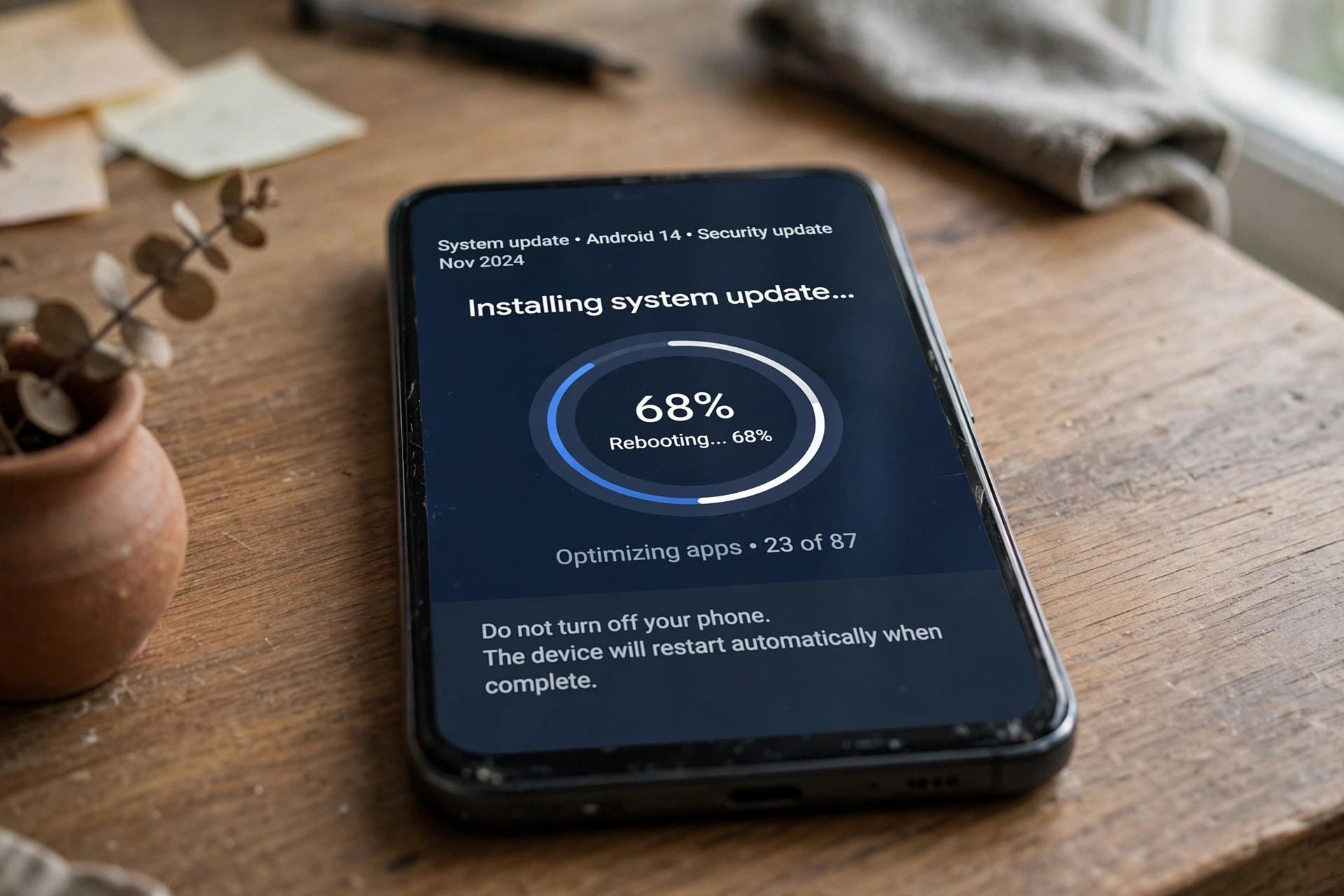
Your phone will restart once or twice. The whole thing typically takes 10–30 minutes depending on the update size. Don’t interrupt it — a phone that loses power mid-install can get stuck, and that’s the one scenario that turns a routine update into a repair-shop visit.
How to Check for Android Updates Manually
Phones don’t always notify you promptly. If you suspect an update is out — a friend got it, or you read about a security patch — force the check yourself with the steps above; tapping “Check for update” queries Google’s or your manufacturer’s servers directly. On Pixel phones, it’s Settings, then System, then Software updates. On Samsung, Settings, then Software update, then Download and install. On Xiaomi, Settings, then About phone, then the MIUI/HyperOS version banner, then Check for updates. Same concept, slightly different furniture in each house.
Before You Update: The 5-Minute Prep
Updates are safe, but “safe” and “skip the prep” aren’t the same thing. Do this first:
- Back up. Go to Settings, then System, then Backup (or your manufacturer’s cloud backup) and confirm a recent backup exists. Updates rarely eat data, but “rarely” isn’t “never.” back up your phone first
- Free up space. Major updates need several gigabytes free to download and unpack. If storage is tight, clearing app caches or remove apps you don’t use. deleting apps you don’t use
- Use Wi-Fi. A major OS upgrade can be 2 GB or more. Don’t burn your mobile data plan on it.
- Charge up. Most phones won’t even start installing below a battery threshold. Plug in and avoid the interruption risk entirely.
- Note your storage PIN. You’ll need your PIN or password after the restart — not your fingerprint. If you’ve forgotten it, sort that out before updating.
What to Do When Your Android Won’t Update
Stuck on “Checking for updates” forever, or an install that keeps failing? Work through these:
- Not enough storage is the number-one cause. Free up at least 5–6 GB and try again.
- Clear the update service cache: on some phones, going to Settings, then Apps, showing system apps, and clearing cache for “Software update” or “Google Play Services” unsticks a frozen check.
- Weak connection: switch to a stable Wi-Fi network. Updates verify cryptographic signatures as they download, and a flaky connection fails verification.
- Your phone reached end-of-life: if no updates appear for a year despite new Android versions existing, your model may no longer be supported. Budget phones often get 2–3 years; flagships now get up to 7. Check your manufacturer’s update policy for your model.
- Carrier delays: carrier-branded phones sometimes get updates weeks after unlocked models. Annoying, but normal.
Automatic Updates: Set It and Forget It
Most Android phones can install updates overnight on their own. On Samsung: Settings, then Software update, then turn on “Auto download over Wi-Fi.” On Pixel: Settings, then System, then Software updates, and the phone handles the rest when idle and charging. I recommend leaving this on — the people who get hit by known vulnerabilities are overwhelmingly the people who postponed the patch. The phone does the work while you sleep; all you do is enter your PIN in the morning.
Major Upgrades vs. Security Patches: What’s the Difference?
You’ll encounter two kinds of updates. Security patches arrive monthly (or quarterly on cheaper phones), are small, install fast, and change nothing visible — install them immediately, no thought required. Major version upgrades (Android 15 to 16, say) are big downloads that change the interface, add features, and occasionally move settings around. These deserve the 5-minute prep above and are worth doing within a week or two of release, after early adopters have surfaced any major bugs. You don’t need to install on day one, but don’t let it slide for six months either.
Should You Install a Major Android Upgrade on Day One?
Security patches: yes, immediately, no debate. Major version upgrades: it’s reasonable to wait a few days. Early releases occasionally ship with bugs — battery drain, a misbehaving Bluetooth stack, an app that hasn’t been updated for the new version yet. Waiting a week lets the first wave of users surface anything serious, and manufacturers often push a quick follow-up fix. That said, don’t turn “a few days” into “six months.” The people running into real problems are the ones three versions behind, not the ones who waited a week. Set a reminder, install it next weekend, and move on.
After the Update: The 10-Minute Checkup
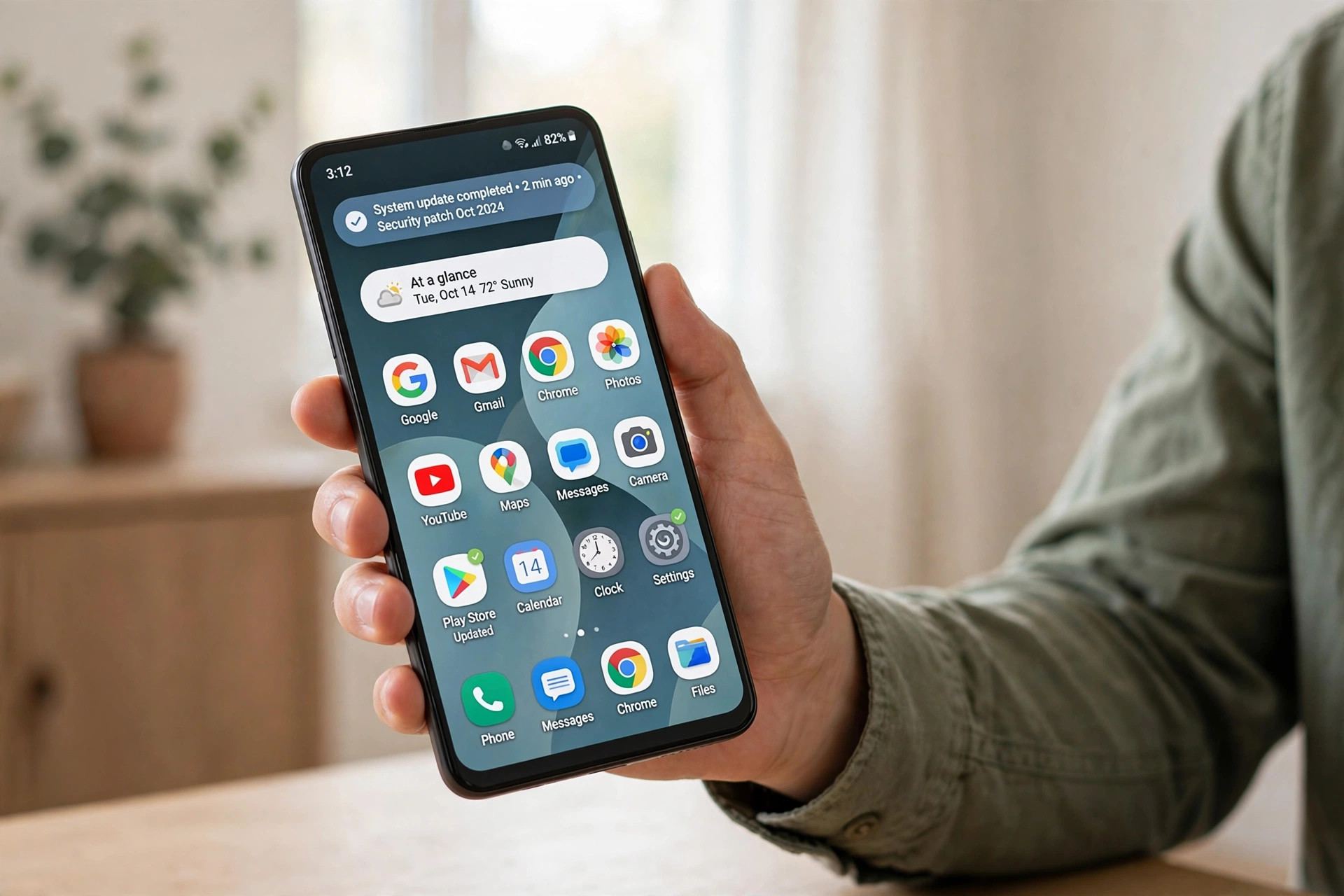
Once the phone restarts and you’re back in, don’t just put it down. A quick checkup catches the small things updates sometimes disturb:
- Re-check battery usage: for the first day or two after a major upgrade, the phone re-indexes and optimizes apps in the background, which temporarily increases drain. Give it 48 hours before judging battery life. If drain persists beyond that, check which app is misbehaving in the battery usage screen.
- Update your apps: open the Play Store and update everything. Apps built for the old OS version can act strangely until their developers push compatibility updates — most do within days of a major release.
- Review new privacy settings: major upgrades often add new permission controls or privacy dashboards. Worth a five-minute look — you might find a new toggle you actually want.
- Test the essentials: make a call, send a text, connect to your car’s Bluetooth, try mobile data and Wi-Fi. Catching a broken Bluetooth pairing on day one beats discovering it on your morning commute.
- Clear out the old: major updates are a good moment for hygiene — delete the apps you haven’t opened in months. A fresh OS on a cluttered phone is a missed opportunity.
Updating Apps vs. Updating Android: Don’t Confuse Them
People mix these up constantly. System updates (what this guide covers) change the Android operating system itself — security, core features, the interface. App updates change individual apps and come through the Play Store independently, sometimes daily. You can have fully updated apps on an ancient Android version, and a brand-new Android version with stale apps. Both matter: an outdated app with a known vulnerability is just as exploitable as an unpatched OS. Turn on auto-update for apps in the Play Store settings and stop thinking about it — that’s one fewer thing on the list.
How Updates Differ: Samsung vs. Pixel vs. Xiaomi
The update experience isn’t identical across brands, and it’s worth knowing what you signed up for. Pixel phones get updates first — Google releases them, Pixels install them, often the same day, with the longest support windows in Android. Samsung flagships now match Google on support length (up to 7 years on recent models) but arrive weeks later as Samsung adapts each release to One UI; the update itself is polished and the schedule is predictable. Xiaomi/Redmi is more variable: flagships get solid multi-year support, but budget models may see slower rollouts and shorter windows — check the specific model’s policy, not the brand’s headline promise. Motorola and Nothing sit in the middle: clean, near-stock Android with respectable but shorter support. Whatever you own, the mechanics in this guide are the same — only the waiting time and the total years of support change.
Can You Downgrade After a Bad Update?
Occasionally an update genuinely breaks something you depend on. Officially, Android doesn’t support downgrading — there’s no “undo” button. Unofficially, enthusiasts flash older firmware, but that requires unlocking the bootloader, wiping the phone, and accepting real risk; it’s not something I’d recommend to anyone who had to look up how to update in the first place. The practical path: report the bug, check forums for workarounds, and wait for the follow-up patch — manufacturers fix widespread breakage fast because it affects millions. This is also the strongest argument for that one-week delay on major upgrades: let someone else find the landmines.
Frequently Asked Questions
How do I update my Android phone to the latest version?
Go to Settings, then System, then Software update (Samsung: Settings, then Software update), and tap Download and install. Connect to Wi-Fi, keep the battery charged, and let the phone restart to finish. The whole process usually takes 10–30 minutes.
Will updating Android delete my photos and apps?
No — a normal system update preserves all your data, apps, photos, and settings. Data loss during updates is extremely rare, but it’s still smart to confirm a backup exists before major version upgrades, just in case.
Why does my phone say it’s up to date when a new Android version exists?
Either your manufacturer hasn’t released it for your model yet (rollouts happen in waves over weeks), your carrier is delaying it, or your phone has reached its end of software support. Check your manufacturer’s update policy for your specific model to see which applies.
How long do Android phones get updates?
It varies by brand and tier. Recent flagships from Google and Samsung promise up to 7 years of OS and security updates; mid-range phones typically get 3–4 years; budget models often get 2–3. The exact policy for your model is usually on the manufacturer’s website.
Should I install Android updates automatically?
Yes, for most people. Auto-install overnight means you always have the latest security patches without thinking about it. The only reason to do it manually is if you like waiting a few days after a major upgrade to make sure no widespread bugs surface first.
What should I do if an update fails to install?
Free up storage (at least 5–6 GB), connect to stable Wi-Fi, make sure the battery is well charged, and try again. If it repeatedly fails, clearing the cache of the system update service or restarting the phone often resolves it. Persistent failures on an old phone may mean it’s no longer supported.