How to Find Wifi Password on Windows 11 (2 Easy Ways)

New laptop, old Wi-Fi network, and nobody remembers the password — not even the person who set it up. If you need to know how to find wifi password on Windows 11, you’re in luck: Windows stores the passwords of every network you’ve ever joined, and retrieving them takes about a minute. No sketchy “password revealer” downloads needed. I’ve done this for houseguests, new phones, and smart-home gadgets more times than I can count.
There are two scenarios here, and the method differs slightly: finding the password of the network you’re currently connected to (easiest), versus finding a previously saved network you’re not currently on (needs one command). Both are covered below.
How to Find Wifi Password on Windows 11 for the Current Network
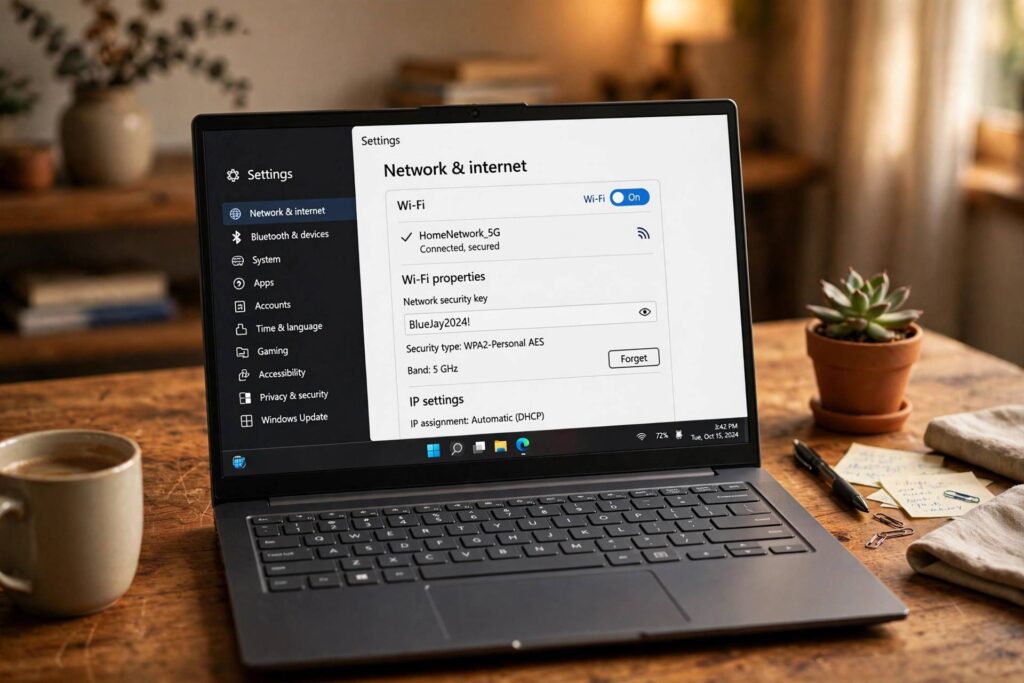
This is the point-and-click method — no commands, no admin rights needed:
- Open Settings (press Windows key + I).
- Go to Network & internet, then Wi-Fi.
- Click your connected network’s name (or the small “i” info icon next to it).
- Scroll to find the network security key field — or, on some builds, go to the Wi-Fi properties page and look for “View Wi-Fi security key.”
- Click View (or Show characters). Windows may ask you to confirm with your PIN or fingerprint.
- The password appears in plain text. Write it down or copy it.
On some Windows 11 builds, the path is slightly different: Settings, then Network & internet, then Advanced network settings, then More network adapter options, right-click your Wi-Fi adapter, choose Status, then Wireless Properties, then the Security tab, and tick Show characters. Both paths lead to the same reveal checkbox — Microsoft just keeps rearranging the furniture.
Find a Saved Wi-Fi Password for Any Previous Network
Need the password for a network you’re not currently connected to — say, your parents’ Wi-Fi from last Christmas? The Settings GUI only shows the current network, so this needs the Command Prompt:
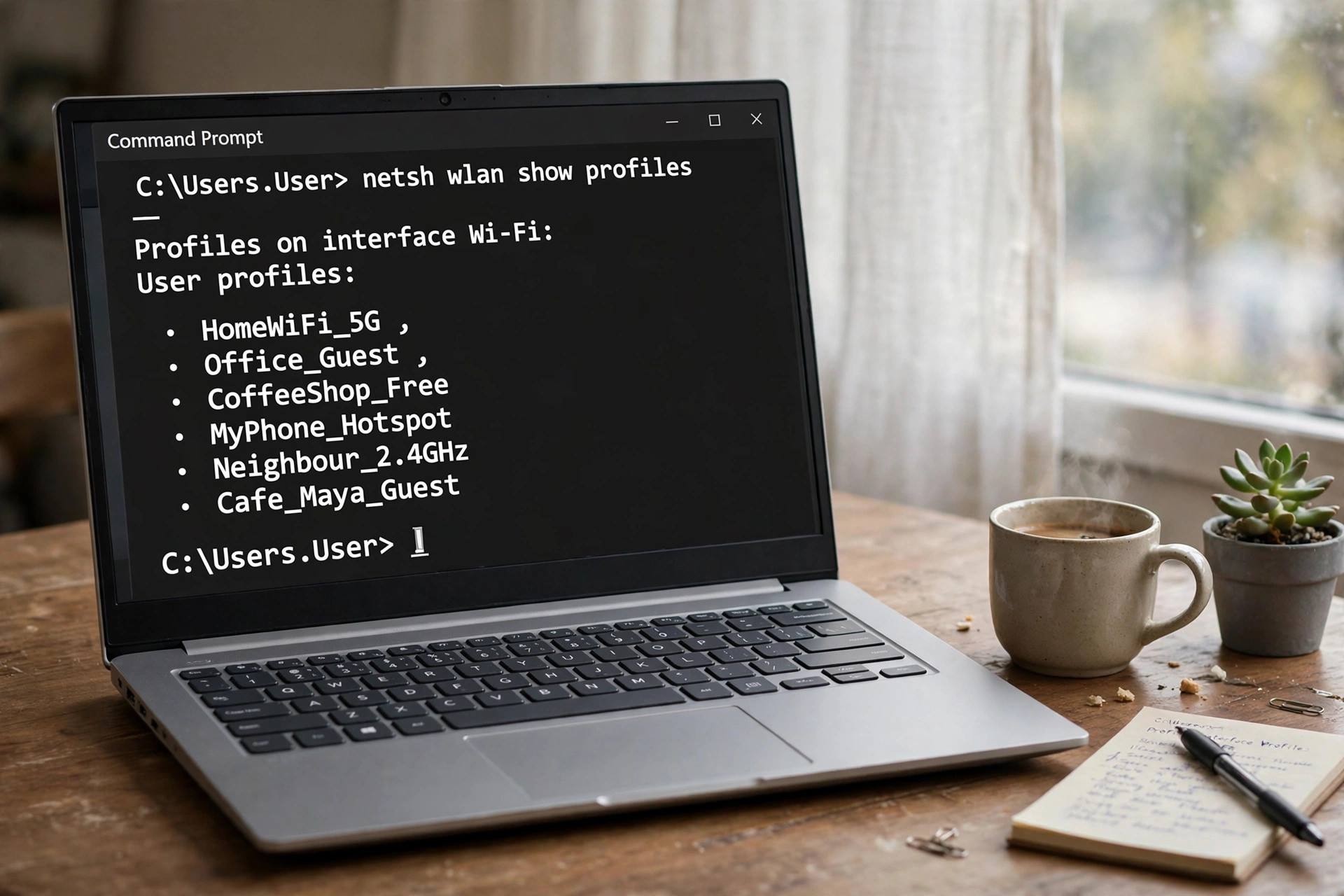
- Press Windows key, type cmd, right-click Command Prompt, and choose Run as administrator.
- Type this command and press Enter:
netsh wlan show profiles
This lists every Wi-Fi network your PC has ever saved. - Find the network name you want, then type:
netsh wlan show profile name="NETWORK-NAME" key=clear
(Replace NETWORK-NAME with the exact name, keeping the quotes.) - Scroll through the output to Security settings — the password is next to Key Content.
That’s it. The key=clear part is what tells Windows to display the stored key in readable form instead of hiding it. This works for any saved profile, going back years, as long as the profile hasn’t been deleted.
Finding the Wi-Fi Password on the Router Itself
Sometimes the fastest path isn’t Windows at all. If you have physical access to the router:
- Check the sticker. Most ISP-provided routers have the default Wi-Fi name and password printed on a label underneath or on the back. If nobody ever changed it, you’re done.
- Log into the router admin page. From a connected device, open a browser and go to the router’s address (commonly 192.168.1.1 or 192.168.0.1 — it’s often on that same sticker). Log in with the admin credentials, find the Wireless or Wi-Fi settings section, and the password is displayed there. You can also change it to something memorable while you’re in.
The router method also works when no Windows PC has the password saved — it’s the source of truth. If your router mentions a standard you don’t recognize, here’s what Wi-Fi 6E means — and how Wi-Fi works is worth a read if you’re troubleshooting connection issues beyond just the password.
Sharing Wi-Fi Without Revealing the Password
Sometimes you want to get a guest online without handing over the actual password (an Airbnb situation, say). Options:
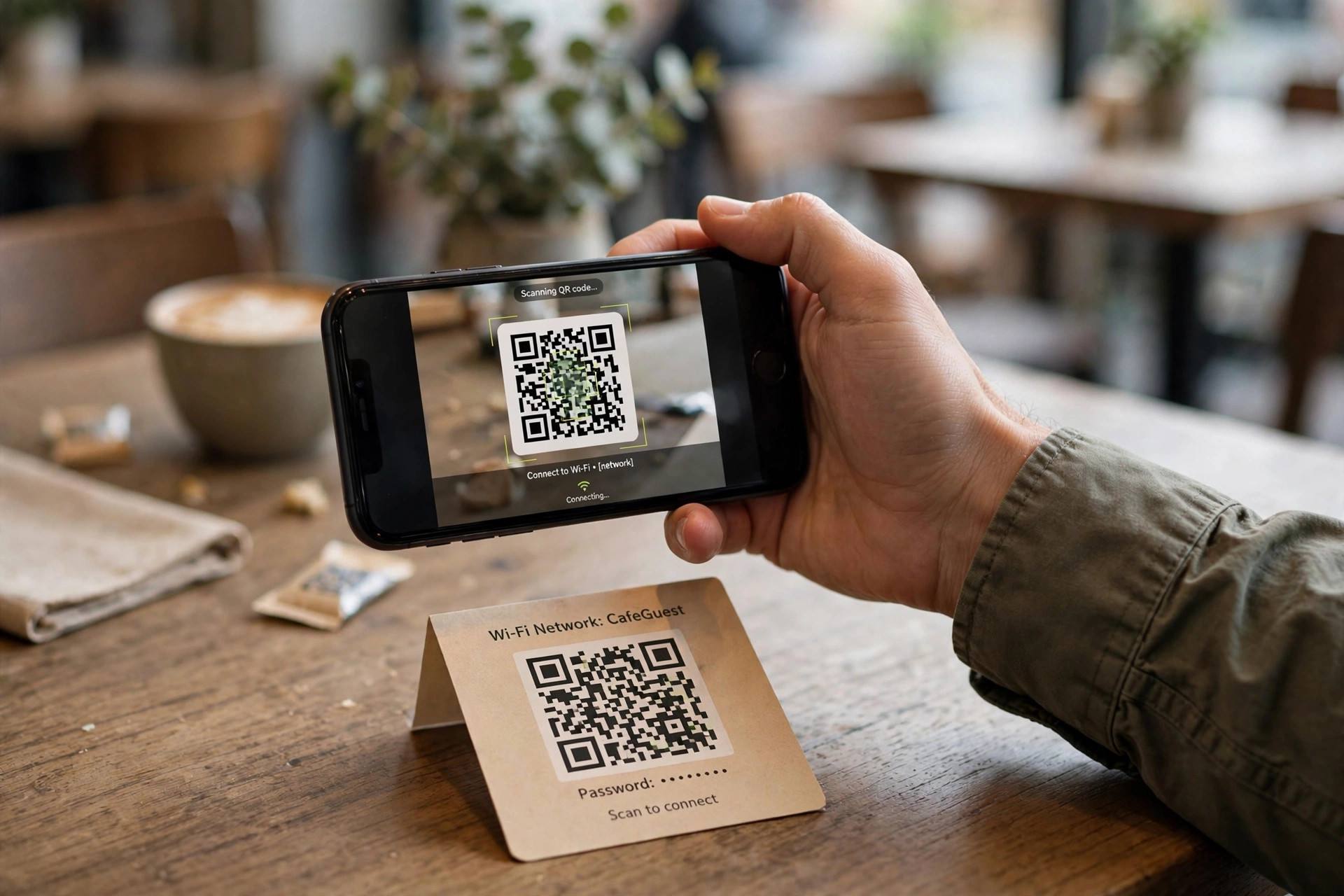
- QR code: several free generator sites create a Wi-Fi QR code from your network name and password — guests scan it with their phone camera and connect instantly, no typing, no seeing the password. Many routers can generate these from their admin page too.
- Windows mobile hotspot: share your PC’s connection as a new hotspot with a password you choose.
- Guest network: most modern routers support a separate guest SSID — set one up with its own password and keep your main network private.
What If the Password Field Is Empty or Doesn’t Work?
- No saved profile: the
netshlist only shows networks this PC actually joined. If it’s not there, nobody saved it on this machine. - Password changed since: Windows stores the password from when you last connected. If someone changed the router password since, the stored one is stale — check the router instead.
- Enterprise networks: office and university Wi-Fi using enterprise authentication doesn’t store a simple shared password — your personal login is the credential, and there’s nothing to reveal.
- “Show characters” greyed out: you may need administrator rights on the PC, or a group policy is blocking it (common on work laptops).
A Note on Whose Password You’re Looking Up
These methods show passwords for networks you have legitimate access to — your home, your office, a network someone shared with you. That’s the intended use: recovering your own credentials. Trying to pull passwords from someone else’s device without permission is a different story entirely. Keep it to your own networks and you’ll never have a problem.
Finding Saved Wi-Fi Passwords on Your Other Devices
Your Windows PC isn’t the only device hoarding Wi-Fi passwords. If the PC method comes up empty, try these:
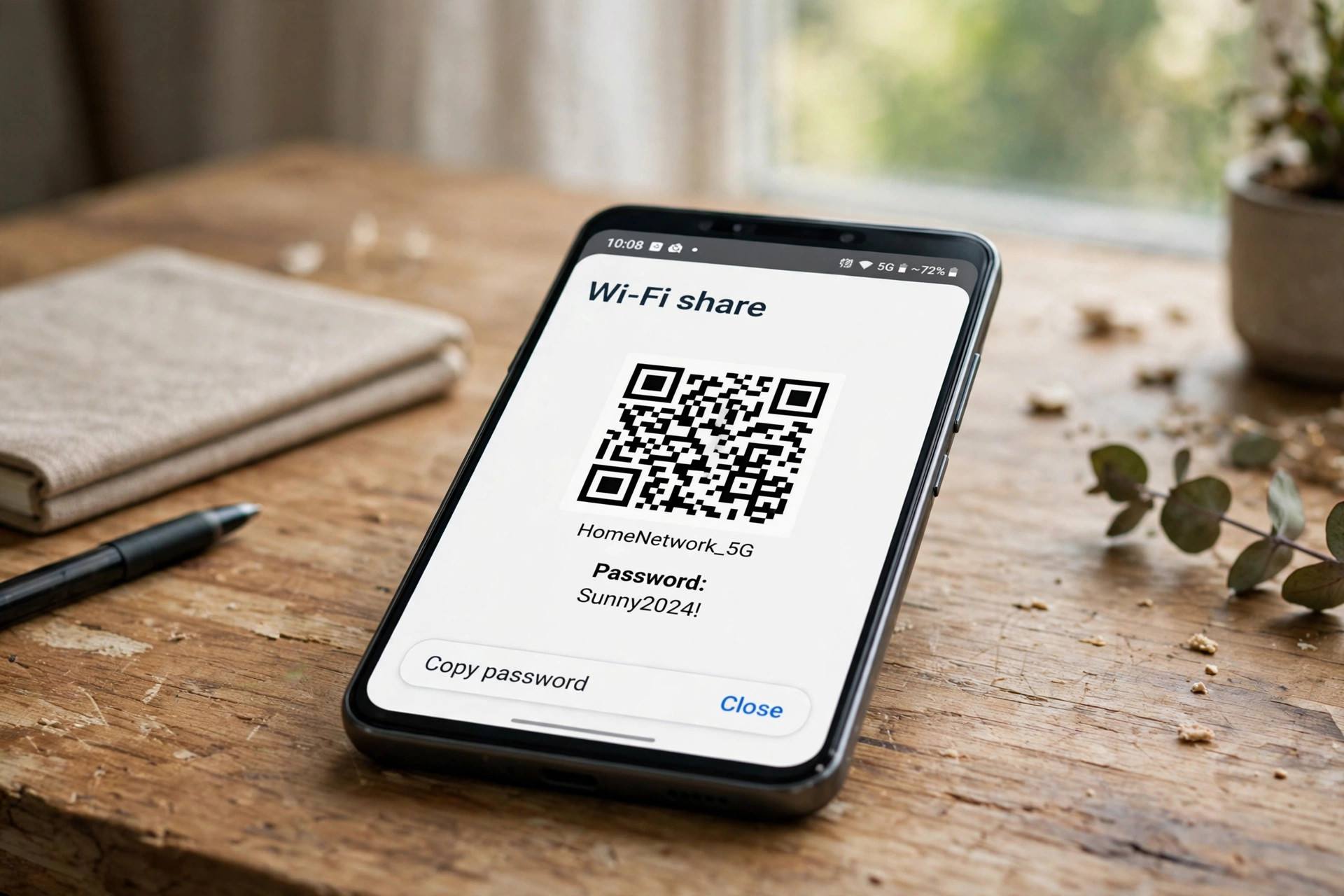
- Android: on Android 10 and later, go to Settings, then Network & internet, then Wi-Fi, tap the connected network, and tap Share — after authentication, a QR code appears, and many phones display the password in plain text underneath it. This is the easiest method of all if your phone is currently on the network.
- iPhone/iPad: on iOS 16 and later, go to Settings, then Wi-Fi, tap the “i” next to the connected network, and tap the Password field — authenticate with Face ID or passcode and it reveals. For previously joined networks, Settings, then Wi-Fi, then Edit (top right) shows the saved list with revealable passwords.
- Mac: open Keychain Access, search for the Wi-Fi network name, double-click it, tick “Show password,” and authenticate. Every network your Mac ever joined is in there.
Between a Windows PC, a phone, and a router sticker, at least one of them almost always has the password. Work through them in that order.
Change It to Something You’ll Actually Remember
Here’s the thing nobody does but everybody should: once you’ve recovered the password, change it to something memorable — if it’s your own router, anyway. Log into the router admin page, head to wireless settings, and set a passphrase you can actually recall: four random words beats a 16-character soup of symbols for both memorability and security. Write the new one down somewhere sensible (a password manager, or honestly, a label on the router itself — physical access to your home is already the keys to the kingdom). Future-you, setting up the next smart TV or guest’s phone, will be grateful. And while you’re in the router settings, check for a firmware update — routers get security patches too, and almost nobody installs them.
Why Windows Sometimes “Forgets” Saved Networks
Occasionally a network vanishes from the saved list and the netsh command shows nothing. Common causes: you clicked “Forget” at some point (the profile is gone for good), a Windows reset or clean install wiped the profiles, or a network settings reset cleared them. Profiles also don’t roam between PCs — each Windows machine keeps its own list, so the laptop that joined the network in 2021 has it while the desktop from 2023 doesn’t. If no device has it saved, the router admin page or the sticker is your last resort before calling whoever set it up.
Wi-Fi Password vs. Router Admin Password: Don’t Confuse Them
Two different passwords live on every router, and mixing them up wastes an afternoon. The Wi-Fi password (network key) is what devices use to join the wireless network — it’s the one this guide helps you recover, and it’s the one on the router sticker. The router admin password is what you type to log into the router’s settings page itself (often “admin”/”admin” by default on older routers, or a unique value on the sticker for newer ones). If the sticker’s Wi-Fi password doesn’t work, someone changed it — you’ll need the admin password to log in and see or reset it. If both were changed and forgotten, the factory reset button (hold 10–30 seconds with a pin) restores everything to the sticker defaults — but it also wipes any custom settings, so it’s the last resort, not the first.
Storing Passwords So You Never Hunt Again
The real fix for this recurring headache is a password manager. Save the Wi-Fi password (and the router admin credentials) in one the first time you recover them, and the next new device takes ten seconds. Most managers sync across phone and PC, so the password is wherever you are. Failing that, the low-tech version works fine: a label on the router with the current Wi-Fi password, updated whenever you change it. Nobody ever regretted writing it down; plenty of people have regretted not doing so at midnight before an early flight.
Frequently Asked Questions
How can I see my Wi-Fi password on Windows 11?
For the current network: Settings, then Network & internet, then Wi-Fi, click your network, and use the “View” option next to the security key (confirm with your PIN). For any previously joined network, run netsh wlan show profile name="NETWORK-NAME" key=clear in an admin Command Prompt and look for “Key Content.”
Can I find the Wi-Fi password without admin rights?
For the currently connected network, yes — the Settings method usually works with a standard user account (you may need to confirm with a PIN). The Command Prompt method for other saved networks requires running as administrator.
Where is the Wi-Fi password stored on Windows 11?
Windows stores network profiles including encrypted passwords in its WLAN configuration. The netsh wlan show profiles command lists them, and adding key=clear decrypts the display for a specific profile.
Why is the “Show characters” option greyed out?
Usually one of three reasons: you’re not an administrator on the PC, a group policy set by your employer or school blocks it, or you’re on an enterprise-authenticated network that has no shared password to show.
How do I share my Wi-Fi password with a guest easily?
Generate a Wi-Fi QR code (many free generators online, or from your router’s admin page) — guests scan it with their phone camera and connect without typing or seeing the password. Alternatively, set up a separate guest network on your router.
Does this work on Windows 10 too?
Yes. The Command Prompt method is identical on Windows 10. The Settings path differs slightly (Network & Internet, then Status, then Network and Sharing Center, then your Wi-Fi name, then Wireless Properties, then the Security tab), but the “Show characters” checkbox works the same way.