How to Turn Off Read Receipts on WhatsApp (30 Seconds)

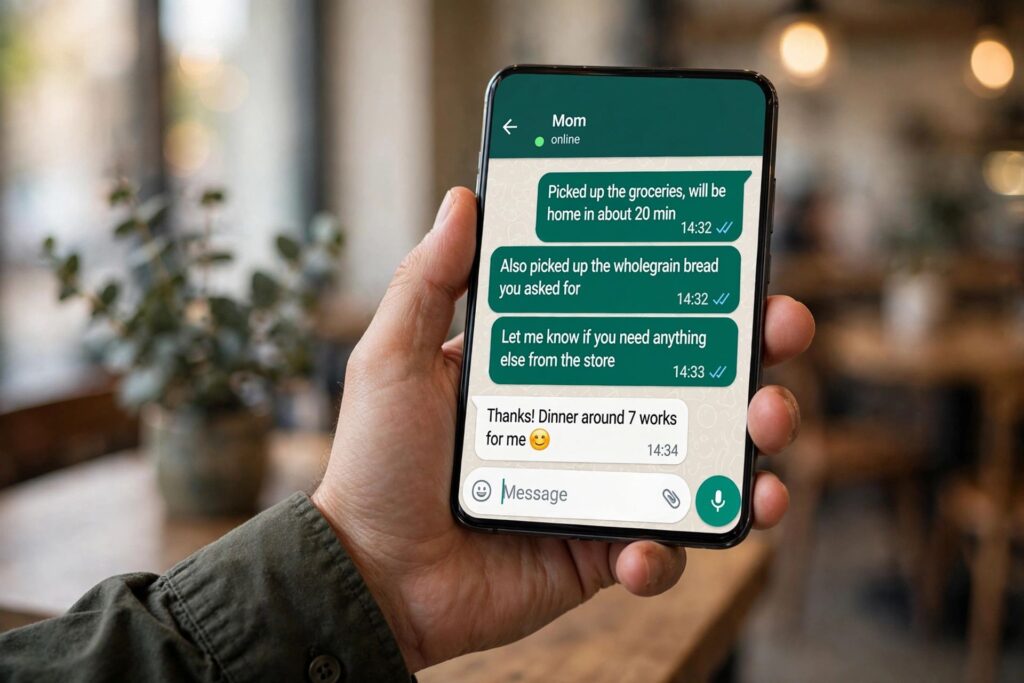
Those little blue ticks have ended friendships. If you’re tired of WhatsApp broadcasting that you’ve read every message, learning how to turn off read receipts on WhatsApp takes about thirty seconds — and it works on both Android and iPhone. I’ve walked several people through this exact setting, usually while they’re venting about message-pressure.
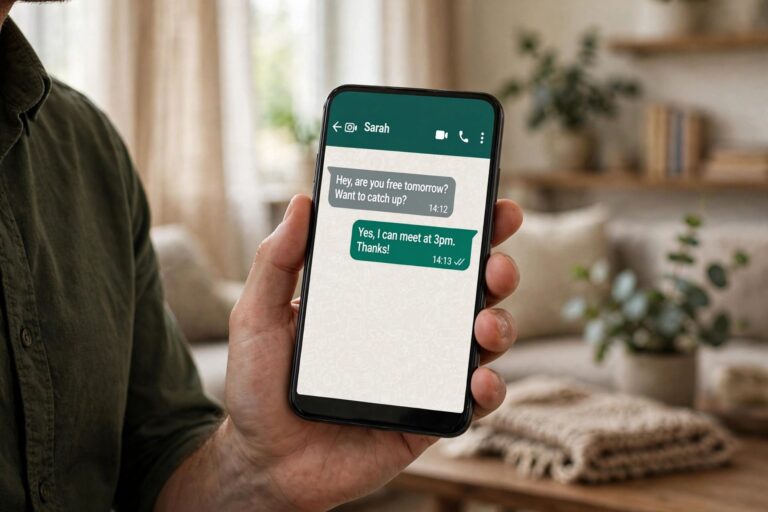
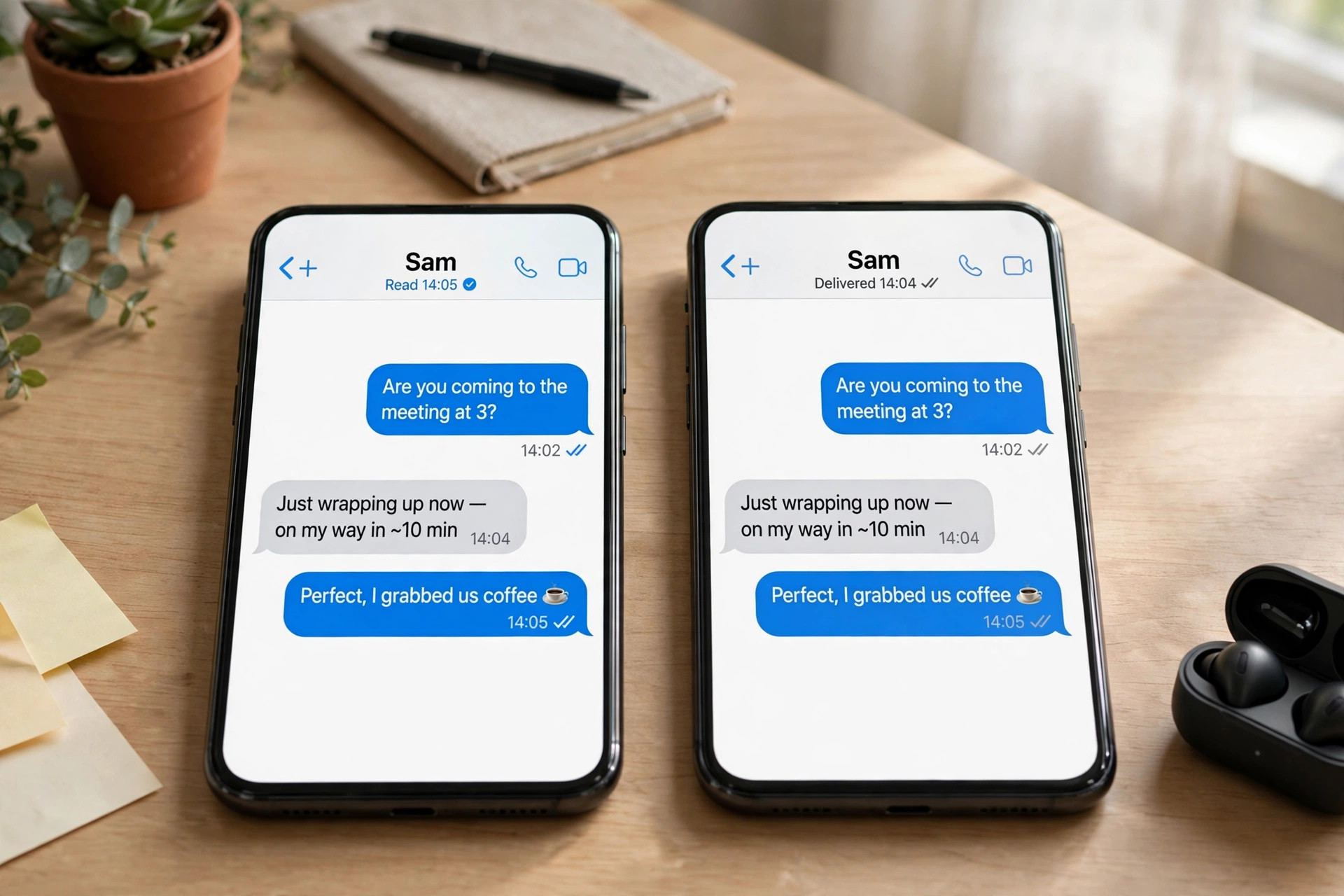
Quick refresher on what the ticks mean: one grey tick is sent, two grey ticks are delivered, two blue ticks mean read. Turning off read receipts stops yours from turning blue — the other person sees grey ticks forever. One catch worth knowing upfront: this also means you won’t see blue ticks on messages you send. It’s mutual. Fair trade, in my opinion.
How to Turn Off Read Receipts on WhatsApp (Android and iPhone)
The steps are nearly identical on both platforms:
- Open WhatsApp and tap Settings (the gear icon on iPhone; the three-dot menu, then Settings, on Android).
- Tap Privacy.
- Find Read Receipts and toggle it off.
That’s it. The change applies immediately to all future messages. There’s no per-chat option — it’s account-wide. If you change your mind later, flip the same toggle back on.
What Turning Off Read Receipts Actually Changes
- Private chats: your ticks stay grey on the sender’s screen even after you’ve read the message. And you stop seeing blue ticks on messages you send — both directions lose the read confirmation.
- Group chats: read receipts still work here. Group chats always show read status regardless of your setting, so there’s no hiding in a group.
- Voice messages: the little microphone icon still turns blue when you’ve listened to a voice note, even with read receipts off. WhatsApp treats voice playback separately.
- Status: with read receipts off, you also can’t see who viewed your status updates. Same mutual trade-off.
Read Receipts vs. Last Seen: Don’t Mix Them Up
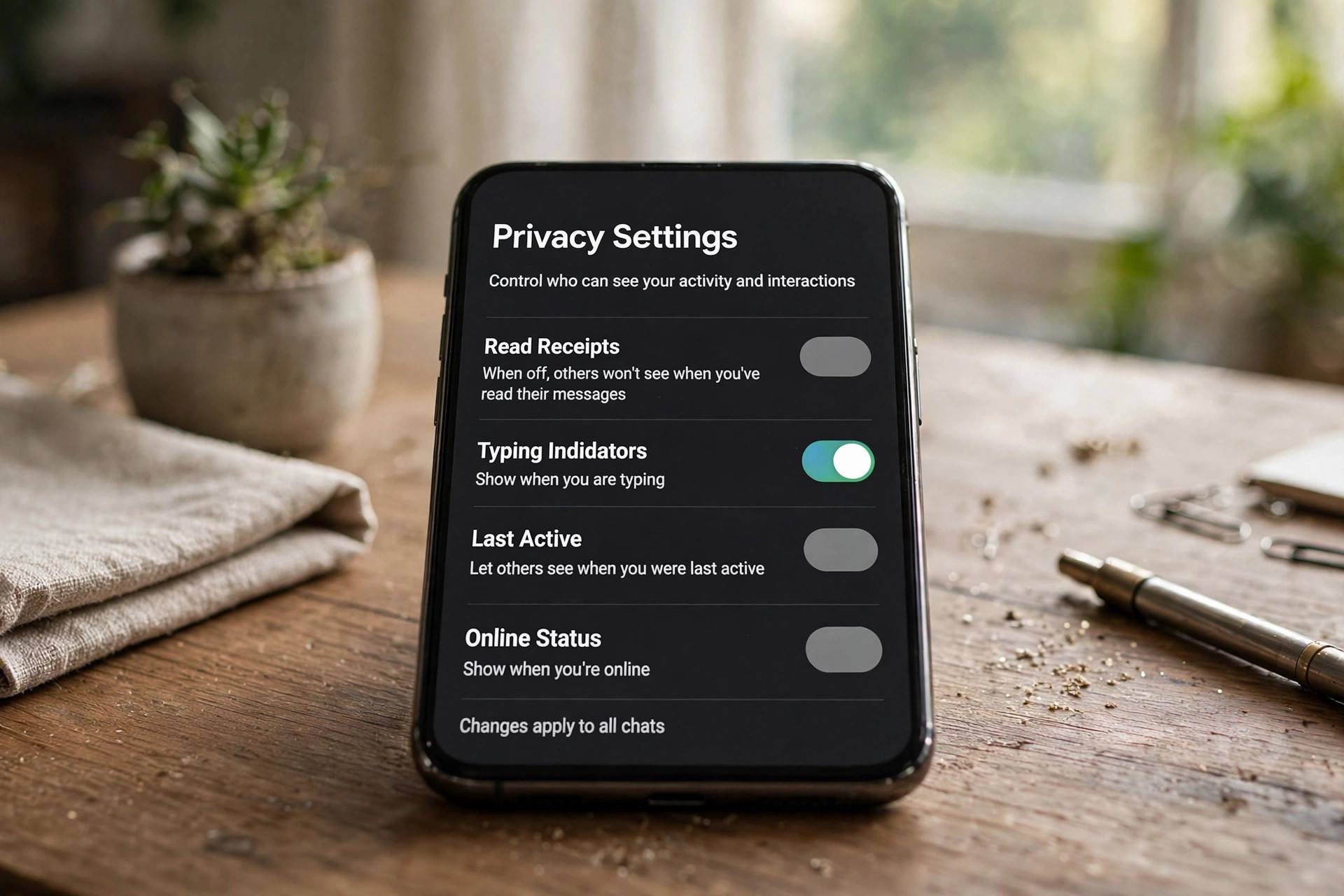
People often confuse these two privacy settings, but they control different things. Read receipts control the blue ticks inside chats. Last Seen controls whether people see when you were last online — a separate toggle under Settings, then Privacy, then Last Seen and Online. hiding your Last Seen on WhatsApp if you want both covered. Turning off one doesn’t affect the other.
Why People Turn Read Receipts Off
In my experience it’s rarely about drama. Most people do it for one of these reasons:
- Reply pressure: blue ticks create an unspoken “reply within the hour” contract. Grey ticks buy breathing room.
- Work boundaries: reading a work message at 9 p.m. shouldn’t obligate an answer.
- Reading without engaging: sometimes you just want to see what was said and respond tomorrow.
- Reciprocity preference: some people simply don’t want the read-tracking game in either direction.
None of this makes you rude — it makes you a person with a phone, not a customer service desk.
Turning Off Read Receipts on Android vs. iPhone: The Exact Taps
The path is almost identical, but the starting point differs slightly, so here are both spelled out:
On Android
- Open WhatsApp.
- Tap the three-dot menu (top right).
- Tap Settings.
- Tap Privacy.
- Toggle Read receipts off.
On iPhone
- Open WhatsApp.
- Tap Settings (gear icon, bottom right).
- Tap Privacy.
- Toggle Read Receipts off.
On WhatsApp Web and the desktop app, the setting syncs from your phone — change it on mobile and it applies everywhere. There’s no separate toggle on desktop.
The Full WhatsApp Privacy Combo Worth Setting Together
Read receipts are one piece of a bigger privacy picture. If you’re locking things down, consider setting these at the same time — they all live under Settings, then Privacy:
- Last Seen and Online: set to “My Contacts” or “Nobody” so strangers can’t track your activity. hiding your Last Seen
- Profile Photo: “My Contacts” keeps your photo out of strangers’ hands.
- About: same — “My Contacts” is the sensible default.
- Status: choose “My contacts except…” to exclude specific people rather than sharing with everyone.
- Groups: set to “My Contacts” to stop strangers adding you to random groups — one of the most underused privacy settings in the app.
- Read receipts: off, per this guide.
- Disappearing messages: consider a default timer for new chats if you prefer conversations that don’t live forever.
Run through that list once and WhatsApp becomes a dramatically calmer, more private place.
Troubleshooting: Blue Ticks Still Showing?
Turned the toggle off but ticks still turn blue? A few explanations:
- Group chats: as mentioned, read receipts always work in groups. There’s no way around this — it’s by design.
- Messages read before you toggled: the setting isn’t retroactive. Messages you read while it was on stay blue.
- Voice notes: the blue microphone is separate from read receipts and still shows when you’ve listened.
- The toggle didn’t save: rare, but reopen the Privacy screen and confirm it’s actually off. On flaky connections the setting occasionally fails to sync.
- You’re looking at your own sent messages: remember, with the setting off you also lose blue ticks on messages you send. If your ticks never turn blue, that’s the setting working, not a bug.
Read Receipts and WhatsApp Business
One nuance for business accounts: if you run a business on WhatsApp, turning off read receipts affects customer conversations the same way — customers won’t see blue ticks from you. Some businesses prefer keeping receipts on as a trust signal (“yes, we saw your message”). There’s no separate business-only toggle; it’s the same account-wide setting. If responsiveness matters to your customers, consider keeping it on for the business number and off for personal — which is a decent argument for running two numbers if you haven’t already.
What It Looks Like From the Other Side
It’s worth understanding the sender’s view, because it shapes how your change lands socially. When someone messages you with read receipts off on your end, their ticks stay grey — permanently. Most people interpret persistent grey ticks as “hasn’t seen it yet,” not “has read it and chosen privacy.” That ambiguity is exactly the point, but be aware it can confuse people used to instant blue-tick feedback. Close friends may ask if your WhatsApp is broken. A one-time “I turned off read receipts, nothing’s wrong with my phone” heads-up to your inner circle prevents a week of “did you get my message?” follow-ups.
Alternatives to Turning Read Receipts Off Entirely
The toggle is all-or-nothing, but a few strategies give you partial benefits if you’re not ready to commit:
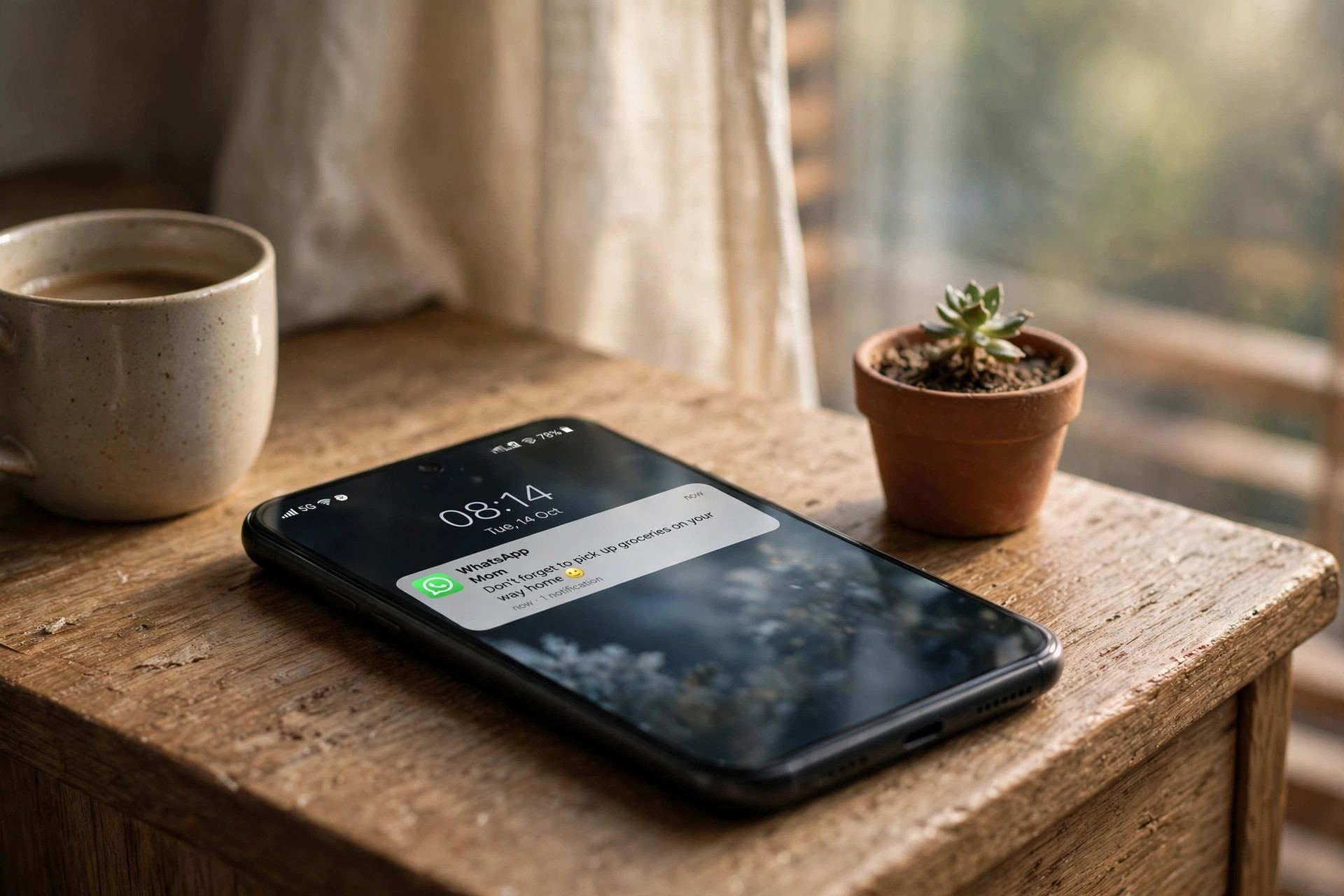
- Read from notifications: on both Android and iPhone, you can read full short messages (and the start of long ones) from the notification shade or lock screen without opening the chat — no blue ticks triggered.
- Airplane mode peek: the old trick still works. Turn on airplane mode, open and read the chat, then close WhatsApp fully before turning airplane mode off. The read never syncs. It’s fiddly, but effective for the occasional sensitive message.
- WhatsApp Web preview: hovering over a chat in the desktop app shows a message preview without marking it read.
- Just reply later: honestly, the simplest approach. Read the message, and if you can’t reply properly now, send a quick “saw this, will reply tonight.” Most reasonable people accept that instantly.
These workarounds are fine occasionally, but if you find yourself airplane-moding daily, that’s your sign to just flip the toggle.
The Etiquette Question: Is Turning Them Off Rude?
Short answer: no. Longer answer: read receipts were a feature WhatsApp added, not a social contract you signed. Plenty of cultures and age groups treat instant replies as optional, and the expectation of immediate blue-tick responses is a recent, app-created anxiety — not a timeless courtesy. That said, context matters: if you’re coordinating time-sensitive plans or someone’s worried about you, a quick acknowledgment is kind regardless of your settings. Privacy tools manage the default; thoughtfulness manages the exceptions.
Read Receipts in Broadcast Lists and Channels
Two more corners of WhatsApp worth knowing about. Broadcast lists behave like private chats: with read receipts off, recipients’ ticks stay grey for you and yours stay grey for them. Channels are different — they’re one-way broadcasts where read receipts don’t apply at all; channel admins see follower counts and emoji reactions, not per-person read status. So if you follow a lot of channels, your reading habits there were never tracked by ticks in the first place. The privacy toggle only governs person-to-person (and small group-adjacent) messaging.
Does Turning Off Read Receipts Save Battery or Data?
No, not in any measurable way. Read receipts are a few bytes of signaling data — toggling them changes nothing about battery drain or data usage. If WhatsApp is heavy on your battery, the causes are the usual suspects: background refresh, constant notifications waking the screen, and long voice/video calls. Privacy settings are about peace of mind, not performance. Don’t let anyone sell you a “battery saver” app on the promise of managing read receipts.
Frequently Asked Questions
How do I turn off read receipts on WhatsApp?
Open WhatsApp, go to Settings, then Privacy, and toggle off “Read Receipts.” It works the same on Android and iPhone, takes effect immediately, and applies to all your private chats.
If I turn off read receipts, can I still see when others read my messages?
No — it’s a two-way street. With read receipts off, you also lose blue ticks on messages you send. Group chats are the exception: read status always shows there.
Do read receipts affect group chats?
Your read-receipt setting doesn’t apply to group chats. Group messages always show read status (you can long-press a message and check “Info” to see who read it), no matter what your privacy toggle says.
Can someone tell if I’ve read their message with read receipts off?
Not through the ticks — they’ll stay grey. But be aware of indirect tells: your “online” status while reading, a reply that references the message, or the blue microphone on a voice note you listened to. It’s privacy from the tick system, not invisibility.
Does turning off read receipts hide my online status?
No, that’s a separate setting. Read receipts control blue ticks; “Last Seen and Online” under Privacy controls your online visibility. You need to adjust each one independently.
Will the other person know I turned off read receipts?
WhatsApp doesn’t notify anyone. They might notice your ticks never turn blue anymore, but there’s no alert or indicator — it just quietly stops confirming reads.