How to Free Up Storage on iPhone Without Deleting Photos

Nothing kills a moment faster than the “Storage Almost Full” popup appearing right as you try to take a photo. I have been there, frantically deleting apps in a parking lot, and I can tell you there is a better way. Learning how to free up storage on iPhone without deleting photos is mostly about understanding where your gigabytes are actually hiding — and it is almost never your photos.
The trick is iCloud’s Optimize Storage plus a systematic attack on the real space hogs: offloaded apps, message attachments, downloaded media, and cached data. Work through these steps in order and most people recover several gigabytes without losing a single photo or message.
Step 1: See Exactly What’s Eating Your Storage
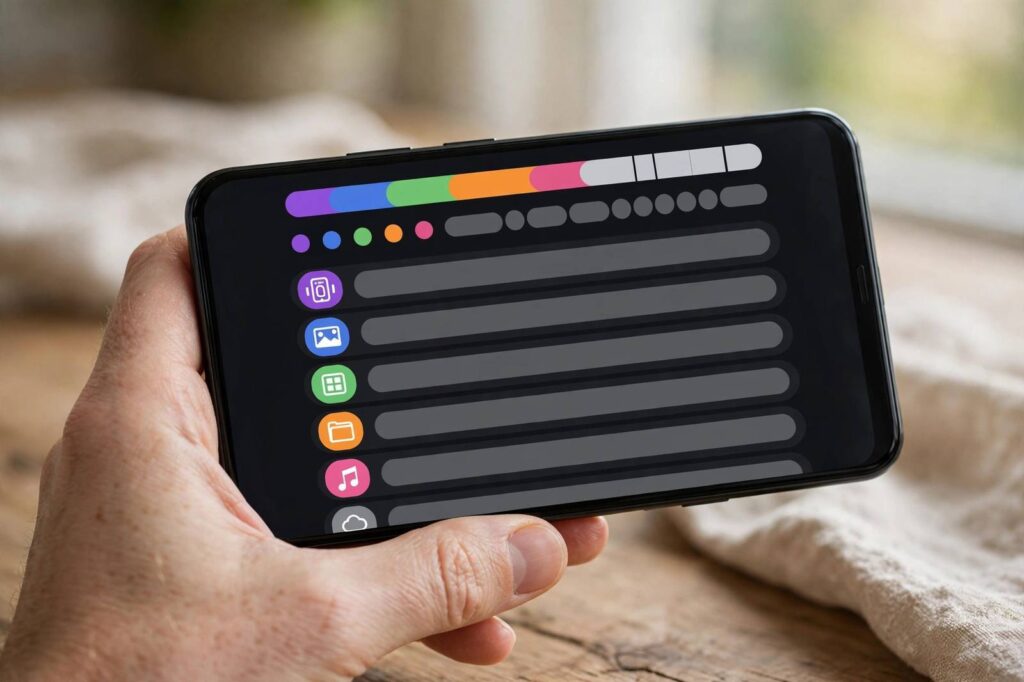
Before deleting anything, get the facts. Go to Settings > General > iPhone Storage. Wait a few seconds for the bar chart and the app list to fully load — iOS calculates this on demand, and the numbers shift as it finishes.
What you will typically see: Photos near the top, followed by Messages, then a handful of apps with outsized “Documents & Data.” Tap any app to see the split between the app itself and its stored data. This screen is your battle map — do not skip it, because most people guess wrong about what is actually full.
Step 2: Turn On Optimize iPhone Storage
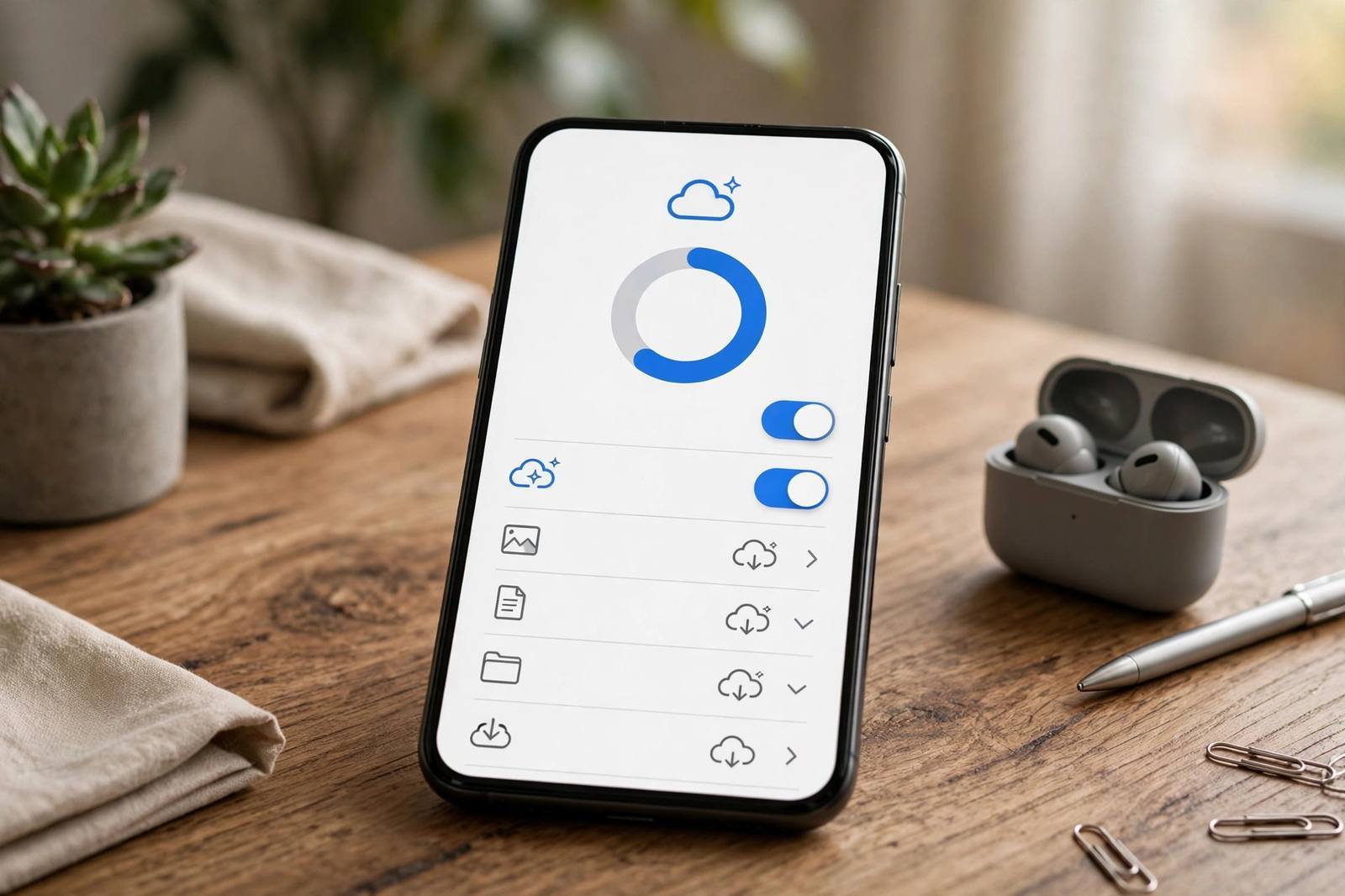
This is the single highest-impact setting and the heart of freeing space without losing photos. Go to Settings > [your name] > iCloud > Photos and make sure iCloud Photos is on, then select “Optimize iPhone Storage.”
Here is what it does: full-resolution photos and videos upload to iCloud, and your iPhone keeps lightweight previews that take up a fraction of the space. When you open a photo, the full version downloads on demand. Your entire library stays intact and browsable — nothing is deleted. On a phone with a large photo library, this alone commonly frees multiple gigabytes. The tradeoff is that you need enough iCloud storage (Apple includes 5GB free; most people with big libraries use a paid tier) and a decent connection when viewing older full-res originals.
Step 3: Offload Unused Apps (Keep Your Data)
Back on the iPhone Storage screen, you will see a recommendation: “Offload Unused Apps.” Turn it on. Offloading removes the app binary but keeps all your documents and data — when you reinstall, everything is exactly as you left it.
You can also offload manually: tap any app in the list, then “Offload App.” This is perfect for those apps you use twice a year — the airline app, the parking app, the conference app from 2023. The app icon stays on your home screen with a little cloud badge, and one tap reinstalls it. I offload ruthlessly and have never lost anything.
Step 4: Attack Message Attachments
Messages is the silent storage killer. Years of shared photos, videos, GIFs, and memes pile up invisibly. Go to Settings > General > iPhone Storage > Messages. You will see categories: Photos, Videos, GIFs, Stickers, Conversations.
Tap into Top Conversations and review the largest attachments. You can delete individual videos and duplicate memes while keeping the conversation text. Even better: go to Settings > Messages > Keep Messages and change it from Forever to 1 Year — old attachments vanish automatically while recent history stays. This one step has freed more space for people I help than almost anything else.
Step 5: Clear Downloaded Media and Caches
Streaming apps are sneaky hoarders. Check these: in Spotify, Apple Music, or Podcasts, delete downloaded episodes and playlists you have already consumed — streaming them later costs nothing in storage. In Netflix or other video apps, remove downloaded shows. In WhatsApp, go to Settings > Storage and Data > Manage Storage and clear large files per chat.
Safari’s cache is worth a look too: Settings > Safari > Clear History and Website Data. And check the Files app for a bloated Downloads folder. None of these touch your photos, and together they often add up to a gigabyte or more.
Step 6: Review the Big App Data Hogs
Some apps accumulate enormous “Documents & Data” — I have seen single apps holding multiple gigabytes of cached content. For apps where the data is disposable (social media caches, news apps), the fix is delete and reinstall: the app binary comes back fresh and the bloated cache does not. Your login and cloud-synced content survive; only local cache is lost.
Be careful with apps where the data is NOT in the cloud — note-taking apps with local-only notes, authenticator apps, or games with unsynced progress. When in doubt, check the app’s own settings for a cache-clear option first. And this is exactly why having a current backup matters before any storage surgery — see how to back up an iPhone if you are not sure yours is current.
Step 7: The Nuclear Options (Still No Photo Loss)
If you are still tight on space, two more moves. First, review voice memos, GarageBand projects, and old screen recordings — these are large files people forget. Second, check Settings > General > iPhone Storage for the “Review Downloaded Videos” and “Review Large Attachments” recommendations iOS surfaces automatically.
As a last resort, you can temporarily remove an app entirely (not just offload) — deleting apps on iPhone the proper way ensures no orphaned data lingers. Reinstall from the App Store whenever you need it again.
Keep It From Filling Up Again
Maintenance beats emergency cleanup. Leave Offload Unused Apps on permanently. Keep Messages on the 1-year retention setting. Once a quarter, spend five minutes in the iPhone Storage screen clearing downloads and caches. And keep Optimize iPhone Storage on forever — it is the closest thing to a free storage upgrade Apple offers.
How to Free Up Storage on iPhone Without Deleting Photos: iCloud Plans Explained
Since Optimize iPhone Storage depends on iCloud, it is worth understanding the tiers. Apple includes 5GB free with every Apple ID, which covers almost nobody with a real photo library. Paid tiers start at 50GB for a small monthly fee, with larger 200GB and multi-terabyte options above that. For most people, the 200GB tier is the sweet spot — room for a large photo library plus device backups with headroom to grow — and it can be shared with family members through Family Sharing, which often makes it cheaper per person than everyone buying their own.
Before upgrading, check what is actually in your iCloud: Settings > [your name] > iCloud shows the breakdown. Sometimes old device backups from phones you no longer own are squatting on gigabytes — delete those before paying for more space. And remember the relationship between the two storages: iCloud space holds your originals safely, which is what allows your iPhone to keep only the lightweight versions. The monthly fee is effectively a storage upgrade for your phone without buying a new phone.
What NOT to Delete When Freeing Space
In the enthusiasm of a storage purge, some things should be sacred. Do not delete authenticator apps or their data — losing two-factor codes can lock you out of accounts with painful recovery processes. Do not delete health app data or years of activity history to save a few megabytes; it is irreplaceable. Do not remove downloaded maps right before a trip, offline translation packs you rely on, or the phone numbers in your contacts (obvious, but panic-deleting is real).
Also be careful with the “review large attachments” suggestions: that video from three years ago might be the only copy of a memory. Move precious files to iCloud Drive or a computer before deleting them from the phone. The rule I follow: if I would be upset losing it and it exists nowhere else, it gets backed up first, deleted second — never the reverse. Storage pressure makes people sloppy; a two-minute backup habit makes you immune.
What About “System Data” and “Other” Storage?
Many people open the storage screen and find a mysterious gray bar labeled System Data taking up gigabytes. This is iOS’s bucket for caches, logs, Siri voices, fonts, and temporary files. You cannot delete it directly, but you can shrink it. The most reliable method: back up your iPhone to a computer, then restore from that backup. The restore process clears accumulated caches and temporary files that iOS never cleans itself, often recovering several gigabytes of System Data.
Lighter-touch options help too: restart your phone weekly (clears temporary caches), keep iOS updated (updates include cache management improvements), and avoid letting storage sit at absolute zero — iOS needs breathing room to manage its own caches, and a completely full phone actually generates more System Data as the system struggles. If System Data exceeds 15-20GB persistently, the backup-and-restore is worth the hour it takes.
A Final Word: Storage Is Maintenance, Not an Event
The biggest mindset shift is treating iPhone storage like dental hygiene — a little regular attention beats emergency surgery. Once you have done the big cleanup in this guide, the ongoing cost is tiny: leave Offload Unused Apps on, keep Messages at one-year retention, clear downloads monthly, and keep Optimize iPhone Storage enabled permanently. I spend maybe five minutes a month on it, and the “Storage Almost Full” popup has become a distant memory. Your photos stay safe, your apps stay ready, and your phone has room to breathe — which, not coincidentally, also keeps it running faster.
Frequently Asked Questions
Will Optimize iPhone Storage delete my photos?
No. It uploads full-resolution originals to iCloud and keeps lightweight versions on your phone. Every photo remains visible and accessible; nothing is deleted from your library.
What is the difference between offloading and deleting an app?
Offloading removes the app but keeps its data, so reinstalling restores everything. Deleting removes both the app and its local data. Offload when you might need the app’s data again.
Why is my iPhone storage full when iCloud has space?
iPhone storage and iCloud storage are separate. iCloud space does not free up your phone — you need Optimize iPhone Storage turned on for the two to work together on photos.
How much space do message attachments usually take?
It varies enormously, but years of shared videos and photos commonly account for several gigabytes. Reviewing Top Conversations in the Messages storage screen shows your exact numbers.
Is it safe to delete and reinstall apps to clear cache?
Yes for apps whose data lives in the cloud (social media, streaming, news). Avoid it for apps with local-only data like unsynced notes or authenticator apps — check the app’s settings for a built-in cache clear first.