How to Find a Lost iPhone: The Complete Guide


That cold moment when you pat your pocket and your iPhone is not there — I know it well. I once left mine in a taxi in another city and got it back the same evening, entirely because of the steps in this guide. Learning how to find a lost iPhone is really about knowing what Apple built for exactly this moment: the Find My network, Lost Mode, and iCloud.com. Act quickly, follow these steps in order, and your odds are genuinely good.
This guide covers the immediate steps when your phone goes missing, how Find My and the offline network work, what Lost Mode does, how to use iCloud.com from any device, and what to do if the phone is truly gone — including protecting your data and your Apple ID.
First 5 Minutes: Don’t Panic, Do This
Before anything else: call your phone from another device. Half of all “lost” iPhones are in the couch, the car, or the jacket you wore yesterday. If it rings nearby, crisis over.
If it does not ring, borrow a device immediately — a friend’s phone, a tablet, any computer — and go to iCloud.com/find, or open the Find My app on any Apple device signed into your Apple ID. Speed matters because a phone with a dying battery gives you a shrinking window. Do not wait until you get home; start locating now.
Using Find My to Locate It
In Find My (app or iCloud.com), select your missing iPhone from the device list. You will see its location on a map if it is online. Tap it for options: Play Sound (even if the phone is on silent — this is the couch-cushion finder), Directions (walking/driving navigation to its location), and Notifications (alert you when it is found, useful if it is currently offline).
Check the timestamp on the location. “Updated just now” means it is live; an older timestamp means you are seeing its last known position. If the location shows somewhere you have been — a restaurant, a rideshare — call that place right away while heading there.
The Offline Find My Network (Your Secret Weapon)
Here is the feature most people do not know about: modern iPhones can be found even when they are offline, powered down, or have no SIM. Since iPhone 11, Apple devices emit a secure Bluetooth beacon that nearby Apple devices anonymously relay to Apple’s servers. Your phone’s location updates through strangers’ devices without anyone knowing.
This is why Find My sometimes shows a location for a phone that is turned off or in airplane mode. It is also why you should enable “Find My network” in Settings > [your name] > Find My > Find My iPhone before you ever lose your phone — it is on by default on recent iOS, but verify it now, while your phone is in your hand. Also enable “Send Last Location,” which pushes a final location to Apple when the battery is critically low.

Activate Lost Mode Immediately
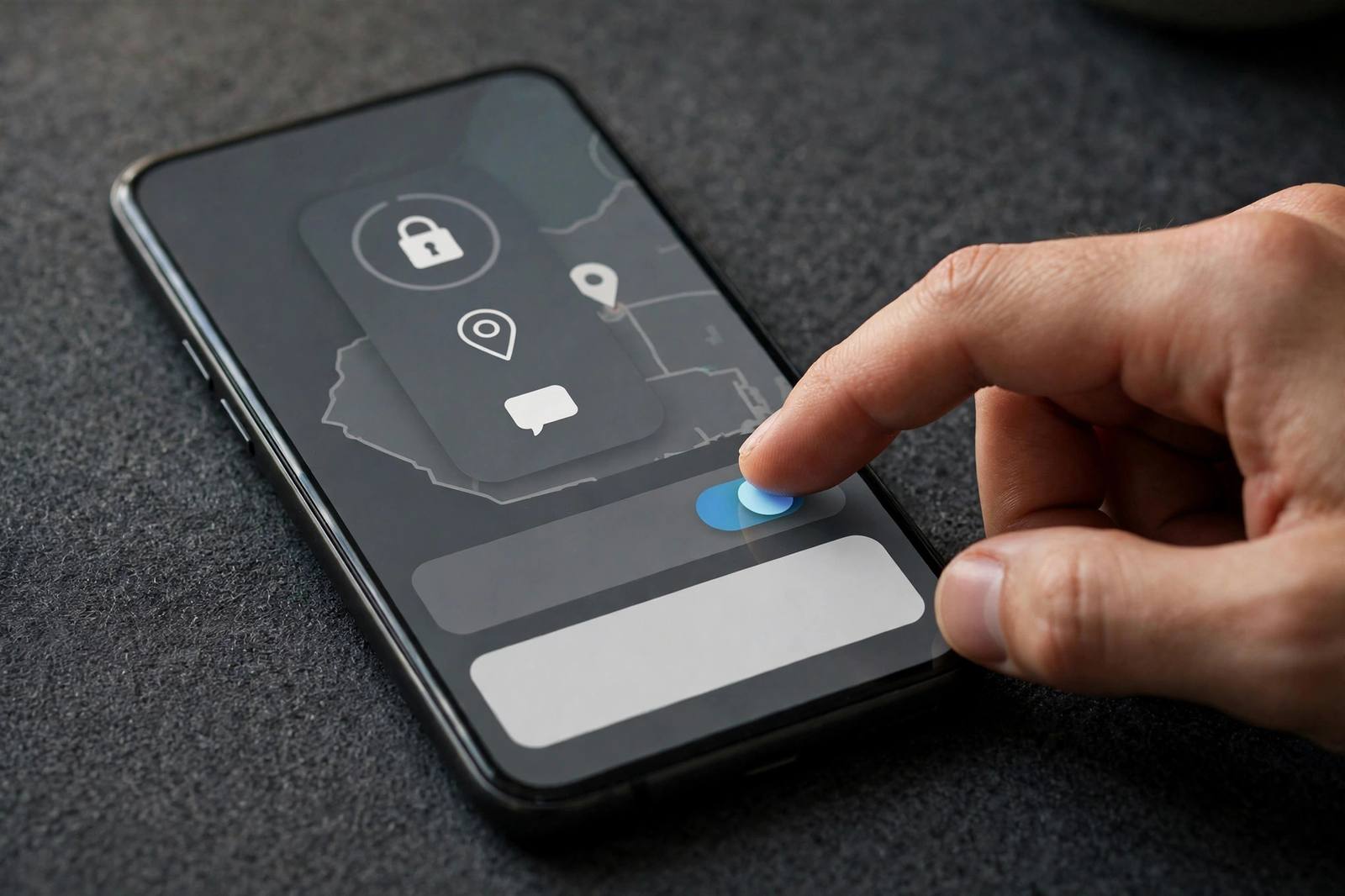
Once you have checked the location, turn on Lost Mode (called “Mark As Lost” in newer iOS). This does several things at once: it locks the phone with your passcode, displays a custom message with a contact number on the lock screen (“This phone is lost, please call…”), suspends Apple Pay so no one can use your cards, and starts tracking location updates.
Lost Mode is the single most important protective step. A locked phone with your contact number on screen is dramatically more likely to be returned than a phone sitting silently. Write the message clearly and offer no judgment — “Lost phone, please call [number], reward offered” works better than anything stern.
If It’s Nearby But Silent: Play Sound + Flash
When the map says the phone is close — your house, your office — use Play Sound. It plays a loud ping even through silent mode and Do Not Disturb. Walk the area slowly and listen. I have found phones inside sofa cushions, under car seats, and once inside a shoe (do not ask) using exactly this method.
If it is dark, the Find My app can also make the phone’s flash blink on newer models. Between sound and light, a nearby phone is very findable even in a messy room.
When It’s Truly Gone: Protect Your Data
If a day passes with no movement on the map and no calls to your contact number, shift to protection mode. First, change your Apple ID password at appleid.apple.com — this locks out iCloud access from the lost device. Second, use your carrier’s tools or call them to suspend the line, which stops calls and texts on your number.
Third, consider Erase iPhone as a last resort. This wipes the device remotely the next time it connects to the internet. Understand the tradeoff: after erasing, you can no longer track its location — but Activation Lock stays on, meaning the phone is useless to a thief without your Apple ID. Your data in iCloud remains safe, which is exactly why keeping a current backup matters — see how to back up an iPhone so a lost phone never means lost memories.
Dealing With Carriers, Police, and Insurance
File a police report if you believe the phone was stolen — you will need the report number for insurance claims, and in some cities police do recover devices. Give them the serial number (find it on your Apple ID account page or the original box) and the last known location.
Contact your carrier about a replacement SIM or eSIM transfer so your number works on a replacement device immediately. If you have AppleCare+ with theft and loss coverage or carrier insurance, start the claim — these usually require the police report and have deductibles, but they are far cheaper than a full-price replacement.
Setting Up the Replacement Right
When the new phone arrives, restore from your iCloud or computer backup during setup and everything — photos, messages, apps, settings — comes back. Then immediately verify Find My, Find My network, and Send Last Location are enabled. Losing a phone is bad; losing a phone twice without learning the lesson is worse. For the full walkthrough, see how to set up a new iPhone.
How to Find a Lost iPhone With a Dead Battery
A dead battery feels like the end of the search, but you still have options. First, check Find My for the last known location — with “Send Last Location” enabled, your phone reported its position when the battery hit critical, and that pin is often exactly where it died. Go there and search physically, using the Play Sound trick on the off chance it has a tiny bit of charge left or someone plugged it in.
Second, turn on “Notify When Found” in Find My. If anyone powers the phone on or charges it — a good Samaritan, a taxi driver, a restaurant’s lost-and-found — you will get an alert with its new location the moment it connects. Third, retrace with fresh eyes: dead phones are usually exactly where you last used them, and “last used” is often thirty minutes earlier than you think. Check the car, the last restaurant table, the gym locker. The location pin plus a systematic physical search recovers more dead-battery phones than any technology.
The 5-Minute Setup That Saves You Next Time
Do this right now, while your phone is in your hand. One: Settings > [your name] > Find My > Find My iPhone — on. Two: Find My network — on. Three: Send Last Location — on. Four: add a trusted contact’s number to your Medical ID or lock-screen message so a finder can reach someone even if they cannot reach you. Five: make sure you know your Apple ID password — write it in your password manager today, because “I forgot my Apple ID password” is the most common reason people cannot use Find My in a crisis.
Bonus steps for the thorough: keep a current backup (automatic iCloud backup covers this), note your serial number somewhere accessible, and if you travel, save your carrier’s international support number. None of this takes more than five minutes total, and it is the difference between a bad hour and a bad week. Future you, patting an empty pocket somewhere, will be very grateful to present you.
What Thieves Actually Do With Stolen iPhones
Understanding the thief’s perspective is reassuring, because Activation Lock ruined the stolen-iPhone business. A locked iPhone cannot be reset and reused without your Apple ID — so thieves typically do one of three things: abandon it quickly once they realize it is locked (this is why Lost Mode messages with a contact number work), sell it for parts (screens and components have value even when the phone is bricked), or ship it overseas where some buyers attempt sophisticated bypasses.
What they cannot do is access your data — your photos, messages, banking apps, and passwords remain encrypted behind your passcode. This is why a strong alphanumeric passcode matters more than most people think: a six-digit code is crackable with effort, while a longer passphrase is effectively not. Your best anti-theft tools are, in order: a strong passcode, Find My with Lost Mode, and a current backup. With those three, a stolen phone is an inconvenience, not a catastrophe.
Frequently Asked Questions
Can I find my iPhone if it’s turned off?
Often yes — iPhone 11 and later emit a Bluetooth beacon picked up by nearby Apple devices through the Find My network, even when powered off. Enable the Find My network and Send Last Location in settings beforehand.
How do I use iCloud.com to find my iPhone?
Go to iCloud.com/find from any browser and sign in with your Apple ID. You will see your devices on a map with options to play a sound, mark as lost, or erase — the same tools as the Find My app.
What does Lost Mode do?
Lost Mode locks the phone with your passcode, shows your custom contact message on the lock screen, suspends Apple Pay, and enables location tracking. It is the key step for both recovery and security.
Should I erase my lost iPhone?
Erase only as a last resort when recovery looks unlikely. It protects your data but disables further location tracking. Activation Lock remains on, so the device stays useless to anyone else.
Can someone use my lost iPhone?
Not easily — your passcode, and Activation Lock tied to your Apple ID, keep the phone locked and unusable even after a factory reset. This is why thieves usually abandon locked iPhones quickly.