How to Cast From iPhone to TV: Every Method Compared

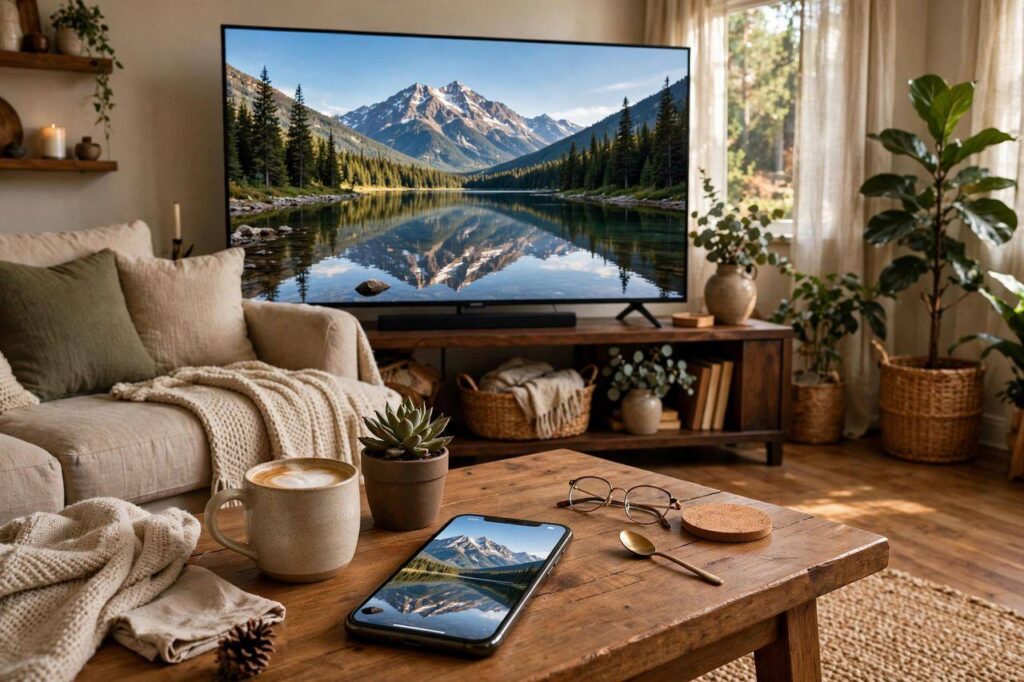
Figuring out how to cast from iPhone to TV should be simple — it’s 2026, after all — but Apple and TV makers have never quite agreed on one standard, so the “right” method depends entirely on what TV you own. I’ve tested all of them hands-on: AirPlay, wired HDMI adapters, Chromecast, and the built-in apps most people forget about. Here’s the honest comparison — what works, what lags, what costs money, and which method fits your specific TV, so you can stop troubleshooting and start watching.
Method 1: AirPlay (Best for Apple TV and AirPlay 2 TVs)
AirPlay is Apple’s wireless standard, and when it works, it’s the smoothest option — low latency, good quality, no dongles. Many modern smart TVs from Samsung, LG, Sony, and Vizio have AirPlay 2 built in, which surprises a lot of owners.
How to use it: connect your iPhone and TV to the same Wi-Fi network. Open Control Center on your iPhone, tap Screen Mirroring, and select your TV. For video apps (YouTube, Netflix, Disney+), look for the AirPlay/cast icon inside the app instead — that streams directly and preserves full quality.
Pros: wireless, free, usually the best quality, supports 4K on newer TVs.
Cons: both devices must share the same Wi-Fi; older or budget TVs may lack AirPlay 2; can stutter on congested networks.
My take: if your TV supports it, start here and don’t look back. Check your TV’s settings or manual for “AirPlay” — you might already have it and not know.
Method 2: HDMI Adapter (Most Reliable, Works With Any TV)
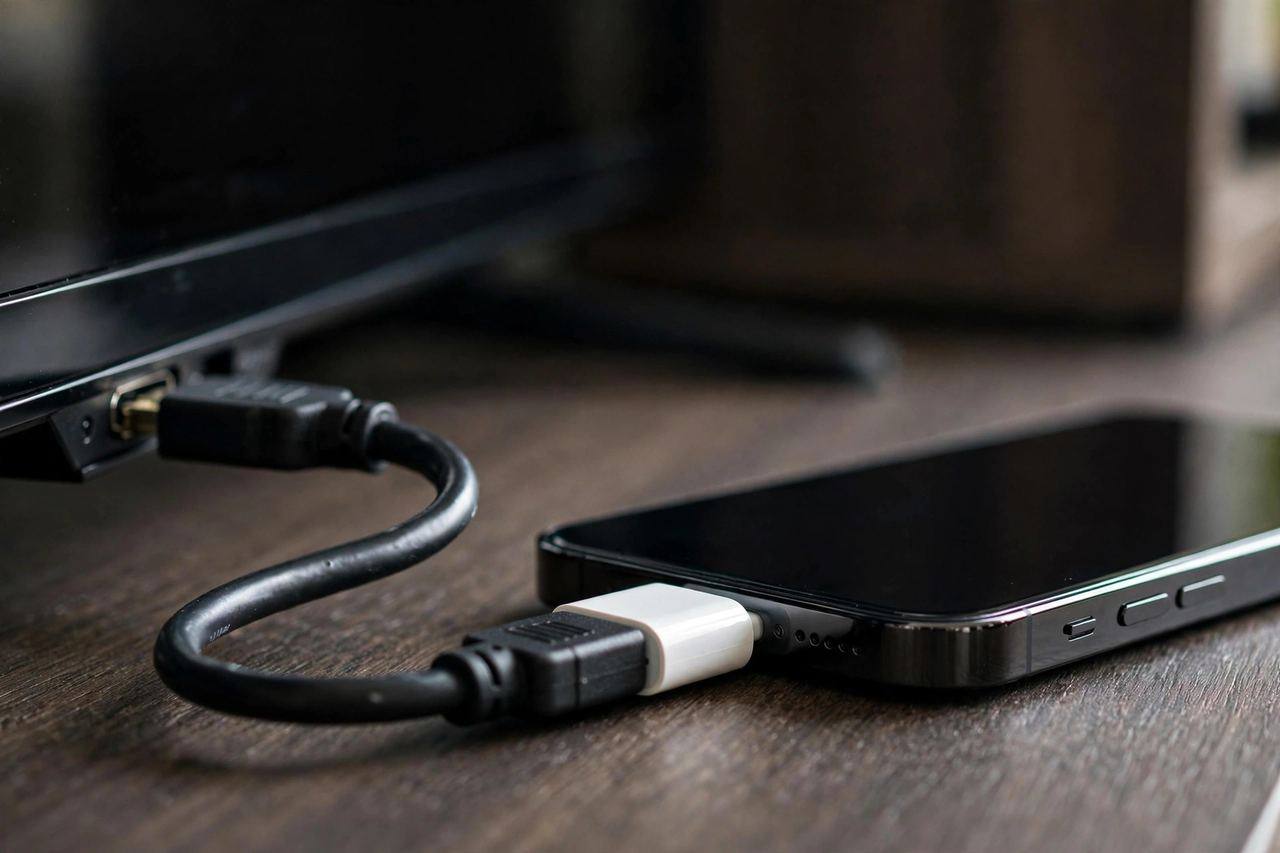
Apple’s Lightning-to-HDMI (or USB-C-to-HDMI for newer iPhones) adapter is the boring, bulletproof option. Plug the adapter into your iPhone, connect an HDMI cable to any TV, and your screen appears — no Wi-Fi, no pairing, no fuss.
Pros: works with literally any TV that has HDMI; zero lag (great for gaming and presentations); no network needed — perfect for hotels and dorms.
Cons: you’re physically tethered; Apple’s official adapter isn’t cheap and quality third-party ones are hit-or-miss; it drains your battery unless you also plug in power (the official adapter has a pass-through charging port — use it).
My take: is it worth the money? If you present, travel, or have an older “dumb” TV — absolutely. It’s the only method that never depends on your Wi-Fi behaving. Buy Apple’s own adapter; the cheap knockoffs have a habit of dying mid-movie.
Method 3: Chromecast / Google TV (Best Budget Wireless)
iPhones don’t natively “cast” to Chromecast the way Android phones do, but most major apps (YouTube, Netflix, Spotify, Disney+) have a built-in cast button that works fine from iPhone. For full screen mirroring, you’ll need a third-party app.
Pros: Chromecast devices are cheap; app-level casting works well from iPhone.
Cons: no system-wide mirroring without extra apps; those apps vary in quality and some have subscriptions; slightly more fiddly than AirPlay.
My take: fine if you already own a Chromecast and mostly watch supported apps. Not worth buying for an iPhone when AirPlay options exist.
Method 4: Built-In TV Apps (The One Everyone Forgets)
Before buying anything: if you just want Netflix, YouTube, or Disney+ on the big screen, your smart TV probably already has those apps. Sign in once on the TV and skip the phone entirely. It’s not “casting,” but it solves the actual problem — watching the thing — with better quality and a proper TV remote.
Which Method for Your TV?
| Your TV | Best method | Why |
|---|---|---|
| Apple TV (any recent model) | AirPlay | Native, seamless, best quality |
| Smart TV with AirPlay 2 (Samsung, LG, Sony, Vizio) | AirPlay | Free, wireless, already built in — check settings |
| Smart TV without AirPlay | Built-in apps, or Chromecast | Use the TV’s own apps first; cast from apps as backup |
| Older/non-smart TV with HDMI | HDMI adapter | Only reliable option; no network needed |
| Hotel / dorm / someone else’s TV | HDMI adapter | Hotel Wi-Fi blocks device-to-device connections |
| For gaming or presentations | HDMI adapter | Zero latency matters more than wireless convenience |
Curious what your TV is actually doing behind the scenes? My explainer on how smart TVs work breaks down the tech inside that screen.
Fixing the Most Common Problems
- TV doesn’t appear in Screen Mirroring: confirm both devices are on the same Wi-Fi network (not one on 5GHz and one on 2.4GHz with client isolation). Restart both. Check the TV’s firmware is updated.
- Video stutters or drops: move closer to the router, or switch the TV to a wired ethernet connection if it has a port — this fixes more AirPlay issues than anything else.
- No sound on the TV: check the TV isn’t muted and the iPhone’s silent switch; with HDMI adapters, unplug and reconnect — the audio handshake sometimes needs a second try.
- Netflix/app won’t cast: some apps restrict casting on certain plans or devices. Try AirPlay screen mirroring as a fallback, or just use the TV’s built-in app.
- Hotel TV won’t cooperate: hotel networks isolate devices from each other, which kills AirPlay and Chromecast. The HDMI adapter is the answer — bring your own.
How to Cast From iPhone to TV Without an Apple TV
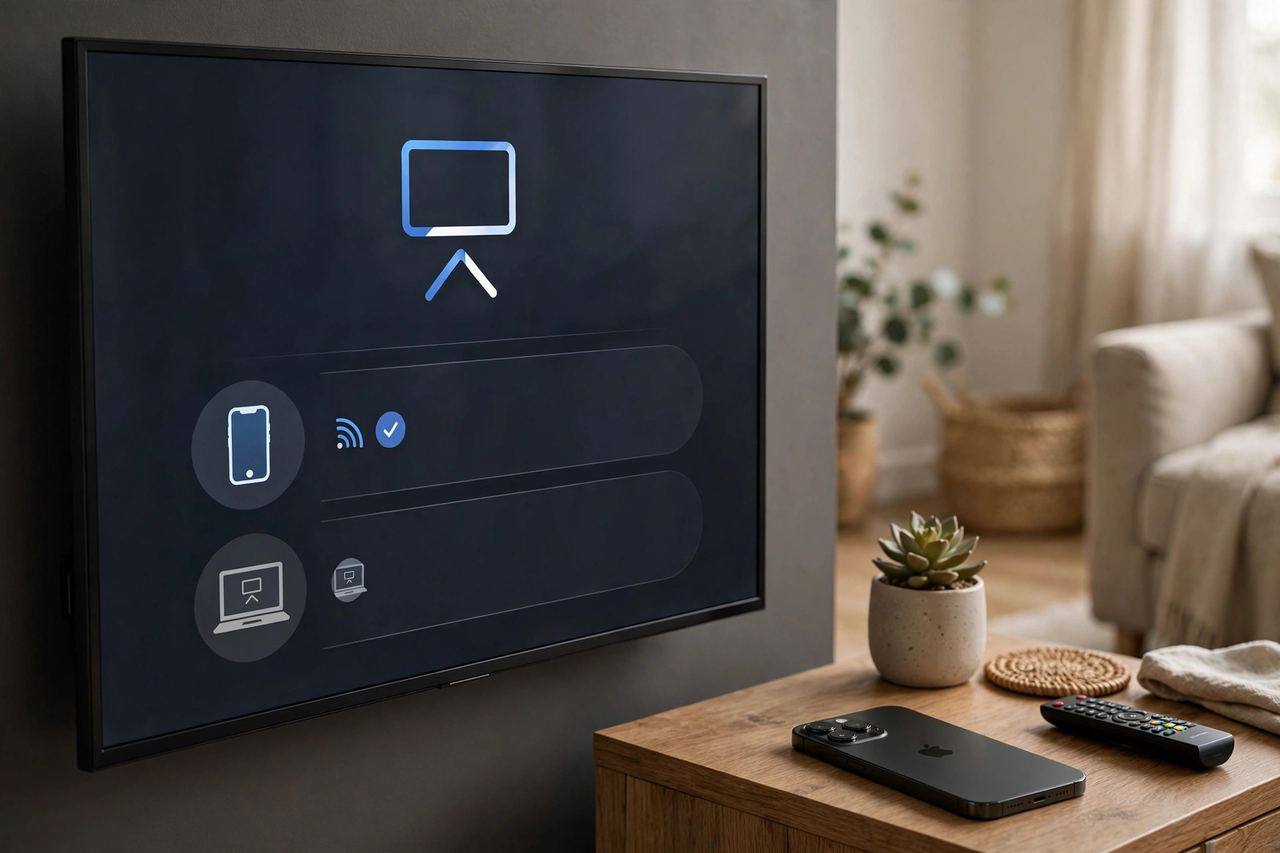
A lot of people assume you need Apple’s $150+ box. You don’t — not anymore. If your goal is getting iPhone content onto a TV without buying an Apple TV, here are your realistic paths: check for built-in AirPlay 2 first (Samsung, LG, Sony, and Vizio have shipped it for years — dig into your TV’s settings under \”General\” or \”Network\” before spending a cent); use a Chromecast or Google TV dongle for app-level casting from YouTube, Netflix, and Spotify; go wired with Apple’s HDMI adapter for the bulletproof option; or just use the TV’s built-in apps and skip the phone entirely.
The only scenario where an actual Apple TV box earns its price: you’re deep in the Apple ecosystem and want the full experience — Fitness+, Apple Arcade on the big screen, HomeKit hub, and the best AirPlay implementation available. For everyone else, it’s a luxury, not a requirement. Don’t let a salesperson tell you otherwise.
Casting Photos, Music, and Presentations
Video gets all the attention, but the other use cases have their own quirks. Photos: AirPlay mirroring is perfect for swiping through vacation photos on the big screen — open Photos, mirror, and hand someone else the phone to drive. Music: don’t mirror for audio; use AirPlay audio output directly (tap the AirPlay icon in the music app or Control Center) — it streams just the audio at higher quality and lets you keep using your phone. Presentations: this is where wired HDMI wins outright. Conference room Wi-Fi is hostile to AirPlay by design; an adapter in your laptop bag has saved more presentations than any wireless standard. Video calls: mirror FaceTime to the TV for group calls — prop the phone near the TV so the camera faces the room, and use a Bluetooth speaker if the TV’s audio lags.
Do You Need to Upgrade Your TV for Better Casting?
Short answer: probably not. If your current TV has AirPlay 2 or built-in apps that cover what you watch, an upgrade buys you nothing for casting specifically. Consider upgrading only if your TV lacks AirPlay and you cast constantly — in which case a $30–50 streaming stick (Roku, Fire Stick, Chromecast) adds AirPlay or casting support for a fraction of a new TV’s price. The honest tech advice: accessories before replacements. A dongle solves the casting problem; a new TV solves problems you may not have. Put the savings toward the HDMI adapter for travel — that’s the purchase you’ll actually use weekly.
Casting and Privacy: What Shows Up on the Big Screen
One caution before you mirror in front of an audience: screen mirroring shows everything. Incoming texts, notification previews, that embarrassing group chat name — all of it, ten feet tall. Before mirroring at a gathering or in a meeting, turn on Do Not Disturb and consider hiding notification previews (Settings → Notifications → Show Previews → Never, temporarily). Also worth knowing: hotel and conference Wi-Fi networks can expose your device to others on the network — another reason the wired HDMI adapter is the travel champion. And if you’ve been casting at a friend’s house, double-check you’ve disconnected before you leave; an iPhone that auto-reconnects to their TV later is a prank nobody ordered.
One more scenario worth covering: casting in a rental car or RV. Most vehicles with rear entertainment screens accept HDMI input — the same iPhone adapter you pack for hotels works here too, turning a long road trip’s back seat into a cinema. Download the content offline first, since highway data is unreliable and expensive.
Frequently Asked Questions
Can I cast from iPhone to TV without Wi-Fi?
Yes — with a wired HDMI adapter. It’s the only method that works with no network at all, which is why it’s the go-to for hotels, classrooms, and presentations.
Why won’t my iPhone find my TV for screen mirroring?
The usual culprits: different Wi-Fi networks, an outdated TV firmware, AirPlay disabled in the TV’s settings, or a router with device isolation turned on. Work through those in order and you’ll solve it 95% of the time.
Does screen mirroring reduce video quality?
Mirroring your whole screen can slightly soften quality versus casting from inside an app (which streams directly). For the sharpest picture in YouTube or Netflix, use the in-app cast/AirPlay button rather than full screen mirroring.
Can I cast from iPhone to a non-smart TV?
Yes, with an HDMI adapter — any TV with an HDMI port works. Alternatively, plug a streaming stick (Apple TV, Chromecast, Fire Stick, Roku) into the TV to make it smart first.
Is AirPlay free?
Completely. It’s built into every iPhone and into many smart TVs at no cost. You only spend money if you need to add it — e.g., buying an Apple TV box for a TV that lacks AirPlay.
What’s the difference between AirPlay and screen mirroring?
Screen mirroring shows your entire iPhone display on the TV. AirPlay is the broader technology — it includes mirroring, but also lets individual apps send just their video or audio while you keep using your phone normally.