How to Use Google Drive for Beginners (2026 Guide)

If you’re wondering how to use Google Drive for beginners, you’re in the right place — and you’re probably overthinking it. Drive is just a folder on the internet where your files live, and once you understand that one idea, everything else clicks. I’ve walked dozens of friends, family members, and new hires through their first hour in Drive, and the questions are always the same: where do my files actually go, how do I share things without breaking them, and what’s the catch with the free storage. Let’s answer all of that, step by step.
What Is Google Drive, Really?
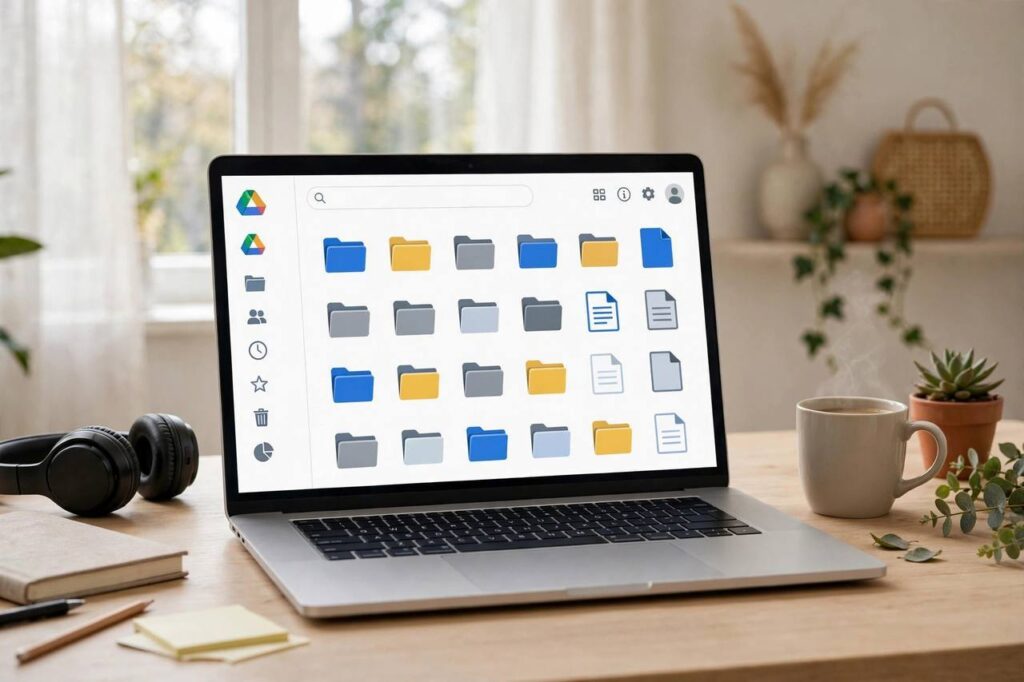
Google Drive is cloud storage: a place to keep files that isn’t your computer. Every file you put in Drive is stored on Google’s servers and synced to your account, which means you can open the same file from your laptop, your phone, or any browser anywhere in the world. Delete your laptop? The files are still there. Spill coffee on your phone? The files are still there.
Every Google account comes with 15 GB of free storage shared across Drive, Gmail, and Google Photos. For most beginners, that’s plenty — 15 GB holds thousands of documents and spreadsheets. If you run out, Google sells more space as Google One plans, but cross that bridge when you get to it.
Drive also includes Google Docs, Sheets, and Slides — free apps that create word documents, spreadsheets, and presentations that live in Drive automatically. You never save manually; every change is saved as you type. This is the part that converts most people permanently.
How to Use Google Drive for Beginners: Getting Started
You probably already have access. If you have a Gmail address, you have Drive — it’s the same account. Open drive.google.com in a browser and sign in, or download the Google Drive app on your phone. There is nothing to install on a computer if you use the browser version; everything happens on the web page.
First, take the tour of the interface. On the left you’ll see: My Drive (your files), Shared with me (files others have shared with you), Recent (everything you’ve touched lately — the most useful view), and Trash (deleted files hang out here for 30 days before they’re gone for good).
The big + New button in the top left is where everything starts: new folders, new documents, file uploads. Get comfortable clicking it.
Uploading Files: Your First Real Task
The easiest way to learn how to use Google Drive is to put something in it. There are two ways:
- Drag and drop: Open drive.google.com, open a folder on your computer, and drag files straight into the browser window. That’s it. The files upload and appear in your Drive.
- The + New button: Click + New, then “File upload” or “Folder upload,” and pick the files. This is better for uploading a whole folder with its structure intact.
Drive accepts almost any file type: PDFs, photos, videos, Word documents, zip files, you name it. When you upload a Microsoft Office file, Drive can preview it in the browser, and you can even convert it to the Google format by opening it with Docs, Sheets, or Slides.
One thing beginners get wrong: uploaded files land in the root of My Drive by default, which becomes a mess fast. Build the habit of creating a folder first, opening it, then uploading into it. Your future self will thank you.
Organizing Files: Folders, Colors, and Starred Items
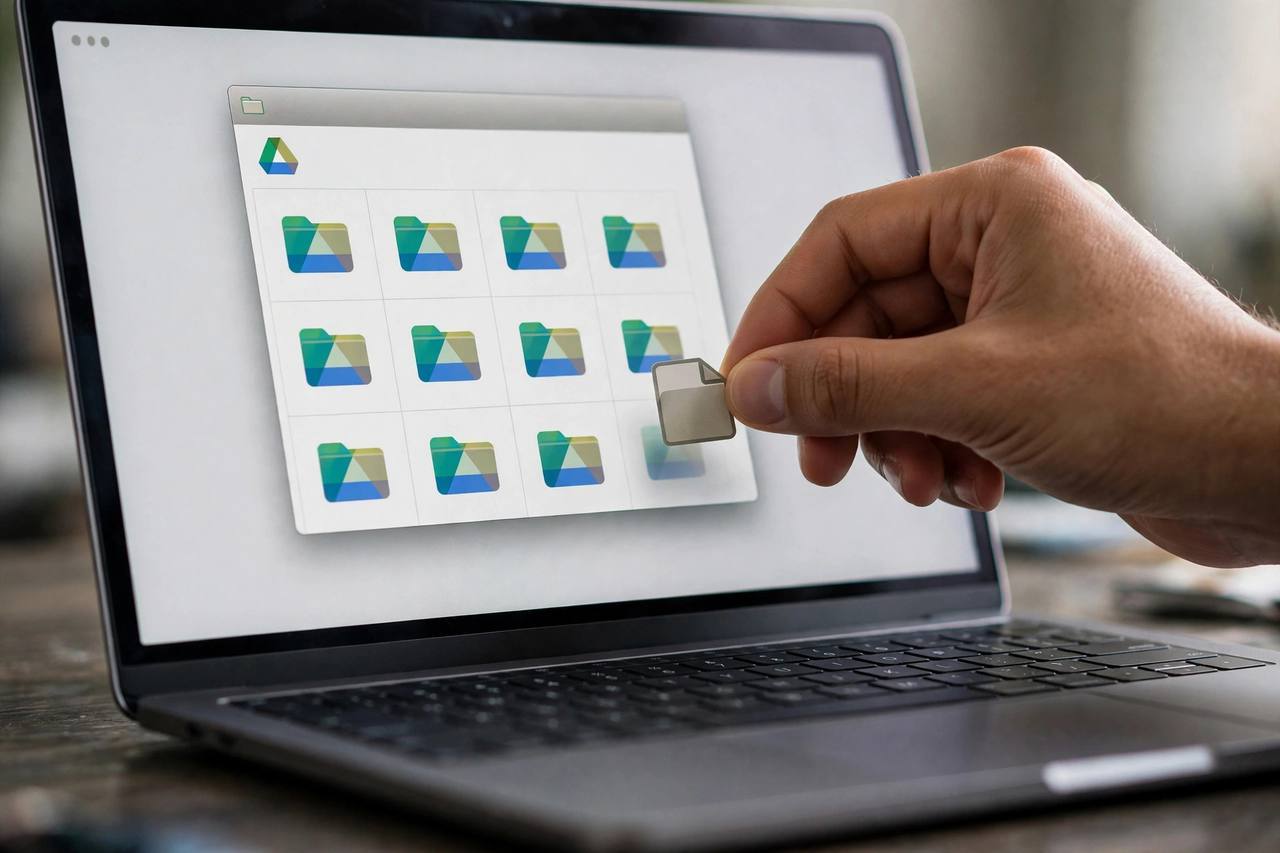
Organization in Drive works exactly like folders on your computer, with a few upgrades. Create folders from the + New button and nest them: “Work” inside “2026,” “Taxes” inside “Personal,” whatever matches your brain. Right-click any folder to rename it, change its color (a surprisingly effective way to find things fast), or move it.
Two features beginners underuse:
- Starred: Right-click any file or folder and click “Add to Starred.” It’s your VIP list — the three files you open every day, always one click away in the Starred view.
- Search: The search bar at the top searches inside documents too, not just file names. Type a phrase from a document and Drive finds it, even in PDFs and images (Google’s image text recognition is genuinely good).
You can also move files by dragging them between folders in the left sidebar. And if you accidentally file something wrong, don’t panic — nothing in Drive is ever truly lost while it’s out of the Trash; search finds everything.
Google Docs, Sheets, and Slides: The Built-in Office
This is where Drive gets powerful. Click + New and choose Google Docs (document), Sheets (spreadsheet), or Slides (presentation). The file opens in a new tab and saves itself continuously — look at the top; it says “Saved to Drive” or “Saving…” at all times.
Docs handles about 95 percent of what most people do in Word: formatting, images, tables, comments, spell check. Sheets covers most Excel use, with formulas that work the same way (=SUM, =AVERAGE, all the classics). Slides is a capable presentation tool. All three work in any browser with no installation, and the mobile apps are solid for viewing and light editing.
The killer feature is real-time collaboration. Share a Doc with someone and you can both type in it at the same time, watching each other’s cursors move. Comments, suggestions, and version history (File → Version history → See version history) mean you can always see who changed what and roll back. For group projects, this alone is worth switching.
Sharing Files the Right Way
Sharing is where beginners either under-share or over-share. Right-click a file or folder, click Share, and enter the person’s email. Before you hit send, look at the permission dropdown — this matters:
- Viewer: They can look but not change. Use this for anything you’re distributing, like a finished report or photos.
- Commenter: They can view and leave comments, but not edit. Great for getting feedback on a draft.
- Editor: They can change anything. Reserve this for true collaborators.
You can also click “Anyone with the link” to make a file accessible to whoever has the link — useful for sending a file to someone without a Google account. But think before you do this with anything sensitive: anyone with the link really does mean anyone. For private documents, share with specific email addresses instead.
A common beginner fear: “What if I share a folder and they delete my files?” Here’s the protection: people you share with can only delete files if they’re editors, and deleted files go to your Trash, not theirs — and you can restore them for 30 days. Also, the owner of a file is the only person who can permanently delete it. You’re safer than you think.
Using Drive on Your Phone
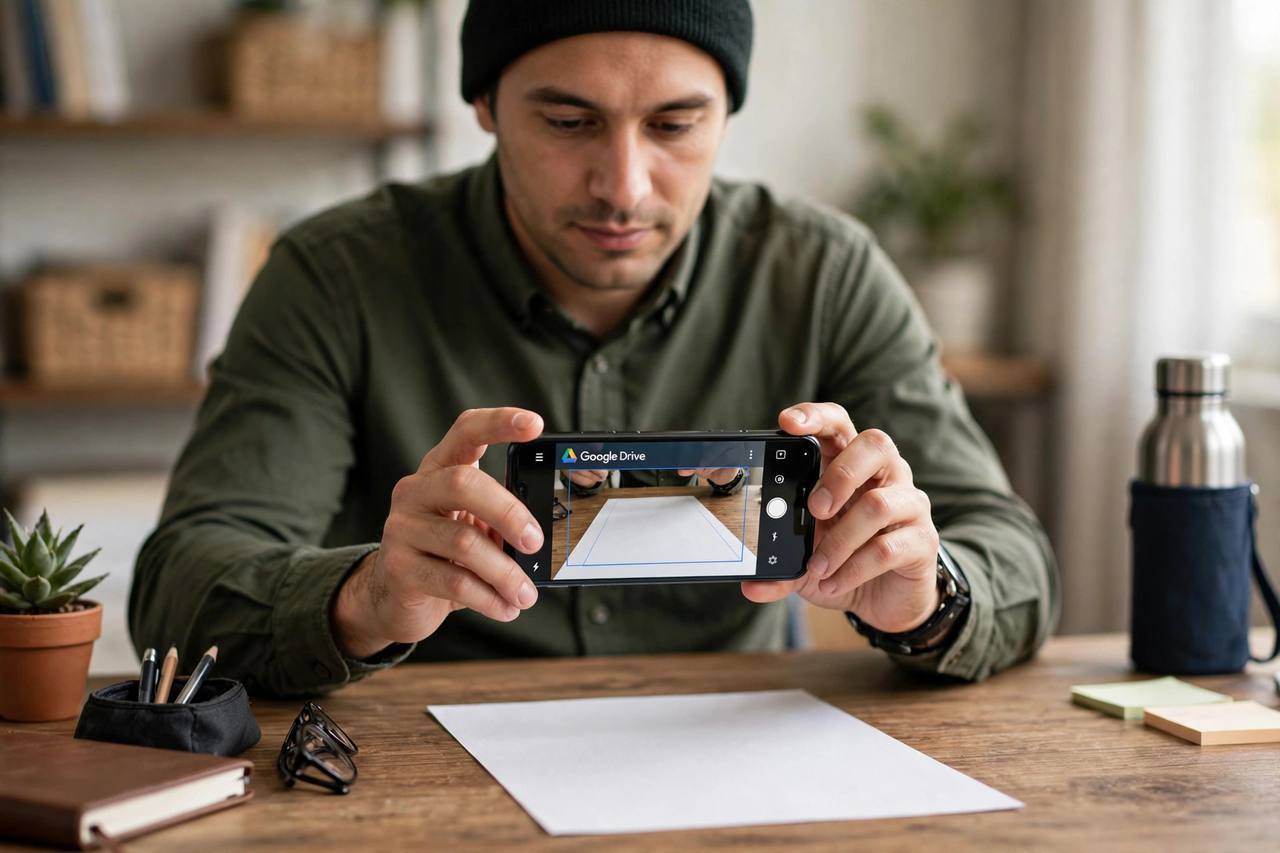
The Google Drive mobile app mirrors the web version: browse folders, preview files, and upload photos or documents. The most useful mobile feature is scanning: in the app, tap the camera icon to scan paper documents into PDFs that save straight to Drive. It replaces a scanner for receipts, contracts, and school forms.
You can also make files available offline. Tap the three dots on a file and toggle “Make available offline” — the file downloads to your phone so you can open it without internet. Do this for boarding passes, tickets, and anything you’ll need in a dead zone.
If your phone is an Android, backing up your phone uses Google Drive behind the scenes — your contacts, settings, and app data land in Drive automatically. Our guide walks through checking that your backup is actually running.
Managing Your 15 GB: What Actually Fills It Up
Here’s what beginners don’t expect: it’s never the documents that fill your storage. It’s photos and videos. A few dozen phone videos can eat gigabytes. When Drive warns you that you’re running out of space, check drive.google.com/settings/storage first — it shows exactly what’s using space across Drive, Gmail, and Photos.
To free space: delete large videos you don’t need, empty the Trash (deleted files still count against your quota until the 30-day window passes or you empty it manually), and check Google Photos for duplicates. Gmail attachments count too — searching Gmail for “has:attachment larger:10M” finds the big ones.
If you consistently need more, Google One plans start cheap and the storage applies across everything. But most beginners who “run out” of space just need to empty the Trash and delete three old videos.
Drive vs. Dropbox vs. OneDrive: Should You Care?
Honestly? For a beginner, the differences are minor and mostly come down to what you already use. Drive is the natural pick if you use Gmail or Android. OneDrive comes with Windows and Microsoft 365. Dropbox is the oldest and simplest of the three. All three sync files, share links, and have phone apps.
Drive’s real edge is Docs, Sheets, and Slides being built in and genuinely free — you don’t need a paid office suite. If that appeals to you, you’ve picked the right one.
Security Basics: Keep Your Drive Safe
- Turn on two-step verification for your Google account. This is the single most important thing you can do. It’s in your Google account security settings and takes five minutes.
- Review who you’ve shared with. Once in a while, check “Shared by me” and revoke access you no longer need.
- Don’t open Drive links from strangers. Phishing emails love fake “shared a file with you” messages. If you weren’t expecting it, don’t click.
- Check connected apps. Third-party apps you’ve granted Drive access to can be reviewed and revoked in your Google account settings.
Frequently Asked Questions
Is Google Drive free?
Yes. Every Google account includes 15 GB of storage shared across Drive, Gmail, and Google Photos, plus free access to Docs, Sheets, and Slides. Paid Google One plans add more storage if you need it.
Where do my files go when I upload them to Google Drive?
They’re stored on Google’s servers and tied to your Google account, not to any specific device. You can access them from any browser or the Drive app by signing in. Files you delete go to the Trash for 30 days before being permanently removed.
Can I use Google Drive without the internet?
Yes, with setup. In the browser version, enable offline mode in Drive settings to access recent Docs, Sheets, and Slides without internet. In the mobile app, mark specific files as “available offline” to download them to your device.
What’s the difference between Google Drive and Google Docs?
Drive is the storage — the folders where files live. Docs is one of the apps that creates documents inside Drive, alongside Sheets (spreadsheets) and Slides (presentations). Docs files are saved in Drive automatically.
How do I share a Google Drive file with someone who doesn’t have Gmail?
Right-click the file, click Share, and change the access to “Anyone with the link.” Then copy the link and send it however you like. They can view it in their browser without signing in — just be careful not to use this setting for sensitive files.