How to Clear Cache on Android Without Deleting Anything Important

Here is a sentence I hear constantly: “My phone is slow, should I clear the cache?” And here is my honest answer: maybe, but probably not for the reason you think. Clearing cache is the most misunderstood maintenance task on Android — treated as a magic speed boost when it is really a targeted troubleshooting tool. Done right, it fixes misbehaving apps and reclaims storage without touching your photos, messages, or logins. Done wrong — by confusing cache with data — you can log yourself out of everything. This guide covers how to clear cache on Android the safe way, what it actually does, and when it is genuinely worth doing.
What Cache Actually Is (And Isn’t)
Cache is temporary data apps store to load faster — thumbnails, recently viewed images, bits of web pages, map tiles. Instead of downloading your Instagram feed images fresh every time, the app keeps copies locally and loads them instantly. That is cache: a speed optimization, not junk. Your phone manages it automatically, deleting old cache when space gets tight.
This is why “clearing cache to speed up your phone” is mostly a myth. Deleting cache forces apps to re-download everything, which temporarily makes them slower and uses more data. Cache clearing helps in specific situations — a glitchy app, corrupted temporary files, or reclaiming storage — but as routine maintenance it is pointless. Android already handles it.
Cache vs. Data: The Critical Difference
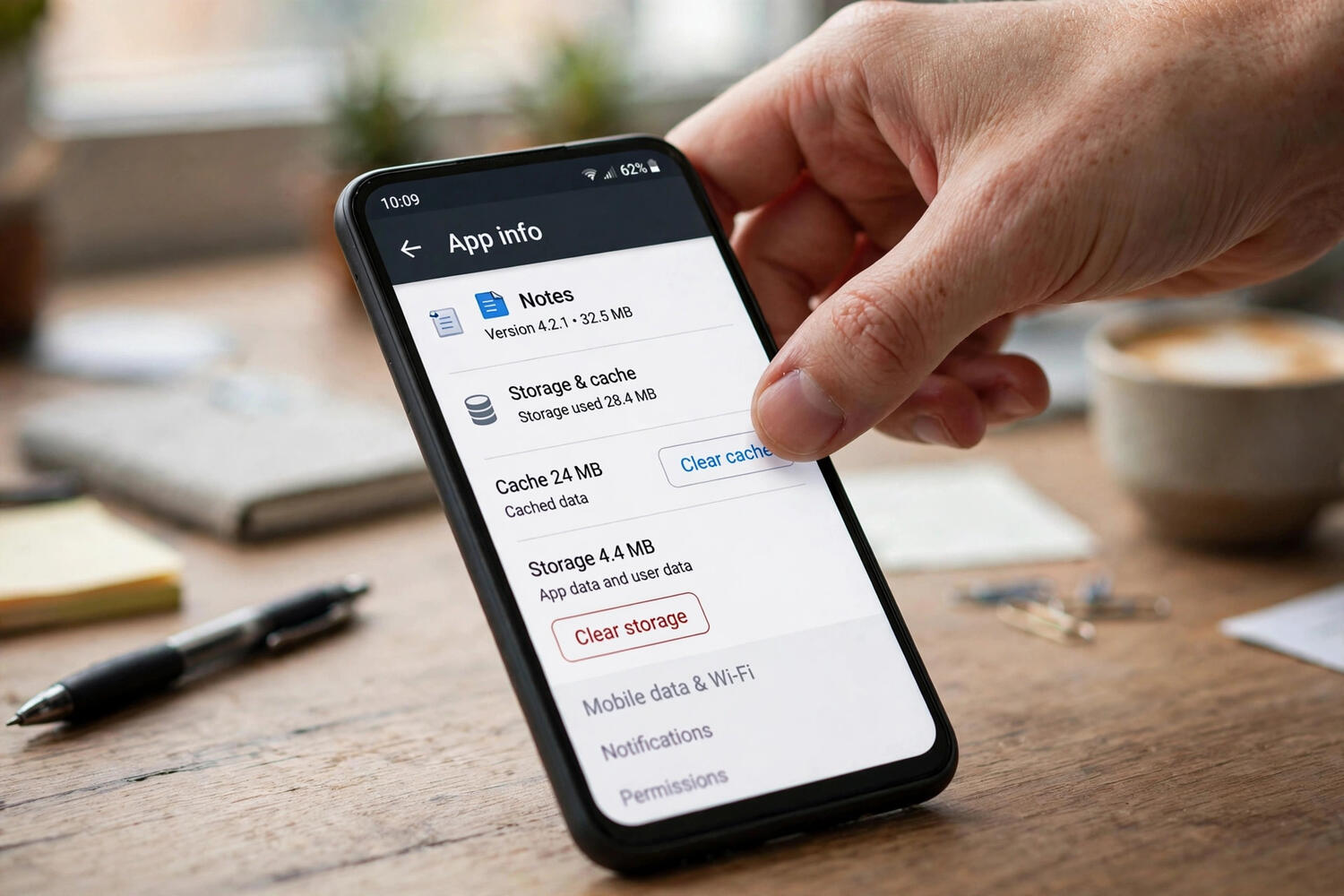
In Android’s storage settings, every app shows two numbers: Cache and Data (sometimes called “User data”). Clear Cache deletes only temporary files. Your logins, settings, downloads, and personal content stay put. It is safe. Clear Data (or Clear Storage) is the nuclear option: it resets the app to a freshly-installed state, deleting your login, preferences, offline downloads, and everything else. People tap the wrong one constantly, then wonder why they are logged out of everything.
Rule of thumb: Clear Cache is the gentle fix you try first. Clear Data is the last resort, used only when an app is thoroughly broken and you are prepared to set it up again from scratch. If you ever go near Clear Data, make sure anything important is backed up first — here is how to back up an Android phone properly before you touch anything destructive.
How to Clear Cache for a Single App
This is the method you will use 95% of the time, because cache problems are almost always app-specific. Open Settings, tap Apps (or Apps & notifications, depending on your phone), and find the misbehaving app in the list. Tap it, then tap Storage & cache — on Samsung phones this may be labeled just Storage. You will see the Cache size listed. Tap Clear Cache. Done. Your login and data are untouched.
Which apps are worth doing this for? Social media and browser apps accumulate the most cache — it is common to find several hundred megabytes in Chrome, Instagram, or TikTok. If an app is crashing, freezing, showing stale content, or behaving oddly after an update, clearing its cache is the first troubleshooting step, before reinstalling. It resolves a surprising number of “the app is just being weird” problems.
How to Clear Cache for All Apps at Once
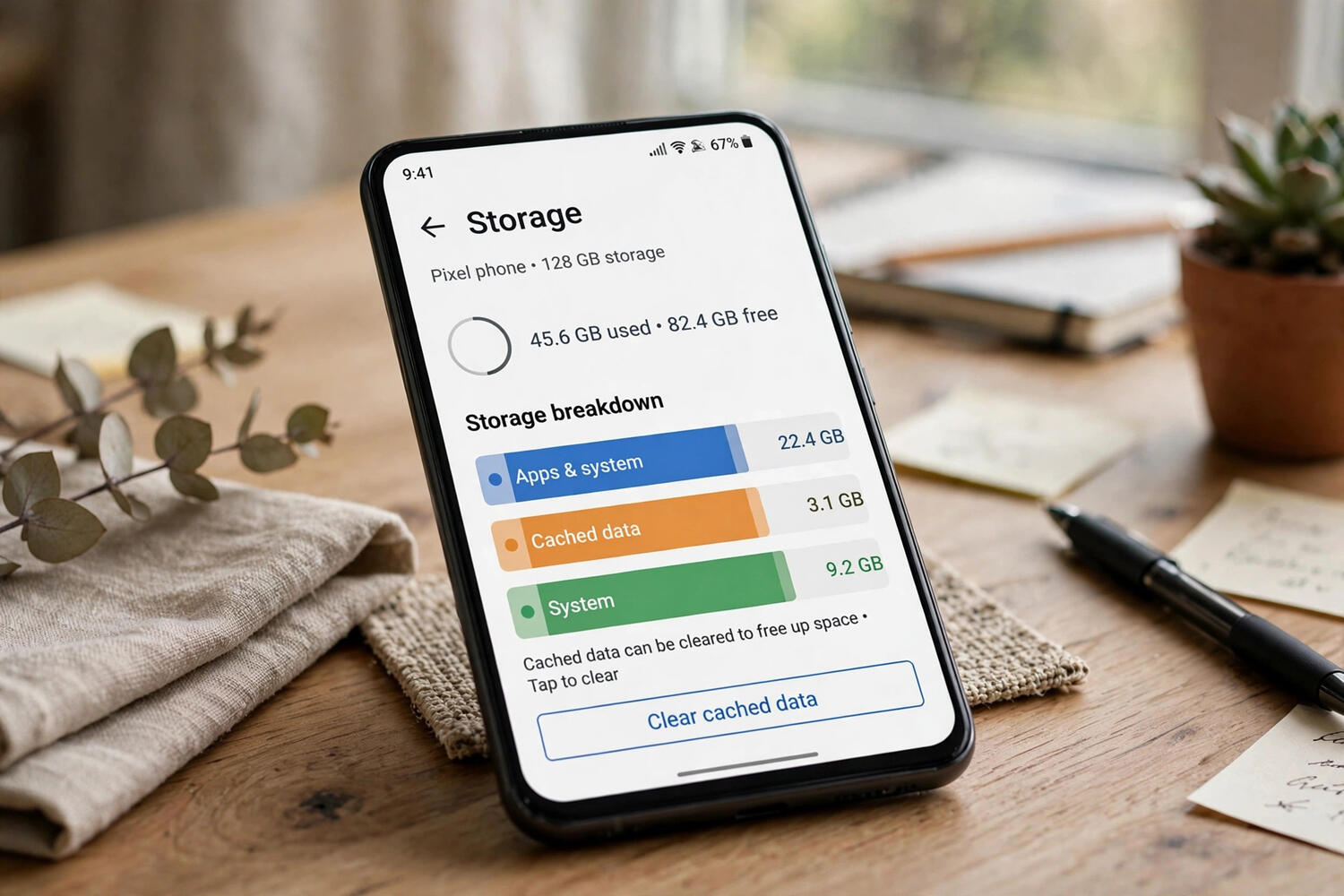
Older Android versions had a single “Clear cached data” button in storage settings. Google removed it in Android 8 (Oreo), and it has not come back — deliberately, because blanket cache clearing is rarely useful and the system now manages cache intelligently on its own. On modern Android, there is no built-in one-tap option, and that is actually fine.
If you want to reclaim significant storage, the honest answer is usually not cache at all: it is unused apps, downloaded files, and media. Clearing the cache of your five heaviest apps individually takes two minutes and achieves the same thing. And if storage pressure is chronic, removing apps you do not use frees far more space than cache ever will — see how to delete apps on Android for the complete cleanup.
When Clearing Cache Actually Helps
Clear cache when: an app crashes on launch or freezes repeatedly; an app shows outdated content that will not refresh; an app misbehaves right after an update; you need to free a few hundred megabytes quickly; a web page in your browser will not load correctly (clear the browser’s cache specifically). In each case, you are deleting potentially corrupted temporary files and forcing the app to rebuild them cleanly.
Do not bother when: the phone feels generally slow (check what is actually slow first — it is usually storage nearly full, an aging battery, or too many background apps); you are trying to save mobile data long-term (cleared cache gets re-downloaded); someone on the internet told you to do it weekly as “maintenance.” Routine cache clearing is a ritual, not a fix.
What About “Cleaner” Apps?
The Play Store is full of cleaner and booster apps promising to clear cache, kill background tasks, and speed up your phone. Most are anywhere from useless to actively harmful — aggressive task killers fight Android’s own memory management and can increase battery drain, and many free cleaners are adware in a trench coat. Android manages cache, memory, and background processes itself, and it does it better than a third-party app can. The built-in Settings path described above is the only cache clearing you need. If a cleaner app asks for accessibility permissions or device administrator access, uninstall it.
How to Clear Cache on Android Phone Browsers Specifically
Browser cache deserves its own section because it is the cache most people actually mean. In Chrome: tap the three dots, go to Settings > Privacy and security > Clear browsing data, select “Cached images and files,” choose your time range, and tap Clear data. Leave cookies and site data unchecked unless you want to be logged out everywhere — that checkbox is the trap. In Firefox: Settings > Delete browsing data, check only “Cached images and files.” In Samsung Internet: Settings > Personal browsing data > Delete browsing data > Cached images and files.
Clear browser cache when pages load incorrectly, show outdated versions, or a site’s layout looks broken — stale cached files are a classic cause. It will not delete your bookmarks, history, or passwords (those are separate checkboxes; leave them alone). After clearing, the next visit to heavy sites loads slightly slower as everything re-downloads, then it is back to normal. This is the one cache-clearing ritual with a genuine, repeatable payoff.
Clearing System Cache: What Changed in Modern Android
Old Android guides mention wiping the “system cache partition” from recovery mode — a ritual from the Android 4 and 5 era. On modern Android, this option effectively no longer exists: Android 7+ moved to seamless updates with A/B partitions, and the separate cache partition is gone. If you find a guide telling you to boot into recovery and wipe cache, it is outdated by nearly a decade.
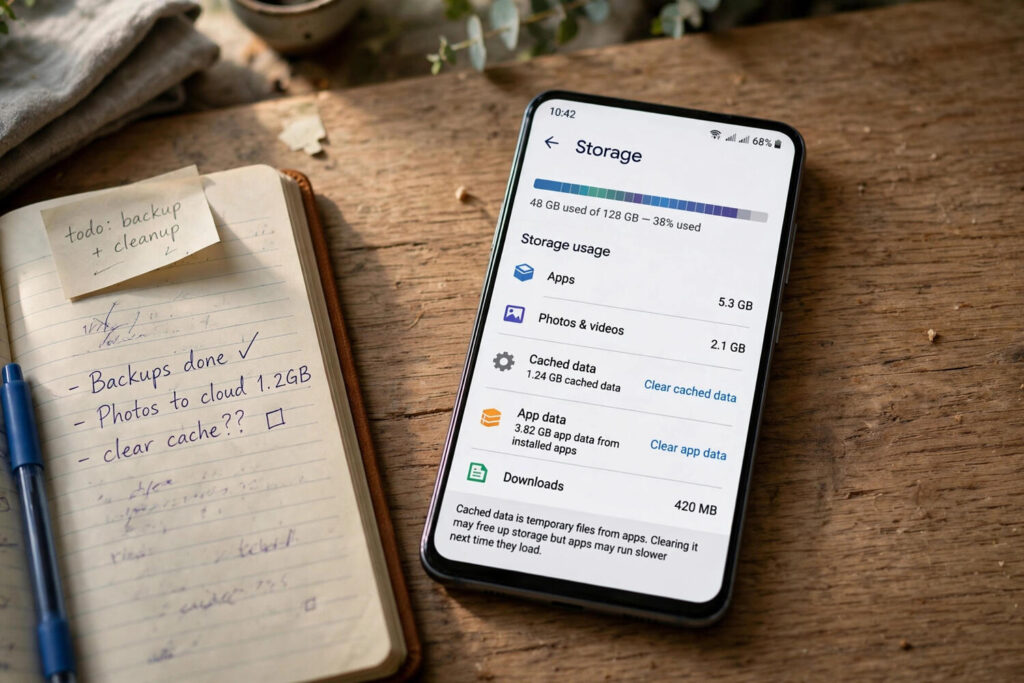
What replaced it: per-app cache clearing (covered above) and Android’s own automatic management, which evicts cached data when storage runs low. The system is genuinely good at this now. If your phone is slow and storage is the suspect, check Settings > Storage to see what is actually consuming space — it is almost never cache. Photos, videos, downloads, and forgotten apps are the real tenants. Address those directly instead of performing cache rituals inherited from 2014.
When Cache Clearing Isn’t Enough: Next Steps
If you have cleared the app’s cache and it still misbehaves, escalate in order. First, force-stop the app (Settings > Apps > [app] > Force stop) and reopen it — this clears the app’s running state without touching data. Second, check for app updates; your bug may be a known issue already fixed. Third, restart the phone, which clears temporary system state that per-app cache clearing does not touch.
Fourth is the nuclear option: Clear Data (Clear Storage), which resets the app completely — only after confirming your content is synced or backed up. Fifth, uninstall and reinstall, which is effectively Clear Data plus a fresh binary. Work through these in order and you will fix the overwhelming majority of app problems without ever needing a factory reset. And if multiple apps misbehave simultaneously, suspect the system: check for OS updates, and consider that an aging phone with a full storage chip slows down in ways no amount of cache clearing reverses.
The Safe Cache-Clearing Checklist
Clear Cache, never Clear Data, unless you mean it. Per-app via Settings > Apps > Storage & cache for glitchy apps. Browser cache via the browser’s own settings for broken pages. No system-wide wipe exists on modern Android — and you do not need one. Skip the cleaner apps entirely. Back up before anything destructive. And remember the hierarchy: force-stop, update, restart, then Clear Data as the last resort. Most app weirdness surrenders at step one.
Frequently Asked Questions
Will clearing cache delete my photos or messages?
No. Clear Cache only removes temporary files. Your photos, messages, logins, and app data are completely safe. Only “Clear Data” or “Clear Storage” touches those.
Does clearing cache make my phone faster?
Not really — it’s a myth. Clearing cache forces apps to re-download data, which can temporarily slow them down. It helps with glitchy apps and freeing storage, not general speed.
How often should I clear cache on Android?
Only when needed — a misbehaving app, corrupted files, or low storage. There’s no benefit to doing it on a schedule; Android manages cache automatically.
What’s the difference between clear cache and clear data?
Clear Cache deletes temporary files only and keeps your logins and settings. Clear Data resets the app completely, deleting logins, preferences, and saved content.
Why can’t I clear all app caches at once anymore?
Google removed the system-wide option in Android 8 because blanket cache clearing is rarely useful. Clear individual apps via Settings > Apps > [app] > Storage & cache.
Is it safe to clear cache on banking apps?
Clear Cache is safe — it won’t log you out or touch your accounts. Just be careful never to tap Clear Data on a banking or authenticator app without a backup plan.