How to Clear Instagram Cache Without Losing Anything

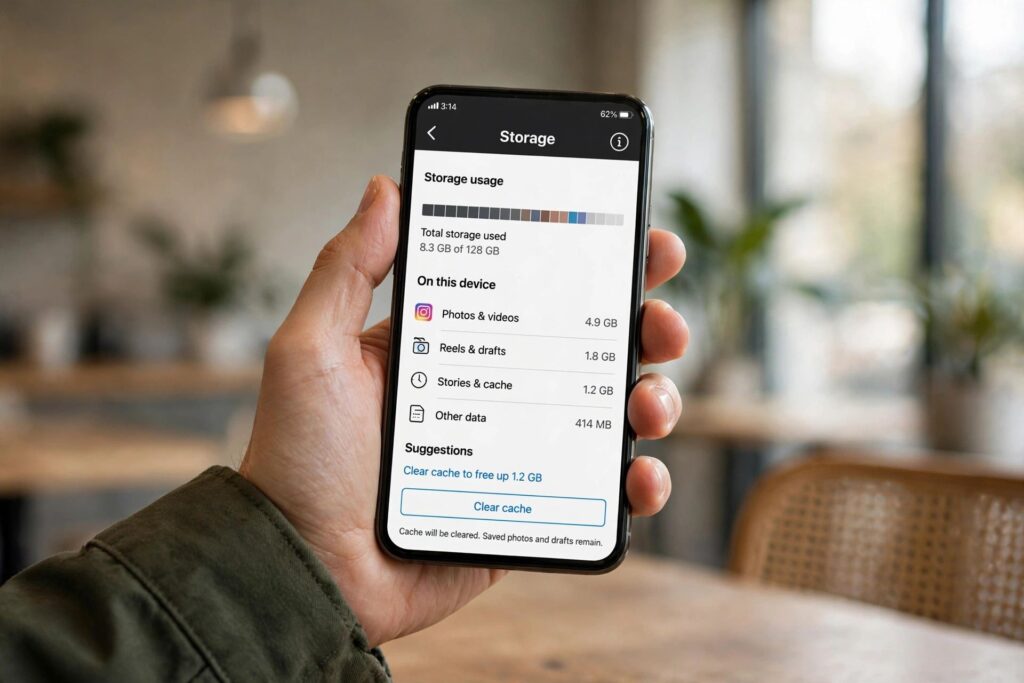
Instagram eating your storage alive? Clearing the app’s cache is one of the fastest ways to reclaim gigabytes without losing a single photo — and if you’re looking up how to clear Instagram cache, you’ve probably already noticed your phone storage warning light up. I’ve done this on more phones than I can count, and it takes about a minute.
Here’s the thing people misunderstand: clearing Instagram’s cache does not log you out, delete your drafts, or remove saved posts. It just dumps temporary files — preloaded reels, cached profile pictures, thumbnail data — that the app rebuilds anyway next time you scroll. Think of it as tidying a messy desk, not throwing out the desk.
How to Clear Instagram Cache on Android
Android lets you clear an app’s cache directly, no third-party tools needed:
- Open Settings on your phone.
- Tap Apps (or “Apps & notifications,” depending on your brand).
- Find and tap Instagram in the list.
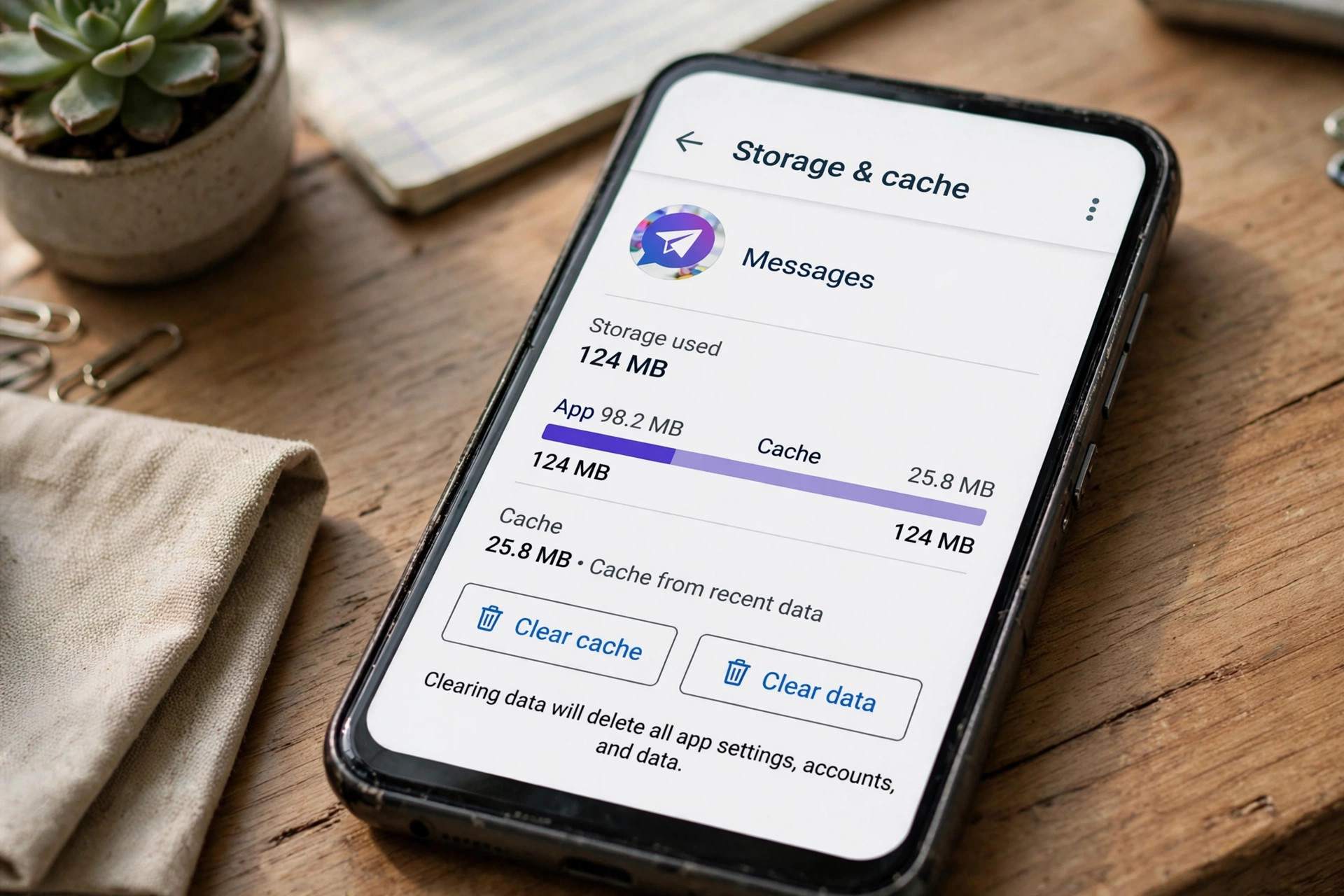
- Tap Storage (or “Storage & cache”).
- Tap Clear Cache — not Clear Data.
This is the critical distinction: Clear Cache removes temporary files and leaves your login and settings intact. Clear Data wipes everything — you’d be logged out and have to sign in again. On most Android versions the button labeled “Clear Cache” is safe to tap freely. If you’ve ever wondered how to clear cache for Android apps in general, the steps are identical for any app on this same screen. how to clear cache on Android
Samsung users: the path is Settings, then Apps, then Instagram, then Storage, then Clear Cache — same thing, slightly different labels on One UI.
How to Clear Instagram Cache on iPhone
iPhones don’t offer a per-app cache button the way Android does. Your options:
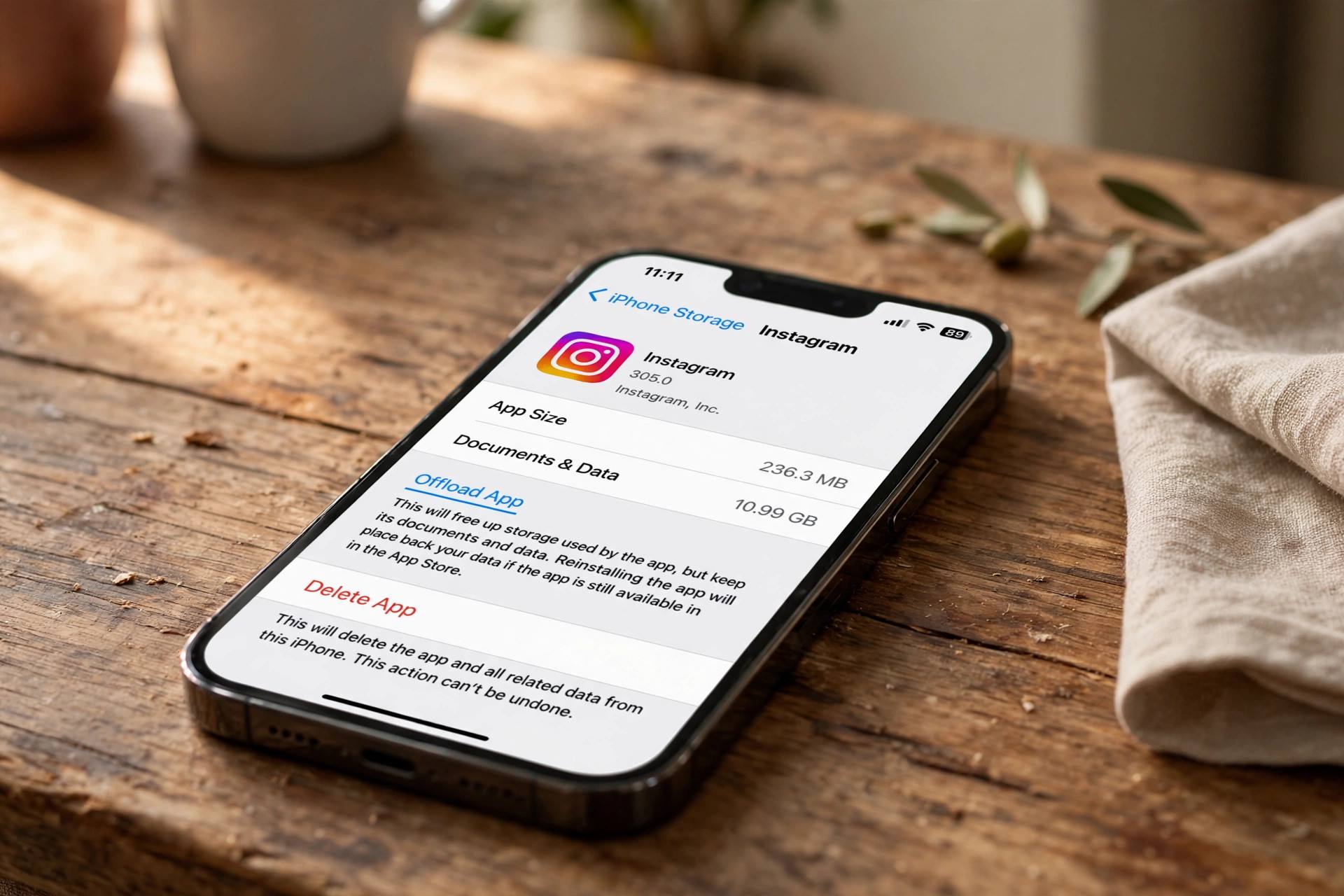
- Offload the app: go to Settings, then General, then iPhone Storage, tap Instagram, and choose Offload App. This removes the app but keeps your data and documents. Then tap Reinstall. Your login survives, and the fresh install is cache-free.
- Delete and reinstall: the nuclear option. Delete Instagram, download it again from the App Store, and log back in. This clears every cached file, but you’ll need your password (and two-factor code if you use one) handy.
There’s no hidden “clear cache” button inside Instagram’s own settings — anyone telling you otherwise is describing the Android flow.
What Clearing the Cache Actually Fixes
People usually clear Instagram’s cache for one of three reasons, and it genuinely helps with all of them:
- Storage bloat: Instagram’s cache can quietly balloon to several gigabytes on heavy users. Clearing it routinely keeps that in check.
- Glitchy behavior: reels that won’t load, the feed freezing, stories stuck on a black screen — corrupted cache files cause a surprising share of these. Clearing is the first troubleshooting step I’d try before reinstalling.
- Sluggish performance: an oversized cache can slow the app’s startup and scrolling on older phones.
What It Doesn’t Do
Clearing the cache will not delete your posts, messages, followers, saved collections, or drafts. It also won’t reduce your cellular data usage in any meaningful long-term way — the app will re-download media as you browse, so the cache refills over time. And it won’t fix account-level problems like login errors or shadowban suspicions; those live on Instagram’s servers, not on your phone. Curious about how the app decides what to show you in the first place? how Instagram’s Explore algorithm works

How Often Should You Clear It?
For most people, once every month or two is plenty. If you watch a lot of reels on mobile data, check your storage quarterly — that’s the crowd where Instagram’s cache grows fastest. There’s no benefit to clearing it daily; the app just re-downloads everything you scroll past, so aggressive clearing can actually increase data usage.
Step-by-Step: Clearing Instagram Cache on Samsung Phones
Samsung’s One UI relabels a few menus, so here’s the exact path if the generic instructions above didn’t match your screen:
- Open Settings, then tap Apps.
- Scroll to Instagram and tap it.
- Tap Storage.
- You’ll see “Clear data” and “Clear cache” at the bottom. Tap Clear cache.
- Go back and check — the cache size should now read 0 B or a few kilobytes.
On Xiaomi phones running HyperOS, it’s Settings, then Apps, then Manage Apps, then Instagram, then Clear Data at the bottom, which opens a small menu where you pick “Clear cache.” Same idea, one extra tap. The universal rule holds everywhere: cache is safe, data is destructive.
What About Instagram’s In-App “Clear Search History”?
Inside Instagram itself, under Settings and Activity, then “Recent searches,” you can clear your search history. People sometimes confuse this with cache clearing — it’s unrelated. Search history is a tiny text list; the cache is gigabytes of media files. Clearing searches affects your privacy (what shows up when you tap the search bar), not your storage. Do both if you like, but only the system-level cache clear frees real space.
Troubleshooting: Instagram Still Glitchy After Clearing Cache
Cleared the cache and the app still misbehaves? Work through these in order:
- Force stop and restart: on Android, go back to the Instagram app info screen and tap Force Stop, then reopen the app. This kills any stuck process the cache clear didn’t touch.
- Update the app: a surprising number of “glitches” are just bugs fixed in a newer version. Check the Play Store or App Store for updates.
- Check your connection: reels failing to load is often a network issue wearing a cache costume. Try switching between Wi-Fi and mobile data.
- Clear data (Android) as a last resort: this logs you out and resets the app completely. Make sure you know your password and have access to your two-factor method before doing it.
- Reinstall: on iPhone this is the only deep-clean option anyway. On Android it’s the final step when nothing else works.
If the problem survives a full reinstall on a stable connection, it’s likely account-side or a wider Instagram outage — check whether other apps and websites load fine, and look at a service-status page before assuming your phone is the problem.
Storage-Saving Habits for Heavy Instagram Users
Clearing the cache is maintenance, not a cure — Instagram will rebuild it as you scroll. A few habits keep it from ballooning so fast:
- Limit preloading on mobile data: in Instagram’s settings under Account, then Data Usage, you can reduce media preloading on cellular. Less preloading means a slower-growing cache and lower data bills.
- Don’t hoard drafts: unfinished reels with downloaded effects and music eat storage too. Finish or delete them.
- Restart the app periodically: long-running sessions accumulate more cached media than fresh ones.
- Audit quarterly: check Instagram’s storage footprint every few months. If it’s over 2–3 GB and you’re not offline-saving content, clear the cache — that’s your new normal interval.
And if storage pressure is a constant battle on your phone, it’s worth knowing which apps are actually worth deleting — Instagram is rarely the only space hog.
Instagram Cache Myths Worth Ignoring
A few persistent myths deserve a quick debunking:
- “Clearing cache speeds up your phone.” It speeds up Instagram’s launch marginally by removing corrupted files — it does nothing for your phone’s overall speed. If the whole device is slow, the culprit is elsewhere (full storage, an aging battery, too many background apps).
- “You should clear cache every day.” No. Daily clearing just forces the app to re-download the same media, burning mobile data for zero benefit. Monthly is plenty for most people.
- “Cache cleaners from the Play Store do it better.” They do exactly the same thing Android’s built-in button does, wrapped in ads. Skip them.
- “Clearing cache deletes your login tokens and is a security risk.” Backwards — clearing cache doesn’t touch your login session at all. It’s “Clear Data” that signs you out.
The unglamorous truth: cache clearing is basic hygiene, like emptying a bin. Useful, routine, and not worth overthinking.

When Instagram’s Storage Problem Is Really a Phone Storage Problem
Sometimes Instagram is just the app that tipped a full phone over the edge. If your storage warning persists after clearing Instagram’s cache, check Settings, then Storage to see the real breakdown. Photos and videos are usually the biggest category — back those up to cloud storage and remove local copies. Downloaded streaming content (Netflix, Spotify offline) is the next usual suspect. Instagram feels like the villain because it’s the app you opened when the warning appeared, but it’s rarely the whole story. Fix the actual storage crunch and Instagram’s cache becomes a non-issue you handle in thirty seconds a month.
Frequently Asked Questions
Will clearing Instagram cache delete my photos or messages?
No. Cache is temporary downloaded data — thumbnails, preloaded videos, profile pictures. Your posts, stories, DMs, drafts, and saved posts live on Instagram’s servers (or in your account data), not in the cache. Clearing it only removes local temporary files.
Will I be logged out if I clear the Instagram cache?
Not on Android, as long as you tap “Clear Cache” and not “Clear Data.” On iPhone, offloading the app preserves your login too. Only a full delete-and-reinstall (or “Clear Data”) signs you out.
How much space does clearing the Instagram cache free up?
It depends on how heavily you use the app, but it’s commonly anywhere from a few hundred megabytes to several gigabytes for heavy reel watchers. Check Instagram’s storage screen before and after — that’s the honest measure for your own usage.
Is it safe to clear cache on iPhone by offloading the app?
Yes. Offloading removes the app binary but keeps your documents and data. When you reinstall, everything — including your login — comes back, just without the accumulated cache. It’s Apple’s officially supported way to do this.
Why does Instagram use so much storage?
The app aggressively pre-loads media so your feed feels instant: reel videos, story segments, profile photos, and ad creatives all get cached. The more you scroll, especially video, the faster the cache grows. Clearing it periodically is the normal maintenance response.
Does clearing cache stop Instagram from draining my battery?
Not directly. Battery drain is usually about background activity, notifications, and screen-on scrolling time rather than cache size. If the app feels sluggish, clearing cache helps performance; for battery, check screen time and background app refresh settings instead.