How to Change Default Browser on Android: Step by Step

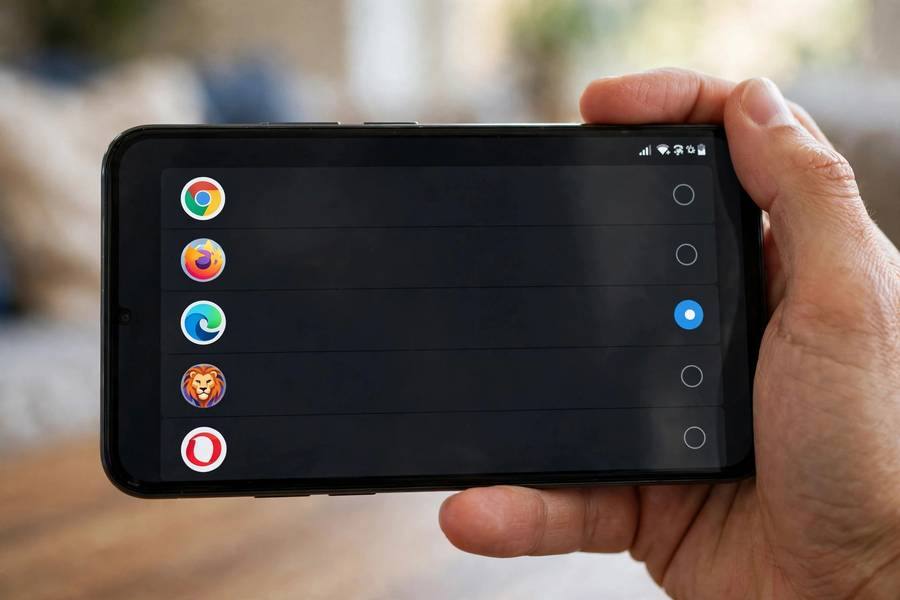
Learning how to change default browser on Android takes less than a minute once you know where the setting hides — and it hides in a different spot depending on whether you own a Samsung, a Pixel, or a Xiaomi. I switched from Chrome to Firefox on my own phone last year, and the only hard part was finding the menu. Every link I tap now opens exactly where I want it.
This guide covers the standard method that works on most Android phones, plus the exact steps for Samsung (One UI), Google Pixel, and Xiaomi (MIUI/HyperOS) devices, and a quick rundown of the best alternative browsers worth switching to.
Why Change Your Default Browser?
Your default browser is the app Android opens whenever you tap a link — in messages, emails, or apps. Most phones ship with Chrome pre-set, but you might prefer Firefox for its extensions, Samsung Internet for its interface, Brave for built-in ad blocking, or Opera for its data saving. Switching takes seconds, and you can switch back just as easily if you change your mind. There is no risk: your bookmarks and history in the old browser stay untouched.
The Standard Method (Works on Most Android Phones)
On Android 12 and newer, the path is nearly identical across brands:
- Open Settings.
- Tap Apps (on some phones it is called “Apps & notifications”).
- Tap Default apps — you may need to tap the three-dot menu first on some devices.
- Tap Browser app.
- Choose your preferred browser from the list.
That is it. The change takes effect immediately — the next link you tap opens in your new default. If the browser you want is not listed, install it from the Play Store first; Android only offers installed browsers as choices. If you are still stuck on an older phone running Android 10 or 11, the same Settings > Apps > Default apps path usually works, though the labels may differ slightly.
Samsung Phones (One UI): The Exact Steps
Samsung buries the setting one layer deeper than stock Android. On Galaxy phones running One UI:
- Open Settings and tap Apps.
- Tap Choose default apps (near the top of the Apps screen).
- Tap Browser app and select your browser.
Note that Samsung Internet updates through the Galaxy Store rather than the Play Store, so keep it updated there if it is your pick. Samsung also lets you set default apps per category — phone, SMS, digital assistant — from that same “Choose default apps” screen, which is handy if you are customizing more than just the browser.
Google Pixel Phones: The Exact Steps
Pixels run the cleanest version of this setting:
- Open Settings and tap Apps.
- Tap Default apps.
- Tap Browser app and pick your browser.
On Pixels, Android may occasionally prompt you to confirm the change with a system dialog — just tap to confirm. I find Pixel’s settings search the fastest route: open Settings, type “default apps” in the search bar at the top, and jump straight there.
Xiaomi / Redmi / POCO (MIUI and HyperOS): The Exact Steps
Xiaomi’s skin moves things around the most. On MIUI 13/14 and HyperOS:
- Open Settings and tap Apps.
- Tap Manage apps, then tap the three-dot menu in the top-right corner.
- Tap Default apps, then Browser, and select your browser.
On newer HyperOS versions, you may find it directly under Settings > Apps > Default apps without the three-dot detour. Xiaomi also aggressively manages background apps, so if your new browser seems to “forget” it is the default, check that battery optimization is not killing it — whitelist the browser under battery settings.
Which Browser Should You Switch To?
The right choice depends on what you value. Here is my honest rundown of the main contenders:
- Firefox: The best pick for customization lovers. Full extension support on Android (including uBlock Origin), strong privacy controls, and sync with desktop Firefox. Slightly heavier on RAM than some rivals.
- Brave: Built-in ad and tracker blocking with no extensions needed. Pages load noticeably faster on ad-heavy sites. The crypto rewards features are optional and easy to ignore.
- Samsung Internet: Underrated outside Galaxy phones, but excellent anywhere: clean interface, good ad-blocker support via extensions, and a genuinely nice dark mode.
- Opera: Built-in VPN and data compression make it a solid choice if you are often on limited mobile data. The interface is busy, which some people love and others do not.
- Chrome: Still the best if you live in Google’s ecosystem — seamless sync, best site compatibility, and the deepest integration with Android itself.
My suggestion: install two or three, use each for a day of real browsing, then set the winner as default. The setting is reversible in seconds, so there is no commitment.
Troubleshooting: When the Setting Does Not Stick
Occasionally the change refuses to take. The usual culprits: the browser is not fully installed or updated — open it once from the Play Store first; a work profile is active — managed work profiles can lock default apps via company policy, in which case your IT admin controls it; battery optimization on Xiaomi/Oppo phones resets defaults for apps it kills; and opening links inside apps — some apps (looking at you, Facebook) open links in their own in-app browser regardless of your default. Most apps let you disable in-app browsing in their own settings.
One more quirk worth knowing: clearing the cache on Android never resets your default browser choice, so feel free to clear app caches without worrying about losing your setting.
Default Browser vs. Default Search Engine: Do Not Confuse Them
One thing that trips people up: your default browser (which app opens links) and your default search engine (which service answers searches inside that browser) are two separate settings. Changing your default browser to Firefox does not change your search engine — Firefox ships with Google as its default search, and you can switch it to DuckDuckGo or Bing inside Firefox’s own settings.
The same applies in reverse: you can keep Chrome as your browser but change its search engine. In Chrome, tap the three-dot menu, go to Settings > Search engine, and pick your preference. And the search widget on your home screen? That is usually the Google app, controlled separately again. Three settings, three different menus — now you know which is which.
Setting a Default Browser From Inside the Browser Itself
Most browsers offer a shortcut that jumps you straight to the right system screen. In Firefox, go to Settings and tap “Set as default browser” — Android opens the Default apps page with Firefox pre-highlighted. Brave, Opera, and Edge all have similar one-tap prompts, usually appearing the first time you open the app after installing it.
I recommend using the browser’s own prompt when it appears, because it eliminates any chance of tapping the wrong menu on heavily skinned phones like Xiaomi’s. If you dismissed the prompt, the manual route through Settings always works — the prompt is just a shortcut to the same screen.
What About Default Apps for Email, Maps, and Everything Else?
Once you have mastered the browser setting, the same Default apps screen controls everything else: which app opens email links, which maps app handles addresses, which app plays music, and which assistant answers “hey” commands. Android’s approach is consistent — one screen, one list per category. iPhone converts switching to Android often tell me this is the feature they missed most on iOS, where defaults were locked down for years. Take five minutes to set your defaults for every category and your phone finally feels like yours.
Making Your New Default Browser Truly Yours
Switching the default is step one; step two is making the new browser feel like home. Start with sync: sign in to Firefox Sync, your Brave wallet-free sync chain, or your Samsung account so bookmarks and passwords follow you from your old browser and your desktop. Next, install the extensions you actually use — on Firefox for Android that includes full desktop-class add-ons like uBlock Origin and Bitwarden; on Samsung Internet, grab an ad blocker from its Galaxy Store extensions section; Brave users can skip this entirely since blocking is built in.
Then set your homepage and new-tab page to whatever you open fifty times a day, and import bookmarks from Chrome if the browser offers it (Firefox’s desktop version imports in one click, then syncs to mobile). Finally, move the browser icon to your dock or home screen where Chrome used to sit — muscle memory is real, and the first week is when most people accidentally open the old browser out of habit. Give it two weeks of real use before judging; every browser feels slightly wrong on day one.
How to Change Default Browser on Android: Quick Recap
The whole process in one line: install your preferred browser, open Settings > Apps > Default apps > Browser app, and select it. Samsung users take the “Choose default apps” detour; Xiaomi users check the three-dot menu. If the setting ever seems to reset itself, battery optimization is the usual suspect. Ten seconds of setup, and every link opens where you want it.
Frequently Asked Questions
How do I change the default browser on Android back to Chrome?
Follow the exact same steps — Settings > Apps > Default apps > Browser app — and select Chrome. The list always shows every installed browser, so switching back takes the same ten seconds.
Why is my preferred browser not showing in the default apps list?
Android only lists fully installed, up-to-date browsers. Install or update the app from the Play Store, open it once, then check the list again. If it still does not appear, the app may not declare itself as a browser to the system — rare, but it happens with niche browsers.
Does changing the default browser delete my bookmarks?
No. Bookmarks, history, and saved passwords live inside each browser app and are untouched by the default-app setting. You can switch defaults back and forth without losing anything.
Can I set different default browsers for work and personal profiles?
Yes. Android’s work profile has its own separate default apps, managed independently. Your personal profile default does not affect the work profile, and vice versa.
Why do some links still open in Chrome after I switched?
Two likely reasons: the link is opening in an app’s built-in in-app browser (disable it in that app’s settings), or a specific app has its own “open links in” preference overriding the system default. Check the app’s settings.
Is it safe to use a third-party browser as default on Android?
Yes, as long as you install it from the Play Store. Stick to well-known browsers — Firefox, Brave, Opera, Samsung Internet, Edge — and avoid obscure browsers that request excessive permissions.