Hi, I’m Sophia. A neighbor knocked on my door last week holding an AirPods case like it had personally betrayed her. “They just won’t connect,” she said. Ninety seconds later they were paired and playing. Connecting AirPods is genuinely easy when it works, and genuinely maddening when it doesn’t — and the difference is almost always one small missed step.
I’ve paired AirPods with just about everything — iPhones, Androids, Macs, Windows laptops, even a TV. This guide covers all of it: the pairing steps for each device, how switching between devices works, and the troubleshooting sequence I actually use when pairing fails. No spec-sheet talk. Just the steps.
In This Guide
- Before You Start: The 30-Second Checklist
- How to Connect AirPods to iPhone or iPad
- How to Connect AirPods to a Mac
- How to Connect AirPods to Android
- How to Connect AirPods to a Windows PC
- How to Connect AirPods to Apple TV and Apple Watch
- Switching AirPods Between Devices
- When AirPods Won’t Connect: Fixes That Work
- Useful Settings After Pairing
- Frequently Asked Questions
Before You Start: The 30-Second Checklist
Run through this before you touch any settings — it solves a surprising number of “won’t connect” cases on its own:
- Charge them. Put both AirPods in the case and make sure the case itself has charge. A dead case is the number one cause of pairing failures I see. If the status light doesn’t turn on when you open the lid, plug the case in for 15 minutes first.
- Turn on Bluetooth on the device you’re pairing to. Obvious, but check — Bluetooth gets toggled off accidentally all the time.
- Stay close. Keep the AirPods within a few feet of the device during pairing.
- Update if you can. Very old iOS/Android versions occasionally cause pairing quirks. You don’t need the latest everything, but a phone running software from five years ago is asking for trouble.
Which AirPods do you have? The steps below work for AirPods (all generations), AirPods Pro (all generations), and AirPods Max — with one difference: AirPods Max pair using the noise control button instead of a case button, since there’s no case involved in pairing.
How to Connect AirPods to iPhone or iPad
This is the pairing Apple designed first, and it shows — it’s the smoothest one:
- Unlock your iPhone and go to the Home Screen.
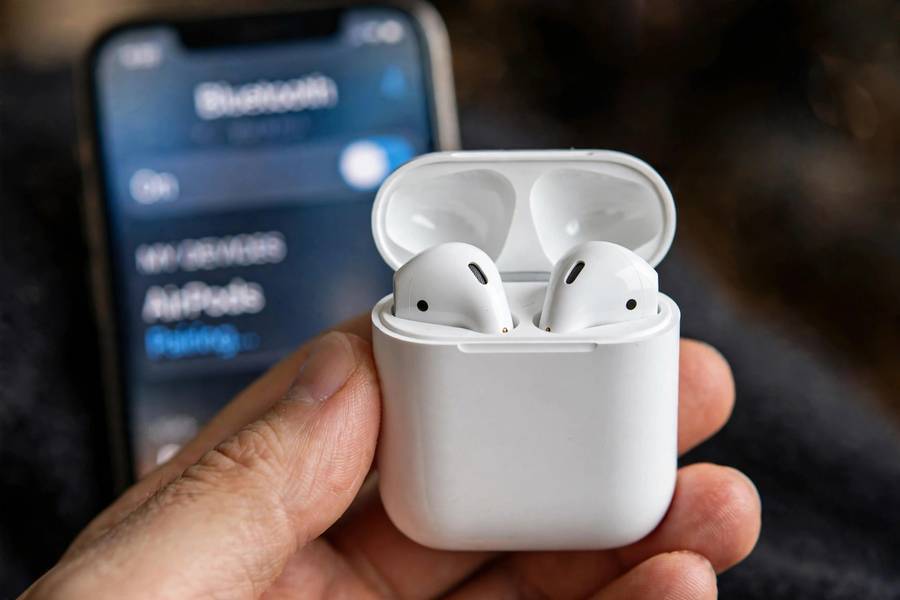
- Open the AirPods case lid, keeping both AirPods inside. Hold the case near your iPhone.
- A setup animation should appear on your iPhone screen automatically. Tap Connect.
- Follow the prompts. If you have AirPods Pro, you’ll be offered a quick ear-tip fit test — worth doing, it takes 20 seconds.
- Tap Done.
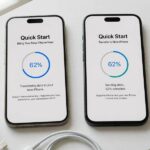
That’s it. Your AirPods are now linked to your Apple ID, which means they’ll automatically appear on your other Apple devices signed into the same account (iPad, Mac, Apple Watch) via iCloud. You don’t have to pair separately on each one — just select the AirPods from the Bluetooth or audio menu on the other device.
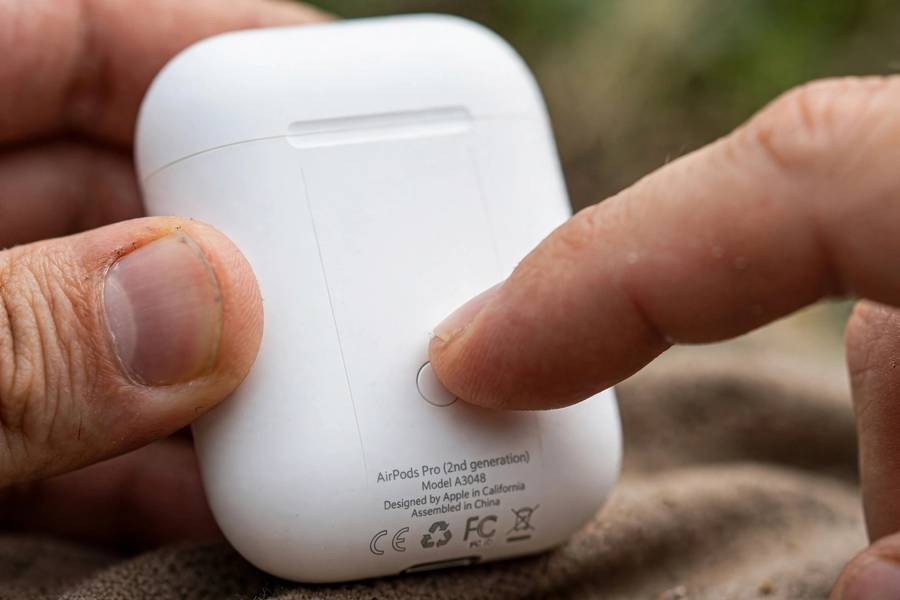
If the animation doesn’t appear: open Settings > Bluetooth, make sure Bluetooth is on, then press and hold the setup button on the back of the case until the status light flashes white. Your AirPods should appear under “Other Devices” — tap them to connect.
How to Connect AirPods to a Mac
If your Mac is signed into the same Apple ID as your iPhone, your AirPods may already be there — check the Bluetooth menu in the menu bar or System Settings > Bluetooth first. If they appear, just click Connect.
Pairing fresh to a Mac (or a Mac on a different Apple ID):
- Open the AirPods case lid with both AirPods inside.
- Press and hold the setup button on the back of the case until the status light flashes white (about 5-10 seconds).
- On your Mac, open System Settings > Bluetooth (or System Preferences > Bluetooth on older macOS).
- Find your AirPods in the device list and click Connect.
Once connected, you can set them as your default audio output in System Settings > Sound. macOS also lets you customize the press-and-hold actions per earbud in the Bluetooth device options — handy if you use noise cancellation on calls.
How to Connect AirPods to Android
AirPods work fine with Android — you just don’t get the automatic iPhone animation, and a few Apple-only features (automatic ear detection tweaks, Siri, the fit test) won’t be available. The core stuff — audio, microphone, tap controls — works.
- Open the AirPods case lid with both AirPods inside.
- Press and hold the setup button on the back of the case until the status light flashes white.
- On your Android phone, go to Settings > Connected devices > Bluetooth (wording varies slightly by manufacturer).
- Tap Pair new device, find your AirPods in the list, and tap to connect.
Your phone will remember them from then on. One honest note: on Android, you can’t check AirPods battery levels natively or update their firmware — for firmware updates you’ll need access to an iPhone or iPad briefly, since updates install automatically when AirPods connect to an Apple device. It’s a once-in-a-while thing, not a daily problem.
How to Connect AirPods to a Windows PC
Windows pairing works, with the usual Windows Bluetooth caveats (it can be finicky — see the troubleshooting section if it fights you):
- Open the AirPods case lid with both AirPods inside.
- Press and hold the setup button on the back of the case until the status light flashes white.
- On your PC, go to Settings > Bluetooth & devices (Windows 11) or Settings > Devices > Bluetooth (Windows 10).
- Click Add device > Bluetooth, select your AirPods from the list.
One thing to know: Windows may list your AirPods twice — once as headphones (stereo audio) and once as a headset (for calls). For music and video, choose the Stereo option; the headset profile sounds noticeably worse but is needed for the microphone on calls. Windows doesn’t switch between these gracefully, so you may need to change it manually in sound settings depending on what you’re doing.
How to Connect AirPods to Apple TV and Apple Watch
Apple TV: If your Apple TV shares your Apple ID, your AirPods often appear automatically — hold the TV button on the Siri Remote and select them from the audio output menu. To pair manually: put AirPods in pairing mode, then go to Settings > Remotes and Devices > Bluetooth.
Apple Watch: Same deal with a shared Apple ID — they usually just show up. To pair manually, put the AirPods in pairing mode, then on the watch go to Settings > Bluetooth. Great for runs when you leave the phone at home.
Switching AirPods Between Devices
This is where people get confused, so let me be clear about how it actually behaves:
- Between Apple devices: AirPods switch automatically. Start playing audio on your iPad while connected to your iPhone, and they hop over on their own. When they stubbornly stay on the wrong device, open Control Center on the one you want, tap the audio output icon, and select your AirPods manually.
- Between Apple and non-Apple devices: No automatic switching. Going from iPhone to Windows laptop means manually connecting via Bluetooth settings on the laptop — about 15 seconds once you know the menu.
- The nuclear option: If automatic switching causes more problems than it solves (AirPods keep jumping to your Mac during calls), go to Settings > Bluetooth, tap the i next to your AirPods, and set Connect to This iPhone to “When Last Connected to This iPhone.”
When AirPods Won’t Connect: Fixes That Work
My neighbor’s case was step 1 below. Work through these in order — the first three fix 95% of pairing problems:
- Charge everything. AirPods in the case, case plugged in, 15 minutes. Then try again.
- Toggle Bluetooth off and on on your phone or computer. Put the AirPods back in the case, close the lid, wait 10 seconds, reopen it near the device.
- Forget and re-pair. In Bluetooth settings, find your AirPods and tap Forget This Device. Then put them in pairing mode (hold the setup button until the light flashes white) and pair fresh. This clears corrupted pairing data, the most common real “bug.”
- Reset the AirPods. Both AirPods in the case, lid closed 30 seconds. Open the lid, hold the setup button ~15 seconds until the light flashes amber, then white. Full factory reset — you’ll re-pair everything, so save this for when steps 1-3 failed.
- Check for interference. Other Bluetooth devices, USB 3 hubs, and microwaves can disrupt pairing. Move to a clear space and try again.
- Restart the device. Restart your phone or computer, then pair again.
Useful Settings After Pairing
Once connected, a few settings are worth your two minutes:
- Rename them. Settings > Bluetooth > tap the i > Name. “Sophia’s AirPods” beats “AirPods” in a room full of them.
- Customize controls. In the same Bluetooth info screen, set what a press-and-hold does on each earbud (noise cancellation, Siri, off). I set left for noise control, right for Siri.
- Ear Tip Fit Test (AirPods Pro, iPhone only). Plays a tone and checks the seal — a good seal is the difference between great and mediocre noise cancellation.
- Find My. AirPods appear in the Find My app automatically. If a bud goes down the couch, “Play Sound” will save you.
- Automatic Ear Detection. Audio pauses when you remove an earbud. Most people love it; turn it off in the Bluetooth info screen if it misbehaves.
Curious about what’s actually happening inside those tiny buds? Read how wireless earbuds work and how noise-cancelling headphones work — and since AirPods live and die by their connection, how WiFi works explains the wireless tech your whole setup depends on.
Frequently Asked Questions
Open the case lid with both AirPods inside, then press and hold the setup button on the back of the case until the status light flashes white (about 5-10 seconds). For AirPods Max, hold the noise control button until the light flashes white.
The most common causes are a dead charging case, Bluetooth being off, or corrupted pairing data. Charge the case for 15 minutes, toggle Bluetooth off and on, and if that fails, forget the AirPods in Settings > Bluetooth and pair them fresh.
Yes. Put the AirPods in pairing mode (white flashing light) and connect through the normal Bluetooth settings on your Android phone or Windows PC. Core features like audio, mic, and tap controls work; Apple-only extras like Siri and automatic firmware updates don’t.
Put both AirPods in the case, close the lid for 30 seconds, then open it and hold the setup button for about 15 seconds until the light flashes amber, then white. This factory-resets them — you’ll need to re-pair to all your devices afterward.
Between Apple devices signed into the same Apple ID, yes — they switch automatically based on which device is playing audio. Between Apple and non-Apple devices (like a Windows laptop), switching is manual through Bluetooth settings.
On iPhone, open the case near your phone to see the popup, or add the Batteries widget to your Home Screen. On Android there’s no native battery display, so you’ll need a third-party battery widget app or check via a paired Apple device.