How to Restore Deleted Photos from iCloud


iCloud is where most iPhone owners’ photos actually live — often without them fully realizing it. When iCloud Photos is turned on, your iPhone, iPad, and Mac all show the same library, and iCloud.com holds the master copy. So when photos go missing, iCloud is both the most likely place they went and the best place to get them back. I’ve recovered photos from iCloud for people who were convinced everything was lost, and the process is usually simpler than expected.
This guide covers every iCloud recovery path: the Recently Deleted album on iCloud.com, what to do when deletions synced everywhere, restoring from iCloud backups, downloading your full library, and the iCloud settings that prevent this problem. Whether you deleted photos yesterday or discovered them missing months ago, start here. For recovery beyond Apple’s ecosystem, my complete guide on how to recover deleted photos covers everything else.
How iCloud Photos Works (Why This Matters for Recovery)
To recover from iCloud, you need to understand what iCloud Photos actually is — because Apple has two different things both called “iCloud” and they behave very differently.
iCloud Photos is a syncing service. When it’s on, every photo you take uploads to iCloud, and every Apple device signed into your Apple ID shows the same library. Delete a photo on your iPhone, and the deletion syncs to iCloud, your iPad, and your Mac. It’s one library everywhere — which is convenient until a deletion propagates everywhere too.
iCloud Backup is a separate snapshot service. It backs up your whole iPhone (settings, app data, and — only if iCloud Photos is off — your photo library) to iCloud once a day. These are independent systems with independent recovery paths, and knowing which one holds your photos determines your strategy. If iCloud Photos is on, your photos live in the synced library (recover via iCloud.com). If it’s off, they’re in backups (recover via backup restore). Check which you’re using: Settings, your name, iCloud, Photos.
Method 1: Recently Deleted on iCloud.com
Start at iCloud.com on a computer — it gives you the clearest view of what’s actually in your cloud library. Sign in with your Apple ID (you may need to approve the sign-in from a trusted device), open Photos, and scroll down to Recently Deleted in the sidebar.
You’ll see deleted photos with days remaining before permanent deletion. Select the ones you want — click Select, then click each photo, or Select All — and click Recover. The photos return to your iCloud library, and because it’s a synced library, they reappear on your iPhone, iPad, and Mac automatically within minutes.
The web interface has one advantage over the phone: it shows you the definitive state of your iCloud library. Sometimes the iPhone’s Photos app has display glitches or sync delays that make photos appear missing when they’re fine in iCloud. If iCloud.com shows your photos, the problem is sync, not loss — and the fix is signing out and back into iCloud on the phone, or just waiting for sync to catch up.
If Recently Deleted is empty but you deleted photos recently, check the timing. The 30-day window is per-photo from deletion time. And check whether you’re signed into the right Apple ID — families sharing devices sometimes delete from one account while looking in another. It sounds basic, but I’ve seen it happen.

When Deletions Haven’t Synced: Your Lucky Break
Here’s a recovery scenario people don’t expect: sometimes deletions don’t reach iCloud. If your phone was offline, in airplane mode, or having sync trouble when you deleted photos, iCloud may still hold them — even if the phone says they’re permanently deleted.
Check iCloud.com’s main Photos library (not Recently Deleted — the regular library). Search for the photos. If they’re there, download them immediately to your computer: select them, click the download icon, and save them somewhere safe. Then let sync do whatever it does — your downloaded copies are safe regardless.
You can also deliberately create this situation in reverse. If you realize you’ve deleted something and your phone still shows it in Recently Deleted, turn off Wi-Fi and cellular data immediately to prevent the deletion from syncing, then download what you need from iCloud.com first. It’s a narrow window, but I’ve seen it save photos.
The broader lesson: sync is not backup. A synced deletion deletes everywhere — that’s the fundamental risk of iCloud Photos. True protection comes from having copies outside the sync system, which is why I always recommend a separate backup. My guide on how to back up an iPhone explains how to layer iCloud Photos with real backups.
Method 2: Restoring from an iCloud Backup
If iCloud Photos is turned off on your iPhone, your photo library is included in iCloud Backup — and a backup from before the deletion contains your photos. (If iCloud Photos is on, skip this section — your photos aren’t in the backup, they’re in the synced library covered above.)
Check your backup date: Settings, your name, iCloud, iCloud Backup — look at the last successful backup. If it predates the deletion, you can restore. The process: back up your current phone first (to preserve everything new), then erase the phone (Settings, General, Transfer or Reset iPhone, Erase All Content and Settings), then during setup choose Restore from iCloud Backup and pick the older backup.
Once restored, save the recovered photos somewhere outside the phone — AirDrop to a Mac, upload to a second cloud service, email them to yourself. Then erase again and restore from your fresh backup to return to your current state. Yes, it’s a long process. For wedding photos or baby pictures, nobody has ever regretted the hours.
A warning about timing: iCloud only keeps your three most recent backups, and old backups are eventually deleted. If the deletion happened months ago, the pre-deletion backup is probably gone. This method works best for recent deletions — another reason to act promptly.
Method 3: Download Your Entire iCloud Photo Library
Sometimes the goal isn’t recovering specific deleted photos — it’s getting a complete, independent copy of everything so you’re never dependent on sync again. Apple lets you download your whole library.
The simplest approach: on a Mac with iCloud Photos enabled and “Download Originals” selected (Photos app, Settings, iCloud), your Mac holds full copies of everything. Those files are in your Pictures folder’s Photos Library — real files you can copy to an external drive. On Windows, Apple’s iCloud for Windows app can download originals too.
For a full export, use Apple’s Data and Privacy portal: sign in at Apple’s privacy site, request a copy of your iCloud Photos, and Apple prepares a download — usually within a few days. This gives you every photo at original quality, independent of any sync state. I recommend doing this once a year as your disaster-proof archive. Store it on an external drive, somewhere away from your computer.
Shared Albums, Family Sharing, and Shared Copies
Before concluding photos are lost, check the sharing layer. iCloud Shared Albums hold copies independent of your main library — open Photos, scroll to Shared Albums, and browse. A photo you shared to the family album survives even if your library copy is permanently deleted.
Family Sharing adds another angle: if family members share iCloud storage but not libraries, their libraries are separate — but any photo they shared with you, or you shared with them, exists in their library too. Ask. The awkward text message (“hey, do you still have that photo I sent?”) has a near-perfect success rate in my experience.
Also check your messages and email. Photos sent via iMessage live in the conversation’s photo browser independently of iCloud Photos. Email attachments in your Sent folder are permanent copies. These aren’t technically iCloud recovery, but they’re the copies that most often save the day when iCloud itself has nothing.
The “iCloud Storage Full” Trap
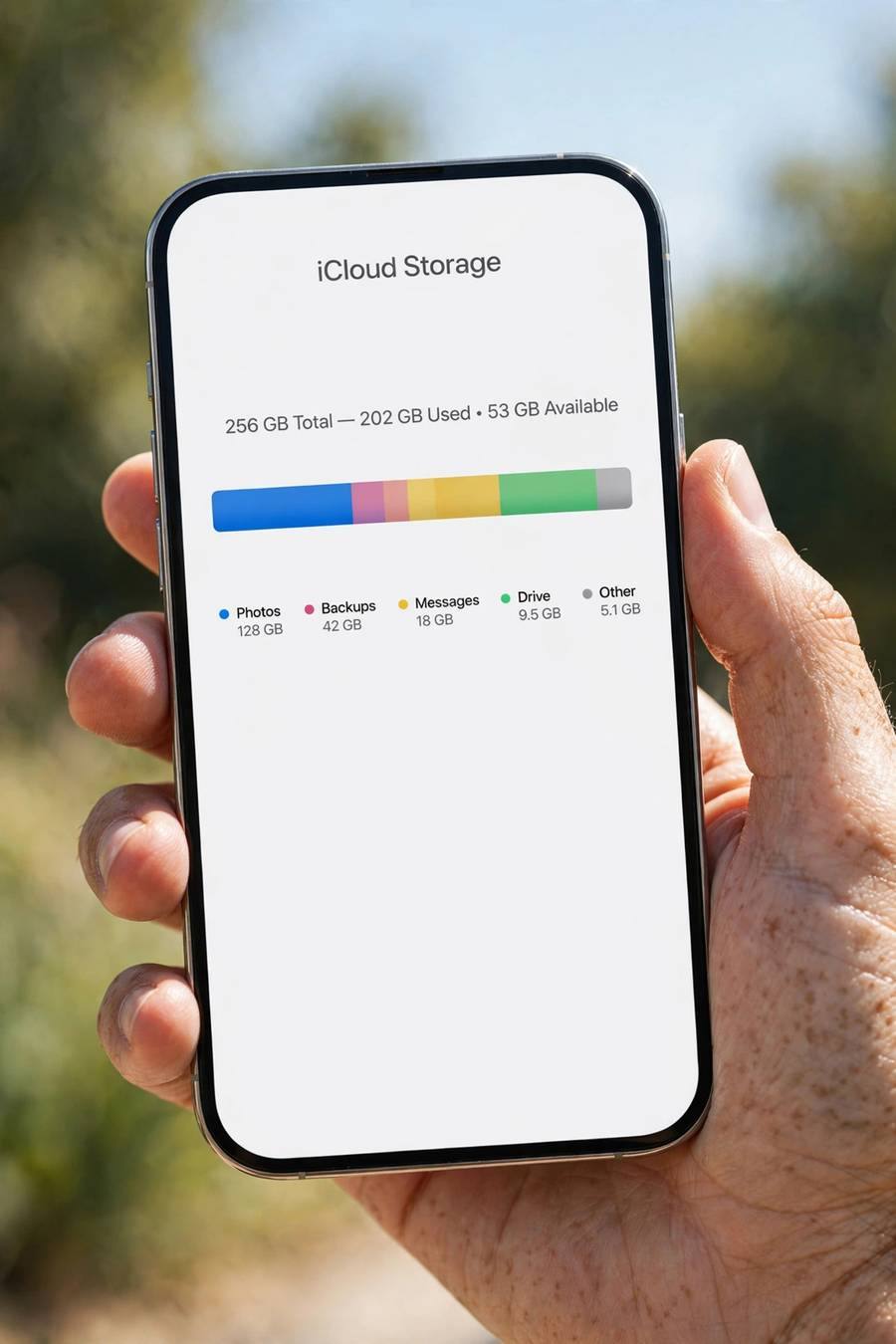
This deserves its own section because it causes so many silent disasters. When your iCloud storage fills up, several bad things happen at once: new photos stop uploading to iCloud Photos, iCloud Backups stop running, and your phone starts nagging you. Many people dismiss the warnings for months.
The danger: you think your photos are “in iCloud” because iCloud Photos is turned on — but uploads have been failing silently for weeks. Then the phone is lost or reset, and the recent photos were never actually in iCloud. The setting was on; the storage wasn’t there.
Check right now: Settings, your name, iCloud — look at the storage bar. If it’s full or nearly full, you have three options: buy more storage (the 50GB and 200GB tiers cost very little monthly), delete large unused backups or files to free space, or turn on Optimize Storage so full originals live in iCloud while the phone keeps previews. What you must not do is ignore it. A backup system that silently stopped working is worse than none at all.
Android users face the same trap with Google’s 15GB free tier — the principle is identical. Whoever you are, verify your cloud actually has room. My Android backup guide covers Google’s storage the same way.
iCloud Settings That Protect Your Photos
Once you’ve recovered (or even if you found everything was fine), set up iCloud properly. Here’s my recommended configuration.
Turn on iCloud Photos with “Download and Keep Originals” if you have the phone storage for it, or “Optimize iPhone Storage” if you don’t — either way, every photo uploads. Turn on iCloud Backup for the whole phone. Keep enough iCloud storage that neither ever pauses — check the storage bar monthly. Turn on Shared Albums if you share photos with family regularly, since shared copies are an extra safety net.
And set up a second layer outside Apple’s ecosystem for your most precious photos. Once or twice a year, download your favorites and put them on an external drive or a second cloud service. iCloud is excellent, but the 3-2-1 rule exists because every system — even Apple’s — can fail. When you set up a new iPhone, verify these settings transferred correctly; setup doesn’t always preserve every iCloud toggle.
Frequently Asked Questions
Go to iCloud.com, sign in, open Photos, and check Recently Deleted — select your photos and click Recover. They return to your iCloud library and sync back to all your devices. This works for 30 days after deletion. If Recently Deleted is empty, check your main iCloud library in case the deletion didn’t sync, or restore from an iCloud backup.
Yes — iCloud Photos is a synced library, so deleting on one device deletes everywhere signed into the same Apple ID. But the deletion first goes to Recently Deleted for 30 days on all devices, and during sync delays a device that’s offline may still show the photos. Check iCloud.com for the definitive state of your library.
Deleted photos stay in Recently Deleted for 30 days, then are permanently erased. iCloud Backup keeps only recent backups, so a pre-deletion backup is only available for a limited time. Shared album copies and photos in messages aren’t affected by library deletions and persist independently.
The most common cause is full iCloud storage — when storage fills up, photo uploads and backups silently stop. Check Settings, your name, iCloud to see your storage. Other causes: being signed into the wrong Apple ID, iCloud Photos turned off on the device, or the photos being in a different library or album than expected.
Yes. On a Mac with “Download Originals” enabled, full copies live in your Photos Library. On Windows, iCloud for Windows can download originals. Or use Apple’s Data and Privacy portal to request a complete export of your iCloud Photos — Apple prepares a full-quality download within a few days. I recommend doing this yearly as an independent archive.