
Of everything text to speech does — the viral videos, the GPS voices, the audiobooks — its accessibility role is the one that matters most and gets discussed least. For millions of people, TTS isn’t a convenience or a content tool. It’s how they read, how they compute, how they communicate. A blind professional’s screen reader, a dyslexic student’s reading aid, a non-speaking person’s voice — these aren’t edge cases. They’re the technology’s original purpose and still its highest calling.
This guide covers text to speech for accessibility in full: who uses it, how the different tools work, what good accessible design looks like, and how to make your own content TTS-friendly. For the underlying technology, see how text to speech works.
Table of Contents
- Who Uses TTS for Accessibility
- Screen Readers: Computing by Ear
- Reading Aids for Dyslexia and Reading Difficulties
- AAC: Giving People a Voice
- Low Vision and Situational Needs
- What Makes TTS Accessible vs Just Audible
- Making Your Content TTS-Friendly
- The Standards and Legal Landscape
- Where Accessibility TTS Is Heading
- Frequently Asked Questions
Who Uses TTS for Accessibility
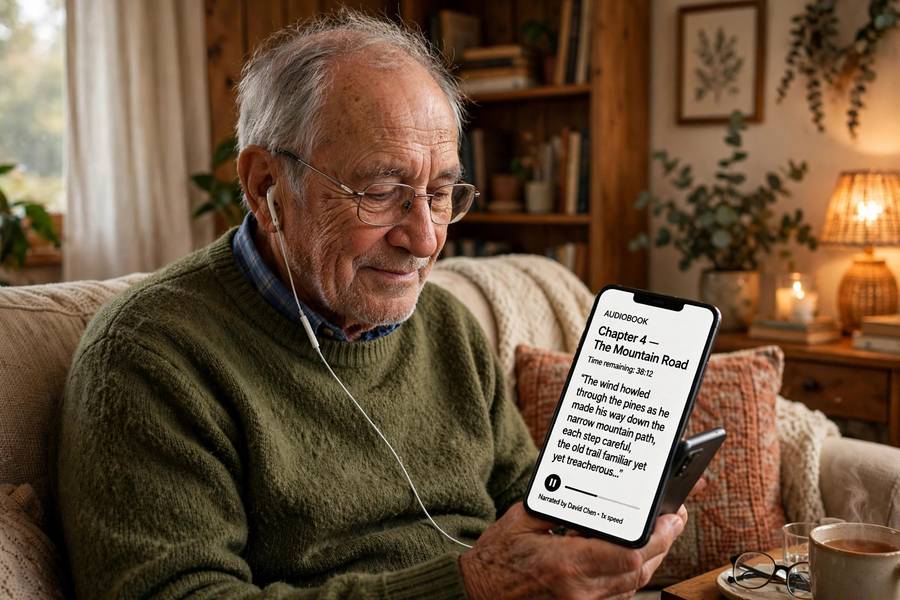
The user base is broader than most people imagine. Blind users rely on screen readers for all computing. People with low vision combine magnification with speech output. People with dyslexia, ADHD, and other reading-related conditions use read-aloud tools to process text auditorily. People with motor impairments may use TTS alongside voice control (how voice recognition works covers the input side). People who are non-speaking use AAC devices with synthesized voices to communicate. Elderly users with declining vision use TTS for reading without assistive-tech expertise.
Then there’s the vast situational use: anyone listening to articles while driving, cooking, or exercising is using accessibility technology without the label. The curb-cut effect — designs for disability that benefit everyone — applies strongly here. Read-aloud features built for blind users now serve millions of sighted multitaskers.
What unites these users: they depend on the technology working, not as a nice-to-have but as infrastructure. A sighted person tolerates a glitchy read-aloud button; a blind professional’s workday breaks when their screen reader fails. Design accordingly — reliability isn’t a feature here, it’s the product.
Screen Readers: Computing by Ear
Screen readers are the flagship accessibility application — full navigation systems for computing that use speech as the interface. Users don’t just listen; they command: jump between headings, navigate tables cell by cell, skim links, fill forms, all through keyboard shortcuts while speech responds in milliseconds.
The expertise of proficient users is staggering — listening at 400+ words per minute, both hands on keyboard shortcuts, navigating complex applications faster than many sighted users. This expertise deserves respect in design: accessibility features built without disabled users’ input reliably miss the mark. “Nothing about us without us” isn’t a slogan here; it’s an engineering requirement.
The TTS requirements are specific: instant responsiveness (latency kills navigation), clarity at high speed (where classic compact voices still beat prettier neural ones), graceful interruption (speech must stop cleanly mid-word on command), and UI metadata speech (announcing roles, states, and structure). These priorities differ from mainstream TTS — a beautiful voice that’s slow to respond is a bad screen reader voice.
Reading Aids for Dyslexia and Reading Difficulties
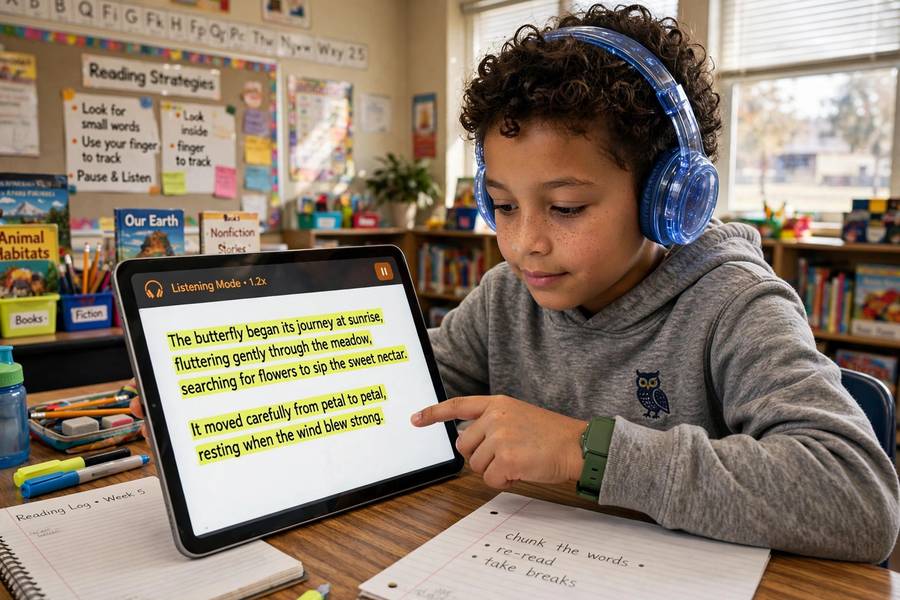
For the estimated 1 in 5 people with dyslexia and related reading difficulties, TTS-based reading aids are transformative. The core feature is synchronized highlighting: text is read aloud while each word or sentence highlights in sync, engaging visual and auditory processing together. This bimodal input significantly improves comprehension and reading stamina for many users.
The tools range from browser extensions to dedicated apps to built-in OS features. Good ones offer: adjustable speed (many users settle around 1.2-1.5x), word/sentence highlighting options, dyslexia-friendly fonts and spacing, translation of difficult words on demand, and distraction-free reading views. The best integrate with the user’s actual reading material — web articles, PDFs, ebooks, documents — rather than requiring special formats.
For students, these tools are often the difference between keeping up and falling behind — see AI tools for students for the broader toolkit. The key insight for educators and parents: reading aids don’t replace reading instruction; they remove the bottleneck so learning can happen. A student who can’t decode fluently can still comprehend brilliantly when the decoding load is lifted.
AAC: Giving People a Voice
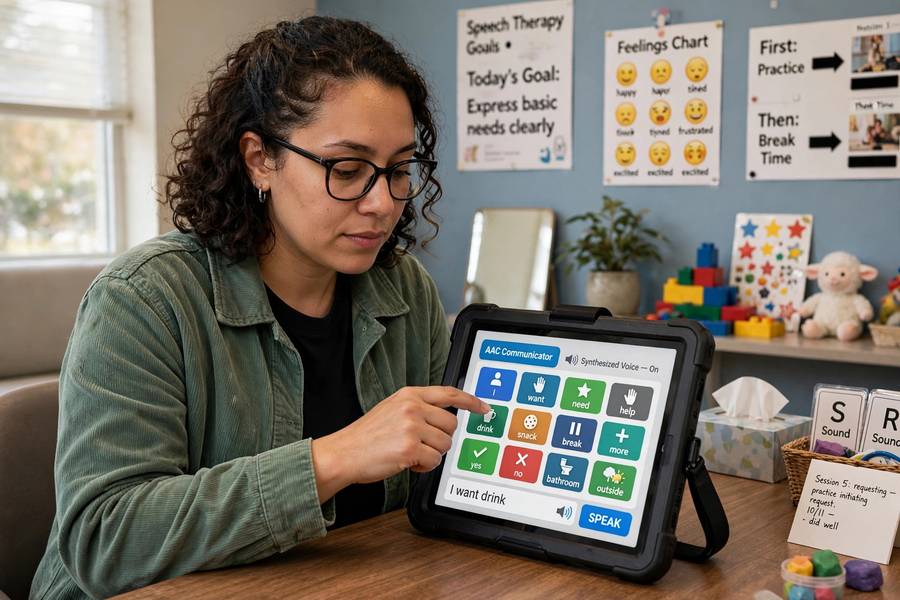
Augmentative and alternative communication (AAC) devices give speech to people who can’t speak — due to ALS, cerebral palsy, stroke, autism, or other conditions. Modern AAC combines TTS with sophisticated input methods: eye tracking, switch scanning, predictive text, and increasingly AI-assisted phrase prediction.
The voice itself carries enormous personal weight. For someone losing their speech to ALS, a generic robotic voice is a second loss — of vocal identity. Voice banking (recording your voice while you still can) and voice cloning let people keep their own voice synthetically. For children who never had a speaking voice, age-appropriate and personality-matched voices matter — a seven-year-old shouldn’t sound like a GPS navigator.
Recent AI advances are improving AAC dramatically: faster phrase prediction means more natural conversation speed (historically a painful bottleneck — minutes per sentence), better voice quality, and more natural prosody. But the fundamentals remain human: the best AAC setup is worthless without training, customization, and respect for the user’s autonomy. Technology enables communication; the person communicates.
Low Vision and Situational Needs
Between full vision and blindness lies a large population with low vision — declining acuity, tunnel vision, light sensitivity — who combine strategies: magnification plus speech, high contrast plus read-aloud, large text plus audio. TTS for this group is often secondary rather than primary: reading the long article aloud while resting eyes, announcing notifications, reading menus via camera apps.
The design implications: these users often aren’t “assistive technology users” in their own minds. They won’t learn screen reader keyboard shortcuts, but they’ll tap a “read aloud” button. Meeting them where they are means simple, discoverable, forgiving TTS features — not the power tools of the screen reader world, but the gentle on-ramps.
Situational impairments extend the audience further: bright sunlight making screens unreadable, hands occupied, eyes needed elsewhere. Every “listen to this article” button serves this spectrum. Designing for the full range — from permanent disability to momentary inconvenience — is just good design, and it’s why accessibility features keep escaping their original audience.
What Makes TTS Accessible vs Just Audible
Any TTS can produce audio; accessible TTS meets specific criteria. Responsiveness: speech starts instantly and stops instantly on command — non-negotiable for navigation. Controllability: rate, pitch, volume, verbosity adjustable widely, because needs vary enormously. Clarity at speed: intelligible at 2-3x normal rates, where many pretty voices degrade. Robustness: handles abbreviations, numbers, mixed content, and malformed input gracefully rather than crashing or babbling. Interruption handling: new speech cleanly replaces old, no overlap or queue pileup.
Then the content side: proper structure exposure (headings, lists, tables announced as such), meaningful link text (“click here” is useless aloud), alt text for images, and logical reading order. A perfect TTS engine reading a badly structured document still produces a bad experience — accessibility is a pipeline, and the content author is part of it.
Test with real users, always. Automated accessibility checkers catch maybe a third of issues. The rest — confusing navigation, illogical order, missing context — only surface when someone actually uses the thing with assistive technology. Budget for user testing like you’d budget for any other QA; it’s not charity, it’s quality.
Making Your Content TTS-Friendly
If you publish content — websites, documents, videos — here’s the practical checklist. Use real headings in order (h1, h2, h3 — don’t skip levels); screen reader users navigate by them. Write descriptive link text (not “click here”). Add alt text to meaningful images (describe the content, not “image of…”). Label form fields properly. Ensure logical reading order (what’s visually first should be structurally first). Provide transcripts for audio and captions for video. Avoid text in images (it’s invisible to TTS). Use lists as lists, tables as tables — real markup, not visual imitation.
For documents: use styles, not manual formatting; add alt text; check reading order in PDFs (the most common accessibility disaster in documents). For presentations: read slide titles uniquely, describe key visuals in speaker notes or alt text, don’t rely on color alone.
None of this is difficult — it’s basic craft, and it benefits everyone (SEO, mobile users, future you). The reason so much content fails these basics isn’t difficulty; it’s that nobody checked. Add a TTS pass to your publishing checklist: listen to your page with a free screen reader or read-aloud tool for five minutes. You’ll hear every problem instantly.
The Standards and Legal Landscape
The Web Content Accessibility Guidelines (WCAG) are the global standard — version 2.2 current, with 3.0 in development. They specify what’s required at levels A, AA (the common legal target), and AAA. TTS-relevant requirements cluster around perceivability (text alternatives, adaptable content) and operability (keyboard access, enough time).
Legally, momentum is one-directional: accessibility lawsuits keep rising (thousands annually in the US alone), the EU Accessibility Act expanded requirements, and procurement rules increasingly mandate compliance. “We didn’t know” isn’t a defense that works anymore. But I’d frame compliance as the floor, not the goal — WCAG AA gets you past lawsuits; genuine usability testing gets you actual accessibility.
The practical path: audit against WCAG 2.2 AA, fix the structural issues (they’re usually concentrated), test with real assistive technology users, and build accessibility into the design process rather than bolting it on. The bolt-on approach costs more and works worse, every time.
Where Accessibility TTS Is Heading
AI is improving accessibility TTS on multiple fronts. Better voices — natural neural voices are reaching screen readers, with the latency and speed challenges being solved. AI image description — automatically generating alt text where authors failed to (good, but no excuse for authors to stop writing it). Interface understanding — AI that comprehends app structure beyond what the accessibility tree exposes, helping with badly-built apps. Real-time captioning and translation — increasingly accurate, increasingly instant.
The most exciting direction: agentic assistance — AI that doesn’t just read interfaces but helps accomplish tasks through them. “Book me the cheapest morning flight” executed by an AI that understands the booking site. For users with disabilities, this could collapse multi-step struggles into single commands. The caveats — control, trust, error handling — are real and being worked through thoughtfully by the accessibility community.
Through all of this, the principle that got us here still applies: design with disabled users, not for them. The best accessibility technology has always come from the community it serves. AI doesn’t change that — it just raises the stakes and the possibilities together.
Frequently Asked Questions
TTS powers screen readers for blind users, reading aids with synchronized highlighting for dyslexia, AAC communication devices for non-speaking people, and read-aloud features for low vision. It’s the foundational accessibility technology — for millions, it’s how computing and reading happen at all.
A screen reader is a full navigation system letting users jump between headings, fill forms, and operate apps by ear with keyboard commands. Read-aloud just vocalizes text linearly. Screen readers are interactive tools for computing; read-aloud is for consuming content.
Use real headings in order, descriptive link text, alt text for images, properly labeled forms, logical reading order, and real list/table markup. Provide transcripts for audio and captions for video. Then test by listening to your page with a screen reader for five minutes.
AAC (augmentative and alternative communication) devices give speech to people who can’t speak, using TTS voices controlled by eye tracking, switches, or touch. Modern AAC adds AI phrase prediction for faster communication, and voice banking lets people preserve their own voice synthetically.
Accessibility laws in many countries require digital content to work with assistive technologies including TTS — typically measured against WCAG 2.2 Level AA. Lawsuits keep rising and the EU Accessibility Act expanded obligations. Compliance is the floor; real user testing is the goal.