My first attempt at running Stable Diffusion locally was a small disaster. I had a respectable laptop, a decent CPU, and a lot of confidence. Twenty minutes later I was staring at an out-of-memory error and a frozen screen, having learned the single most important lesson about local AI image generation: the spec sheet matters more than the hype. Your PC either has the muscle, or it doesn’t, and no amount of settings-tweaking fixes a missing GPU.
The good news is that the bar is lower than most people assume. You don’t need a render farm. A mid-range gaming GPU from the last few years will do it. But the requirements are specific and unforgiving in one particular area — video memory — and misunderstanding that one spec is where almost everyone goes wrong. This guide lays out exactly what you need: minimum specs, recommended specs, what each component actually does during generation, and the honest workarounds if your hardware falls short. If you’re new to the tool itself, start with my explainer on what Stable Diffusion is, then come back and spec your machine.
Table of Contents
- The Short Answer: Minimum vs Recommended Specs
- The GPU: The One Component That Truly Matters
- VRAM: The Spec Everyone Underestimates
- CPU, RAM, and Storage: The Supporting Cast
- Windows, Mac, and Linux: OS Differences
- Can You Run It on a Laptop?
- What If Your PC Doesn’t Make the Cut?
- Tuning Settings for Weaker Hardware
- Frequently Asked Questions
The Short Answer: Minimum vs Recommended Specs
Let’s get the numbers on the table first.
Minimum (it runs, slowly, with compromises):
– GPU: NVIDIA GTX 1060 6GB or equivalent
– VRAM: 6GB
– System RAM: 8GB
– Storage: 15GB free (SSD strongly preferred)
– OS: Windows 10/11, Linux, or macOS with Apple Silicon
Recommended (smooth, fast, full features):
– GPU: NVIDIA RTX 3060 12GB or better
– VRAM: 12GB+
– System RAM: 16GB+
– Storage: 30GB+ free on an NVMe SSD
– OS: Windows 11 or Linux
Comfortable enthusiast (large images, batch generation, training):
– GPU: RTX 4070 / 4080 / 4090
– VRAM: 16–24GB
– System RAM: 32GB
The gap between “minimum” and “recommended” is mostly about patience. On a 6GB card you can generate a decent 512×512 image in maybe a minute or two with optimized settings. On a 12GB card, the same image takes fifteen seconds, and you can push to higher resolutions without the whole thing falling over. Both are the same model doing the same math — one just has room to breathe.
The GPU: The One Component That Truly Matters
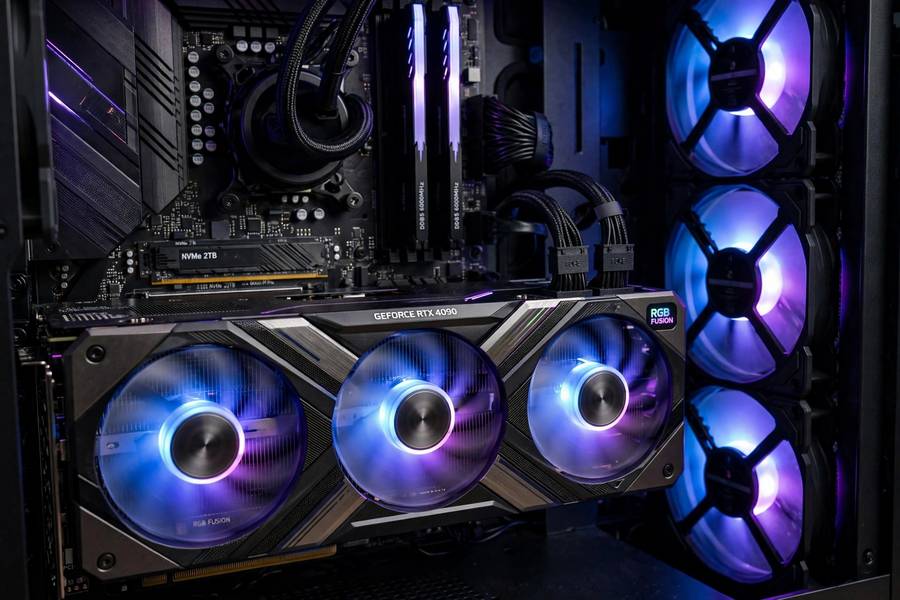
Stable Diffusion is a GPU workload, full stop. The diffusion process — the iterative denoising that turns random static into an image — is thousands of matrix multiplications, and GPUs are built precisely for that. A CPU can technically do it, but “technically” here means waiting ten to twenty minutes per image while your processor screams. Nobody does this twice.
NVIDIA is the pragmatic choice, and it’s not close. The entire ecosystem — CUDA, the optimized libraries, the community guides, the pre-built installers — assumes NVIDIA. AMD cards can work through workarounds (DirectML on Windows, ROCm on Linux), and people do get them running, but expect a weekend of troubleshooting instead of an afternoon. Intel’s Arc cards are in a similar boat: possible, painful, poorly documented.
If you’re buying or upgrading specifically for this, the used market is your friend. An RTX 3060 with 12GB of VRAM is the sweet spot of price to performance for Stable Diffusion — often available used for the price of a nice dinner out per month of saving, and it handles everything short of serious model training. Understanding how AI models are trained explains why the GPU matters so much: the same parallel math that trains models is what runs them.
VRAM: The Spec Everyone Underestimates
Here’s the spec that kills most setups: VRAM, the memory on your graphics card. Not your system RAM — the memory soldered onto the GPU itself. Stable Diffusion loads the entire model into VRAM, and if it doesn’t fit, you get the dreaded CUDA out-of-memory error and nothing else.
The base Stable Diffusion 1.5 model needs roughly 4GB of VRAM just to load. SDXL needs around 8GB. Then generation itself needs working space on top — the bigger the image, the more working space. That’s why 6GB is the practical floor for SD 1.5 (tight but workable) and 8GB is the floor for SDXL.
This is also why a “faster” card with less VRAM can be worse than a “slower” card with more. An RTX 4060 Ti 8GB will lose to an RTX 3060 12GB for Stable Diffusion work, despite being a newer, faster chip — because the 3060 can hold bigger models and generate bigger images without choking. For this workload, VRAM capacity beats raw speed. Memorize that; it will save you money.
The other VRAM trap: other programs using the GPU. A browser with hardware acceleration, a game running in the background, a second monitor rendering video — all of it eats VRAM. Close everything before generating. I’ve seen people chase phantom out-of-memory errors for hours when the culprit was a YouTube tab.
CPU, RAM, and Storage: The Supporting Cast
CPU: Almost any modern CPU works. A quad-core from the last decade is fine. The CPU handles loading, preprocessing, and the user interface — none of it demanding. Don’t upgrade your CPU for Stable Diffusion; put the money toward the GPU.
System RAM: 8GB is the floor, 16GB is comfortable. The model lives in VRAM, but the application, the OS, and image handling live in system RAM. If you’re on 8GB, close other apps. If you’re generating large batches, 16GB gives you headroom. 32GB is overkill for generation but useful if you ever try training or fine-tuning.
Storage: You need space — models are 2–7GB each, and you’ll accumulate them like trading cards. 15GB free is the bare minimum for one model plus the software; realistically budget 30–50GB. An SSD isn’t strictly required, but model loading from a spinning hard drive is painfully slow, and you’ll feel it every time you switch checkpoints. NVMe is ideal; SATA SSD is fine.
Power supply: The unglamorous one. A hungry GPU under full load draws serious power, and an underpowered PSU causes crashes that look like software bugs. If you’re upgrading a GPU, check your PSU wattage and connectors first. This is the step everyone skips and the step that causes the weirdest failures.
Windows, Mac, and Linux: OS Differences
Windows is the path of least resistance. Most one-click installers target Windows, NVIDIA drivers are mature, and community support is deepest. If you want it working tonight, use Windows.
Linux is the enthusiast’s choice — slightly more setup, slightly better performance, and the native home of most AI tooling. If you’re comfortable in a terminal, Linux gives you the most control and the fewest surprises long-term.
macOS works, with caveats. Apple Silicon Macs (M1 and later) run Stable Diffusion through Apple’s Metal framework, and the unified memory architecture means a 16GB Mac can punch above its weight — the GPU can access system memory, partially sidestepping the VRAM wall. But it’s slower than an equivalent NVIDIA setup, some features and extensions lag behind, and Intel Macs are effectively a no-go. A base-model MacBook Air will run it; it just won’t be fast.
Can You Run It on a Laptop?
Gaming laptops with discrete NVIDIA GPUs (RTX 3060 laptop and up) run Stable Diffusion well — the laptop 3060’s 6GB of VRAM is the constraint, so stick to SD 1.5 and modest resolutions. Ultrabooks with integrated graphics (Intel Iris, Apple Silicon aside) are a different story: technically possible, practically miserable. Generation times stretch into many minutes per image, and thermal throttling makes it worse.
The honest laptop test: if your laptop can run a modern game at medium settings, it can probably run Stable Diffusion acceptably. If it can’t, don’t bother — use a cloud option instead (more on that below).
What If Your PC Doesn’t Make the Cut?
No shame in it — most PCs don’t. You have good options:
Cloud notebooks (free tier): Google Colab gives you GPU access in the browser, free with limits. It’s the classic way to try Stable Diffusion with zero hardware. The catches: sessions time out, the free GPU lottery might hand you something weak, and setup takes some fiddling each time.
Hosted generation services: Plenty of websites run Stable Diffusion on their servers and charge per image or via subscription. You lose the privacy and unlimited-generation benefits of local running, but you gain zero setup and access to big models.
Upgrade strategically: If your PC is close — say, plenty of CPU and RAM but an old GPU — a used 12GB card is the single most cost-effective upgrade in all of AI hobbyism. One component, transformative difference.
The privacy angle is worth weighing: local generation means your prompts and images never leave your machine. For anyone generating personal, creative, or sensitive work, that’s a genuine advantage of meeting the system requirements rather than renting someone else’s computer.
Tuning Settings for Weaker Hardware
If you’re on minimum-spec hardware, these settings are the difference between working and weeping:
Lower the resolution. 512×512 is the native training resolution of SD 1.5 and by far the most VRAM-efficient. Generate small, then upscale — upscaling is cheap compared to generating big.
Use fewer steps. 20–30 sampling steps is the sweet spot. Beyond 30 you get diminishing returns; below 20 quality drops. Don’t brute-force quality with 100 steps on weak hardware.
Enable memory optimizations. Most interfaces offer xformers or similar memory-efficient attention — turn it on. It trades a little speed for a lot of VRAM savings.
Batch size 1. Generating multiple images at once multiplies VRAM usage. One at a time on limited VRAM.
Try smaller models. Distilled or pruned model variants exist specifically for low-VRAM systems. Slightly less capable, dramatically less demanding.
None of these are compromises on creativity — they’re compromises on convenience. The images you make on a 6GB card with smart settings will beat the images someone makes on a 24GB card with bad prompts, every time. The hardware gets you in the door; the prompting is the actual skill. And that skill starts with understanding what an AI model actually is under the hood.
Frequently Asked Questions
6GB of VRAM is the practical minimum for Stable Diffusion 1.5, and 8GB for SDXL. 12GB or more is recommended for comfortable use with larger images and batch generation. VRAM matters more than raw GPU speed for this workload.
Technically yes, using your CPU, but generation takes 10–20 minutes per image versus seconds on a GPU. It is not practical for real use. Apple Silicon Macs are an exception, as their unified memory architecture handles it reasonably.
It can work via DirectML on Windows or ROCm on Linux, but expect more setup trouble and slower performance than NVIDIA. The ecosystem — installers, guides, and optimizations — is built primarily around NVIDIA’s CUDA.
8GB of system RAM is the minimum and works if you close other applications. 16GB is the comfortable recommendation, especially for larger batches or running other software alongside.
Gaming laptops with a discrete NVIDIA GPU (RTX 3060 or better) run it well. Ultrabooks with integrated graphics will be very slow. If your laptop handles modern games at medium settings, it can likely handle Stable Diffusion.
Keep reading: