Android phones accumulate apps the way junk drawers accumulate batteries — games you played twice, three shopping apps for one purchase, and a pile of pre-installed apps you never asked for. Here’s how to remove all of them, including the stubborn ones.
I’m Sophia. I declutter my Android devices quarterly, and the process differs slightly between Samsung, Pixel, and other brands. This covers all of them.
Table of Contents
- Method 1: Uninstall from the Home Screen or App Drawer
- Method 2: Uninstall from Settings
- Method 3: Uninstall from the Play Store
- Disabling Bloatware You Can’t Uninstall
- What “Disable” Actually Does
- When Apps Won’t Uninstall: Fixes
- Reclaiming Space Beyond Apps
- Managing Default Apps
- After Deleting: Keep It Clean
- Frequently Asked Questions
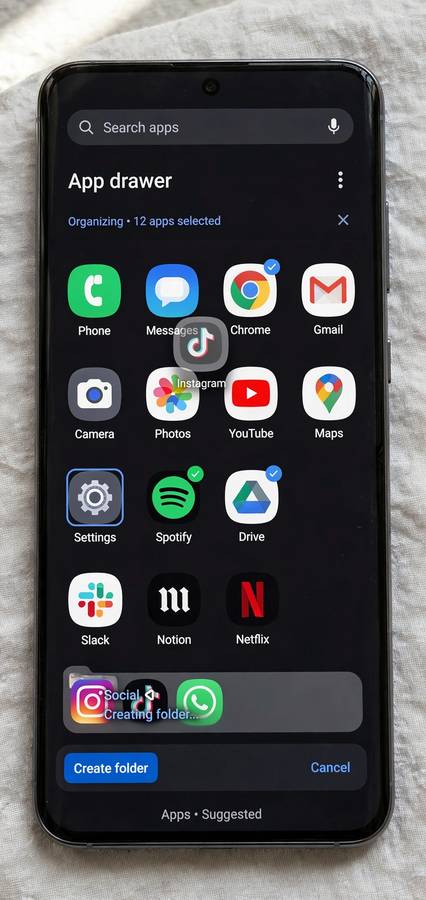
Method 1: Uninstall from the Home Screen or App Drawer
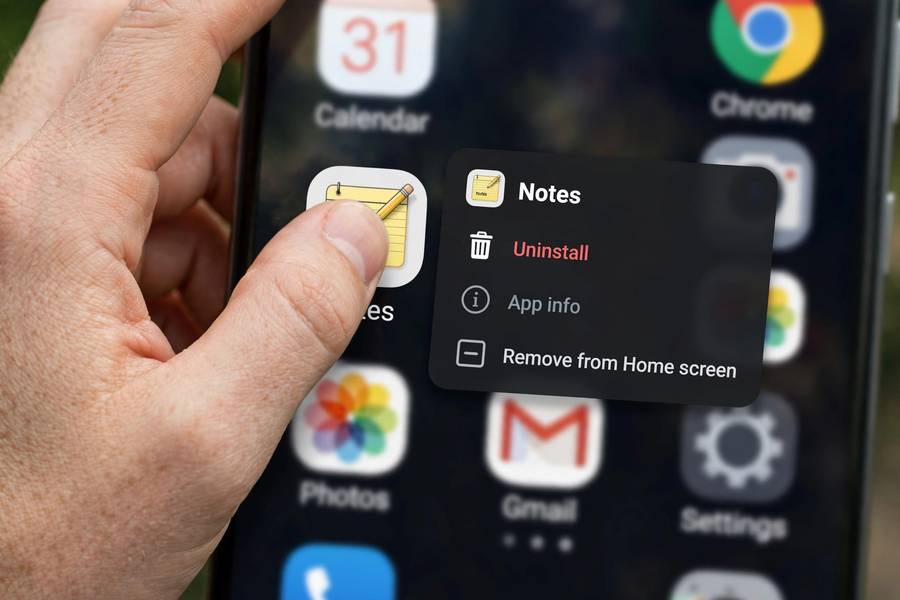
The quickest method — works on virtually all Android phones:
- Find the app (Home Screen or app drawer).
- Long-press the app icon.
- Tap Uninstall (or drag the icon to the “Uninstall” area at the top of the screen, on some launchers).
- Confirm.
On Samsung phones, the long-press menu shows Uninstall directly. On Pixels, you may see App info first — tap it, then Uninstall.
Home Screen vs app drawer note: Removing an icon from the Home Screen (drag to “Remove”) only removes the shortcut — the app stays installed. Make sure you choose Uninstall, not Remove.
Method 2: Uninstall from Settings
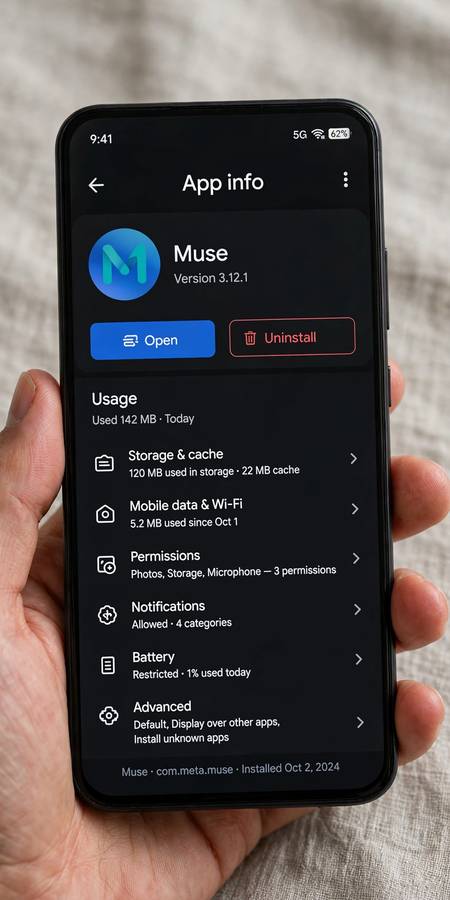
Best when you want to see storage details, or when the icon method isn’t cooperating:
- Go to Settings → Apps → See all apps.
- Tap the app.
- Tap Uninstall and confirm.
Why use this method: The App info screen shows the app’s storage usage, permissions, battery usage, and data consumption — useful context when deciding what goes. It’s also the most reliable method across all brands and Android versions.
Method 3: Uninstall from the Play Store
Handy for bulk cleanup:
- Open the Google Play Store.
- Tap your profile icon → Manage apps & device → Manage.
- Check the boxes next to apps you want gone.
- Tap the trash icon and confirm.
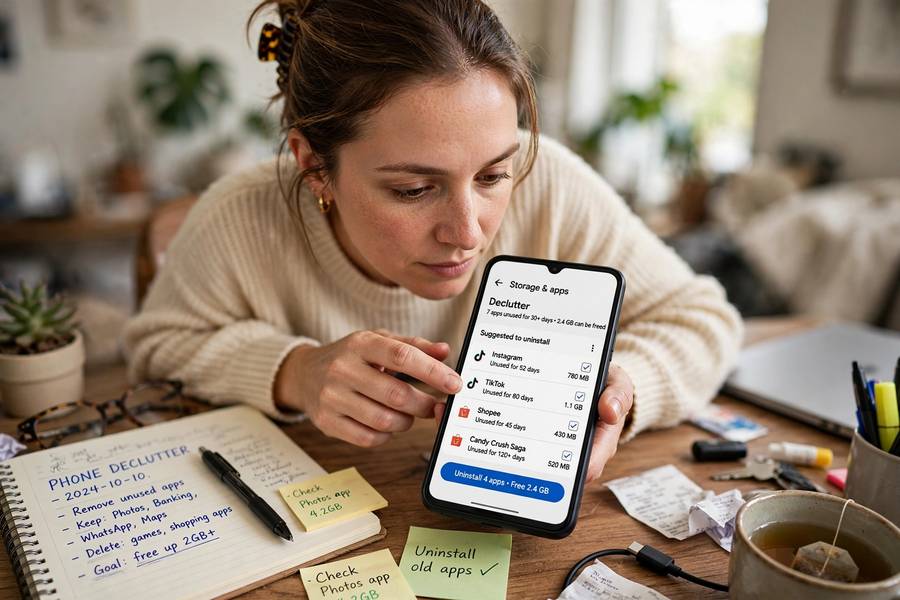
This is the fastest way to remove several apps at once — check, check, check, delete. The Manage tab can also sort by least used, which is perfect for finding apps you forgot existed.
Disabling Bloatware You Can’t Uninstall
Every Android phone ships with pre-installed apps — carrier apps, manufacturer apps, duplicate browsers and galleries. Many can’t be uninstalled, but almost all can be disabled:
- Long-press the app → App info (or Settings → Apps → the app).
- If there’s no Uninstall button, tap Disable.
- Confirm. (You may first need to tap Uninstall updates to revert it to factory version, then Disable becomes available.)
Disabled apps vanish from your app drawer, stop running, stop updating, and stop consuming resources. They still occupy a small amount of system storage (they live in the system partition), but they’re effectively gone from your life.
Common safe-to-disable candidates: Carrier bloat (T-Mobile Tuesdays, My Verizon if you don’t use it), duplicate apps (if you use Chrome, you can disable the manufacturer’s browser), manufacturer game stores and “tips” apps.
Be careful with: Anything with “Android,” “System,” “Services,” or “Provider” in the name. Disabling actual system components can break things. When in doubt, Google the specific package name before disabling.
What “Disable” Actually Does
Disabled apps: – Disappear from the app drawer and Home Screen – Stop running in the background – Stop receiving updates – Can’t send notifications – Can be re-enabled anytime from Settings → Apps → Disabled (or All apps → the app → Enable)
It’s fully reversible — think of it as putting the app in deep hibernation rather than deleting it.
When Apps Won’t Uninstall: Fixes
No Uninstall option, only Disable: It’s a system/pre-installed app. Disable it (above) — that’s the intended path.
“Uninstall” is greyed out: The app may have device administrator privileges. Go to Settings → Security → Device admin apps (location varies by brand), deactivate the app’s admin status, then uninstall normally. (Some “find my phone” and enterprise apps do this.)
Work profile apps: Apps installed by your employer’s work profile can only be removed by the IT admin or by removing the work profile entirely (Settings → Accounts → Work → Remove work profile).
The nuclear option (advanced): ADB commands from a computer can remove system apps without root (adb shell pm uninstall -k --user 0 <package>). It works, but removing the wrong package can break your phone — research each package name first, and know this is beyond casual decluttering.
Reclaiming Space Beyond Apps
Uninstalled the dead weight and still cramped? The real storage hogs on Android:
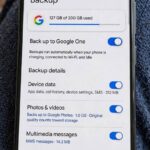
Photos and videos. Check Google Photos backup is on (Photos app → profile → Photos settings → Backup), then use Free up space: Photos app → profile → Free up space — it removes local copies of already-backed-up photos. This alone can free 10+ GB.
WhatsApp/Telegram media. Messaging apps are silent storage killers. WhatsApp: Settings → Storage and data → Manage storage — bulk-delete large files and forwarded media. Telegram: Settings → Data and Storage → Storage Usage → Clear Cache.
Downloaded content. Spotify/Netflix/YouTube offline downloads, Google Maps offline areas, podcast episodes — audit each app’s downloads. You probably have episodes from 2023 you’ll never listen to.
The Downloads folder. Files app → Downloads. Old APKs, PDFs, memes, installers — review and purge quarterly.
Screen recordings and screenshots. They accumulate invisibly. Files by Google’s Clean tab flags old ones for review.
Cached data (system-wide). Settings → Storage → tap categories to see what’s eating space. If “System” is enormous, a cache partition wipe via recovery mode can help (advanced users only).
The pattern: apps are rarely the actual problem. Media, downloads, and messaging cruft are where the gigabytes hide. A quarterly 15-minute cleanup keeps “storage full” warnings away permanently.
Managing Default Apps
Deleting apps is half the battle — the other half is stopping the wrong apps from opening your stuff:
Set your defaults: Settings → Apps → Default apps — choose your preferred browser, phone app, SMS app, and digital assistant. This stops the pre-installed apps you can’t delete from hijacking links and calls.
Why this matters with bloatware: You can’t uninstall Samsung Internet or the manufacturer’s messaging app — but you can demote them. Set Chrome as default browser and Google Messages as default SMS, and the undeletable apps become invisible. They still exist; they just never bother you.
Opening links in the right app: Settings → Apps → Default apps → Opening links — control which apps auto-open web links. Stop that shopping app from intercepting every product link; make links open in your browser instead.
Assistant choice: Long-press home behavior, “Hey Google” vs. Bixby — set it in Settings → Apps → Default apps → Digital assistant app. One less reason to keep the manufacturer’s assistant enabled.
Combined with disabling (not just ignoring) bloatware, default-app management means your Android experience is fully yours — regardless of what the manufacturer pre-installed.
After Deleting: Keep It Clean
The declutter only sticks if you prevent re-accumulation:
Review new apps monthly. Every app you install should earn its place. Once a month, check Settings → Apps sorted by last used — anything untouched for 60 days is a deletion candidate. The two-minute rule: if you can’t remember why you installed it, remove it.
Turn off auto-installs. The Play Store sometimes restores apps you deleted when switching devices. During new-phone setup, uncheck apps you don’t want instead of accepting the full restore list.
Watch for app creep from updates. Some manufacturers re-enable disabled bloatware after major OS updates. After each system update, glance through your app drawer — if a disabled app resurrected itself, disable it again. Thirty seconds, twice a year.
Use Lite versions. Facebook Lite, Messenger Lite, and similar official “lite” apps do 90% of the job at a fraction of the size. If you must keep a heavy app, the lite version is the compromise.
A lean phone isn’t a one-time project — it’s a light habit. But the habit takes less time than reading this section did.
Keep reading: if this helped, you’ll also like how wireless earbuds work, how a search engine works — I wrote them in the same plain-English style.
Frequently Asked Questions
Long-press the app icon and tap Uninstall, or go to Settings → Apps → [app] → Uninstall. For bulk removal, use the Play Store → profile → Manage apps & device → Manage, check multiple apps, and tap the trash icon.
Most pre-installed (bloatware) apps can’t be uninstalled, but can be disabled: Settings → Apps → [app] → Disable. Disabled apps disappear from the drawer, stop running and updating, and can be re-enabled anytime.
Uninstall fully removes the app and frees its storage. Disable (for system apps that can’t be uninstalled) hides the app, stops it running and updating, but leaves its system files in place. Disabling is completely reversible.
System apps and carrier/manufacturer bloatware are protected from uninstallation. The app may also have device administrator privileges (check Settings → Security → Device admin apps) or be part of a managed work profile.
Yes — uninstalling removes the app’s local data. However, data synced to your Google account or the app’s cloud servers (game progress, cloud photos) survives and will restore if you reinstall and sign in.
In the Play Store, go to your profile → Manage apps & device → Manage, and sort by “Least used.” This surfaces forgotten apps — the best candidates for deletion.