How to Screenshot on Mac: Every Shortcut You Need to Know

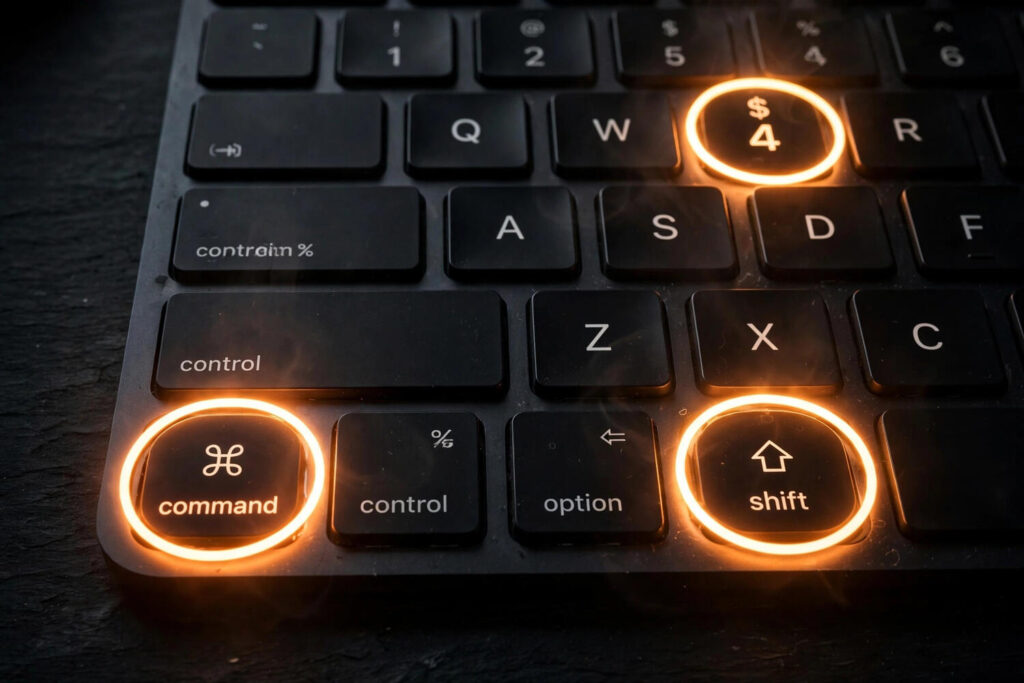
Mac screenshots are one of those things that feel like they should be obvious and somehow are not. I have watched smart, capable people photograph their Mac screen with their phone — which works, technically, the way a rock works as a hammer. The real methods take about two seconds once you know them, and there are only a handful worth memorizing. This is the complete guide to how to screenshot on Mac: every shortcut, what each one does, where your files go, and the settings worth changing on day one.
The Three Shortcuts That Cover 99% of Needs
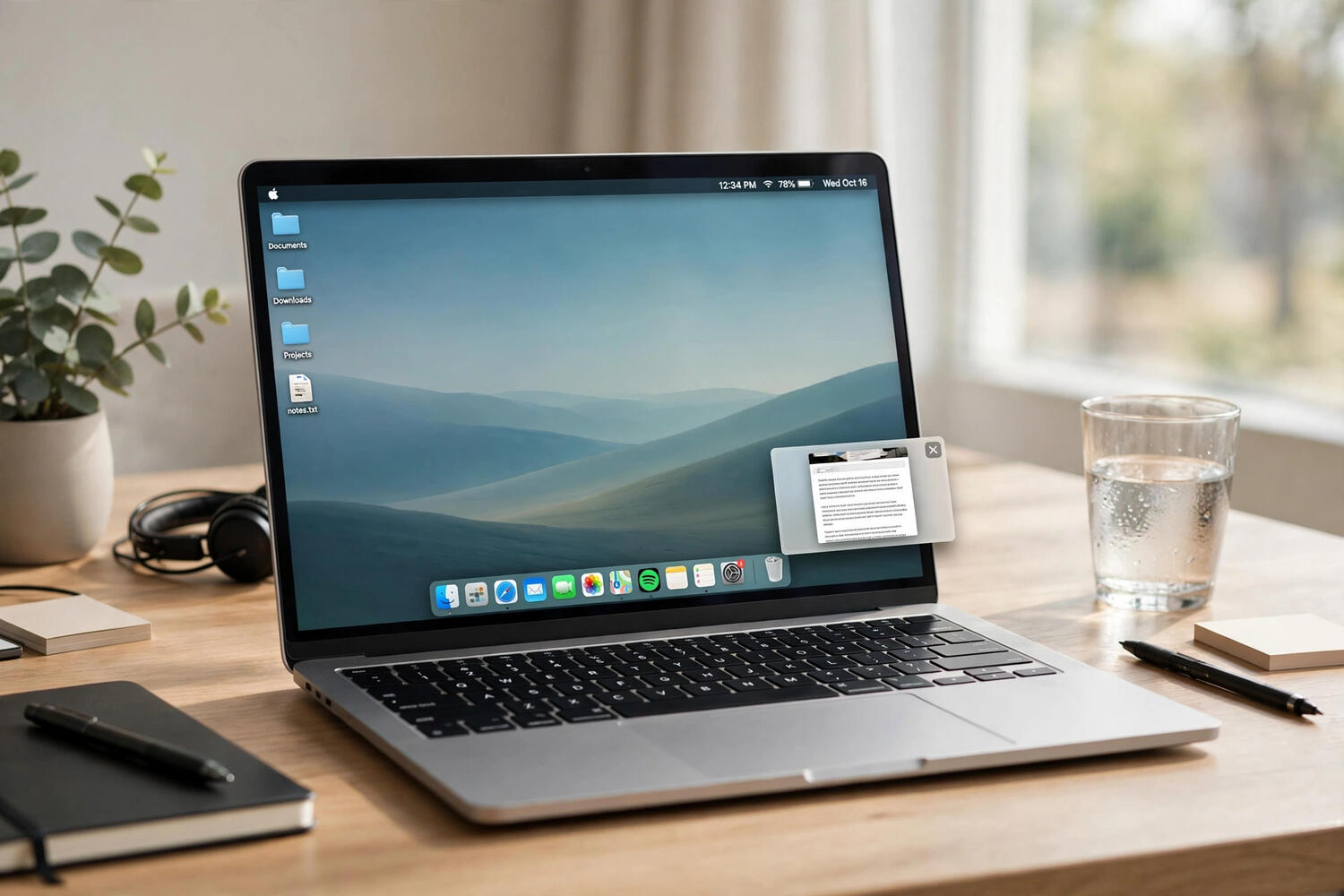
Memorize these three and you are done for daily life. Command + Shift + 3 captures the entire screen instantly — every monitor, everything visible. The screenshot saves to your desktop by default, and a small thumbnail appears in the corner of your screen for a few seconds. Command + Shift + 4 turns your cursor into crosshairs so you can drag a rectangle around exactly what you want — the most-used screenshot shortcut on the Mac, and the one I reach for ten times a day. Release the mouse and the selection is captured.
Command + Shift + 4, then Spacebar is the refined version: after pressing the shortcut, tap Space and the cursor becomes a camera. Hover over any window and it highlights; click to capture just that window, complete with a clean drop shadow and transparent background. It is the difference between a messy screenshot and a professional-looking one, and it costs one extra keystroke.
The Screenshot Toolbar: The Visual Option
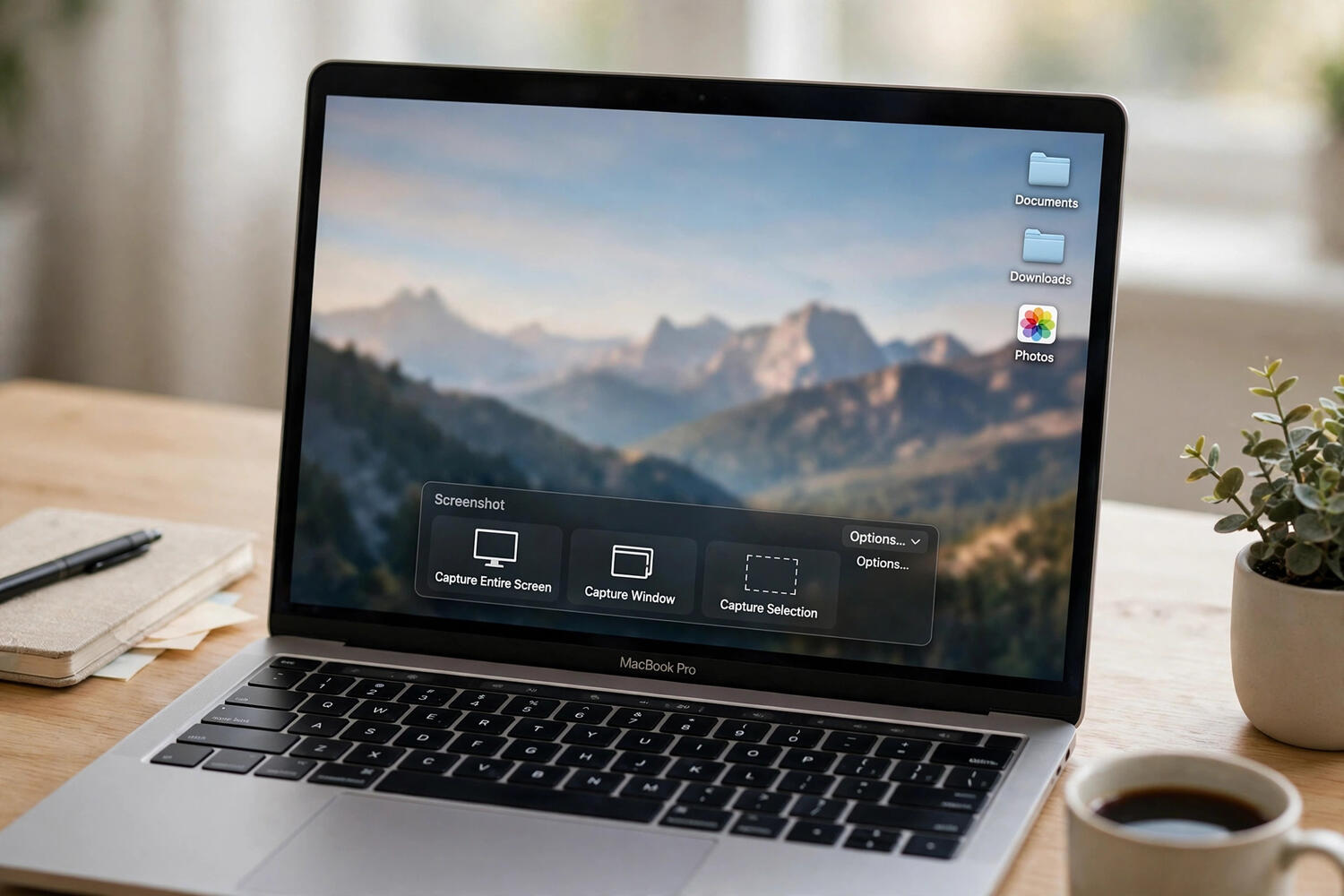
If keyboard shortcuts are not sticking, Command + Shift + 5 opens the screenshot toolbar — a small control bar with buttons for capturing the full screen, a selected window, or a custom portion, plus screen recording options. It also has an Options menu where you can set a timer delay (5 or 10 seconds, useful for capturing menus that disappear when you press keys), choose where screenshots save, and decide whether the floating thumbnail appears.
The toolbar is also the only built-in way to record your screen: the two rightmost buttons start recording the entire screen or a selected portion. Press Command + Shift + 5 again or click the stop button in the menu bar to finish. Recordings save as .mov files in the same location as your screenshots.
Touch Bar, Touch ID, and Special Cases
On Macs with a Touch Bar, Command + Shift + 6 captures the Touch Bar itself — a niche shortcut, but the only way to do it natively. To copy a screenshot to the clipboard instead of saving a file, hold Control with any of the shortcuts above (for example, Control + Command + Shift + 4), then paste with Command + V wherever you need it. This is the fastest path when the screenshot’s destination is a message, document, or email rather than your desktop.
Capturing dropdown menus and tooltips takes a small trick: open the Screenshot app (Command + Shift + 5), set a 5-second timer, then open the menu you want and wait. The timer fires while the menu is visible. Alternatively, use the clipboard method with the menu open — press the shortcut, drag your selection, and the menu stays put because you never clicked away.
Where Screenshots Go (And How to Change It)
By default, screenshots land on your desktop with names like “Screenshot 2026-10-14 at 9.41.23 AM.png” — informative, but your desktop becomes a graveyard fast. Change it: press Command + Shift + 5, click Options, and pick a folder under “Save to.” I use a dedicated Screenshots folder in Documents; some people route straight to a cloud folder for instant syncing.
That same Options menu controls the floating thumbnail (turn it off if it annoys you — the file still saves), the timer, and whether the mouse pointer appears in captures. One more useful tweak: screenshots save as PNG by default, which is high quality but heavy. If you take dozens daily, converting to JPG saves real disk space — it requires a one-line Terminal command, so only bother if the file sizes are actually a problem for you.
Editing and Annotating Without Extra Apps
Click the floating thumbnail before it disappears and you land in Markup: crop, rotate, draw shapes, add arrows, highlight, insert text, and sign documents, all built in. For quick annotations — circling the button someone needs to click, blurring a private detail — Markup is genuinely good and always available. The shapes snap neatly and the text tool is clean.
For anything beyond quick markup, screenshots flow naturally into your workflow: annotated captures pasted into notes are how half of all bug reports and tutorials get made. If you take a lot of them, a proper note-taking app that handles images well turns scattered screenshots into an organized reference library instead of desktop clutter.
Troubleshooting Common Screenshot Problems
Shortcuts do nothing? Check System Settings under Keyboard, then Keyboard Shortcuts, then Screenshots — the shortcuts can be disabled or remapped, especially on managed work Macs. Also check for conflicts: some third-party apps steal these key combinations.
Screenshots are black or blank? This happens with copy-protected video — streaming services and some video players deliberately block screen capture of their content. It is the DRM working as designed, not a bug in your Mac.
Can’t find your screenshots? They may be saving somewhere unexpected if the location was changed. Use Spotlight (Command + Space), type “Screenshot,” sort by date, and the newest ones reveal the save location.
Thumbnail keeps getting in the way? Disable it in the Command + Shift + 5 Options menu. Screenshots still save normally; you just skip the preview step.
How to Screenshot on Mac Without the Keyboard
Not everyone lives on keyboard shortcuts, and that is fine. Open the Screenshot app directly: press Command + Shift + 5 once to see the toolbar, or find it in Applications > Utilities > Screenshot, or ask Spotlight (Command + Space, type “screenshot”). The toolbar’s buttons do everything the shortcuts do — full screen, window, selection — with clickable icons and an Options menu. You can also add the Screenshot app to your Dock for one-click access.
Preview offers another path: open Preview, go to File > Take Screenshot, and choose from selection, window, or entire screen. The capture opens directly in Preview for immediate annotation or saving in your format of choice. And for trackpad devotees, you can assign screenshot actions to gestures in third-party tools — but honestly, the toolbar plus the three core shortcuts cover every human need. Pick the method that matches your brain and ignore the rest.
Power-User Tricks Worth Knowing
Here is where screenshots get fun. Hold Option while dragging a Command + Shift + 4 selection to resize it from the center instead of the corner — perfect for capturing something symmetric. Hold Spacebar while dragging to move the entire selection rectangle around without resizing it; release Space to keep adjusting the size. These two modifiers turn the basic selection tool into something precise.
After pressing Command + Shift + 4, press and hold Control to route the capture to the clipboard instead of a file — then paste directly into a message or document. And the window-capture mode (Command + Shift + 4, then Space) has a hidden option: hold Option while clicking a window to capture it without the drop shadow, giving you a clean edge-to-edge capture. Professionals use this constantly for documentation. None of these are necessary; all of them are delightful once discovered.
Organizing a Screenshot-Heavy Workflow
If you take screenshots all day — for work, for tutorials, for receipts — the desktop-default setup collapses under volume. Route captures to a dedicated folder (Command + Shift + 5 > Options > Save to), and adopt a weekly five-minute cleanup: rename the keepers descriptively, delete the rest. Screenshots named “Screenshot 2026-10-14 at 9.41.23 AM” are unfindable; “checkout-error-oct14” is forever.
For heavy annotation — arrows, numbered steps, redactions — the built-in Markup handles basics, but dedicated tools like Shottr or Cleanshot earn their keep with scrolling captures (full web pages in one image), instant annotation, and cloud sharing links. macOS cannot do scrolling capture natively, which is the main reason power users install one. Evaluate honestly whether you need it: most people do not, and every additional tool is another thing to maintain. The native tools plus Markup plus a decent folder system carry most humans all the way.
Cheat Sheet: Every Shortcut in One Place
Command + Shift + 3: full screen. Command + Shift + 4: drag a selection. Command + Shift + 4, then Space: capture a window. Command + Shift + 5: toolbar with recording. Command + Shift + 6: Touch Bar. Add Control to any of these to copy to clipboard instead of saving. Add Option while dragging to resize from center; Space while dragging to move the selection. Change the save location in the Command + Shift + 5 Options menu. That is the complete system — everything else is practice.
Frequently Asked Questions
What is the shortcut for screenshot on Mac?
Command + Shift + 3 captures the full screen, Command + Shift + 4 captures a selection you drag, and Command + Shift + 5 opens the screenshot toolbar with more options.
How do I screenshot a specific window on Mac?
Press Command + Shift + 4, then tap the Spacebar. Your cursor becomes a camera — click any window to capture just that window with a clean shadow.
Where do Mac screenshots get saved?
On the desktop by default. Change it via Command + Shift + 5, then Options, then choose a folder under “Save to.”
How do I copy a Mac screenshot to the clipboard instead of saving?
Hold Control with any screenshot shortcut — for example, Control + Command + Shift + 4 — then paste with Command + V.
Can I record my screen on a Mac?
Yes — press Command + Shift + 5 and use the two record buttons on the toolbar for full-screen or selected-portion recording. Press the stop button in the menu bar to finish.
Why are my Mac screenshots black?
Copy-protected video content (streaming services, some players) blocks screen capture deliberately. It’s DRM protection, not a malfunction.