How to Take a Scrolling Screenshot on Any Device


Knowing how to take a scrolling screenshot saves you from the ridiculous ritual of capturing five separate screenshots and trying to remember their order. Whether it is a long article, a full chat conversation, a recipe buried halfway down a page, or a settings screen you need to send to tech support, one scrolling capture grabs the whole thing. I test phones across every major brand for a living, and the frustrating part is that every platform does it differently — different gestures, different buttons, different limitations. This is the one cross-platform guide: Android per brand, iPhone, Mac, and Windows, plus what to do when the built-in tool is not enough.
Terminology first, because every brand names it differently: scrolling screenshot, scroll capture, long screenshot, full-page screenshot — same thing. A single image file containing content taller than your screen, captured by automatically scrolling and stitching.
How to Take a Scrolling Screenshot on Samsung (One UI)
- Take a normal screenshot: press Power + Volume Down together (or swipe your palm across the screen if enabled).
- A toolbar appears at the bottom — tap the scroll capture icon (two downward arrows).
- Keep tapping it to extend the capture further down the page. Each tap scrolls and stitches more.
- Tap outside the toolbar or wait for it to dismiss to save.
Samsung’s implementation is the gold standard on Android: it works in most apps, not just the browser, and the stitched result is reliably clean. Find it in the screenshot toolbar settings if the icon is missing (Settings → Advanced features → Screenshots).
How to Take a Scrolling Screenshot on Google Pixel
- Take a normal screenshot: press Power + Volume Down.
- Tap “Capture more” in the preview that appears.
- Drag the crop handles to select how much of the page to include, then tap Save.
Pixel’s version works best in Chrome and apps using standard scroll views. In some third-party apps the “Capture more” button simply does not appear — that is an app limitation, not a bug.
How to Take a Scrolling Screenshot on Other Android Brands
- OnePlus (OxygenOS): screenshot with Power + Volume Down, then tap the “Scrolling screenshot” (or expanded screenshot) button in the toolbar. It auto-scrolls to the bottom; tap to stop early.
- Xiaomi/Redmi/POCO (MIUI/HyperOS): take a screenshot, tap the preview thumbnail, then tap “Scroll”. It captures automatically downward.
- Motorola: Power + Volume Down, then tap the expand/scroll icon in the preview when available (support varies by model and Android version).
- Nothing Phone: standard Android flow — screenshot, then look for the scroll/expand option in the preview toolbar.
General Android rule: the feature lives in the screenshot preview toolbar that appears for a few seconds after a normal screenshot. If you dismiss the preview, you have missed your window — take the screenshot again. And if your brand is not listed, check Settings → search “screenshot” — manufacturers bury the toggle in different places with each update.
How to Take a Scrolling Screenshot on iPhone
iPhone handles this differently — and more limitedly — than Android:
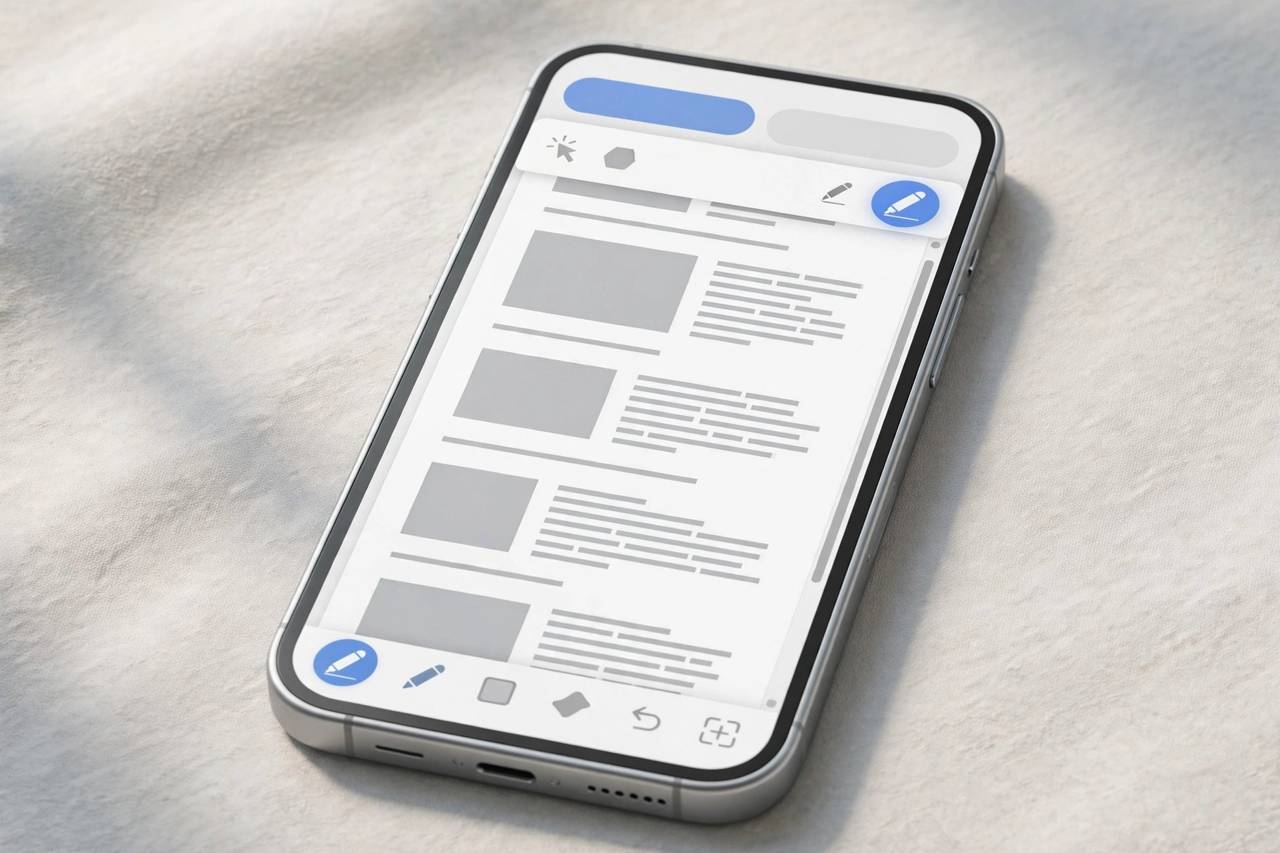
- Take a normal screenshot: press Side button + Volume Up together.
- Tap the thumbnail preview in the bottom-left corner before it disappears.
- At the top, switch from the “Screen” tab to the “Full Page” tab.
- You will see the entire page rendered. Optionally mark it up, then tap Done → Save PDF to Files.
Two critical iPhone limitations: first, Full Page only appears in Safari and apps that support it (many third-party apps do not show the tab at all). Second, it saves as a PDF, not an image — to Files, not Photos. If you need a PNG/JPG, open the PDF in Files, screenshot the relevant portion, or convert it. This trips up everyone the first time. As a workaround for apps without Full Page support, take several overlapping screenshots and stitch them with a free app like Tailor — it is two extra minutes and works everywhere.
How to Take a Full-Page Screenshot on Mac (Safari)
- In Safari, enable the Develop menu if needed: Safari → Settings → Advanced → Show Develop menu.
- Right-click the page and choose Inspect Element (or press Cmd+Option+I).
- In the inspector, find the <html> element at the top of the elements tree, right-click it, and choose “Capture screenshot”.
- Safari saves a full-page PNG to your downloads.
Simpler alternative: press Cmd+Shift+5, choose “Capture Entire Screen,” then scroll — no, that does not stitch. For non-developers, the easiest Mac path is actually a browser extension or just using the iPhone method and AirDropping the PDF. The inspect-element trick is the built-in power-user route.
How to Take a Scrolling Screenshot on Windows
Windows has no built-in scrolling screenshot — Snipping Tool captures only what is visible. Your options:
- Microsoft Edge (built-in, easiest): press Ctrl+Shift+S, choose “Capture full page,” then annotate and save/copy. This is the best native option on Windows and most people do not know it exists.
- Chrome/Edge extensions: GoFullPage and similar extensions capture entire pages as PNG or PDF with one click. Fine for occasional use; check permissions before installing.
- ShareX (free, open-source): the power tool — scrolling capture plus annotation, auto-upload, and workflows. Overkill for most, perfect for documentation work.
- Firefox: right-click → “Take Screenshot” → “Save full page.” Built in, no extension needed.
When Built-In Tools Fail: Stitching Apps and Manual Methods
Some apps actively block scrolling capture (banking apps, DRM video, some messaging apps). When that happens:
- Manual stitching: take overlapping screenshots and combine them in any photo editor, or use a dedicated stitching app (Tailor on iOS, LongShot on Android).
- Screen recording: record a slow scroll through the content instead. Less elegant, but it captures everything including blocked screenshots in some cases.
- Desktop fallback: open the same content in a desktop browser and use the Edge/Firefox full-page capture.
If you are constantly digging through Android settings for features like this, my guide on how to clear cache on Android covers another buried-but-useful corner of Android settings. And for general Android housekeeping, how to delete apps on Android walks through freeing space when those screenshot folders get out of hand.

Editing and Sharing Long Screenshots
A ten-thousand-pixel-tall image needs a little handling before you send it:
- Annotate before sharing: circle the relevant part. A full-page screenshot without annotation forces the recipient to hunt — markup tools on both iPhone (the thumbnail editor) and Android (the screenshot toolbar’s edit button) take ten seconds.
- Watch the file size: long PNGs can run several megabytes. Messaging apps compress them aggressively, which can make text unreadable — for documentation, share via email, cloud link, or as a PDF instead.
- Crop ruthlessly: capture the whole page, then crop to the relevant section before sending. Nobody needs the header, footer, and cookie banner.
- Convert iPhone PDFs: if you need an image from an iPhone Full Page PDF, open it in Files, take a screenshot of the zoomed portion, or use a free PDF-to-image converter. For recurring needs, a Shortcuts automation can convert automatically.
Scrolling Screenshots for Work and Documentation
If you capture screens for a living — bug reports, documentation, tutorials — a few habits pay off:
- Capture at a consistent width: screenshots taken at different zoom levels stitch and compare poorly. Pick a browser width and stick with it for a documentation set.
- Hide personal UI first: bookmarks bar, extensions, and notification popups all end up in full-page captures. A clean browser profile dedicated to documentation saves redaction work later.
- Name files immediately: Screenshot_20261014_0152.png tells you nothing in a month. Rename on capture: checkout-flow-error-state.png.
- Prefer desktop capture for docs: Edge’s full-page capture or ShareX on Windows produces cleaner, higher-resolution results than any phone method — use the phone for quick shares, the desktop for anything permanent.
Scrolling Screenshots on Tablets and Chromebooks
- iPad: identical to iPhone — screenshot, tap thumbnail, Full Page tab in Safari, saves as PDF to Files. The larger screen means fewer apps support it well, but Safari works perfectly.
- Android tablets (Samsung Tab, Pixel Tablet): same scroll-capture toolbar as their phone counterparts. Samsung’s tablet implementation is just as good.
- Chromebook: press Ctrl + Show Windows key for the screenshot tool — it captures visible areas only, no scrolling. For full pages, use a Chrome extension like GoFullPage, which works fine in ChromeOS.
Frequently Asked Questions (FAQ)
Why doesn’t my phone have a scrolling screenshot option?
Three possibilities: your Android version or brand skin does not include it (older or heavily customized versions), the current app does not support it (banking and DRM apps often block it), or you dismissed the preview toolbar too fast. Update the OS, try it in Chrome/Safari, and watch for the toolbar immediately after the screenshot.
Can I take a scrolling screenshot of a chat conversation?
On Samsung and most Android brands, yes — the scroll capture works in messaging apps. On iPhone, no: Full Page only works in Safari and supporting apps, not in Messages or WhatsApp. Use a stitching app like Tailor, or take multiple screenshots.
Do scrolling screenshots save as images or PDFs?
Android saves them as images (PNG/JPG) to your screenshots folder. iPhone saves Full Page captures as PDFs to Files. Windows Edge saves as image or lets you copy to clipboard. Convert between formats with any free online tool or your OS’s built-in preview/print-to-PDF.
Why is my scrolling screenshot blurry or misaligned?
Usually caused by animations, sticky headers, or lazy-loading images shifting the layout mid-capture. Fixes: wait for the page to fully load first, disable auto-playing content, and on Samsung tap the scroll button steadily rather than rapidly.
Is there a scrolling screenshot shortcut on iPhone?
Not a direct one. The fastest path is screenshot → tap thumbnail → Full Page tab. You can build a Shortcuts automation that opens the screenshot editor, but it cannot bypass the PDF-only limitation — that is baked into iOS.
Can websites detect or block scrolling screenshots?
Websites cannot detect screenshots at all. Apps can block them (FLAG_SECURE on Android shows a black screen; some iOS apps do the same). There is no legitimate way around app-level blocking — it is a security feature, particularly in banking apps, and attempting to circumvent it is not worth the risk.