How to Organize Apps on Your Phone: A Method That Actually Sticks

If you have ever wondered how to organize apps on your phone, you are not alone. The average smartphone owner has somewhere around eighty apps installed, and most of us actually use a fraction of them. The rest sit there like clutter in a junk drawer, pushing the apps we need further from our thumbs and making our home screens look like a crime scene. I have spent years testing both iPhone and Android phones, and I can tell you that app organization is not a one-time weekend project. It is a small system that keeps working after you set it up, and this guide will show you exactly how to build it.
Here is the part nobody tells you: the reason your phone keeps getting messy is not laziness. Every app is designed to stay installed and stay visible. Shopping apps send push notifications. Games pop up widgets. Banks and travel apps install themselves deep in your app library where you forget about them. A one-time cleanup never survives because the clutter comes back by design. What you need is a repeatable method with three parts: a usage audit that removes the dead weight, a tier system that puts the right apps within reach, and a monthly reset that takes ten minutes.
The Usage Audit: How to Organize Apps on Your Phone by Frequency
Before you move a single icon, figure out what you actually use. Open your phone’s screen-time or digital-wellbeing settings and look at the last thirty days. Most phones will show you app usage ranked by time spent. I do this with every phone I review, and the pattern is always the same: five to ten apps do ninety percent of the work. Your messaging app, your browser, your maps, your audio apps, maybe your banking app. Everything else is occasional or dead.
Now sort your apps into three tiers. Tier one is daily drivers: the apps you open every single day. Tier two is weekly tools: apps you need regularly but not daily, like your airline app, your grocery list, your calendar. Tier three is rare but necessary: your insurance app, the one you need when traveling, the tool for that one specific hobby. Tier three is where the mess lives, because those apps get installed for a single purpose and then abandoned on your home screen forever.
The audit has one hard rule: if you have not opened an app in three months and it is not tier three (truly needed occasionally), delete it. Be ruthless. You can always reinstall it later. This is the step that does most of the work, and it is also the one people skip. I once cleared thirty-two apps from a test phone in under ten minutes and the home screen instantly felt like a different device. If you are nervous about deleting something, move it to your app library or app drawer for a month first, and if you never go looking for it, deleting apps you never open becomes an easy decision.
Folder Names That Actually Work
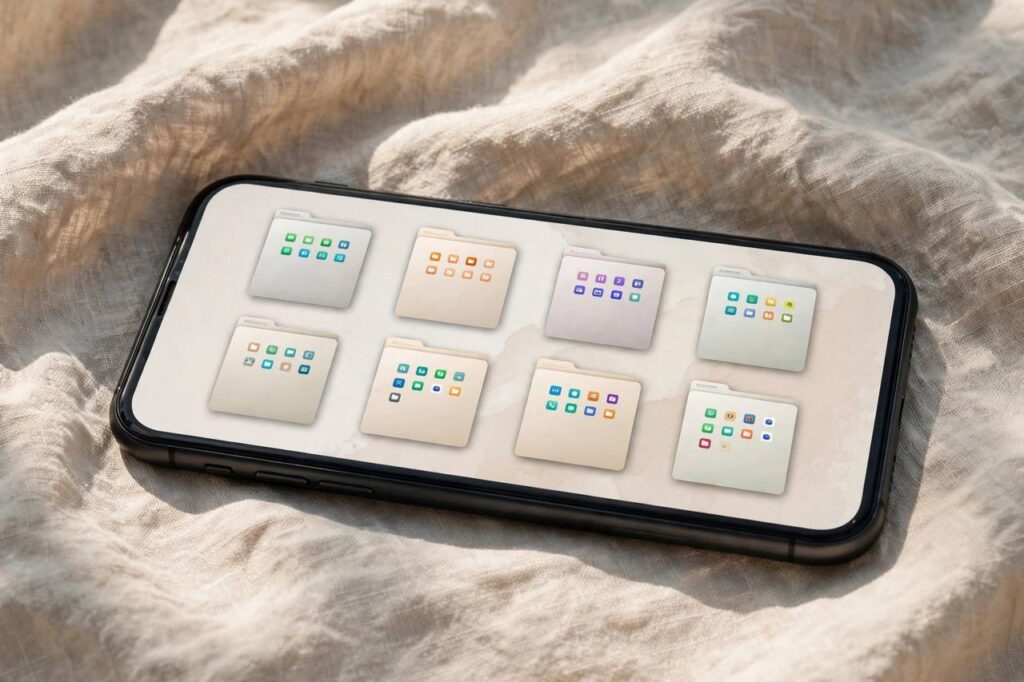
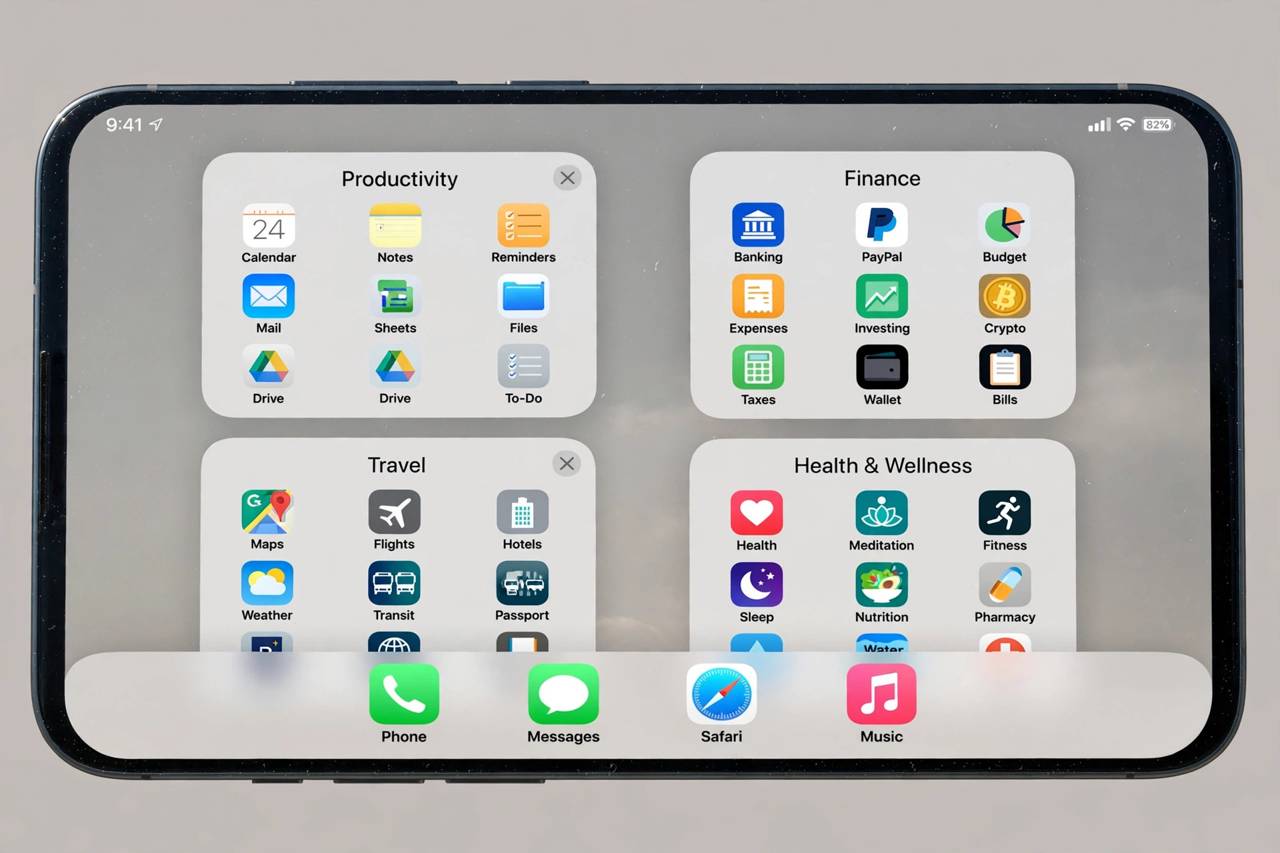
Once you have your tiers, build folders around what apps do, not what they are called. Purpose-based folders survive. Category-based folders collapse. A folder called “Productivity” sounds organized but means nothing, and within a month it contains twenty random apps. A folder called “Bills & Money” tells you exactly what goes inside: banking, budgeting, payment apps.
Here are folder names that work in practice: Money, Travel, Health, Shopping, Food, Photos, Social, Work, Utilities, Entertainment. Keep folder names to one or two words. Short names let you fit more folders in view and make everything scannable at a glance. If a folder has more than nine apps, split it. A folder with twenty apps is just a junk drawer with a label.
Put your tier-three apps in these folders and move the folders off the home screen onto a second page. They are still searchable and two taps away, but they are no longer competing for your attention. Search is your friend here: on both iPhone and Android, swiping down and typing the app name is faster than hunting through folders. Train yourself to search for tier-three apps and you will stop caring where they live.
The Home Screen Method: One Screen, Zero Chaos
Your home screen should fit on one page. That is the entire method. One screen forces prioritization in a way no other rule does. Put your tier-one apps in the dock or bottom row, where your thumb naturally rests. Add one widget if it genuinely saves you time, like your calendar’s next event or the weather. Remove the rest. Widgets are the fastest way to burn home-screen space on information you never look at.
Arrange tier-two folders on that single screen, grouped by purpose. If you use transit every morning, the travel folder goes where your thumb lands. Everything tier three lives on the second page, organized in purpose folders as described above. On iPhone, resist the urge to let everything spill across five screens; use the app library as overflow. On Android, use the app drawer the same way. The goal is a home screen you can read in one glance.
Turn off notification badges for everything except messaging and phone calls. Badges are clutter with anxiety attached. When I clean up a phone, I leave badges on for messages and calls and turn off the rest, and people are always shocked at how calm their screen feels afterward. This is also a good moment, if you just moved to a new device, to get it right from the start instead of carrying over years of clutter. Setting up a new iPhone with this system takes twenty minutes and saves you months of annoyance.
iPhone vs Android: What Changes
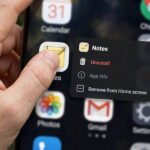
The method is the same on both platforms, but the tools differ. On iPhone, you have the App Library, which auto-sorts everything and lets you hide entire home-screen pages. I recommend keeping one curated home screen and letting the App Library hold everything else. Long-press an app and choose Remove from Home Screen rather than deleting it, and it stays findable without cluttering your view.
On Android, the app drawer is your overflow. Most launchers let you hide apps from the drawer too, which is useful for bloatware you cannot uninstall. Android also gives you more widget flexibility, which means more temptation. My rule stands on both platforms: one useful widget maximum on the main screen.
Both platforms also let you hide apps behind biometric locks now, which is worth doing for banking and password managers even though it is not strictly organization. A tidy phone should also be a secure phone.
The Ten-Minute Monthly Reset
Here is the part that makes the system permanent. Once a month, spend ten minutes doing three things. First, check your screen-time report and delete anything you have not opened in the last ninety days. Second, clear your downloads folder and camera roll of screenshots you no longer need. Third, review your notification badges and turn off any new ones that crept in.
Put a recurring calendar reminder for this. I do mine on the first Sunday of the month, right after I do my backups. Speaking of which, before any big cleanup it is smart to have a current backup in place, so your photos and data are safe no matter what you delete. Back up your iPhone or back up your Android phone first, and then you can delete with complete confidence.

Mistakes That Undo Your App Organization
Most people who try to organize their phones make the same handful of mistakes, and each one guarantees the mess comes back. The first is over-organizing: creating fifteen folders with clever names and a color-coded system so elaborate it needs maintenance of its own. Complexity is the enemy. If your system needs a manual, you will abandon it. Three tiers, purpose-based folders, one home screen. That is the whole system.
The second mistake is organizing once and declaring victory. A single cleanup feels great for about three weeks, and then new apps arrive, badges creep back, and the home screen fills up again. Organization is not an event. It is the monthly ten-minute reset. Put it on your calendar or it will not happen.
The third mistake is keeping apps “just in case.” The language-learning app from two years ago. The game you might play again someday. The three different photo editors. “Just in case” apps are clutter with a story. If you have not opened it in three months, delete it. Reinstalling takes ninety seconds if the case ever actually arrives.
The fourth mistake is ignoring notifications. You can have the tidiest home screen in the world, and if forty apps are allowed to badge, buzz, and banner you all day, your phone still feels chaotic. Notification hygiene is organization. During your monthly reset, audit which apps can interrupt you, not just which apps are installed. Most people find they can revoke notification permission from two-thirds of their apps without missing anything.
The final mistake is letting someone else’s system override yours. Your partner’s immaculate minimalism or a YouTuber’s elaborate setup might not fit how you actually use your phone. The three-tier frequency system works because it is built around your behavior, not someone else’s aesthetic. Adapt the details freely. Keep the principles.
Frequently Asked Questions (FAQ)
How many apps should I have on my home screen?
As few as you can while keeping your daily drivers reachable. Most people do well with eight to twelve apps and folders on a single home-screen page. If you need a second page, that is fine, but treat a third page as a sign that the audit needs repeating.
Should I organize apps alphabetically?
Alphabetical order looks tidy but ignores how you actually use your phone. Frequency-based organization puts your most-used apps closest to your thumb, which saves time every day. Alphabetical folders are fine for tier-three overflow where you will search by name anyway.
Is it better to use folders or the app library?
Both. Purpose-based folders on your curated home screen for weekly tools, and the app library or drawer as searchable overflow for everything else. Folders are for browsing, the library is for searching. They do different jobs.
Will deleting apps delete my data?
Usually the app’s local data goes with it, but anything synced to your account (Google, Apple, the app’s own cloud service) stays. On iPhone, the Offload option removes the app but keeps its documents. When in doubt, back up first and check whether the app syncs to an account before deleting.
How do I keep my phone organized long term?
The monthly ten-minute reset is the whole answer. No system survives without maintenance, because new apps keep arriving. The reset deletes the dead weight, checks your folders, and silences new badge clutter before it becomes a problem.
The Bottom Line
Learning how to organize apps on your phone is really about building a small habit, not doing a big purge. Audit by frequency, group by purpose, keep one clean home screen, and run the ten-minute reset once a month. Do that, and your phone stops being a junk drawer and starts being the tool it was meant to be.