How to Set Up Parental Controls on iPhone: Step by Step


Handing a kid an iPhone feels like handing them the keys to the entire internet — because it is. The good news is that Apple built genuinely good parental controls into iOS, and they are free, and they do not require any third-party app subscription. The bad news is that they are scattered across about four different settings screens with names that do not obviously say “parental controls.” I have set these up for friends, family, and my own household testing, so here is how to set up parental controls on iPhone the complete way: Screen Time, content restrictions, purchase controls, and the remote management setup that lets you control it all from your own phone.
One framing note before we start, because it matters: parental controls are a tool, not a parenting strategy. They are excellent at blocking the obvious stuff — explicit content, surprise app purchases, 2 AM YouTube binges — and they are terrible at replacing conversations about how the internet works. The families I have seen do this well use the tech as a backstop while doing the harder work of talking to their kids. The tech is the easy part. This guide covers the easy part thoroughly so you can spend your energy on the hard part.
How to Set Up Parental Controls on iPhone: The Foundation
Everything runs through Screen Time. On the child’s iPhone, go to Settings > Screen Time and turn it on. If this is your child’s device, choose “This is My Child’s iPhone” when prompted — this unlocks the parental control options. Then set a Screen Time passcode (Settings > Screen Time > Lock Screen Time Settings) — a four-digit code different from the phone’s unlock code, known only to you. Without this passcode, every restriction below is decorative, because the kid can simply turn them off.
Write that passcode down somewhere that is not on the phone. I am serious. I have watched parents lock themselves out of their own parental controls, and Apple’s recovery process is deliberately painful — that is the point, but it is no fun when you are the one locked out. A password manager or a note in a genuinely safe place. Do it now, thank yourself later.
Next, decide on your management model. Option A: manage on the child’s device directly — you set everything up on their phone with your passcode. Simple, works fine, but changes require physical access to their phone. Option B: Family Sharing remote management — you create or invite the child’s Apple ID into your Family Sharing group, and then you can manage their Screen Time from your iPhone under Settings > Screen Time > [child’s name]. This is the setup I recommend for most families, because approving an app request from your couch beats confiscating a phone to change a setting. We will cover Family Sharing setup in detail below.
Content Restrictions: What They Can See and Access
Go to Settings > Screen Time > Content & Privacy Restrictions, turn the toggle on, and enter your passcode. This is mission control. Here is what to configure:
App Store age ratings: Under Content Restrictions > Apps, set the maximum app age rating (4+, 9+, 12+, 17+). This prevents installing or opening apps above the rating — the App Store simply will not serve them. Set this according to your child’s age, not their persuasiveness.
Web content: Under Content Restrictions > Web Content, choose “Limit Adult Websites” — Safari will block adult sites automatically and you can add specific sites to always allow or always block. For younger kids, “Allowed Websites Only” creates a whitelist: Safari can only visit sites you approve. It is restrictive, and for a seven-year-old, restrictive is correct.
Media ratings: Set maximum ratings for movies, TV shows, and books under their respective Content Restrictions entries. This applies to the Apple TV app, Apple Books, and anywhere else iOS enforces ratings.
Explicit content in music and podcasts: Toggle off explicit music, podcasts, and news under Content Restrictions. Apple Music and Podcasts will filter explicit-labeled content. It is not perfect — labeling depends on publishers — but it catches the vast majority.
Siri and search: Under Content Restrictions, you can restrict Siri web search content and explicit language. Kids use Siri as a search engine; treat it like one.
Game Center: Restrict multiplayer games, friend requests, and screen recording if you want. Multiplayer gaming is where kids encounter strangers, so this section deserves a real conversation in your household, not just a toggle.
Time Limits: Downtime, App Limits, and Communication
Content restrictions control what. Time controls handle when and how much — and honestly, for many families, the time controls matter more day-to-day.
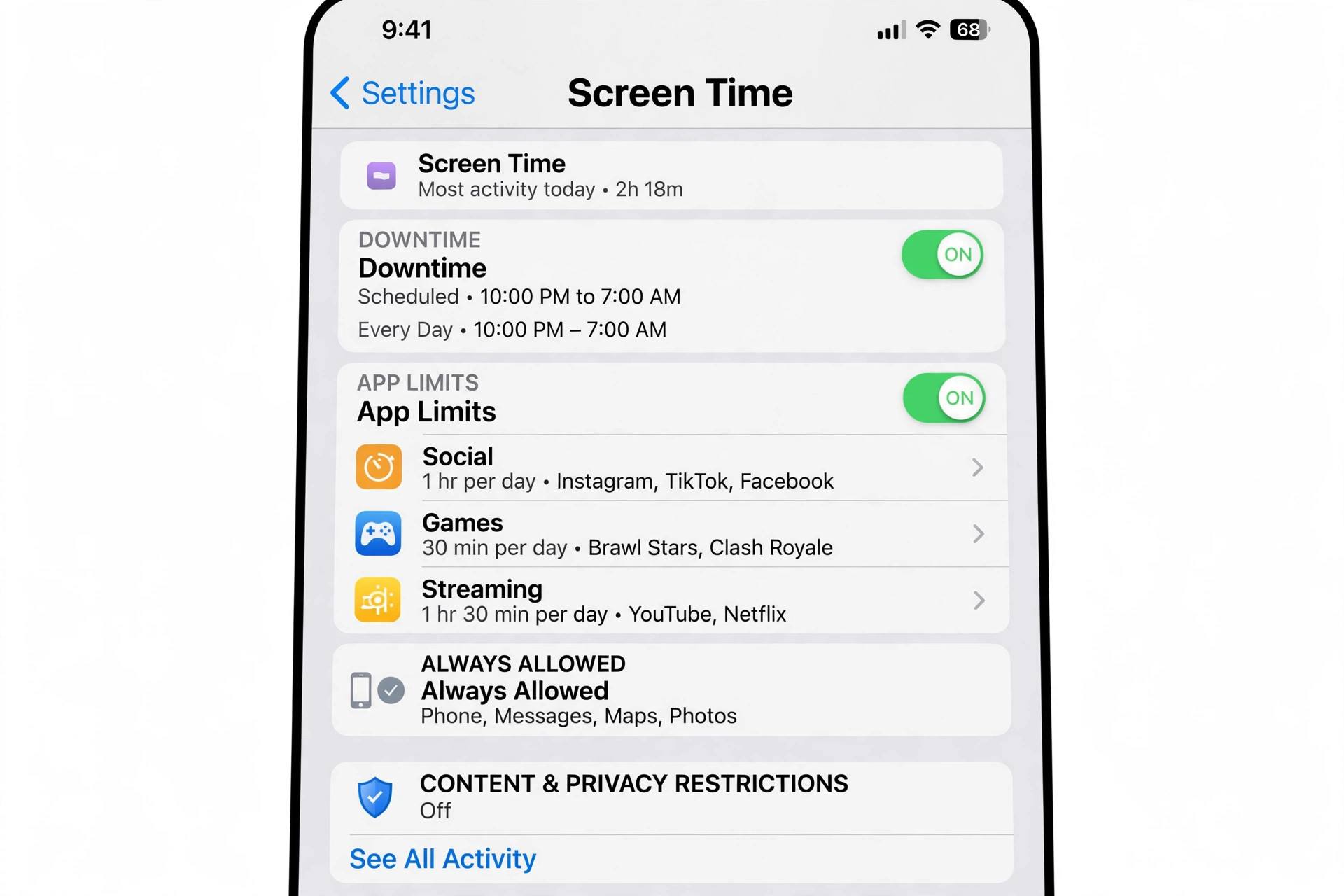
Downtime (Screen Time > Downtime) schedules hours when only phone calls and apps you specifically allow are available. The classic setup: 9 PM to 7 AM on school nights. During downtime, everything else shows a “Time Limit” screen. Kids can request more time, which pings you for approval — a feature that doubles as a conversation starter about why they need the exception.
App Limits (Screen Time > App Limits) cap daily usage by category or specific app: two hours of social media, one hour of games, whatever fits your rules. When the limit hits, the app locks for the day. Pro tip: set limits slightly below what you actually consider acceptable, because kids will negotiate, and it is easier to grant extra time than to take it back.
Communication Limits and Safety (Screen Time > Communication Limits / Communication Safety) control who the child can contact during allowed hours and downtime, and enable sensitive-content warnings in Messages. For younger kids, restricting contacts to known people during downtime is one of the highest-value settings on this entire list.
A reality check on all of this: determined teenagers will find workarounds — a friend’s unrestricted device, the school computer, a web proxy. Time limits reduce exposure and create friction, which is genuinely valuable, but they are not a hermetic seal. Layer the tech with the conversations. The goal is raising a kid who makes good choices when the limits are not there, because someday they will not be.
Purchase Controls: Stopping Surprise Charges
This section has saved families real money. Under Screen Time > Content & Privacy Restrictions > iTunes & App Store Purchases, set Installing Apps to “Ask” — every app install or purchase requires your approval. Set In-App Purchases to “Don’t Allow” unless you have a specific reason otherwise. In-app purchases are the number-one source of shocking phone bills, and “Don’t Allow” is the correct default for kids.
Pair this with Ask to Buy in Family Sharing (more below): when your child tries to buy or download anything — including free apps — you get a notification on your device to approve or decline. It is the single best purchase control Apple offers, and it works for everything, not just paid items. Free games with aggressive in-app purchase designs are exactly what this is for.
Also worth doing while you are in financial-defense mode: make sure you know how to back up an iPhone before you start changing settings wholesale — and if the app situation has gotten out of hand already, how to delete apps on iPhone covers the cleanup. A fresh, intentional app library is easier to manage than an inherited mess.
Family Sharing: Remote Management From Your Phone
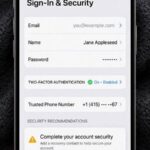
This is the setup that makes everything above manageable long-term. On your iPhone: Settings > [your name] > Family Sharing > Add Member > Create Child Account (for under-13s) or Invite (for teens with existing Apple IDs). Once the child’s account is in your family group, their Screen Time appears under your Settings > Screen Time — tap their name and you can adjust every restriction remotely.
Enable Ask to Buy for the child (in their member settings under Family Sharing). Now every download request routes to you. You will approve a lot of free games in the first week and then it settles down — the novelty wears off, which is itself useful data about what they actually wanted versus what was impulse.
Location sharing via Find My is part of the same family setup, and it is worth an honest family discussion rather than a unilateral toggle. Used transparently — “we share locations with each other for safety” — it is a reasonable family safety tool. Used secretly, it is a trust problem waiting to explode. I recommend the transparent version, and I recommend parents share their location too. Reciprocity matters to teenagers enormously.
One administrative note: the family organizer’s payment method is shared for Ask-to-Buy purchases, so keep an eye on it. And if you are setting up Apple IDs for kids, you may need to change your Apple ID email at some point during account housekeeping — it is a common step when untangling family accounts.
What Parental Controls Can’t Do (Honest Limitations)
Let us be straight about the gaps. Screen Time does not filter everything. Third-party browsers, apps with built-in browsers, and messaging apps each have their own content ecosystems that Apple’s restrictions touch unevenly. YouTube’s app, for instance, follows YouTube’s own Restricted Mode, not your iOS content settings — enable that separately inside the YouTube app.
Kids share devices and accounts. A restriction on one phone means nothing if your kid borrows a friend’s unrestricted phone for an hour. This is not a reason to skip the controls — friction still reduces exposure — but it is a reason not to treat the controls as a complete solution.
Passcodes get discovered. Shoulder-surfing is real. Change your Screen Time passcode periodically, enter it shielded, and never use the same code as the phone unlock. If you suspect the code is compromised, change it immediately — a known passcode means no controls.
Controls need maintenance. iOS updates occasionally reset or relocate settings. New apps your kid installs have their own settings. Review the Screen Time configuration every few months — put it on the calendar alongside the smoke detector batteries. Fifteen minutes, twice a year, keeps the whole system honest.

Frequently Asked Questions
Can my child bypass Screen Time restrictions?
Determined kids can find workarounds — using a friend’s device, web proxies, or discovering the passcode. Screen Time creates meaningful friction and blocks casual exposure, which covers the vast majority of situations. Protect the passcode, review settings periodically, and pair the tech with conversations about responsible use.
How do I approve app requests remotely?
Set up Family Sharing with Ask to Buy enabled for your child. Download and purchase requests then appear as notifications on your iPhone for approval or decline. You can also manage all their Screen Time settings remotely under your Settings > Screen Time > [child’s name].
What is the difference between Downtime and App Limits?
Downtime blocks nearly everything during scheduled hours (e.g., bedtime), allowing only calls and apps you whitelist. App Limits cap total daily usage of specific apps or categories regardless of time of day. Most families use both: App Limits for daytime boundaries, Downtime for nights.
Do parental controls work on apps like YouTube and TikTok?
Partially. iOS content restrictions apply to Apple’s own apps and the App Store reliably. Third-party apps follow their own internal controls — enable Restricted Mode inside YouTube, and use TikTok’s Family Pairing feature for TikTok-specific limits. Layer the app-level controls on top of the iOS-level ones.
Will my child know the restrictions are on?
Yes — and that is fine. Blocked apps show time-limit screens, restricted sites show block pages. I recommend telling kids upfront what is restricted and why, rather than letting them discover it. Transparency turns the controls from surveillance into agreed family rules, which teenagers accept far better.