How to Delete Google Search History on Any Device (2026 Guide)


Maybe you looked up a surprise gift and do not want it haunting your recommendations. Maybe you share a device with family. Or maybe you just like the idea of a clean slate. Whatever your reason, learning how to delete Google search history is straightforward once you know where Google actually keeps it — because it lives in two different places, and most guides only mention one. Your searches are stored in your Google Account’s Web & App Activity (synced across devices) and separately in each browser’s local history. Deleting one does not delete the other. Do not worry. I will walk you through both, patiently and step by step, plus how to set up auto-delete so you never have to do this manually again, and how to pause tracking entirely. By the end, your search history will be exactly as present — or as absent — as you want it. Let us take it one step at a time.
The Two Places Your Search History Lives
Before deleting anything, understand the split — it explains 90% of “I deleted it but it is still there” confusion:
- Your Google Account (Web & App Activity). If you are signed into Google, your searches are saved to your account at myactivity.google.com and follow you across every device. Deleting here removes them from Google’s servers and stops them appearing anywhere you are signed in.
- Your browser’s local history. Chrome, Safari, Firefox, and Edge each keep their own on-device record of visited pages. Deleting your Google Account activity does not clear this, and clearing the browser does not touch your account. For a truly clean slate, do both.
One more thing worth knowing: deleting history removes the record of your searches from your account and devices. It does not make you anonymous to Google going forward — that requires pausing activity tracking (covered below) or using private browsing. Related but separate: if voice searches worry you specifically, read up on voice recognition privacy concerns to understand what your assistant hears and keeps.

How to Delete Google Search History From Your Account
This is the important one — it wipes your searches from Google’s servers across all devices.
On a computer
- Go to myactivity.google.com and sign in if prompted.
- On the left, click Delete activity by (the trash icon).
- Choose a time range: Last hour, Last day, All time, or Custom range for specific dates.
- Make sure the Search product is included, then click Delete and confirm.
- To delete individual searches instead, use the search bar at the top of My Activity to find them, click the three dots on any entry, and choose Delete.
On iPhone or Android
- Open the Google app and tap your profile picture (top right).
- Tap Search history.
- Tap Delete, then choose Delete today, Delete custom range, or Delete all time.
- To remove a single search, tap the X next to it right in the list.
Alternatively, on mobile you can visit myactivity.google.com in your browser and follow the computer steps — the page works fine on phones.
How to Delete Google Search History From Your Browser
Now the local half. In Chrome on desktop: press Ctrl+H (Windows) or Cmd+Y (Mac) to open History, check the entries you want gone (or click “Clear browsing data” on the left for a time range), and delete. In Chrome on mobile: tap the three dots, then History, then Clear browsing data. In Safari: go to History in the menu bar and choose Clear History (Mac), or Settings, then Safari, then Clear History and Website Data (iPhone). Note that clearing “browsing data” can also wipe cookies, which signs you out of websites — if you want to stay logged in, uncheck Cookies before confirming. Android users doing broader cleanup should also see how to clear the cache on Android, since app-level caches hold their own copies of your activity.
Don’t Forget: YouTube, Maps, and Location History
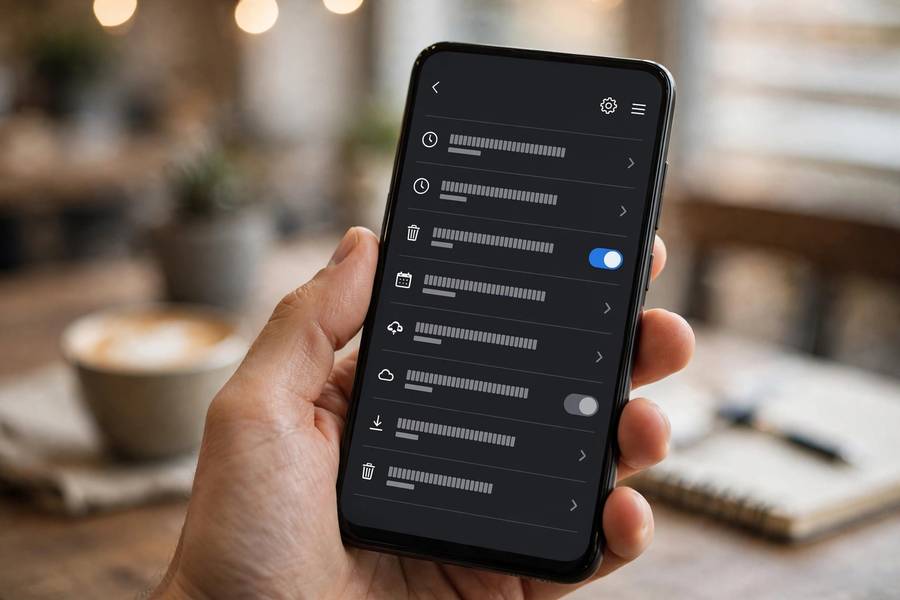
Search is not the only trail you leave. While you are in My Activity, take five more minutes to review the siblings of Web & App Activity:
- YouTube History. Every video you watch and search shapes your recommendations. Delete it from My Activity the same way (filter by YouTube), or set its own auto-delete. If your recommendations feel haunted by a topic you researched once, this is why.
- Location History (Timeline). If enabled, Google keeps a detailed map of everywhere you have been. This is the most sensitive data Google holds on most people. You can delete your location history by date range or entirely from the same Delete activity by menu — and I strongly recommend setting it to auto-delete every 3 months, or turning it off completely if you do not use Timeline features.
- Maps activity. Directions searches and place views live partly under Web & App Activity and partly in Maps-specific history. Clear both if you want a full reset.
- Ad personalization. Deleting history does not reset the ad profile Google built from it. Visit your Google Account’s ad settings to review the interests and demographics Google has inferred about you — you can remove individual entries or turn personalization off entirely.
Think of it as cleaning the whole house rather than one room: search history is the living room, but the bedrooms (location, YouTube) hold the more personal stuff.
Set Up Auto-Delete (Do It Once, Never Think About It Again)
Manual deletion is fine, but auto-delete is better — it is the “set it and forget it” version of privacy hygiene. Here is how:
- Go to myactivity.google.com, then click Activity controls (or in the Google app: profile picture, then Search history, then Controls).
- Under Web & App Activity, find Choose an auto-delete option.
- Pick 3 months, 18 months, or 36 months. Google will automatically and continuously delete activity older than your choice.
- Confirm. That is it — from now on, your history prunes itself.
I recommend 3 months for most people: long enough that your recommendations and personalization still work well, short enough that years of searches never accumulate. You can apply the same auto-delete setting to Location History and YouTube History from the same Activity controls page.
How to Pause Google Search Tracking Entirely
If you would rather Google did not save your searches at all going forward, pause Web & App Activity:
- Go to myactivity.google.com and open Activity controls.
- Under Web & App Activity, toggle it Off.
- Google will ask you to confirm — you can choose “Pause” (stops future saving, keeps existing history) and optionally check the box to also delete existing activity.
Be aware of the trade-off: pausing makes recommendations, autocomplete, and personalized results noticeably dumber, because Google can no longer learn from your behavior. Many people find the sweet spot is keeping tracking on with 3-month auto-delete — personalization works, but nothing lingers. And for truly sensitive one-off searches, an incognito/private window (which saves nothing locally) remains the simplest tool.
A Quick Note on Shared and Family Devices
If you share a device or a Google account with family members, history management gets trickier — everyone’s searches land in the same pool. The cleanest fix is separate user profiles: Chrome profiles on desktop, and separate Google accounts on mobile, keep each person’s history isolated. On a shared family tablet, consider leaving Web & App Activity paused entirely and using guest mode for personal searches. It avoids both the privacy awkwardness and the mystery of recommendations shaped by someone else’s curiosity. For households with kids, also check Google’s Family Link settings, which offer separate activity controls for supervised accounts — children get age-appropriate defaults while adults keep their own history untouched.
FAQ
Does deleting Google search history delete it from Google’s servers?
Deleting from My Activity removes the searches from your account and Google’s user-facing records, and Google states the data is deleted from its systems. Note the distinction Google itself draws: this is different from data Google may retain in anonymized or aggregated form for service operation. For practical privacy purposes — what is tied to your account, visible on your devices, and used for personalization — deletion does the job.
How do I delete Google search history on iPhone?
Open the Google app, tap your profile picture, tap Search history, tap Delete, and choose your range (today, custom range, or all time). For searches made in Safari rather than the Google app, also go to Settings, then Safari, then Clear History and Website Data. Doing both covers account-level and on-device history.
Can I recover deleted Google search history?
No — deletion from My Activity is permanent and cannot be undone, which is why Google asks you to confirm. If you think you might want records later (for example, to revisit useful searches), consider exporting your data first via Google Takeout before deleting. Once it is gone, it is gone.
Does incognito mode save my search history?
Incognito (private) mode saves nothing to your browser history or cookies on the device, and if you are not signed into Google, searches are not added to your account’s Web & App Activity either. However, your internet provider, employer, or school network can still see your traffic, and websites you visit can still track you. Incognito is local privacy, not invisibility.
Does deleting search history affect anything else in my Google account?
Only in the ways you would expect. Deleting Web & App Activity can make Google Assistant less helpful (it forgets your routines), YouTube recommendations less accurate, and Maps suggestions less personalized — because all of those features learn from the same activity pool. Your emails, files, photos, and contacts are completely untouched. If you rely heavily on Assistant routines, consider auto-delete on a longer window (18 or 36 months) rather than nuking everything.
Why do deleted searches sometimes still show as suggestions?
Usually because only one of the two storage locations was cleared. If you deleted from My Activity but Chrome’s local history still has the entries, the address bar keeps suggesting them — clear the browser history too. Also check whether you are signed into multiple Google accounts; activity may live under a different account than the one you cleaned.