How to Make Your Phone Battery Last Longer (20 Proven Tips)

It’s 4 PM, your phone is at 12%, and you still have hours to go. We’ve all lived this particular modern anxiety. The good news: learning how to make your phone battery last longer isn’t about buying a new phone or carrying a power bank everywhere — it’s mostly about settings and habits. Small changes, big difference.
I’ve organized these tips from biggest impact to smallest, so start at the top and work down until your battery anxiety fades. Most of these take under a minute each. Let’s get your phone through the whole day.
First: Understand What’s Draining Your Battery
Before changing anything, look at the actual data. Both iPhone and Android show exactly which apps and activities use your battery:
- iPhone: Settings → Battery. You’ll see battery usage by app over the last 24 hours or 10 days, plus insights like “background activity.”
- Android: Settings → Battery → Battery usage. Same idea — per-app breakdown.
Check this first because the culprit is often surprising. It’s rarely the app you expect — it’s usually some app running wild in the background that you forgot about. Once you know your personal top drainers, the tips below become targeted instead of generic.
How to Make Your Phone Battery Last Longer: The Biggest Wins
1. Turn down screen brightness (huge impact)
Your display is almost always the #1 battery consumer. Drop brightness to the lowest comfortable level, or enable auto-brightness/adaptive brightness so the phone adjusts intelligently. This single change can add hours. Also: shorten your screen timeout to 30 seconds — every extra minute of idle screen-on time is pure waste.
2. Enable battery saver mode
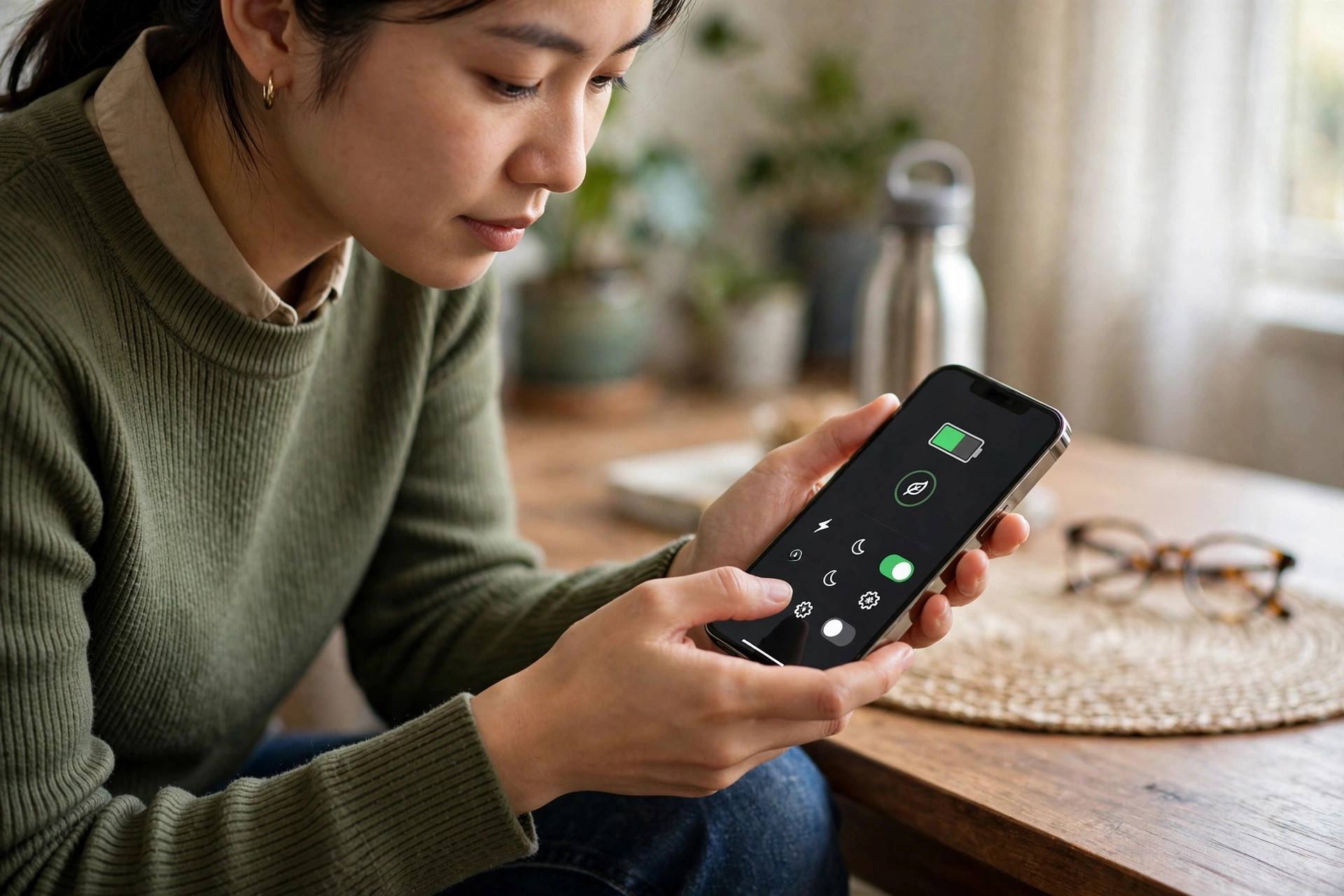
Both platforms have it (iPhone: Low Power Mode; Android: Battery Saver). It throttles background activity, reduces visual effects, and limits performance slightly — usually imperceptibly. Turn it on manually when you’re running low, or set it to activate automatically at 20%.
3. Restrict background app activity
Apps refreshing in the background are silent killers. iPhone: Settings → General → Background App Refresh — turn it off entirely or per-app. Android: Battery settings let you restrict background usage per app. Be aggressive here; most apps don’t need background refresh.
4. Tame location services
GPS is power-hungry. Set location access to “While Using” instead of “Always” for every app that doesn’t genuinely need constant tracking. Very few apps need “Always” — maps while navigating, basically. Audit this list twice a year; apps love to quietly escalate their permissions.
5. Manage notifications
Every notification wakes your screen, buzzes the motor, and lights up radios. Turn off notifications for apps that don’t need them — do you really need a buzz every time a shopping app has a sale? Fewer interruptions, less drain, better focus. Triple win.
Connectivity: Radios You Don’t Need Right Now
- Wi-Fi vs. cellular: Use Wi-Fi when available — cellular radios (especially 5G) use significantly more power than Wi-Fi. If you’re in a poor-signal area, your phone burns extra power straining to hold the connection; airplane mode in dead zones saves enormous battery.
- Bluetooth: Turn it off when you’re not using headphones or accessories. Modern Bluetooth LE is efficient, but “off” still beats “idle.”
- 5G: If your phone lets you prefer LTE/4G, consider it — 5G is faster but thirstier, and for most daily tasks you won’t notice the difference.
- Hotspot: Phone-as-hotspot drains battery fast. Use it when needed, turn it off the moment you’re done.
App Habits That Extend Battery Life
- Delete apps you don’t use. Unused apps still update, still check in, still drain. A quarterly app purge is good hygiene for battery, storage, and sanity. Here’s how to delete apps on iPhone if you need a refresher.
- Use dark mode on OLED screens. Most modern phones have OLED displays where black pixels are literally off. Dark mode saves real power on these screens (less so on older LCD screens, but it still looks great).
- Prefer apps over mobile websites… or vice versa. Generally, well-made native apps are more efficient than browser tabs doing the same job. But a bloated app is worse than a lean website — check your battery stats and let data decide.
- Download instead of streaming. Download music, podcasts, and videos on Wi-Fi beforehand rather than streaming on cellular. Local playback uses a fraction of the power.
- Close the worst offenders. You don’t need to obsessively close every app (the OS manages memory efficiently), but if your battery stats show one app eating 30% in the background, force-close it and consider restricting or replacing it.
Charging Habits for Long-Term Battery Health
Making your battery last longer TODAY is one thing; keeping it healthy for YEARS is another. Lithium-ion batteries degrade with age and use, but you can slow it significantly:
- Avoid the extremes. Batteries are happiest between roughly 20% and 80% charge. Constantly charging to 100% and draining to 0% accelerates wear. Use your phone’s optimized charging feature (iPhone: Optimized Battery Charging; Android: Adaptive Charging) — it learns your routine and finishes the last 20% just before you wake up.
- Keep it cool. Heat is the #1 enemy of battery longevity. Don’t leave your phone in a hot car, don’t charge under a pillow, and remove thick cases during fast charging if the phone gets warm. If your phone feels hot, let it cool before charging.
- Use decent chargers. Cheap no-name chargers can deliver dirty power. You don’t need the manufacturer’s brand, but stick with reputable certified chargers.
- Overnight charging is fine (mostly). Modern phones manage overnight charging intelligently with optimized charging enabled. It’s not the battery killer it was a decade ago — but the 20-80% guideline still maximizes lifespan if you can manage it.
Check your battery’s health periodically: iPhone shows Maximum Capacity under Settings → Battery → Battery Health; Android varies by manufacturer. Below 80% capacity, you’ll notice real-world endurance suffering — that’s when a battery replacement (much cheaper than a new phone) makes sense.
When Your Phone Won’t Charge Properly
Sometimes the issue isn’t drain — it’s that charging itself isn’t working right. If your phone charges slowly, intermittently, or only at certain angles:
- Clean the charging port. Pocket lint compacts into charging ports over months, preventing full cable insertion. This is shockingly common and easy to fix — here’s how to clean your iPhone charging port safely (the technique works for any phone).
- Try a different cable and brick. Cables fail internally long before they look damaged. Test with a known-good set before assuming the phone is the problem.
- Check for software updates. Occasionally, charging behavior bugs get fixed in OS updates.
The 80/20 of Battery Life
If you do nothing else from this entire guide, do these five things — they deliver most of the benefit:
- Lower screen brightness and shorten screen timeout.
- Turn off Background App Refresh (or restrict background battery per app on Android).
- Set location to “While Using” for all non-essential apps.
- Use Wi-Fi instead of cellular whenever available.
- Enable battery saver / Low Power Mode when running low.
Five settings, five minutes, hours of extra battery. Your 4 PM self will thank your right-now self.
Battery Myths That Need to Die
- “You must fully drain before charging.” That was nickel-based batteries, decades ago. Lithium-ion prefers partial charges — the 20-80% guideline. Full discharges actually stress modern batteries.
- “Closing all apps saves tons of battery.” The OS freezes background apps efficiently; force-closing everything and reopening constantly uses MORE power. Only close misbehaving apps.
- “More megapixels/more RAM apps in background = fine.” Background activity is background activity — audit it regardless of what the apps do.
- “Third-party battery saver apps help.” They usually don’t — they run constantly themselves (ironic), show ads, and can’t do anything the built-in battery saver doesn’t do better. Uninstall them.
- “Wireless charging ruins batteries.” It’s slightly less efficient (more heat), but modern phones manage it fine. The convenience usually outweighs the marginal difference — just avoid cheap no-name pads that run hot.
- “Airplane mode overnight saves meaningful battery.” Modern phones sip almost nothing overnight on standby. The savings are trivial — but Do Not Disturb for your sleep is still a great idea.
What to Do When Nothing Helps
If you’ve applied everything here and your phone still dies by lunch, it’s probably not settings — it’s hardware:
- Check battery health. Below 80-85% maximum capacity, degradation becomes very noticeable. This is normal after 2-3 years of use.
- Consider a battery replacement. It’s dramatically cheaper than a new phone and restores original endurance. Manufacturer service or reputable repair shops both work — just avoid sketchy no-name batteries.
- Rule out a rogue app or OS bug. A factory reset (after backing up!) occasionally fixes mysterious drain caused by corrupted system processes. It’s the nuclear option, but it works.
- Evaluate the upgrade question honestly. If the battery is shot AND the phone is 4+ years old with no more OS updates, replacement might be the rational call. But a $70 battery swap that gives your phone two more years? That’s the smart money almost every time.
FAQ
How to make your phone battery last longer throughout the day?
The biggest wins: lower screen brightness, shorten screen timeout to 30 seconds, restrict background app refresh, set location services to “While Using,” and use Wi-Fi instead of cellular. Check Settings → Battery first to find your personal top drainers, then target those.
Does closing apps save battery?
Generally no — modern operating systems manage background apps efficiently, and reopening apps from scratch uses more power than resuming them. The exception: if your battery stats show a specific app consuming excessive background power, force-close it and restrict its background activity.
Is it bad to charge your phone overnight?
Not really, with modern phones — optimized/adaptive charging features prevent the battery from sitting at 100% all night. For maximum long-term battery health, keeping charge between 20-80% is ideal, but overnight charging with optimization enabled is perfectly fine for most people.
Why is my phone battery draining so fast all of a sudden?
Check Settings → Battery for the culprit — it’s often a recent app update misbehaving, a stuck process, or increased background activity. Try restarting the phone first (fixes more than you’d expect), then look for the top-draining app and restrict or update it. Poor cellular signal also causes sudden drain.
Does 5G drain battery faster than 4G?
Yes — 5G radios use more power than LTE, especially in areas with weak 5G signal where the phone works harder to maintain connection. If battery life matters more than maximum speed, setting your phone to prefer LTE/4G is a legitimate trade-off most people won’t notice day-to-day.